

-1.jpg)
.jpg)
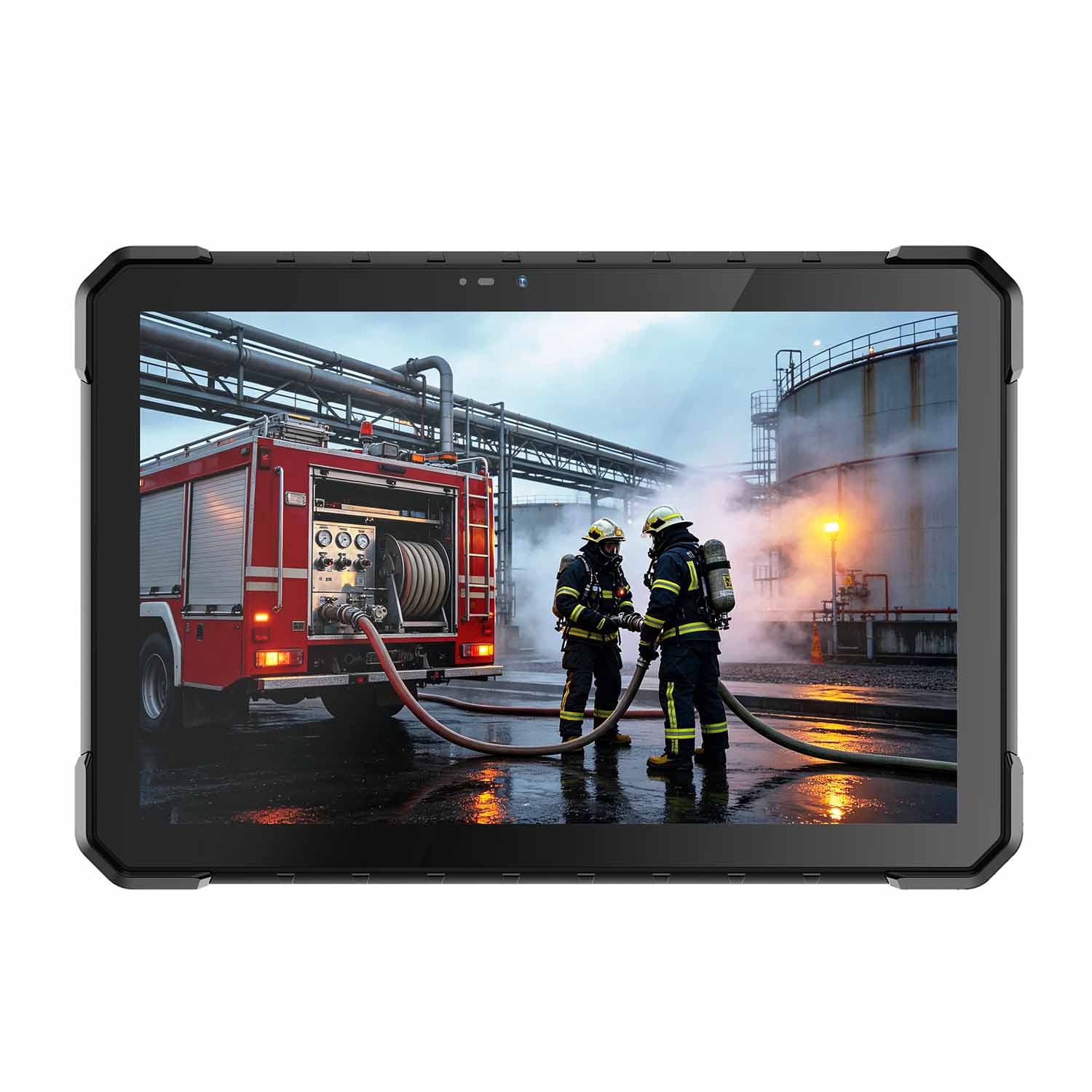
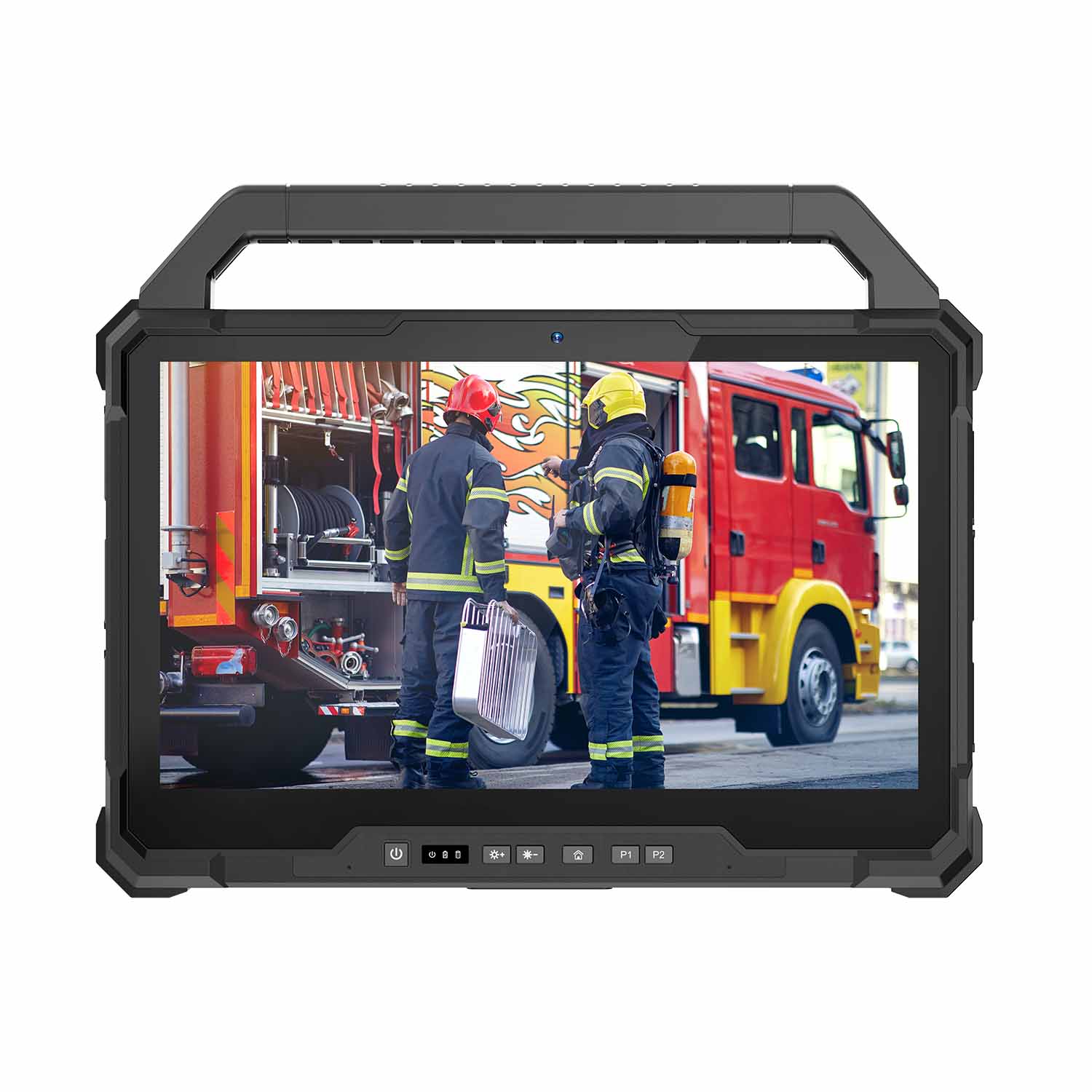
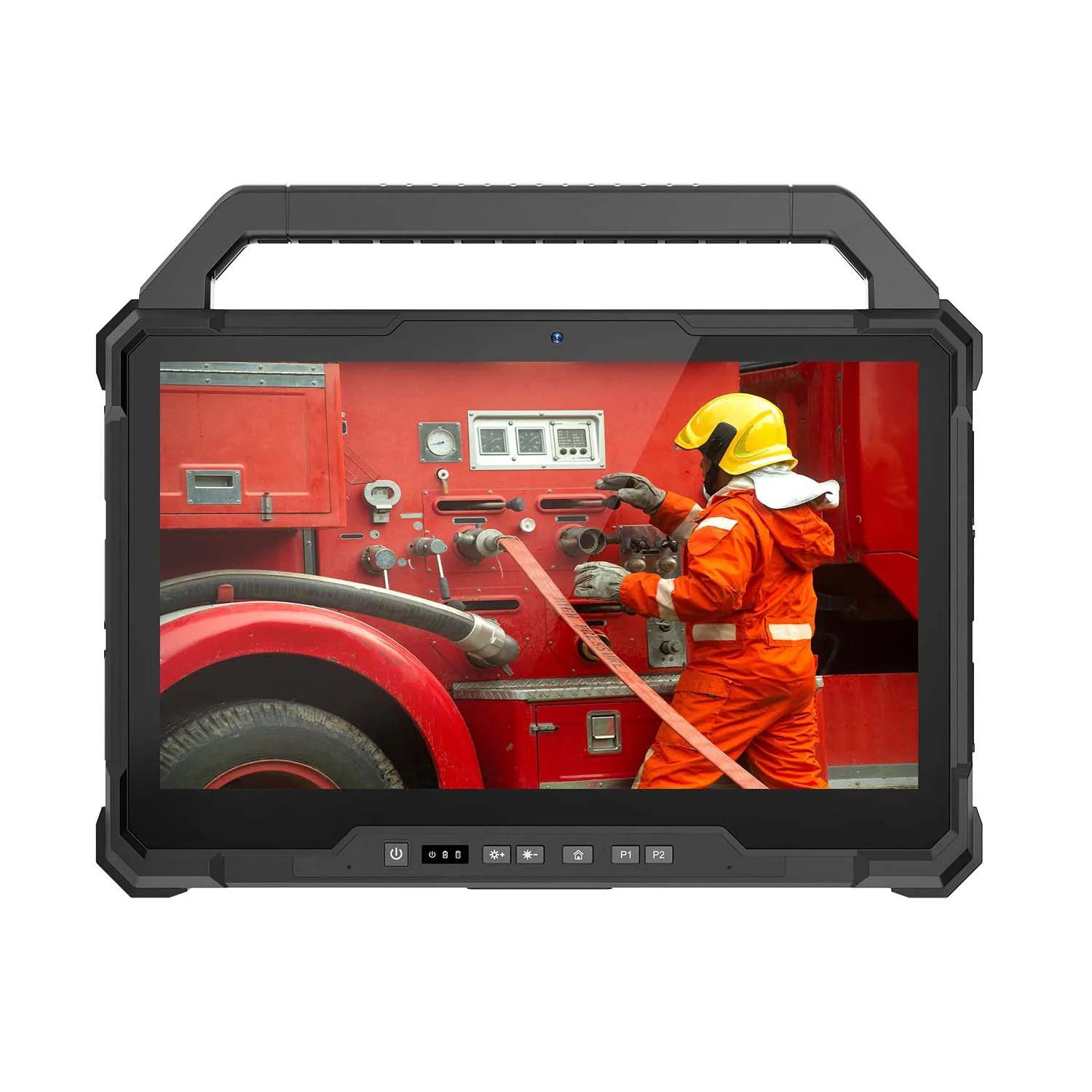
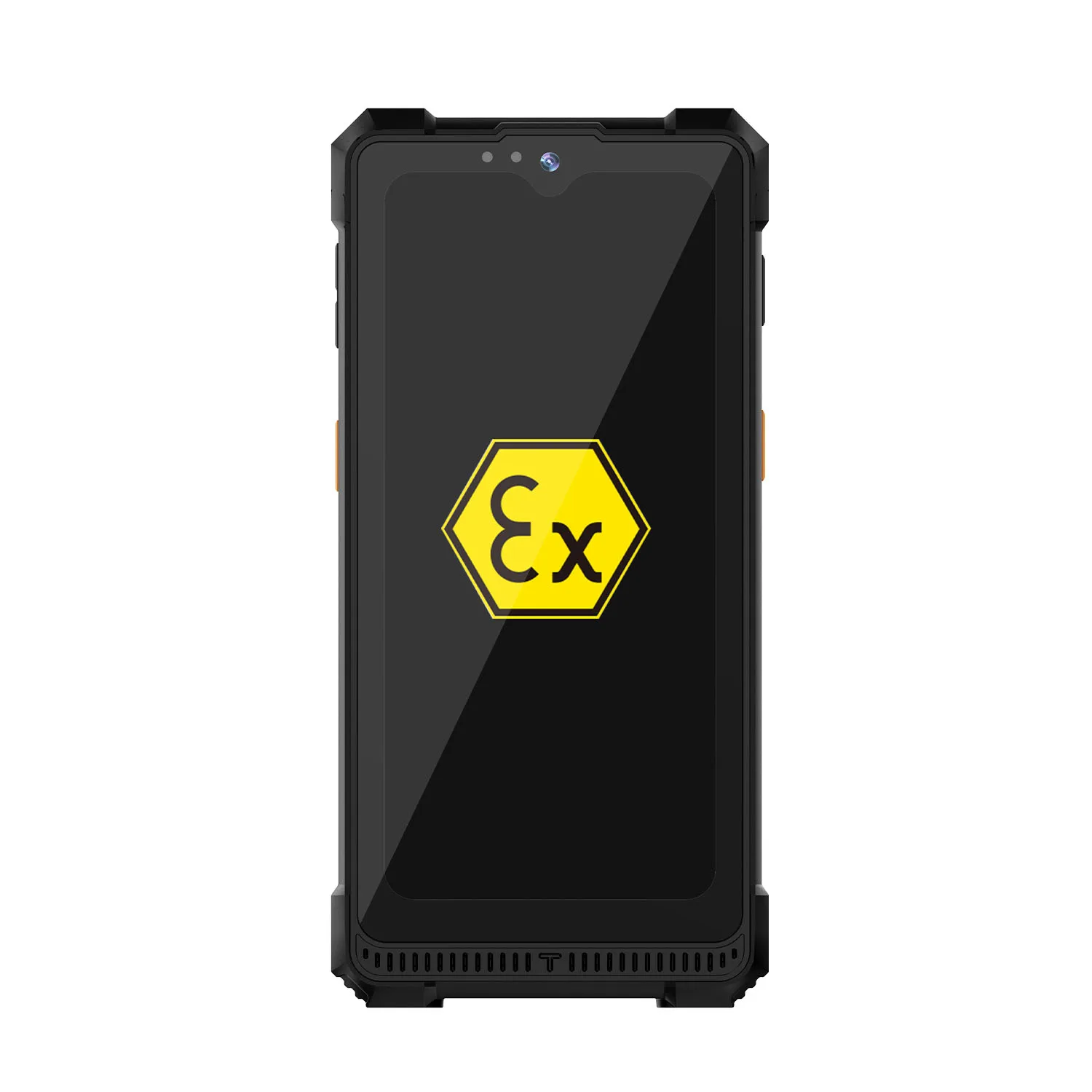
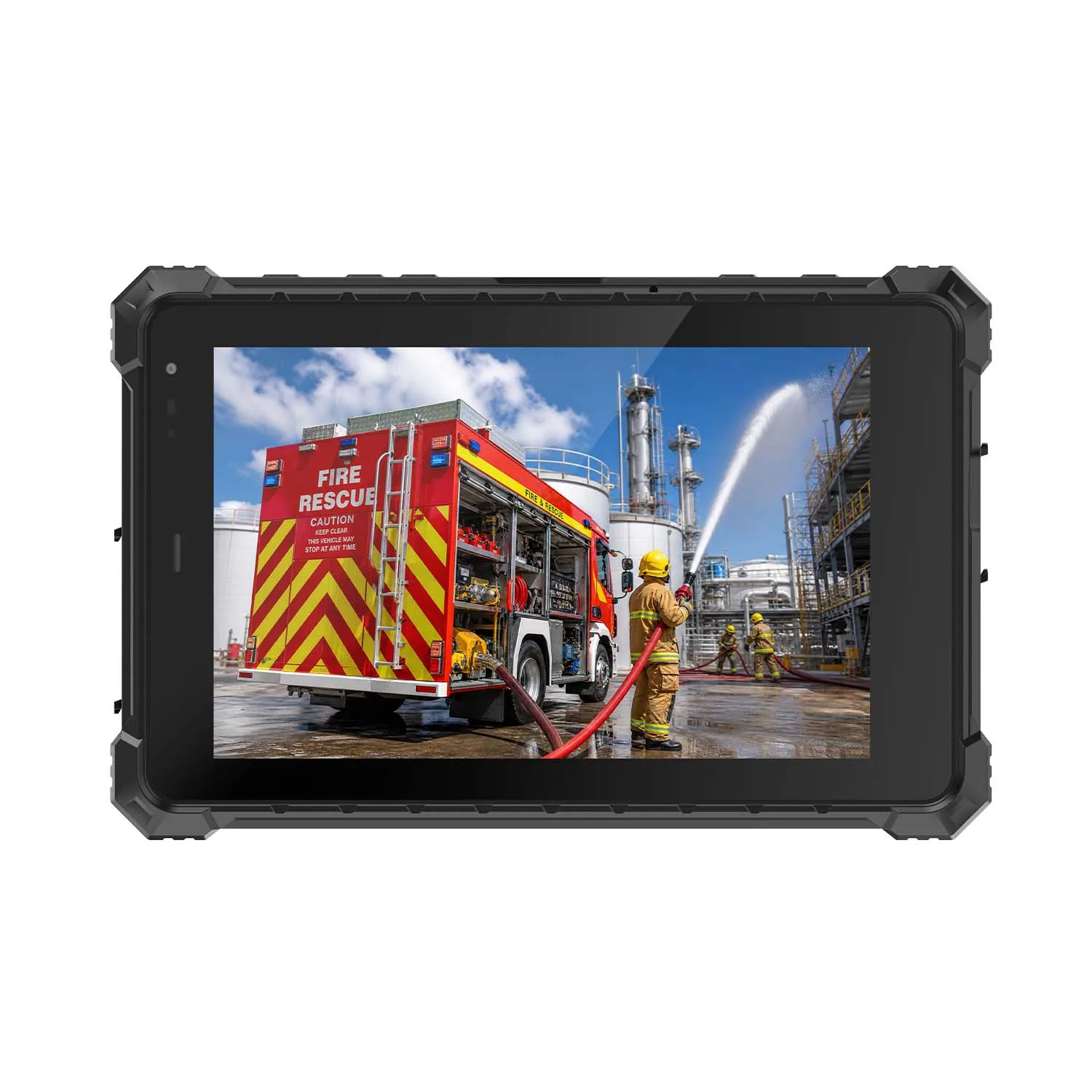





Field Service Tablets
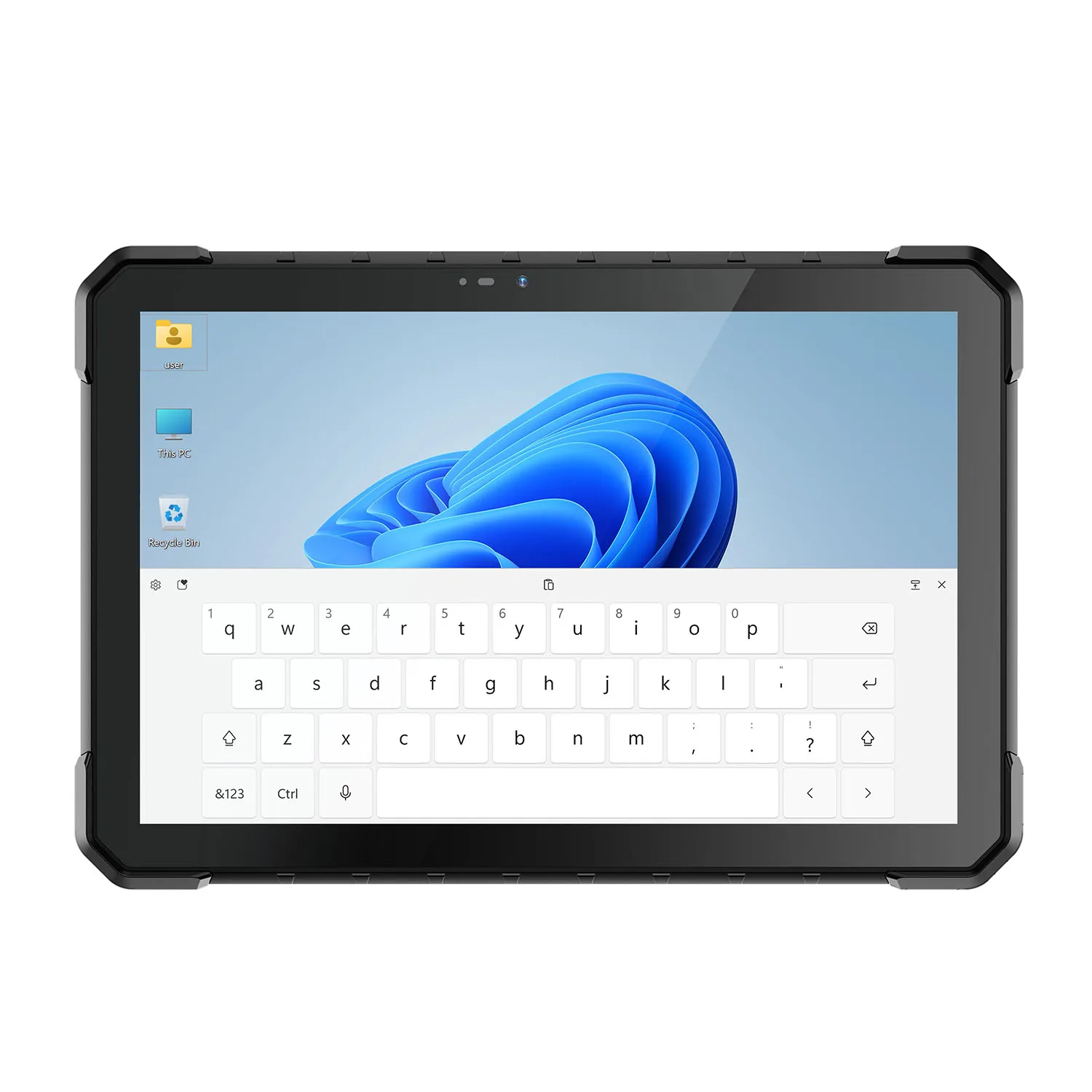
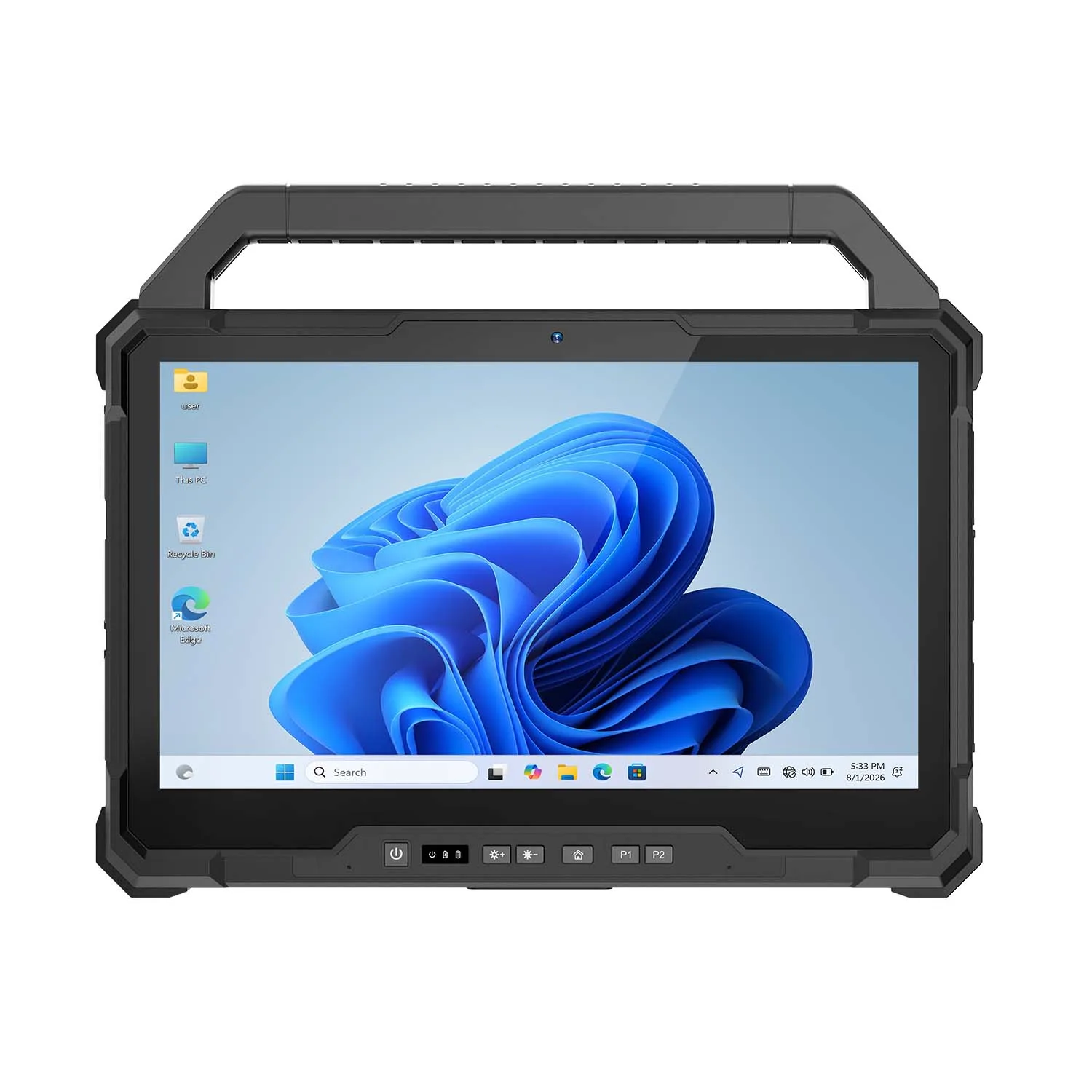
Rugged Field Service Tablets for Technicians on Site
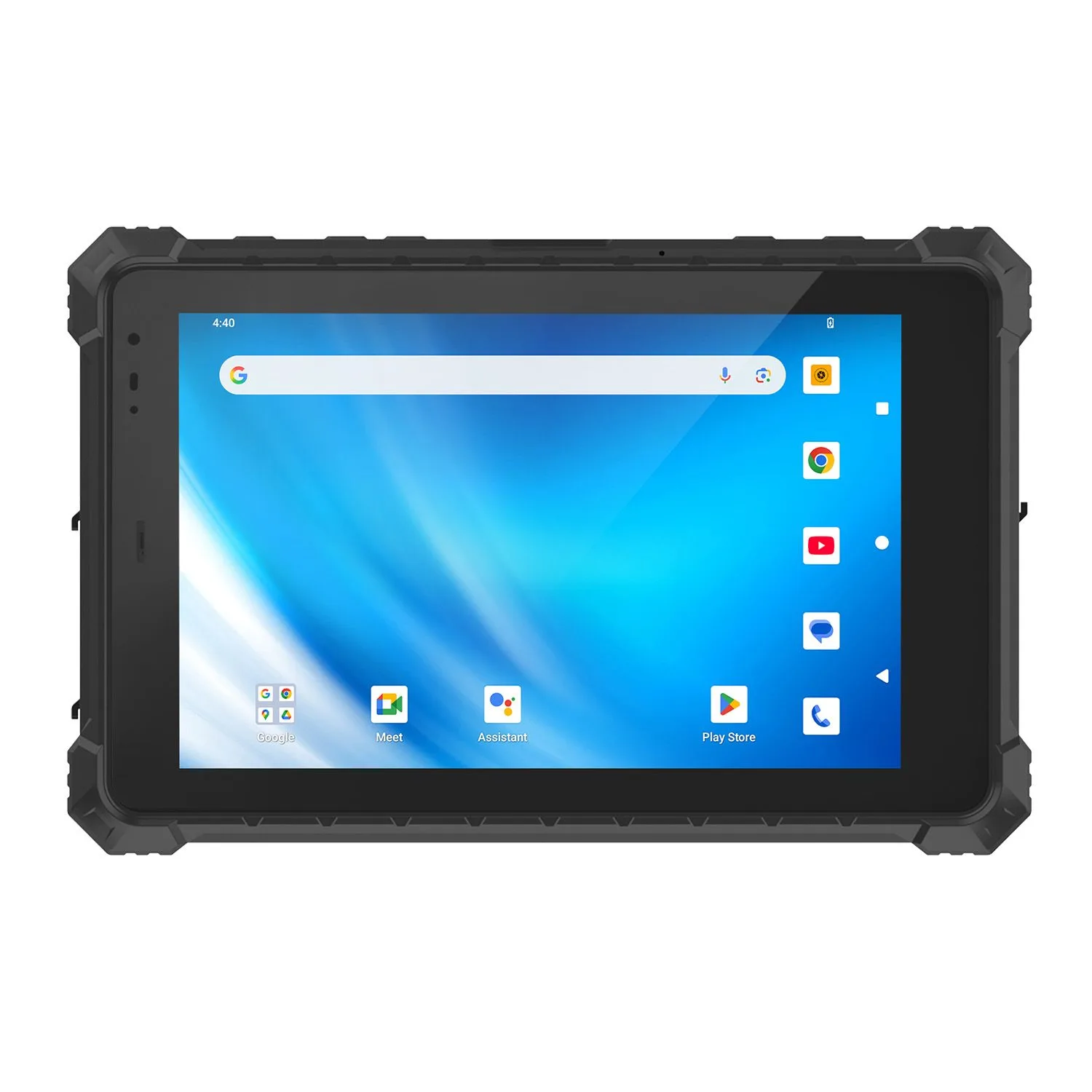
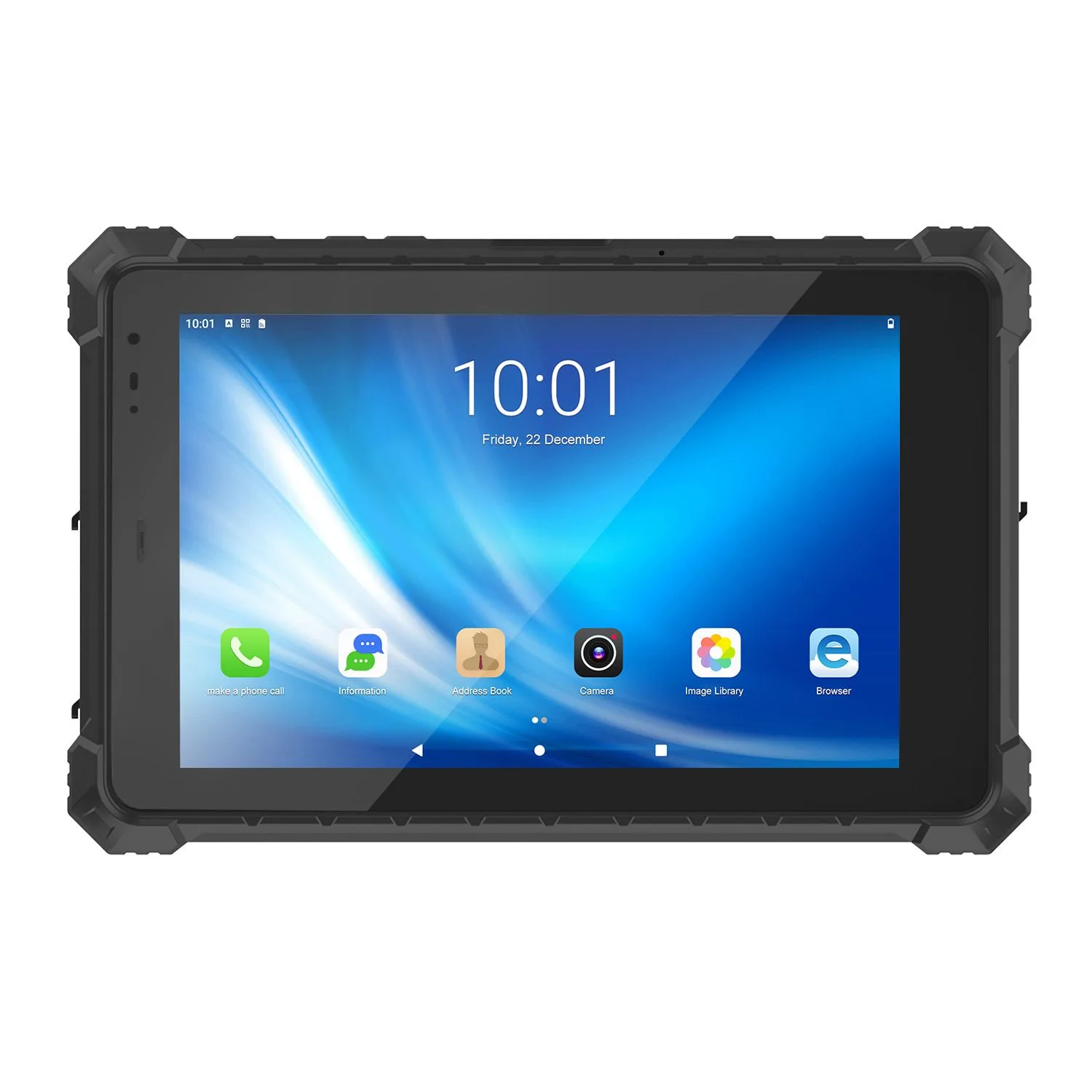
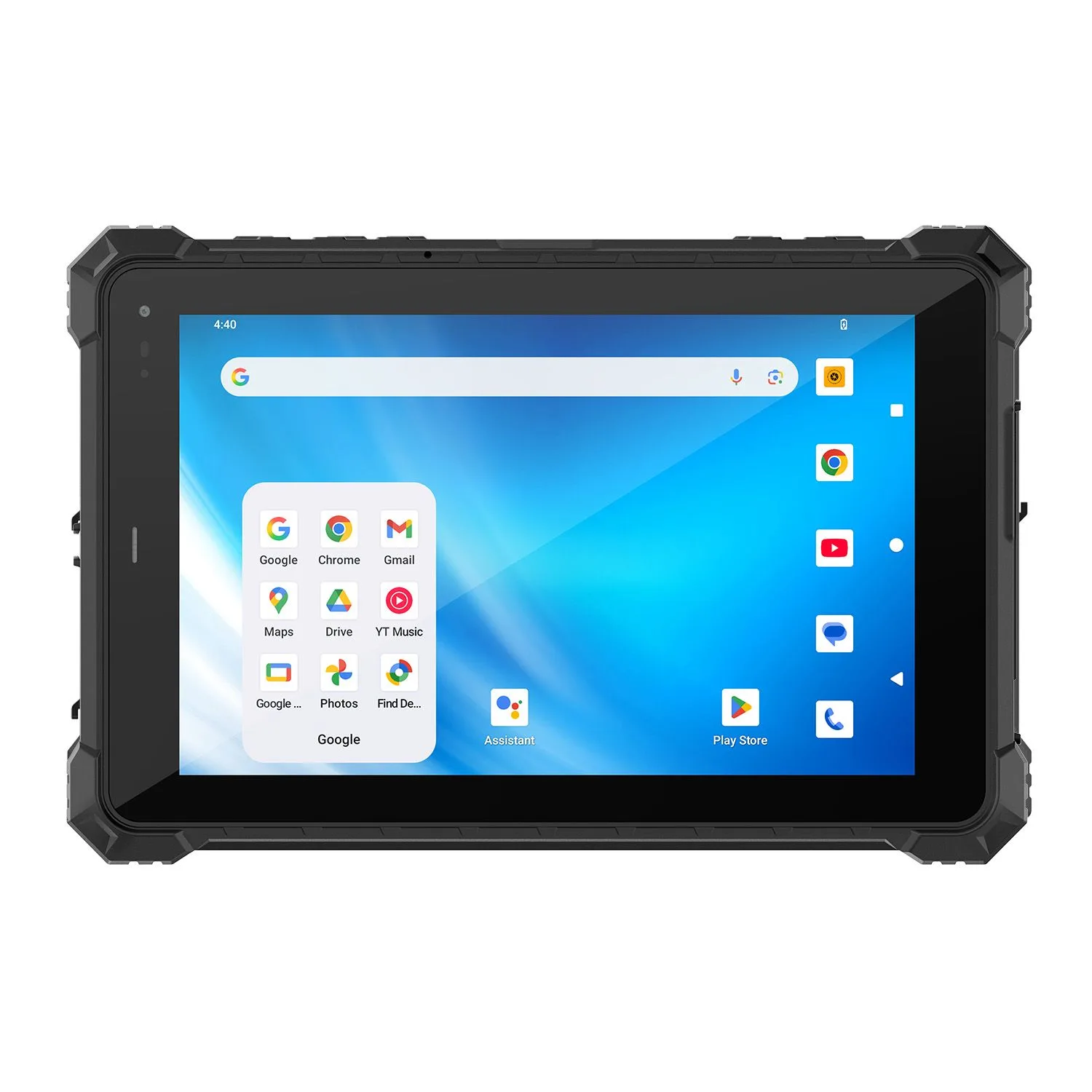
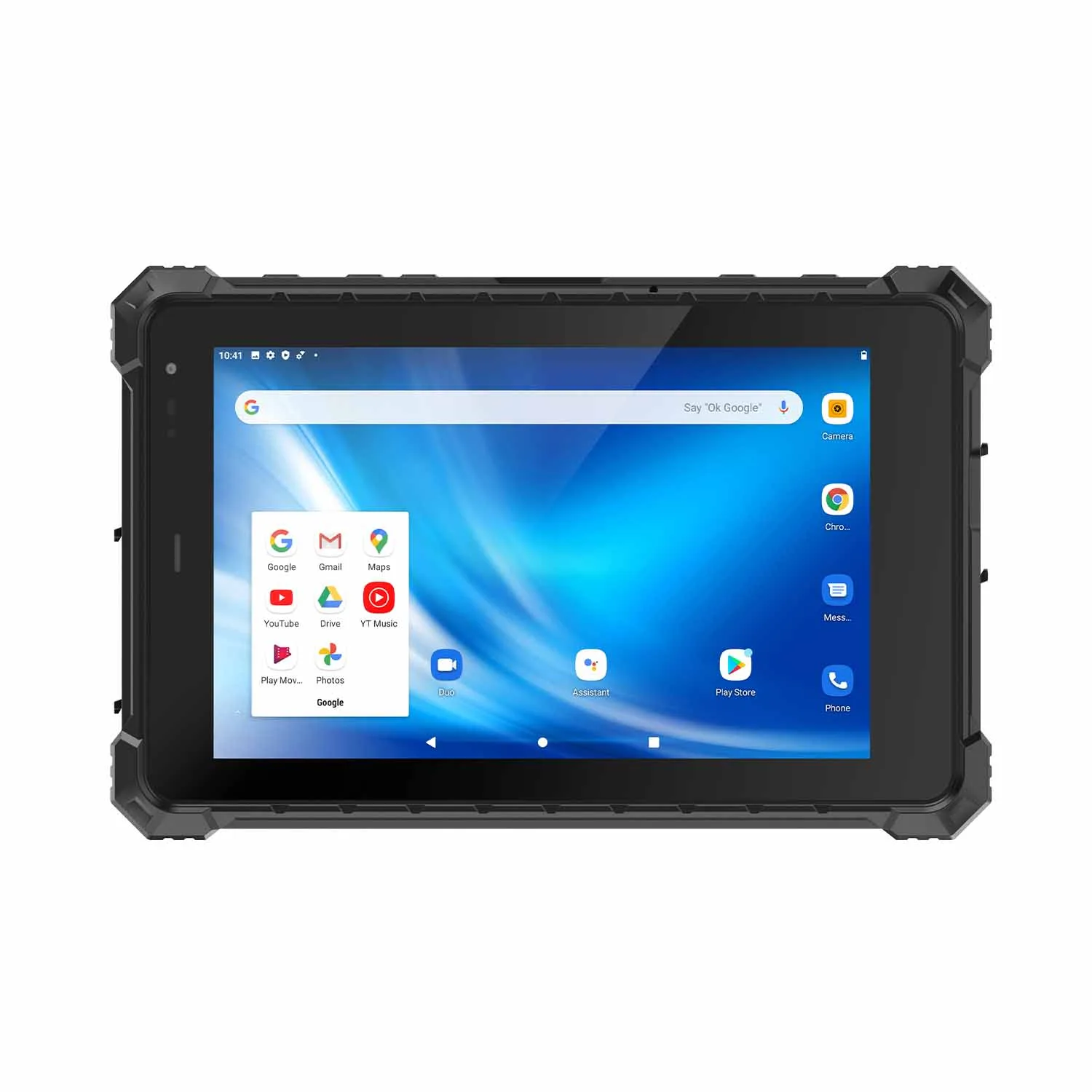
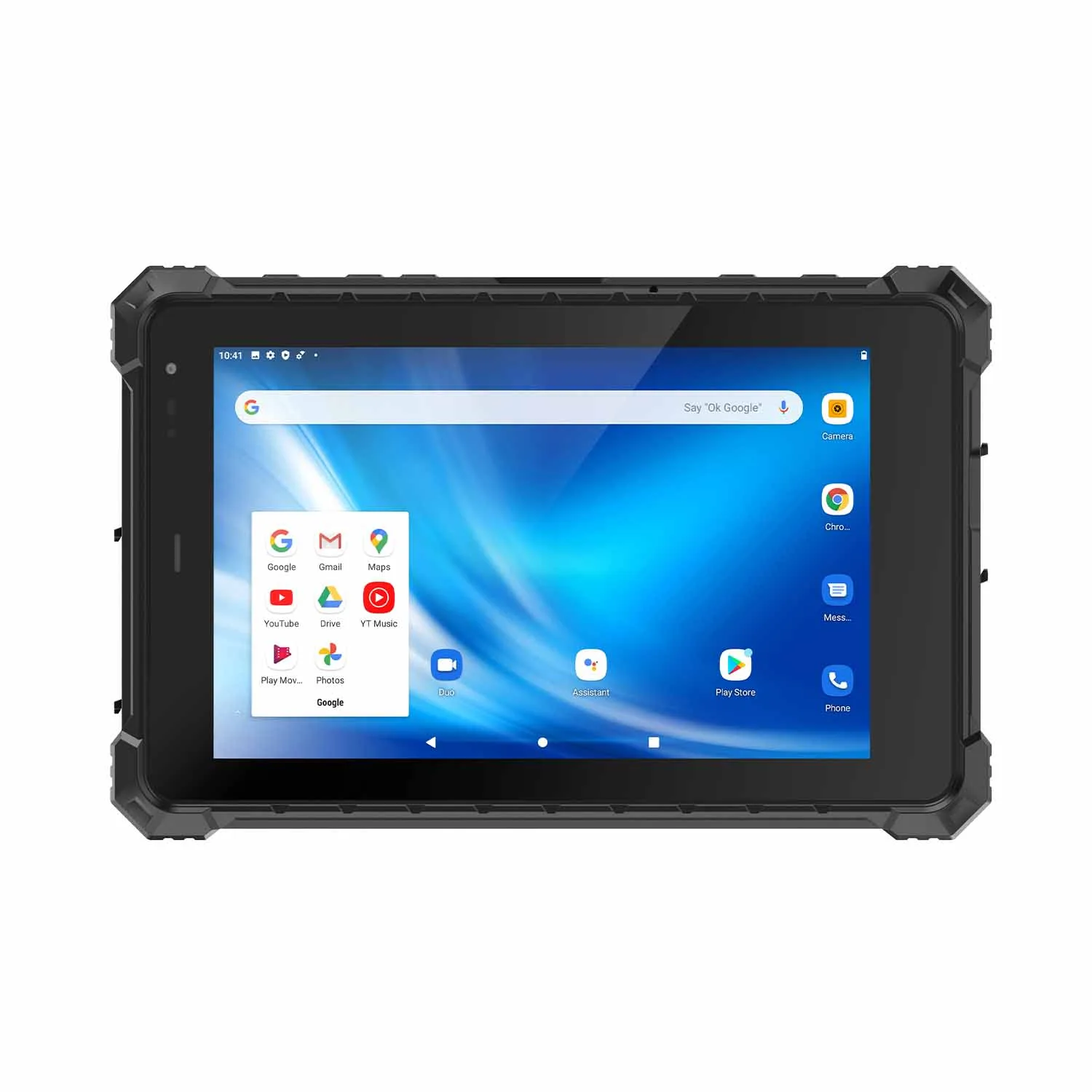
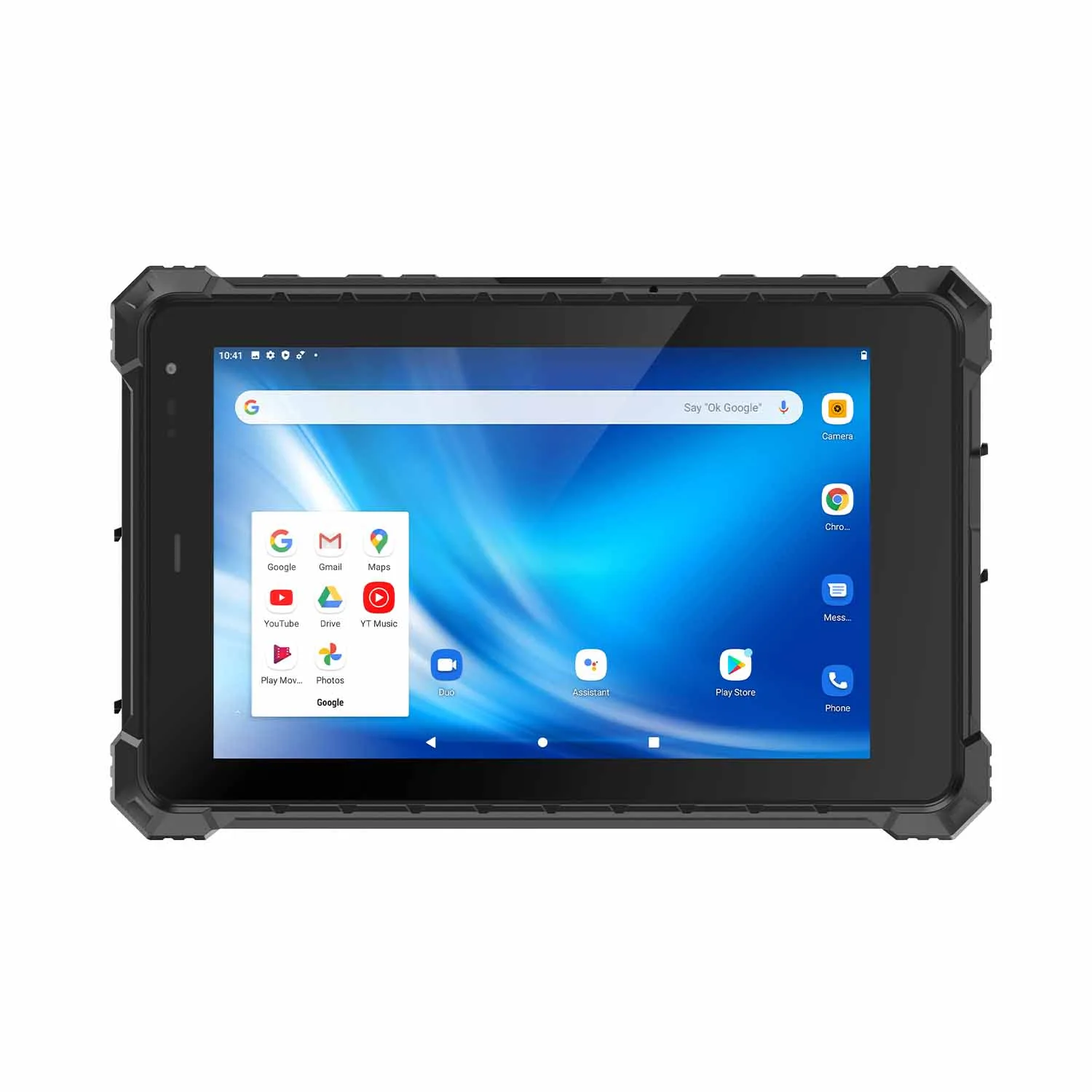
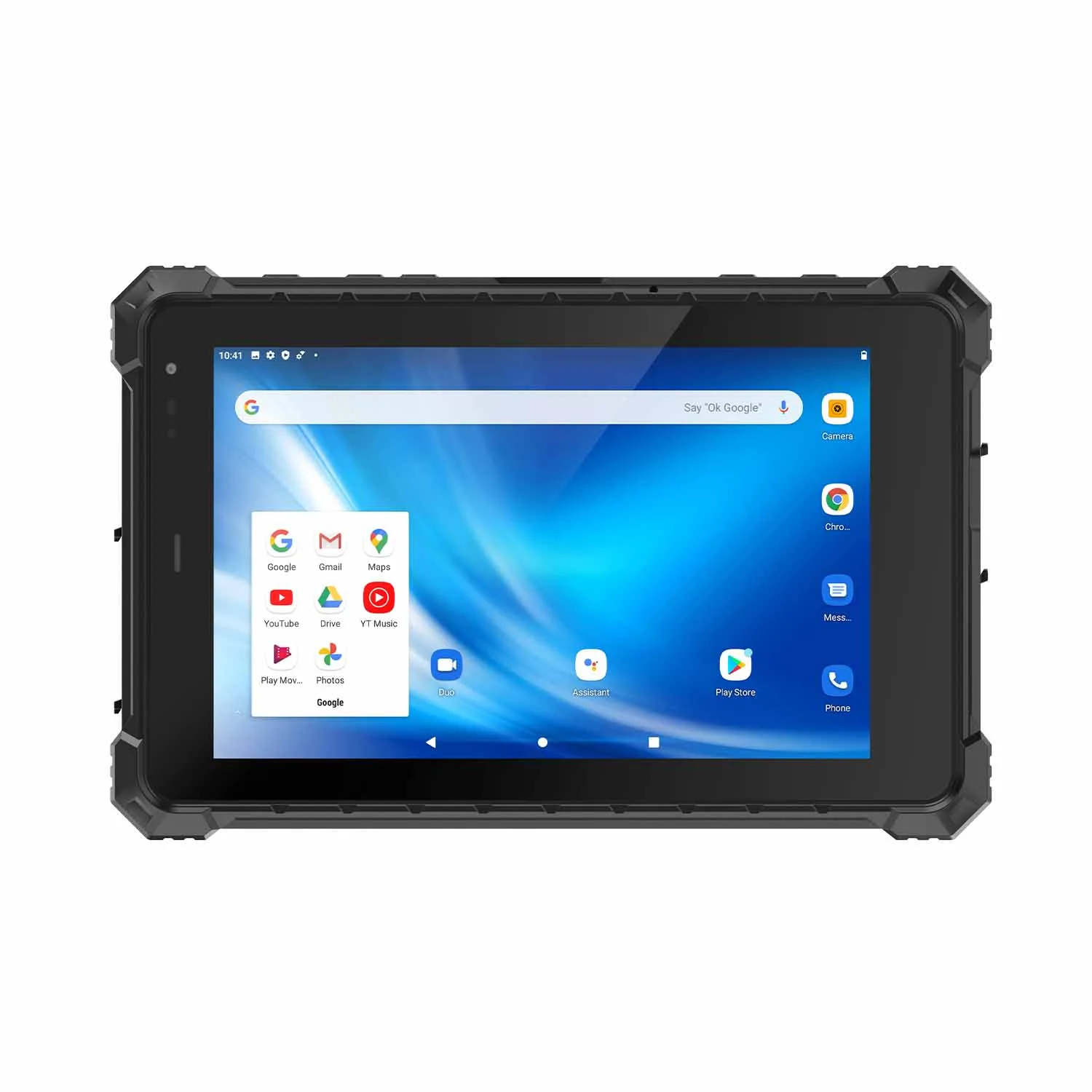
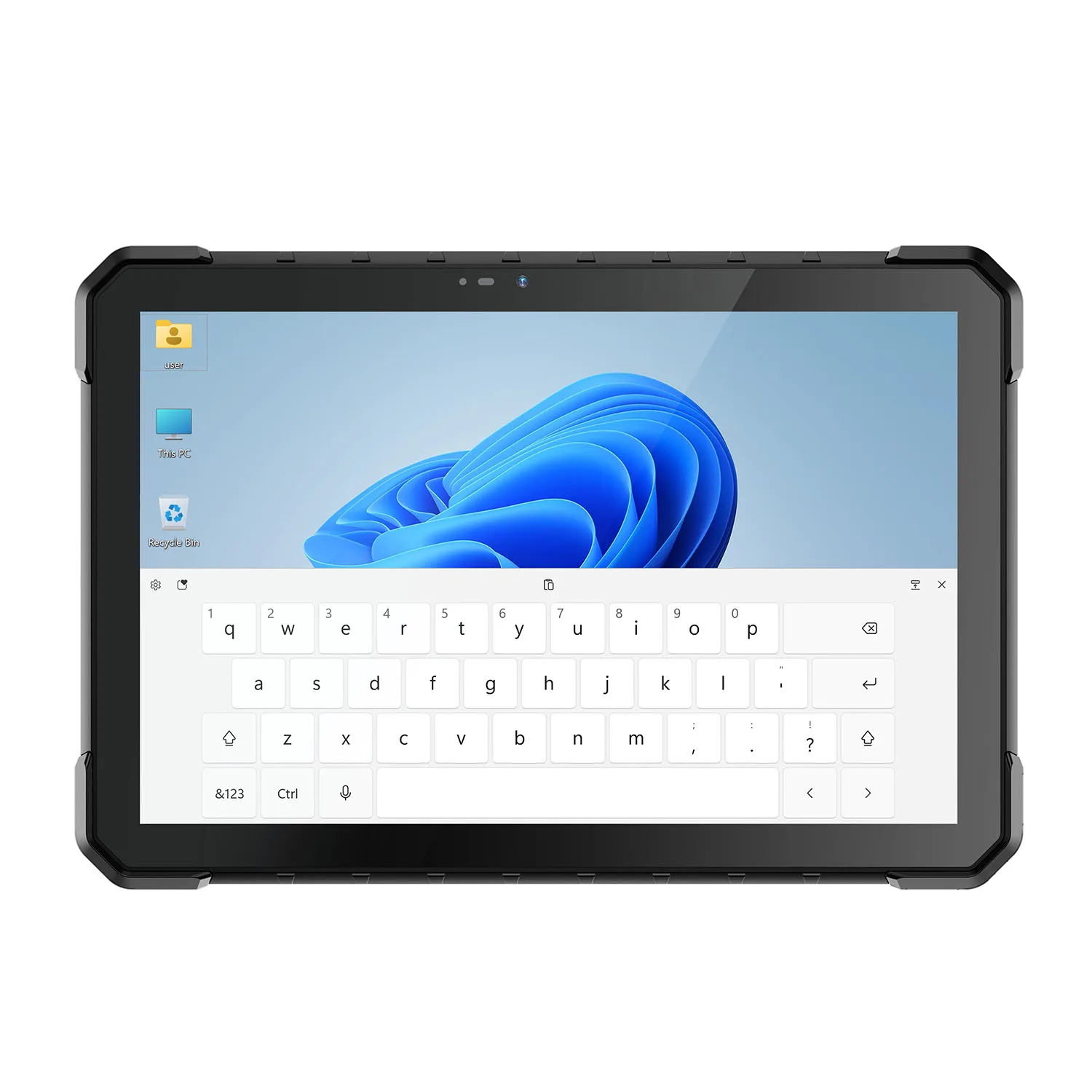
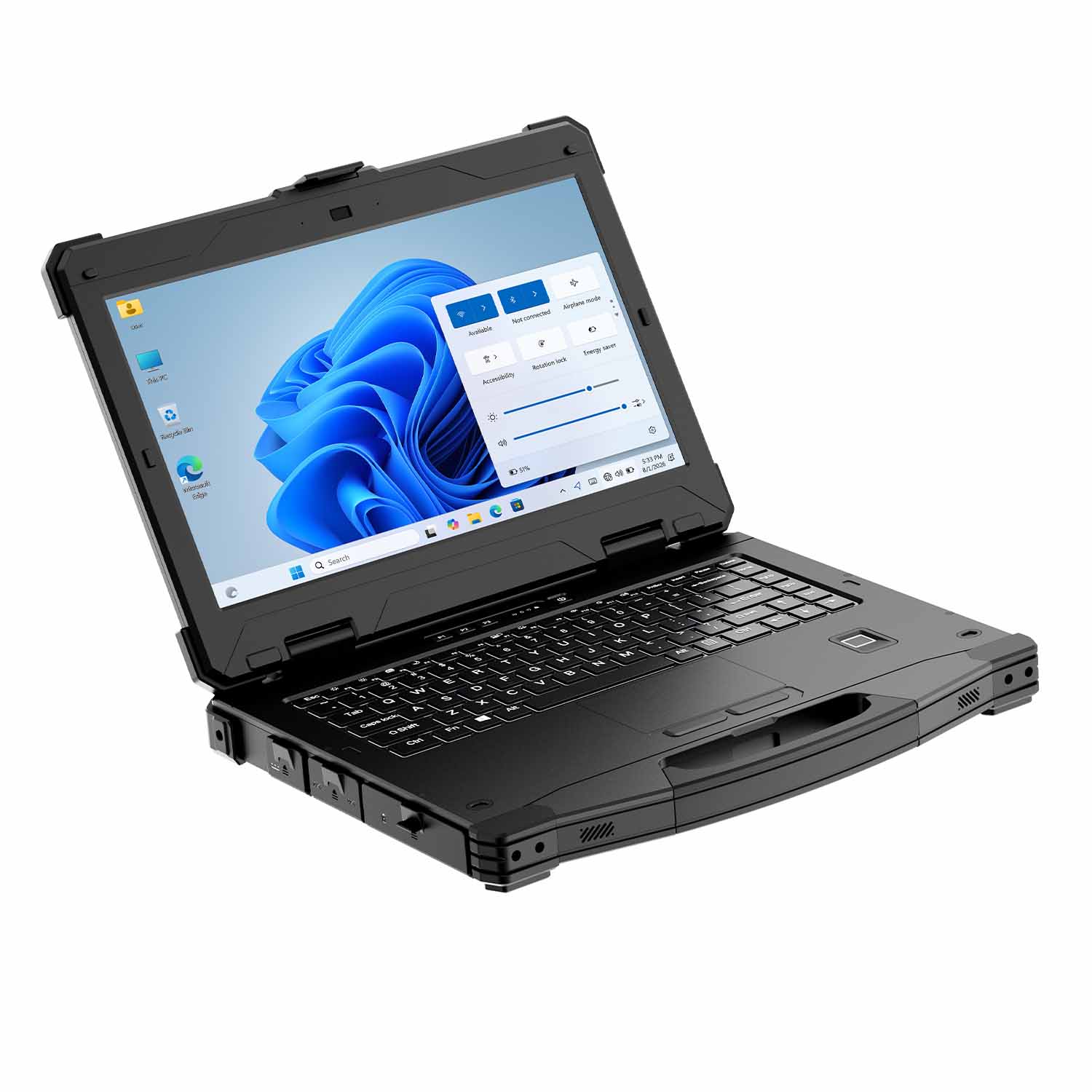
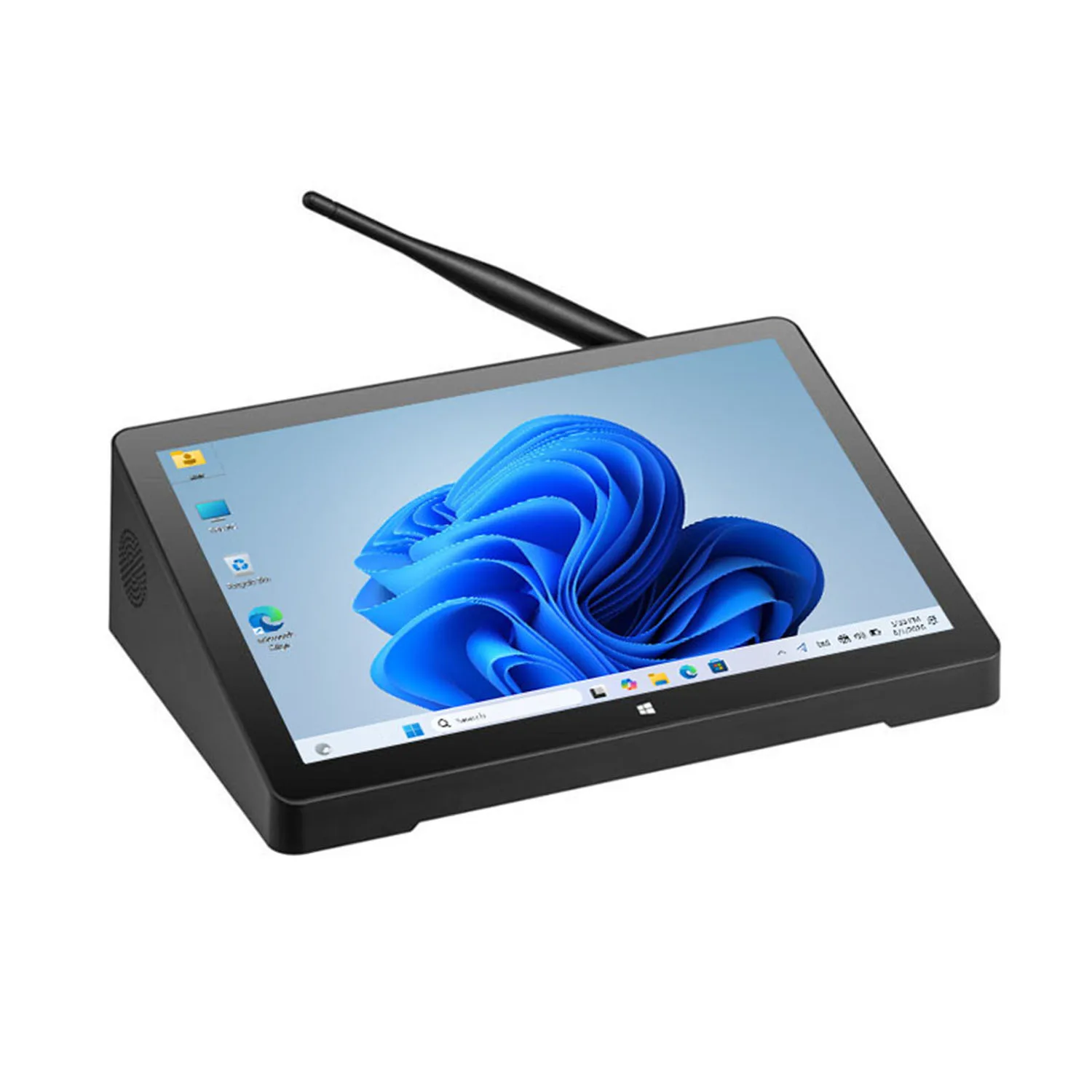
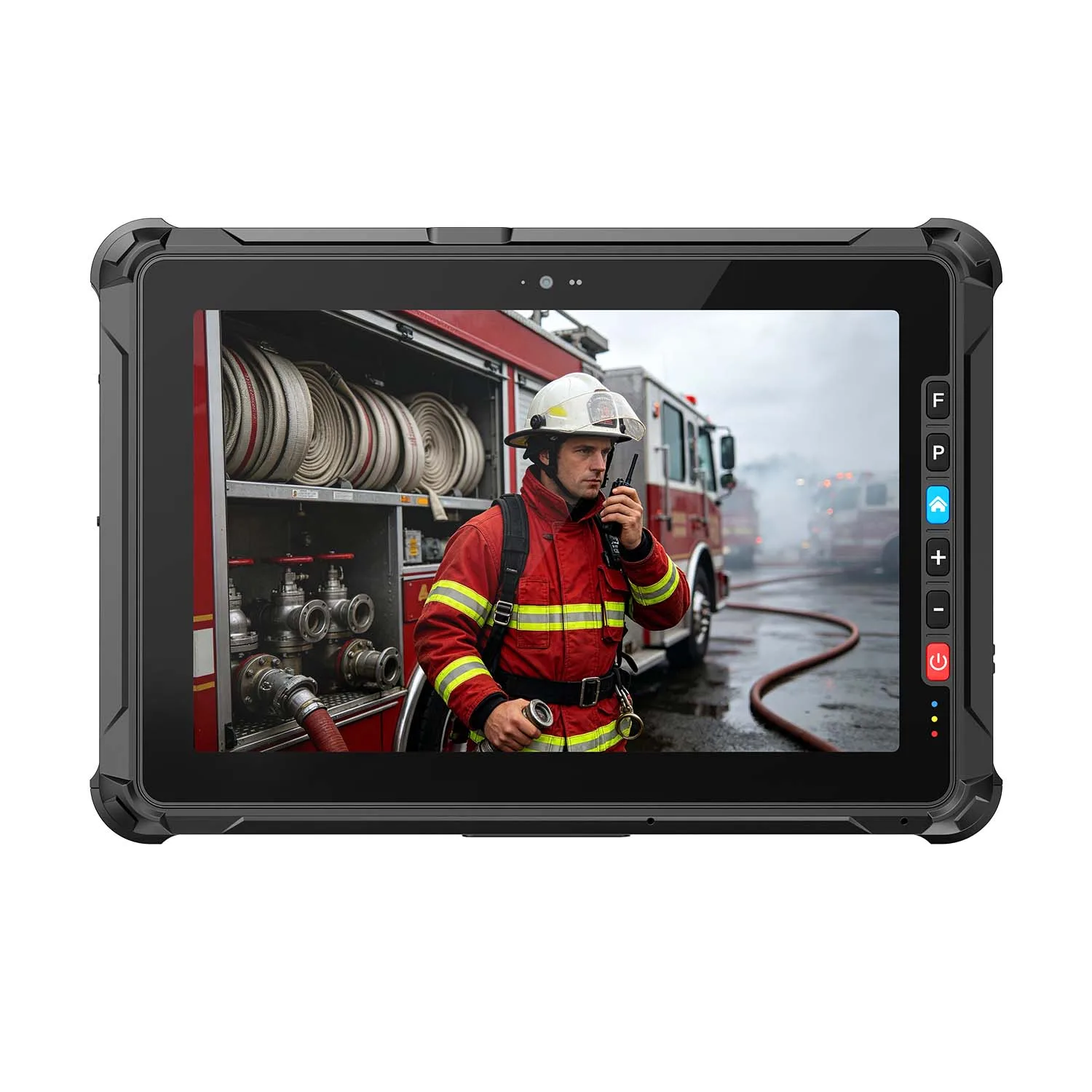
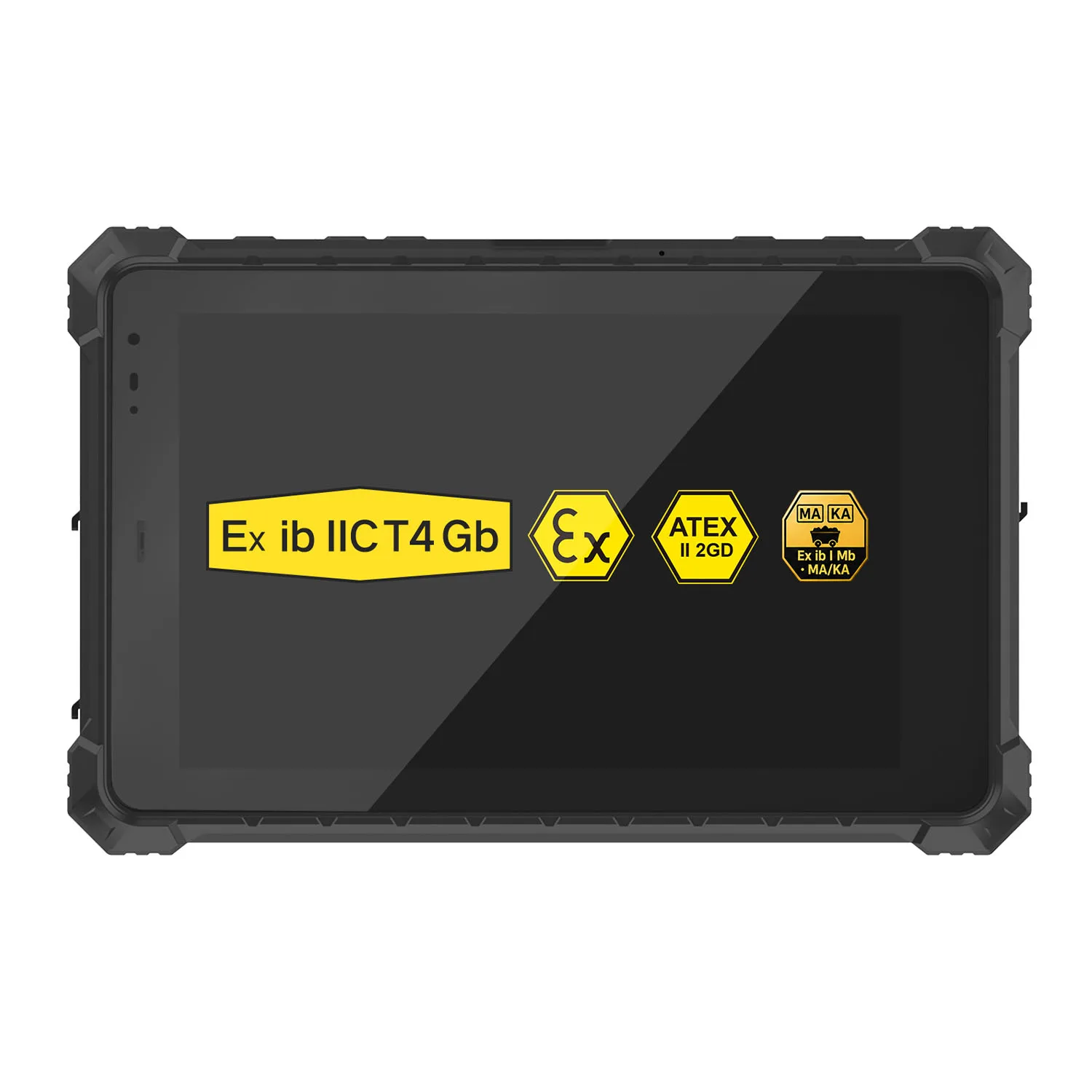
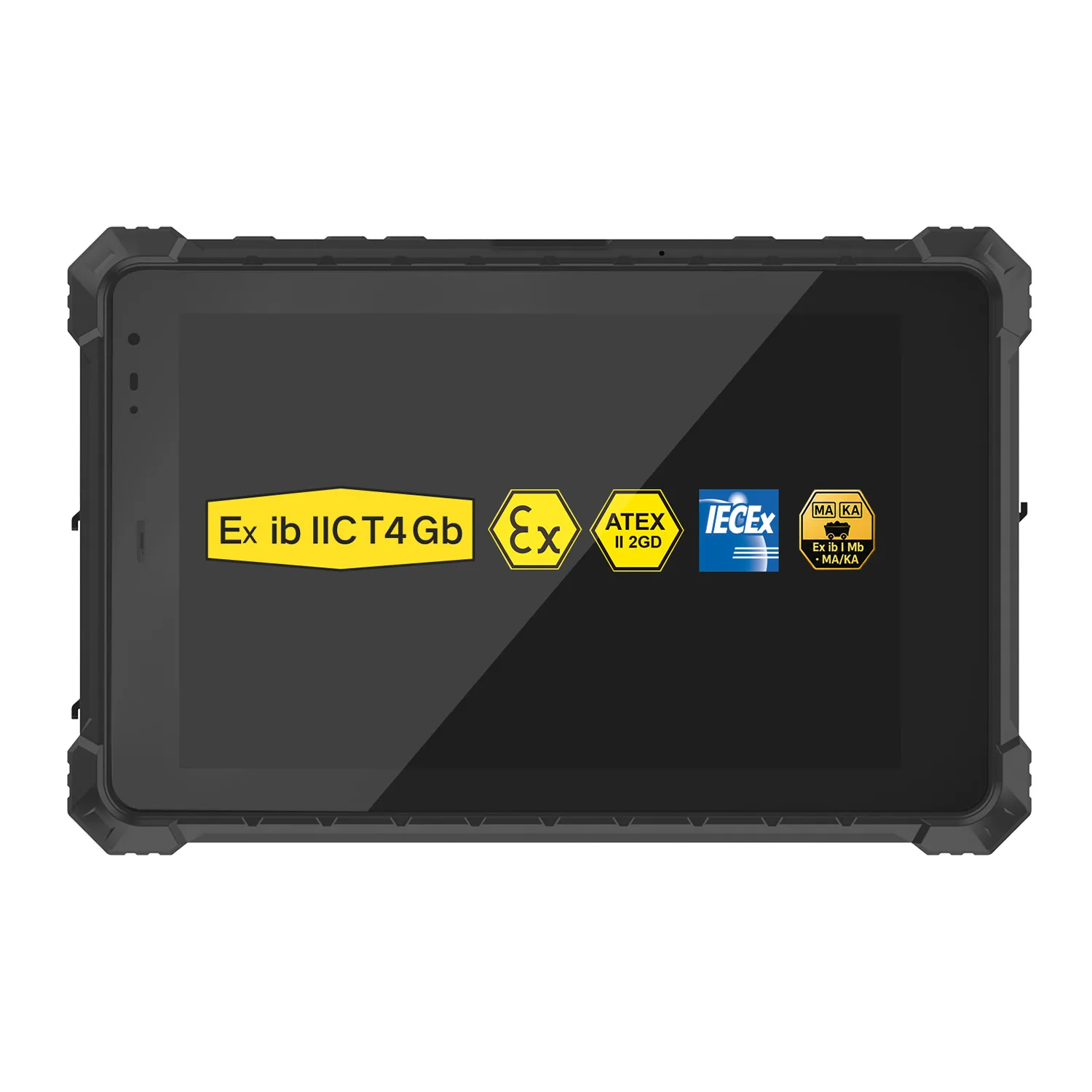
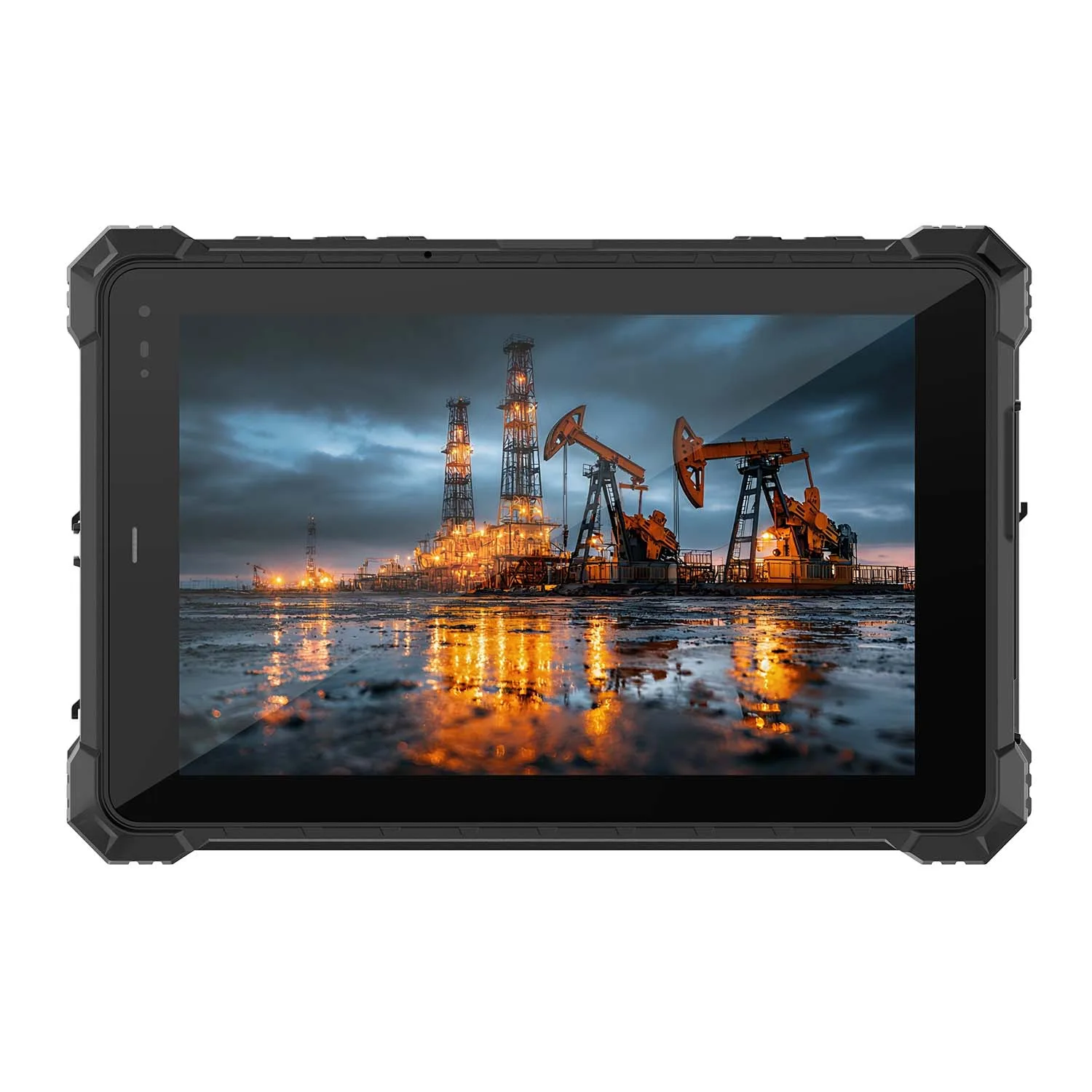
CENAVA field service tablets give technicians access to work orders, equipment records and compatible diagnostic software at the service location. Choose an 8-inch or 10.1-inch Windows or Android platform around the applications, connections and carrying requirements of your team.
A useful service record starts beside the asset. Bring manuals to the equipment, capture observations during the visit and complete the report while the details are still fresh. The right hardware supports each step, from checking the asset number to submitting the completed job.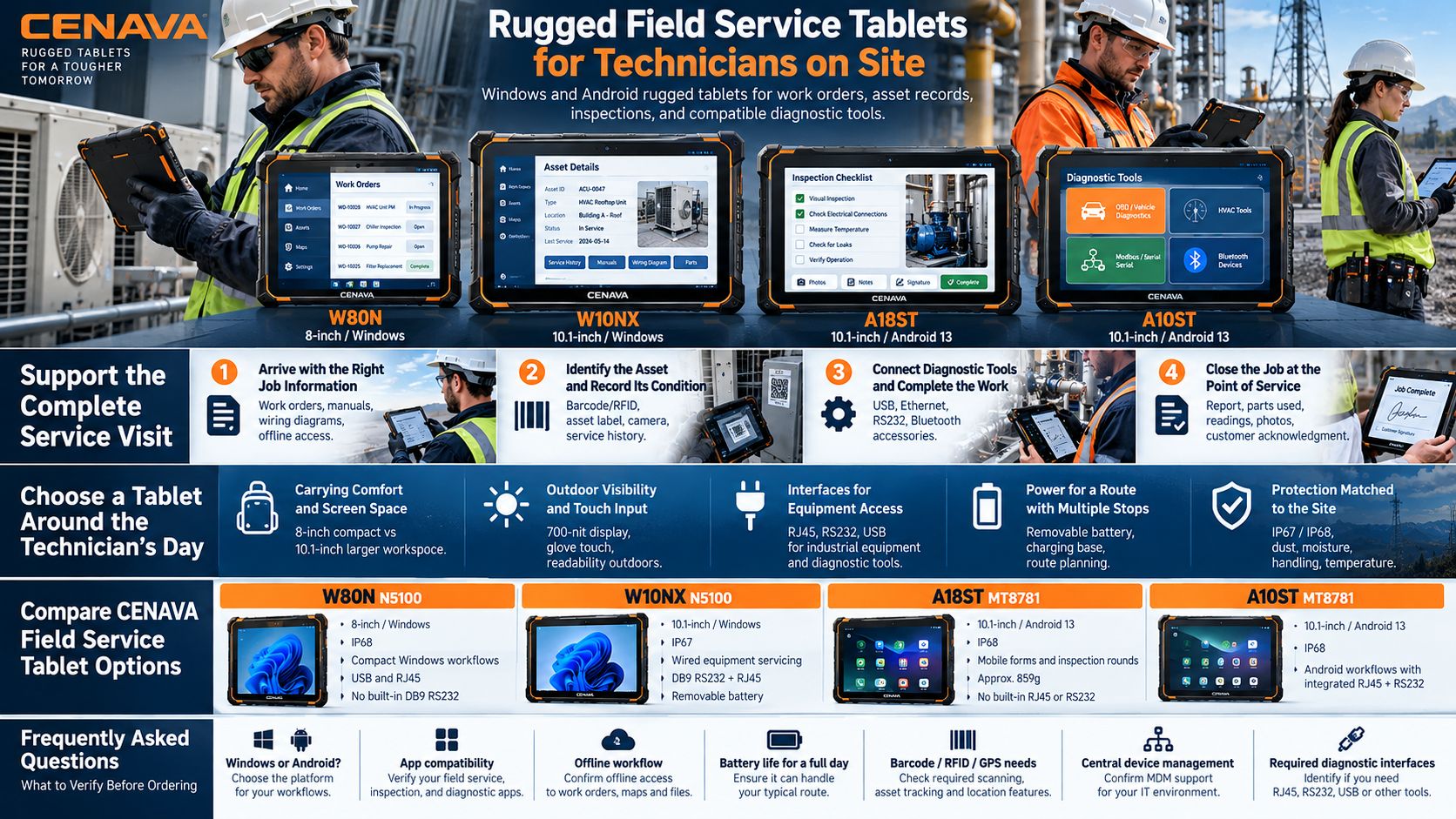
Support the Complete Service Visit
Arrive with the Right Job Information
Open the assigned work order, review the reported fault and check previous service notes through your field service application. Keep the relevant manuals, wiring diagrams and parts information available for the visit.
For locations with unreliable coverage, download the documents and job details in advance using software that supports offline access. Technicians should be able to find the required information before opening the equipment.
Identify the Asset and Record Its Condition
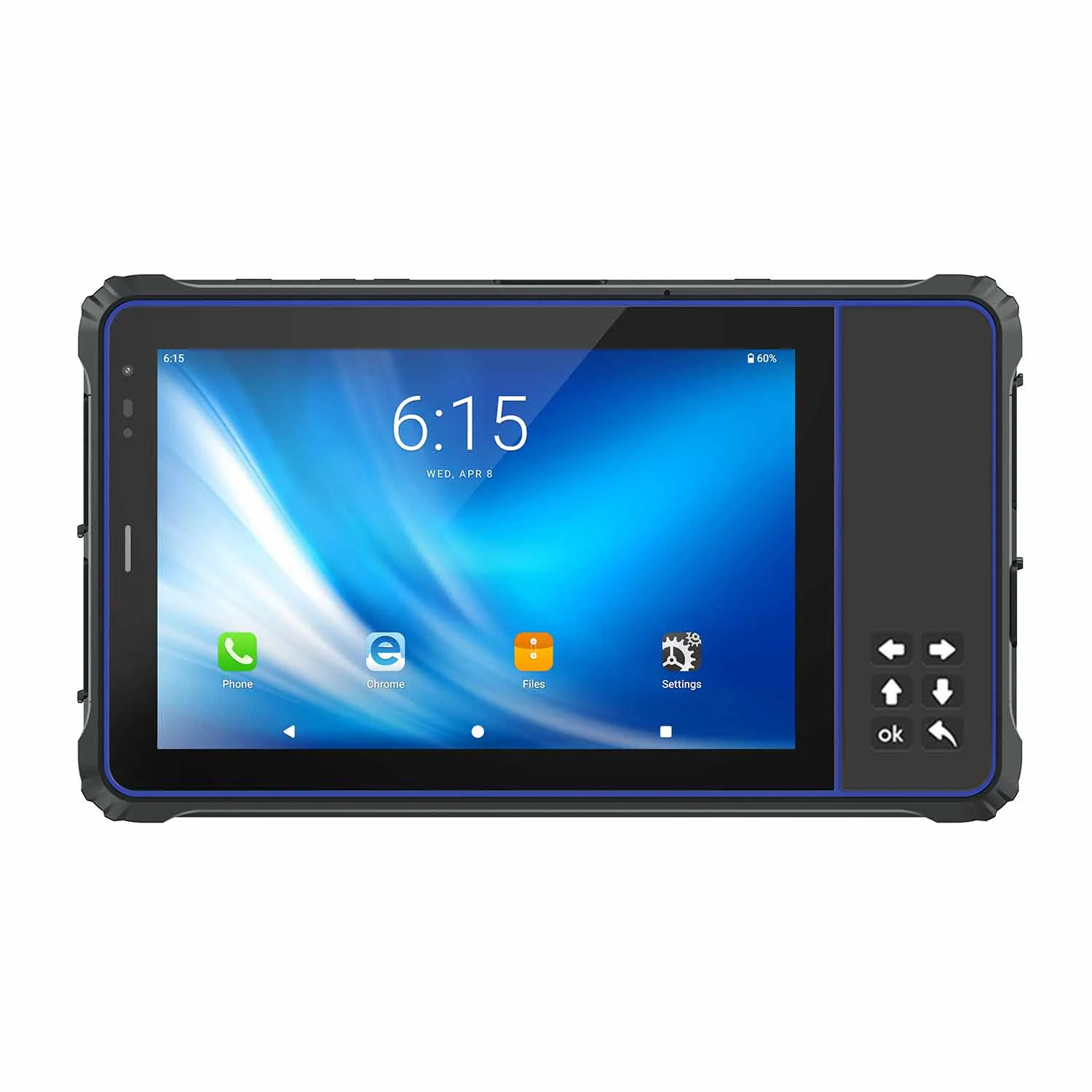
Match the service task to the correct machine, meter or installed component. A compatible barcode or RFID reader can link an asset label to its record, while the camera captures the condition before work begins.
For example, a facilities technician could scan an air-handling unit label, open its inspection checklist and attach a photograph of a damaged component. The application connects those entries to the asset and service history.
Connect Diagnostic Tools and Complete the Work
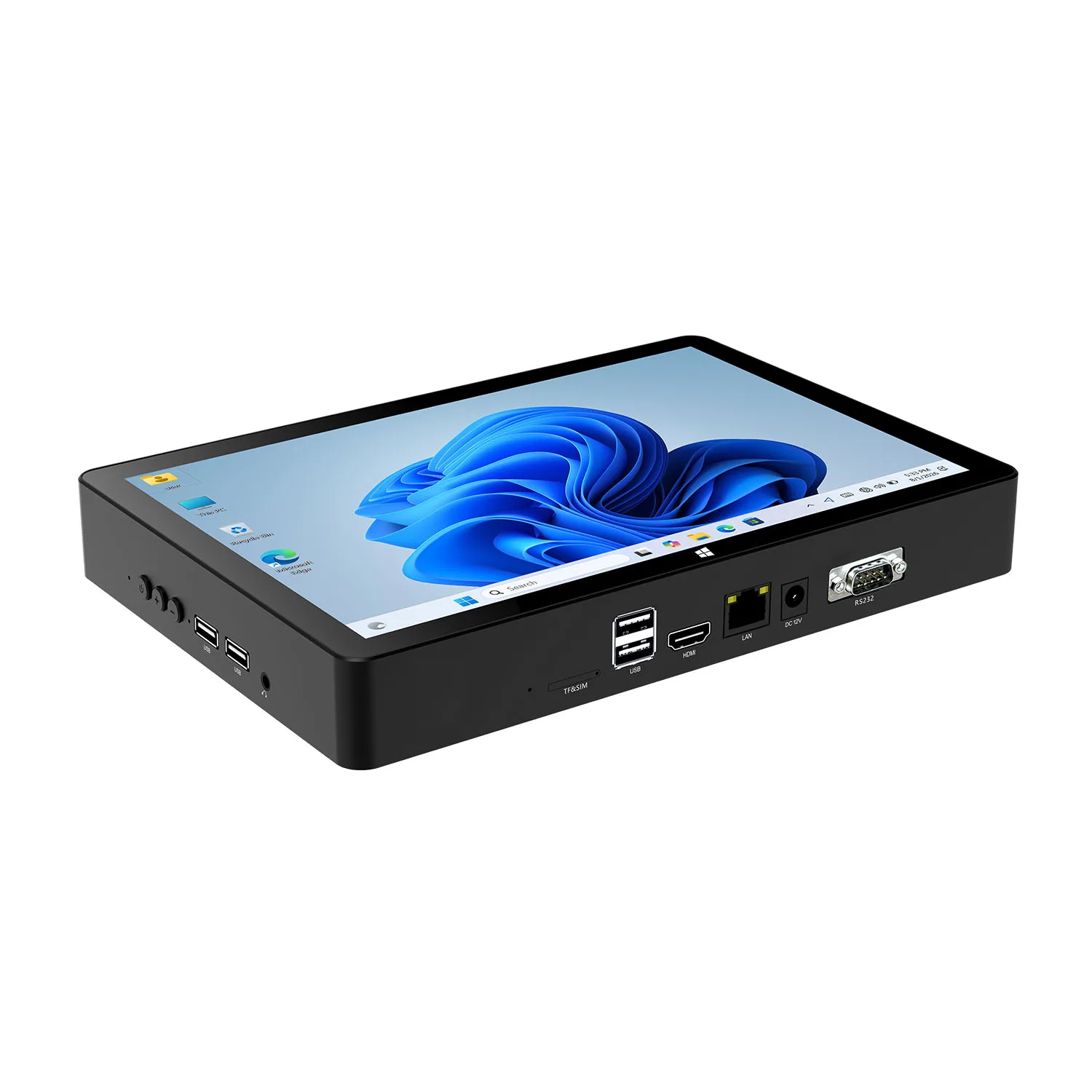
Use supported USB, Ethernet or serial connections to access compatible instruments and equipment service tools. Select the interface around the device being serviced and the software needed to communicate with it.
A maintenance engineer commissioning a controller may need a native RS232 connection. A technician recording instrument readings may use a supported Bluetooth accessory or enter the results manually. Define the complete connection before choosing the tablet.
Close the Job at the Point of Service
Record the work performed, parts used, readings and follow-up requirements in the service application. Attach photographs and collect customer acknowledgment when the workflow requires it.
Before leaving, check that required fields are complete and that the report is either submitted or saved for later synchronization. This gives the next technician a clearer starting point if another visit is needed.
Choose a Tablet Around the Technician’s Day
Carrying Comfort and Screen Space
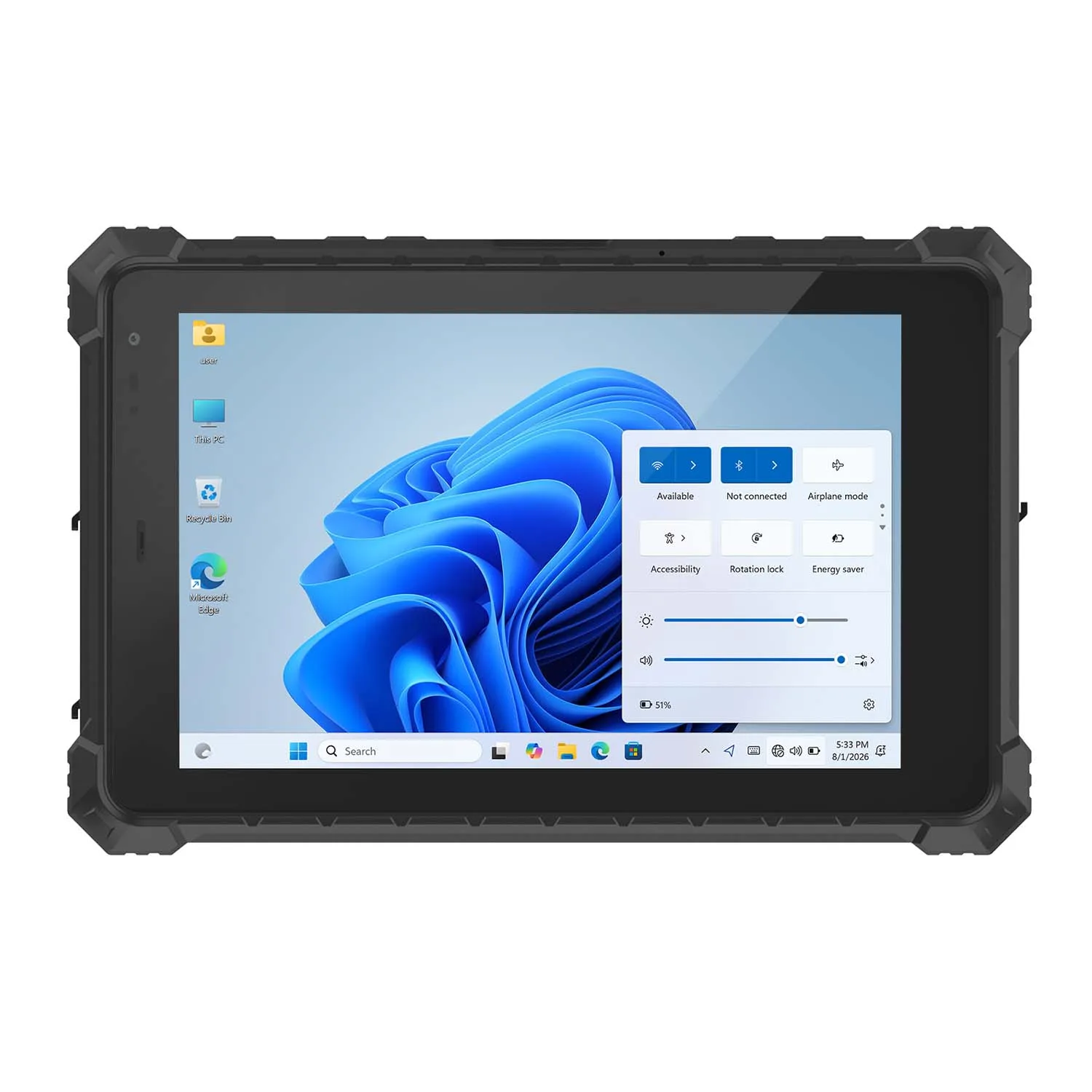
An 8-inch tablet is a compact option for teams moving frequently between assets. A 10.1-inch display gives manuals, forms and photographs more room.
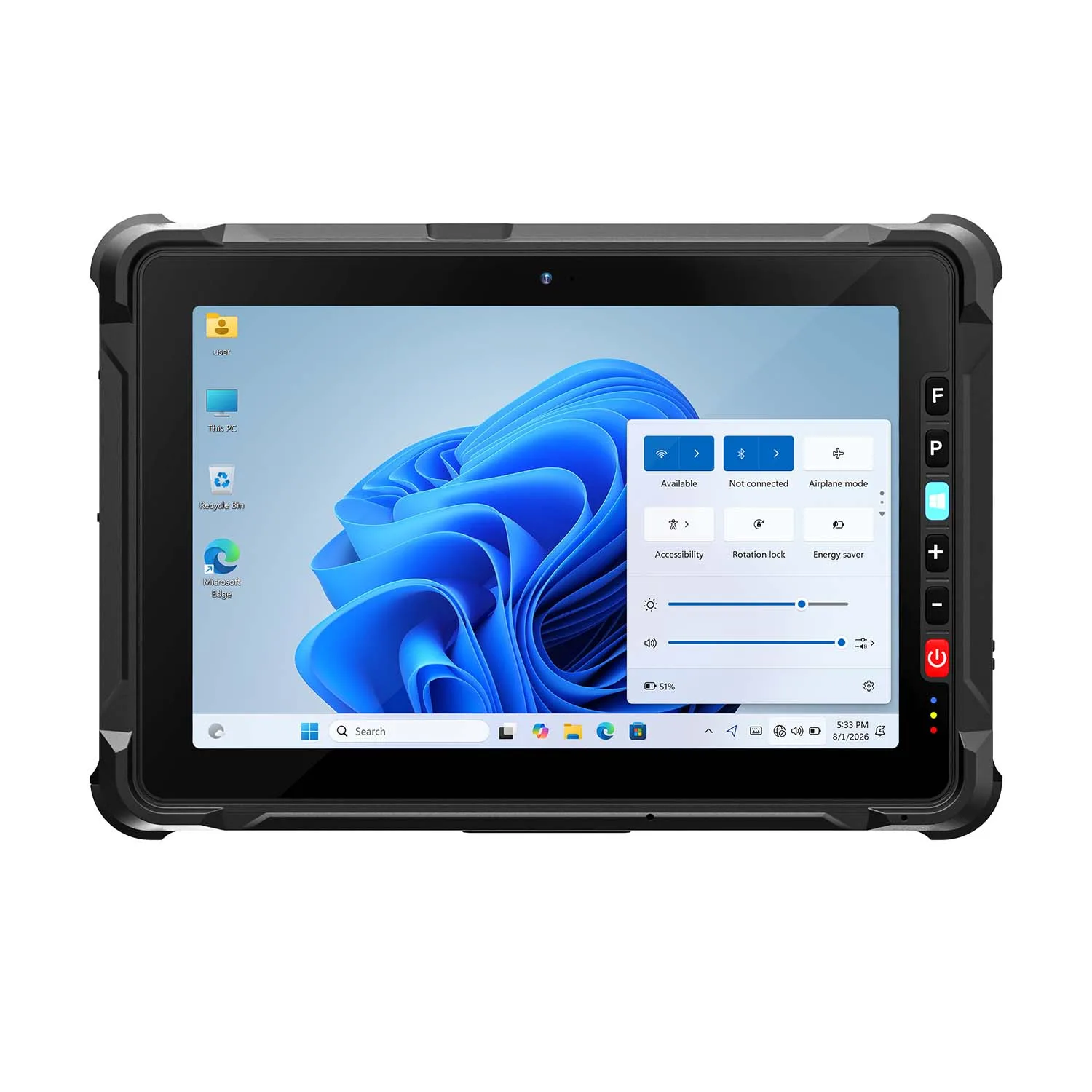
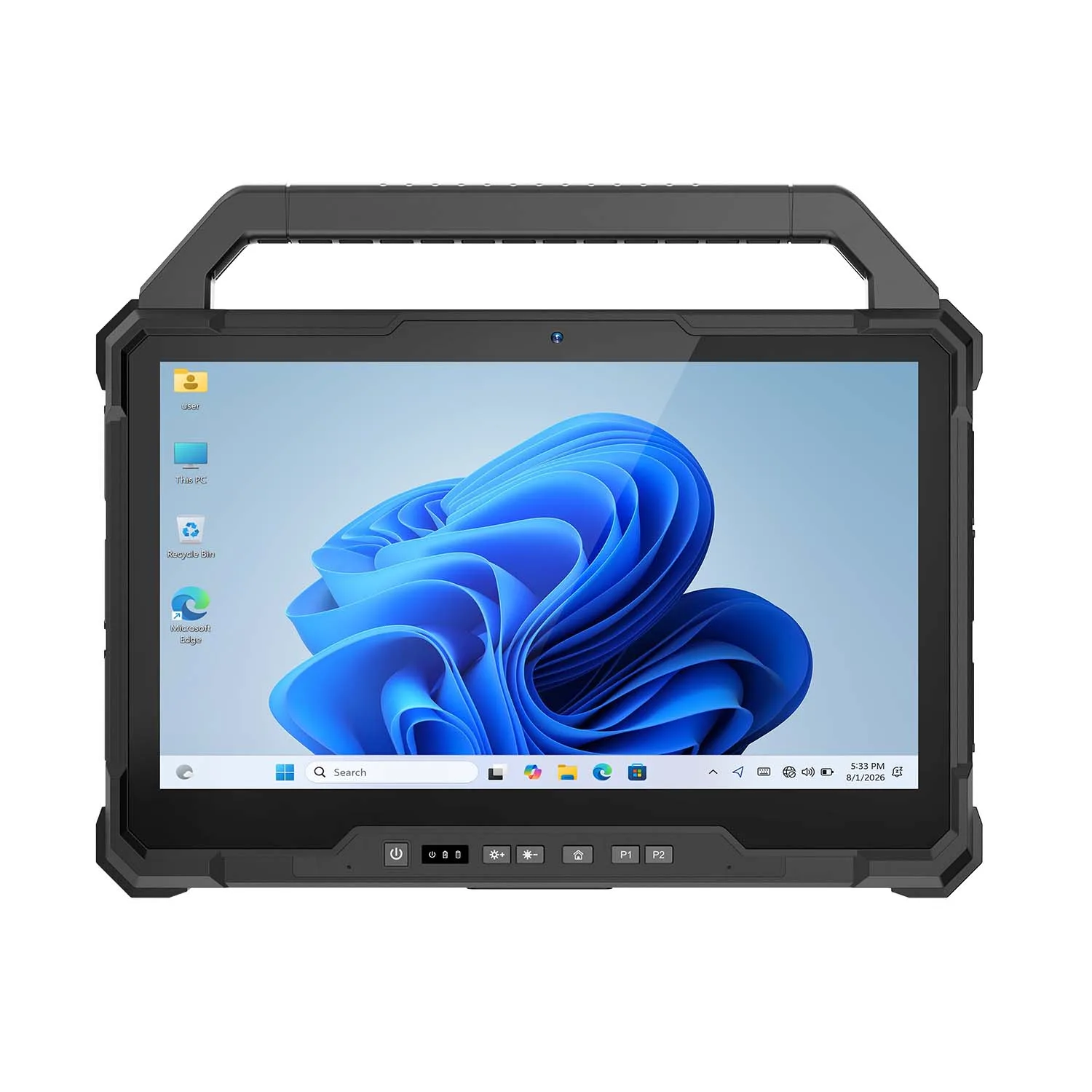
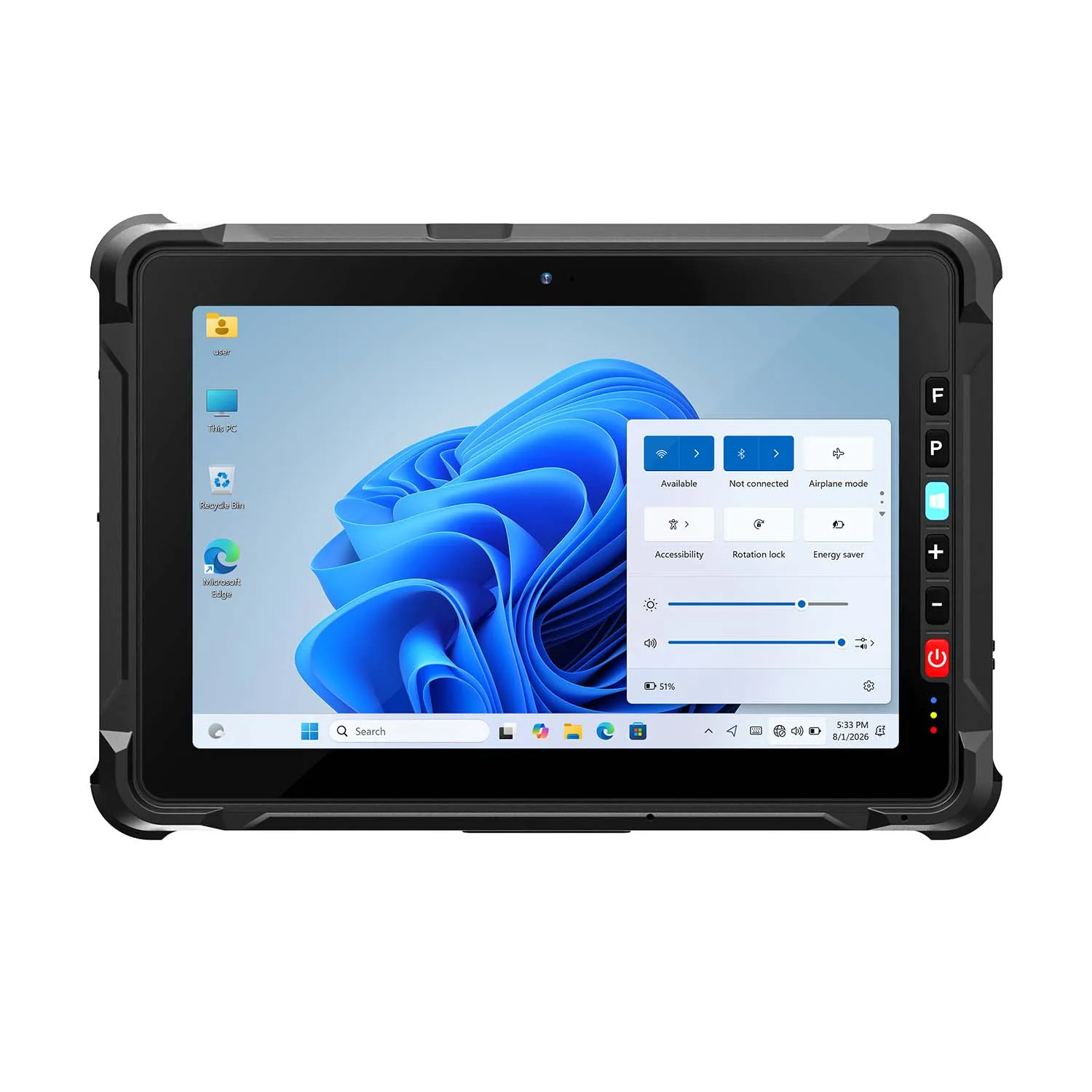
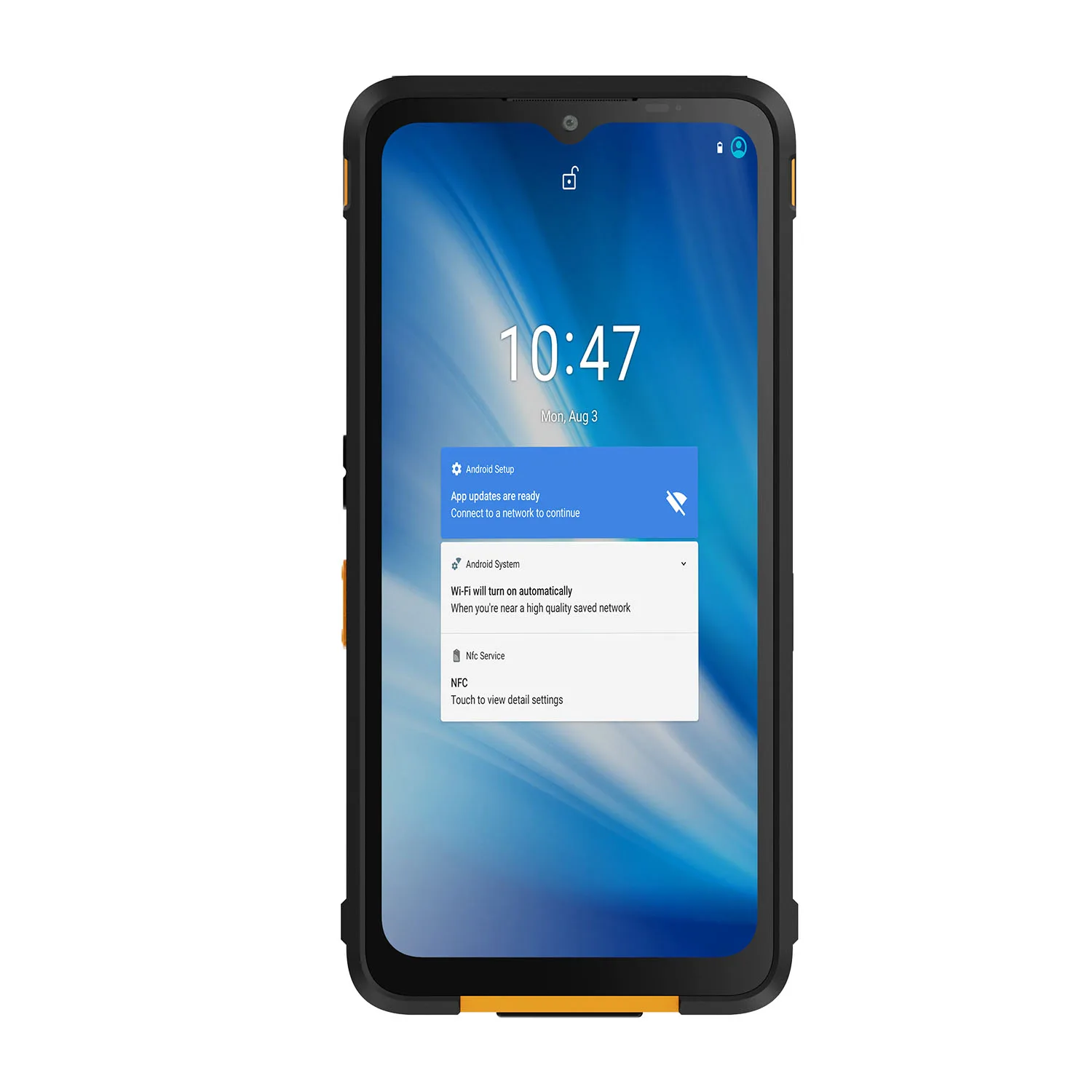
The A18ST MT8781 is listed at approximately 859g, offering a 10.1-inch Android option for mobile rounds. Evaluate the complete carrying setup, including the hand strap, protective accessories and any attached reader.
Outdoor Visibility and Touch Input
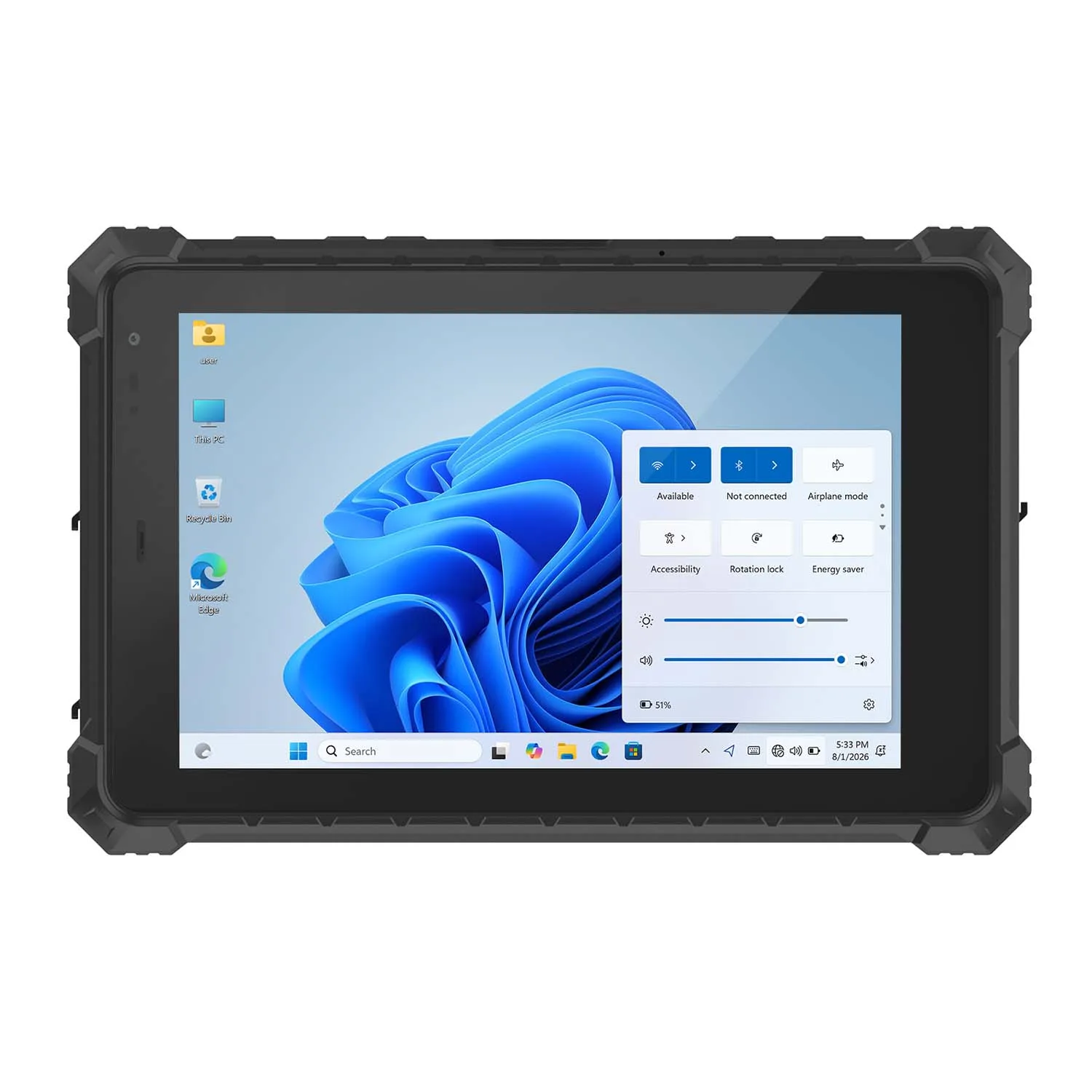
The W10NX and A18ST list 700-nit displays with glove-touch support. Evaluate readability with your actual forms, diagrams and working conditions; reflections and small interface controls can affect usability as much as brightness.
Test the gloves technicians normally wear. Wet-hand operation and other display options require confirmation for the selected configuration.
Interfaces for Equipment Access
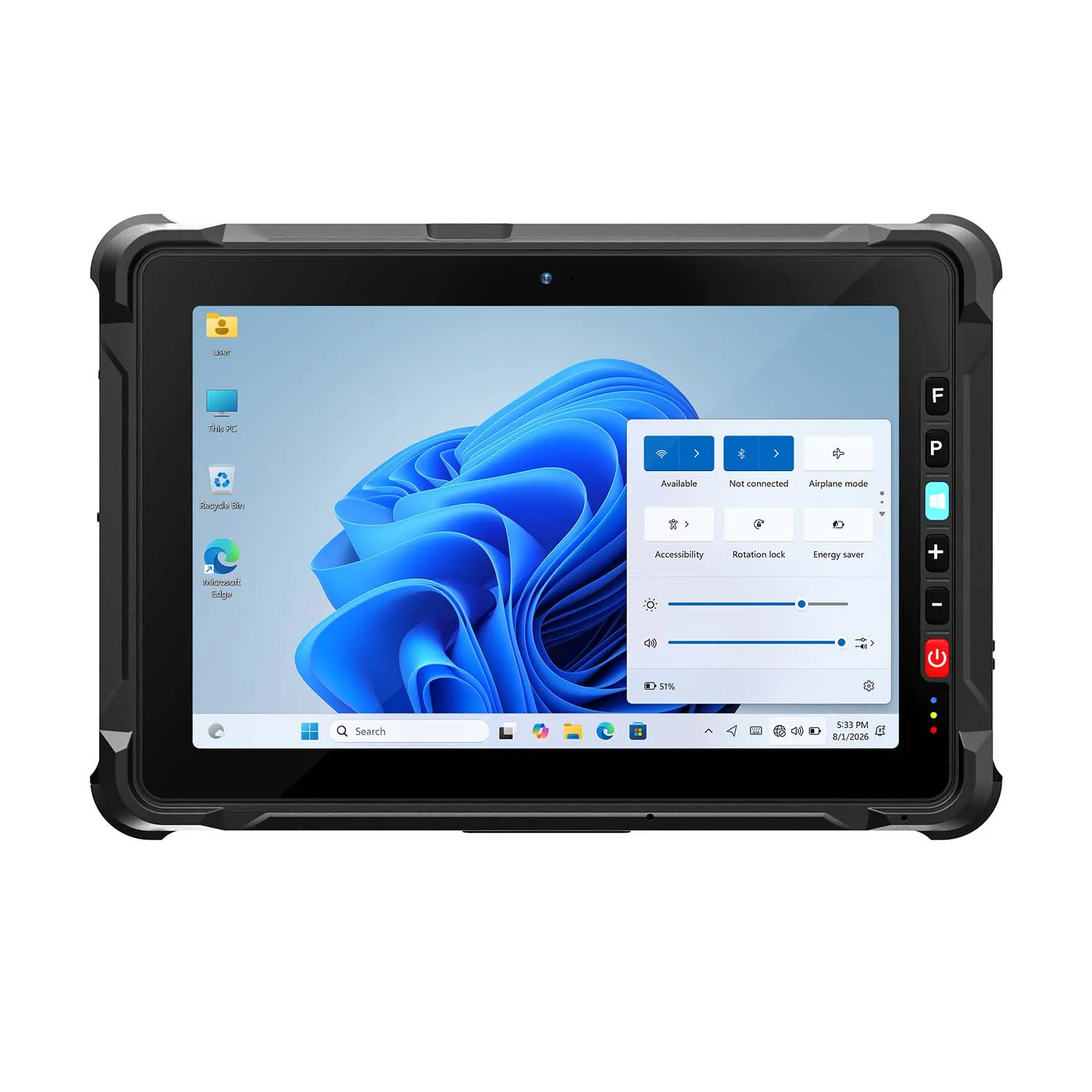
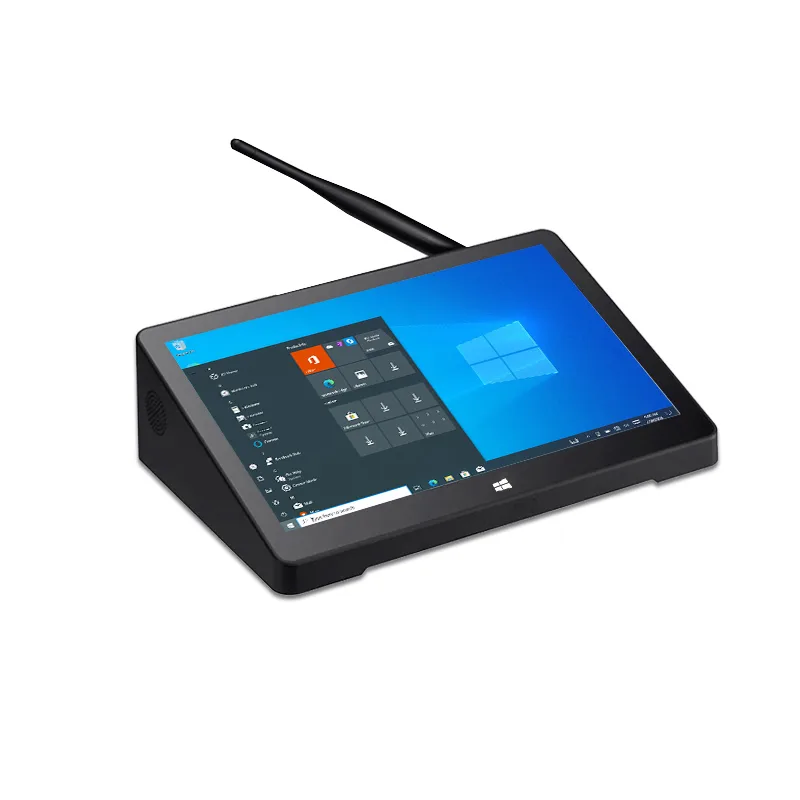
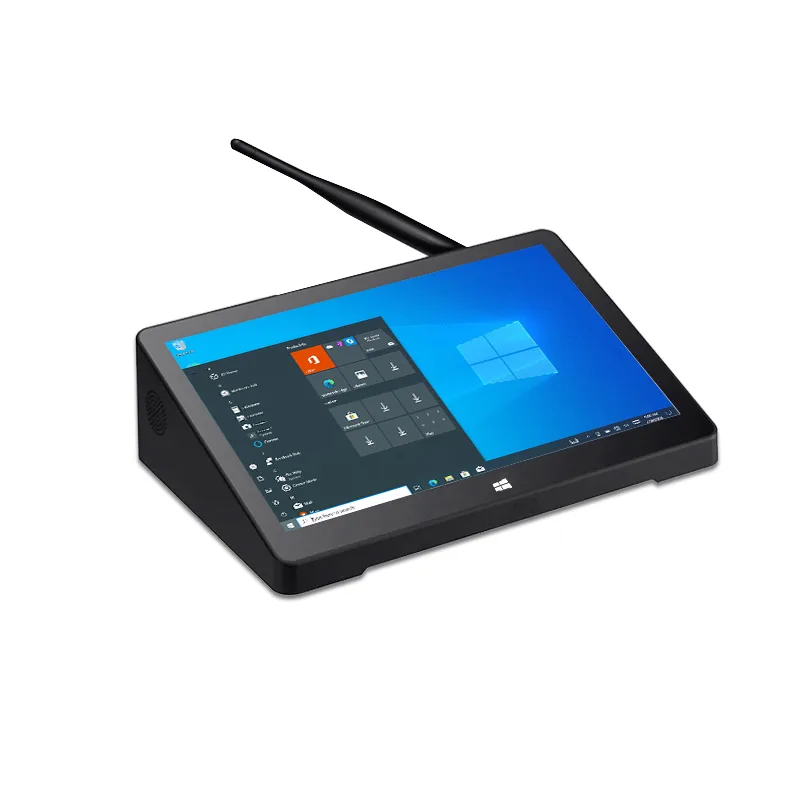
The W10NX provides DB9 RS232 and RJ45 Ethernet for compatible wired service tools. The A10ST MT8781 offers RS232 and RJ45 on an Android platform.
For teams focused on forms, photographs and wireless accessories, a compact or lighter configuration may be more useful than additional physical ports. Specify the diagnostic equipment and driver requirements before finalizing the model.
Power for a Route with Multiple Stops
Plan charging around a real service route, including travel time, screen brightness, mobile data and connected peripherals. The W10NX has a removable 7.6V, 7700mAh battery and an optional battery charging base for a spare-battery routine.
Battery replacement procedures depend on the model. Confirm whether the application must be saved and the tablet shut down before changing a battery.
Protection Matched to the Site
Select the enclosure around dust, moisture, handling and temperature exposure. The W10NX is listed with IP67 protection; the W80N, A18ST and A10ST models below are listed with IP68.
Review the applicable test conditions and port-cover requirements for the ordered configuration. Include the device’s operating-temperature range and any connected accessories in the specification.
Compare CENAVA Field Service Tablet Options
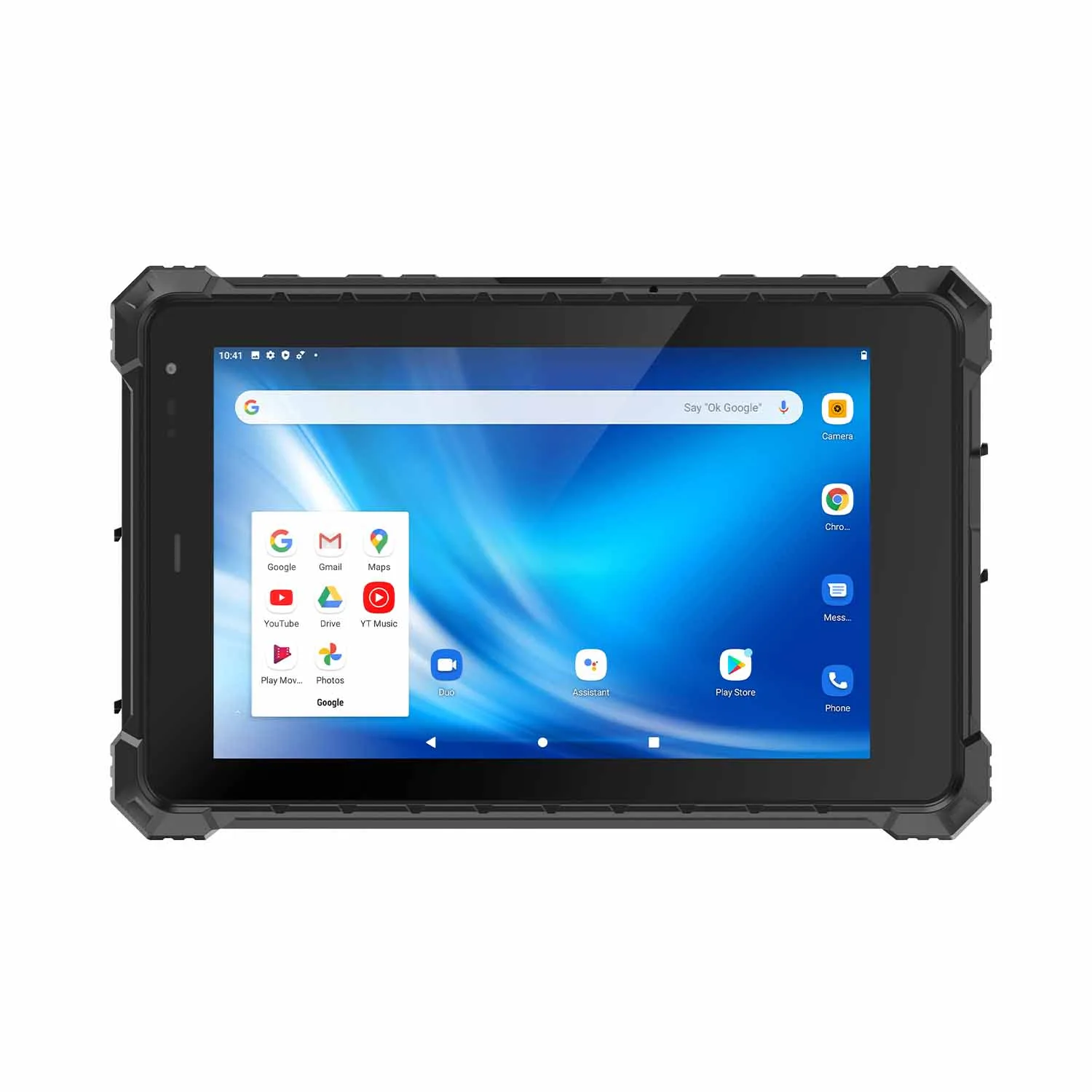
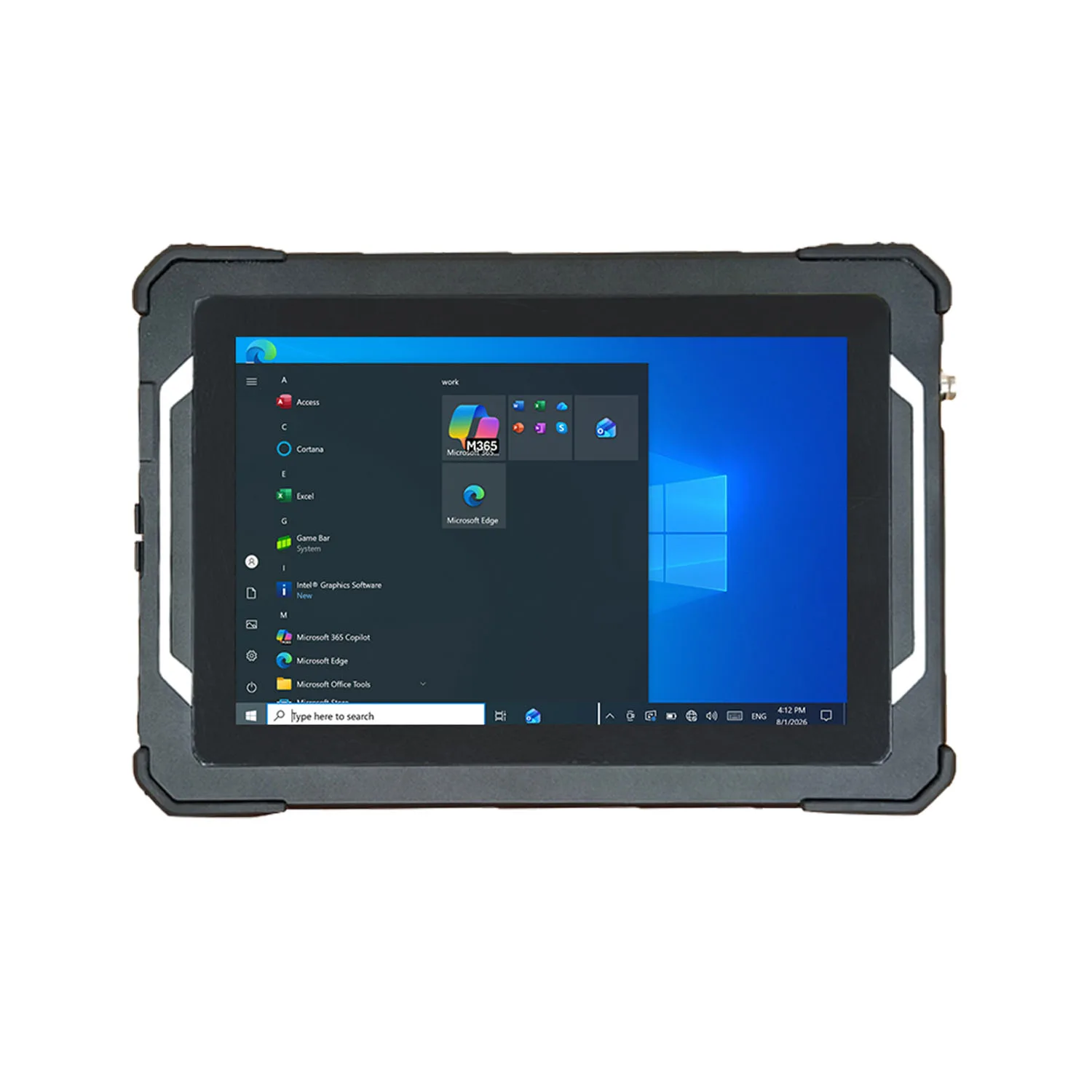
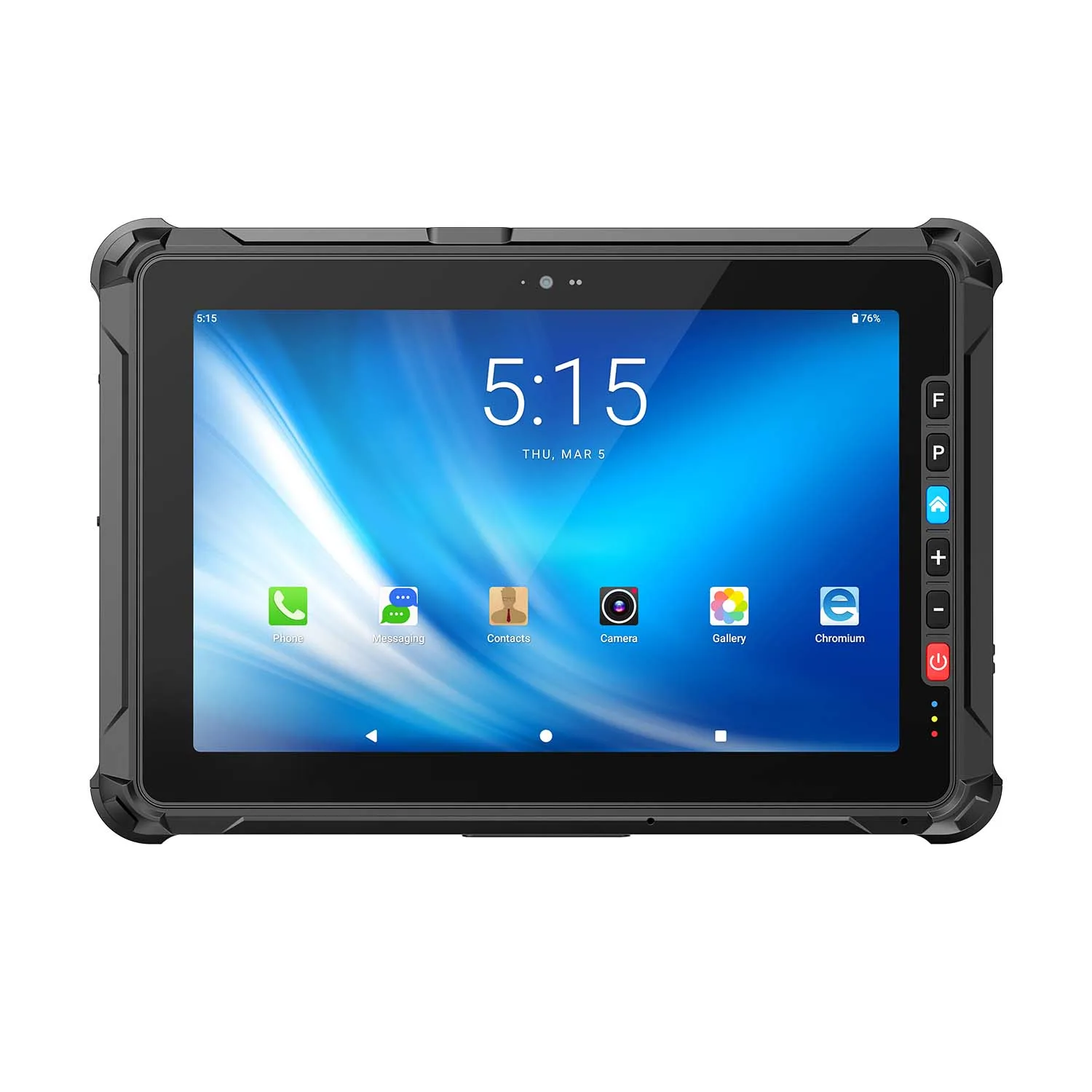
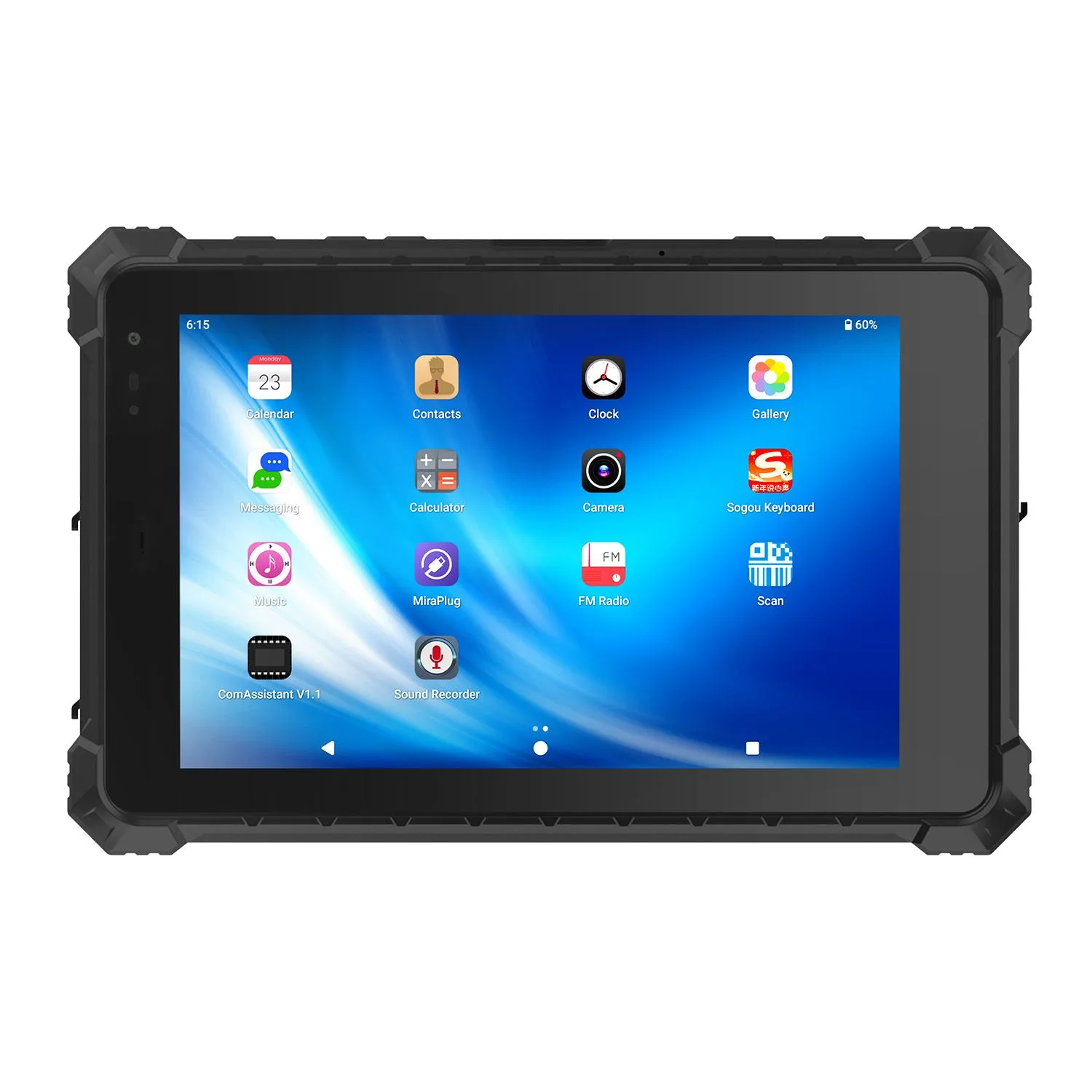
| Model | Display / Platform | Protection | Selection Focus |
|---|---|---|---|
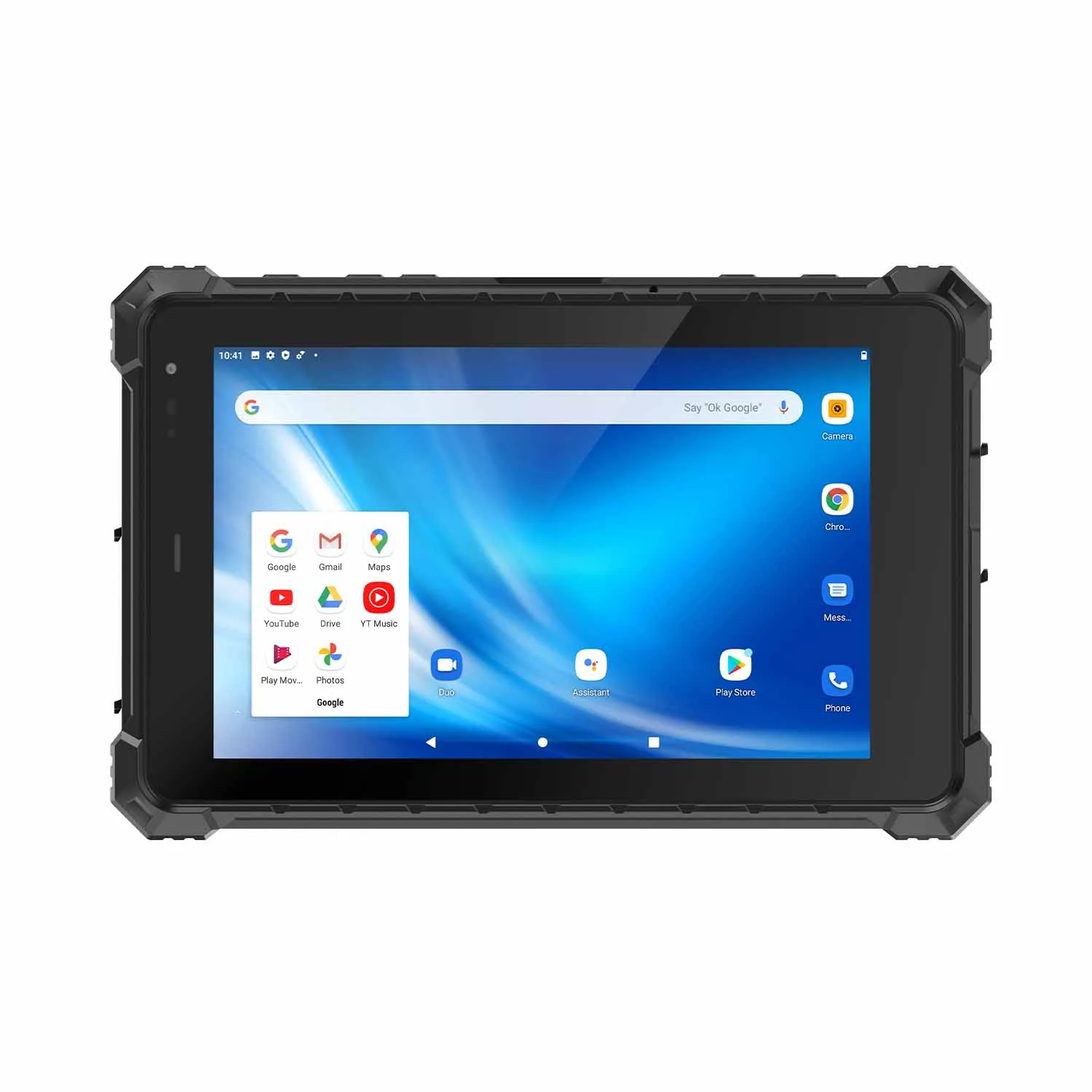
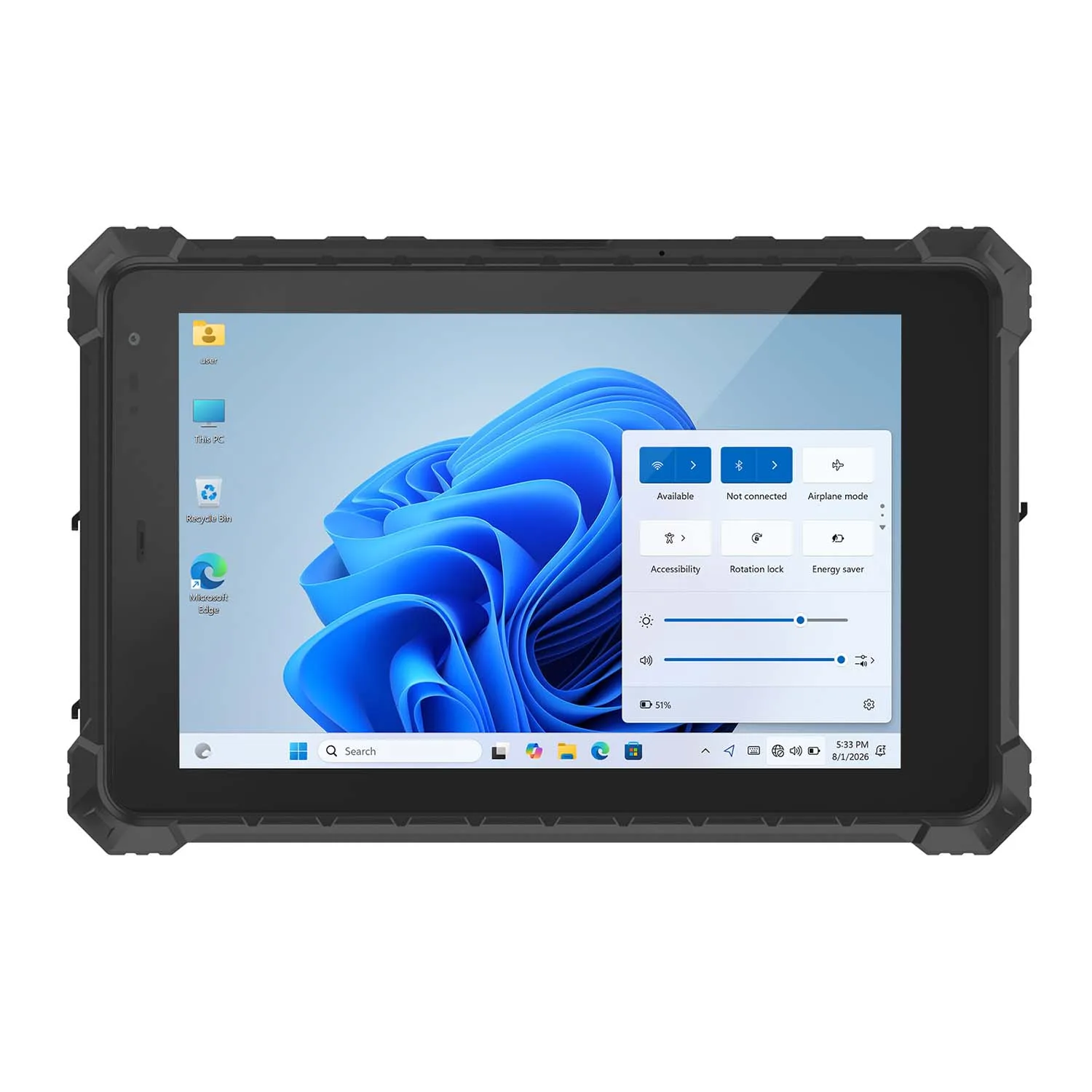
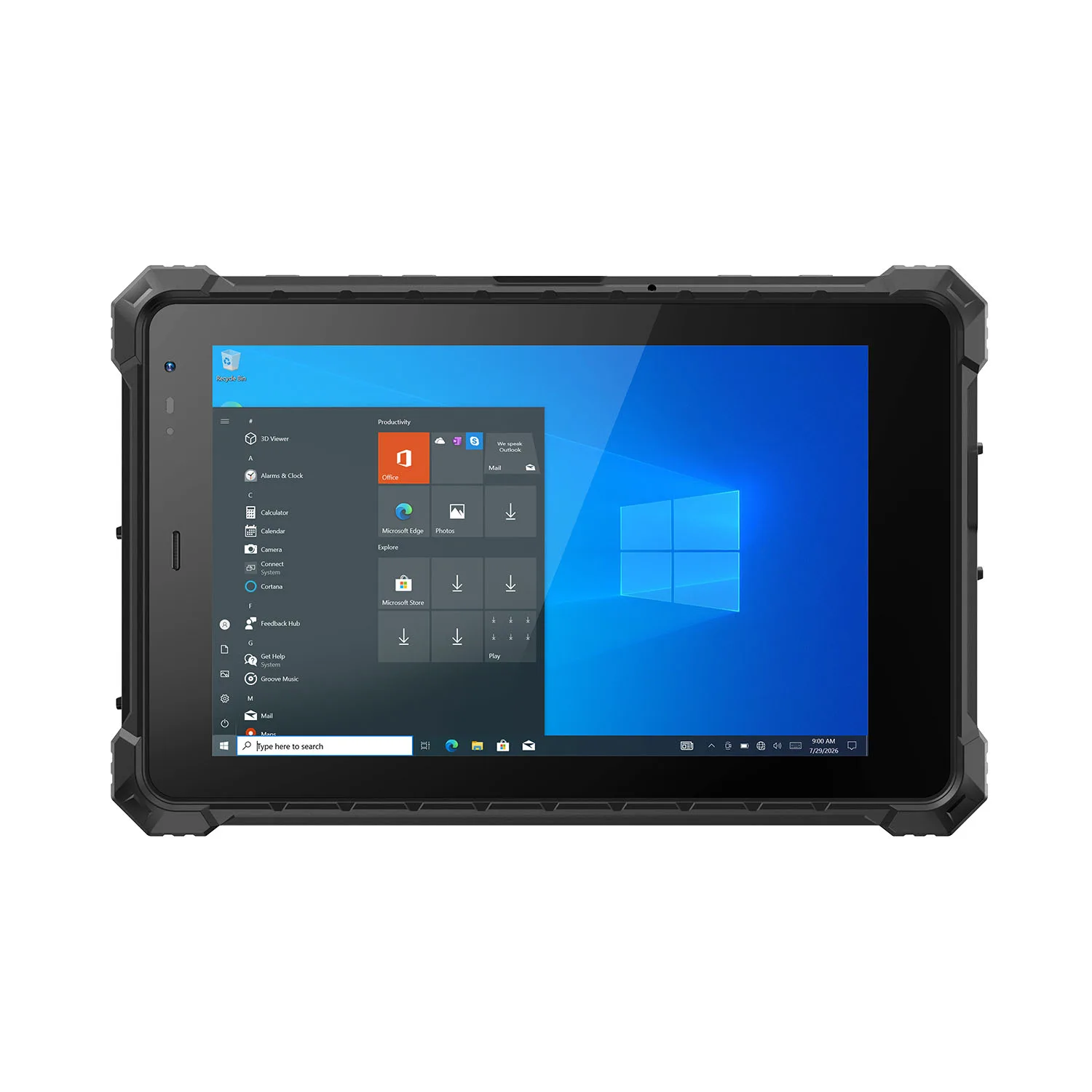
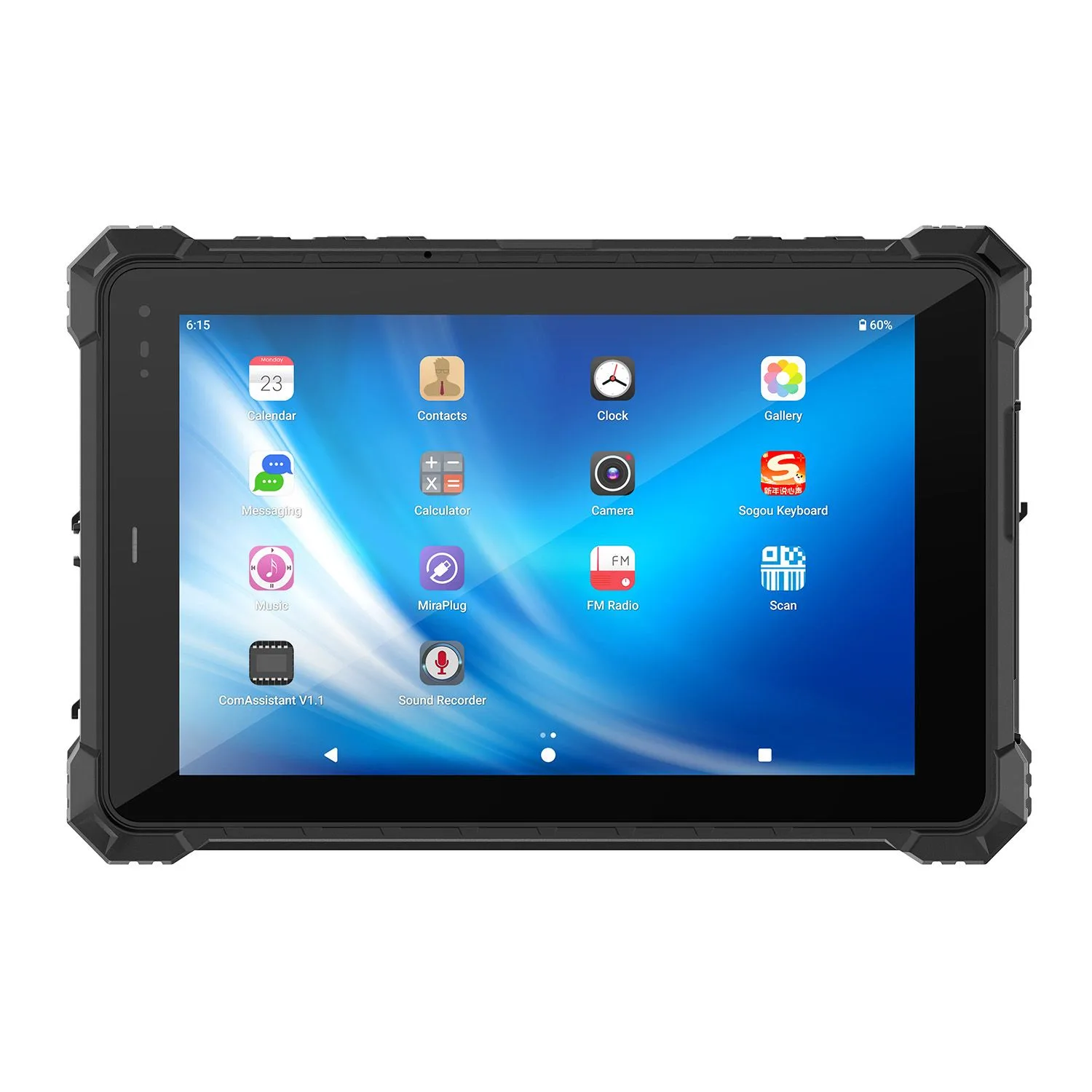
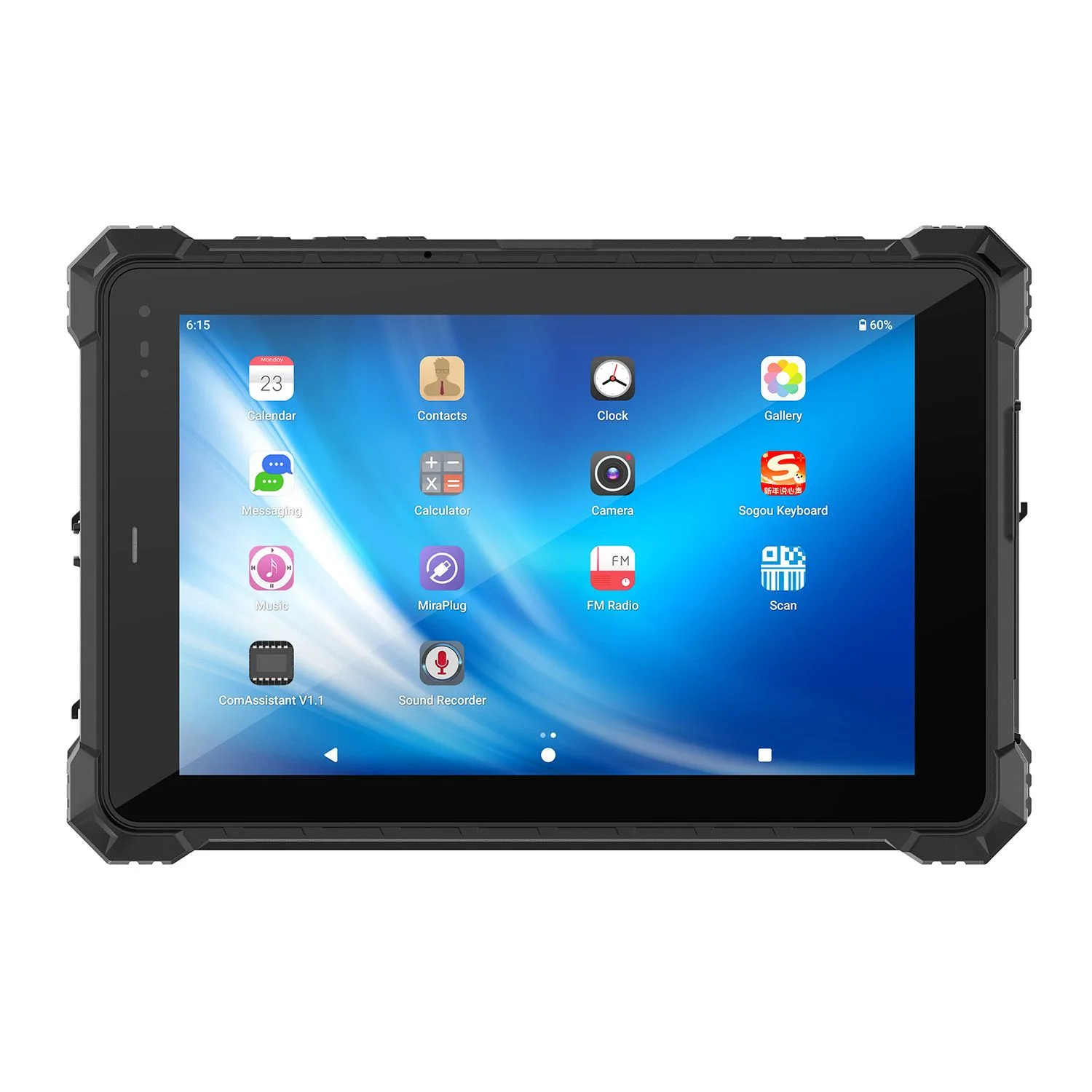
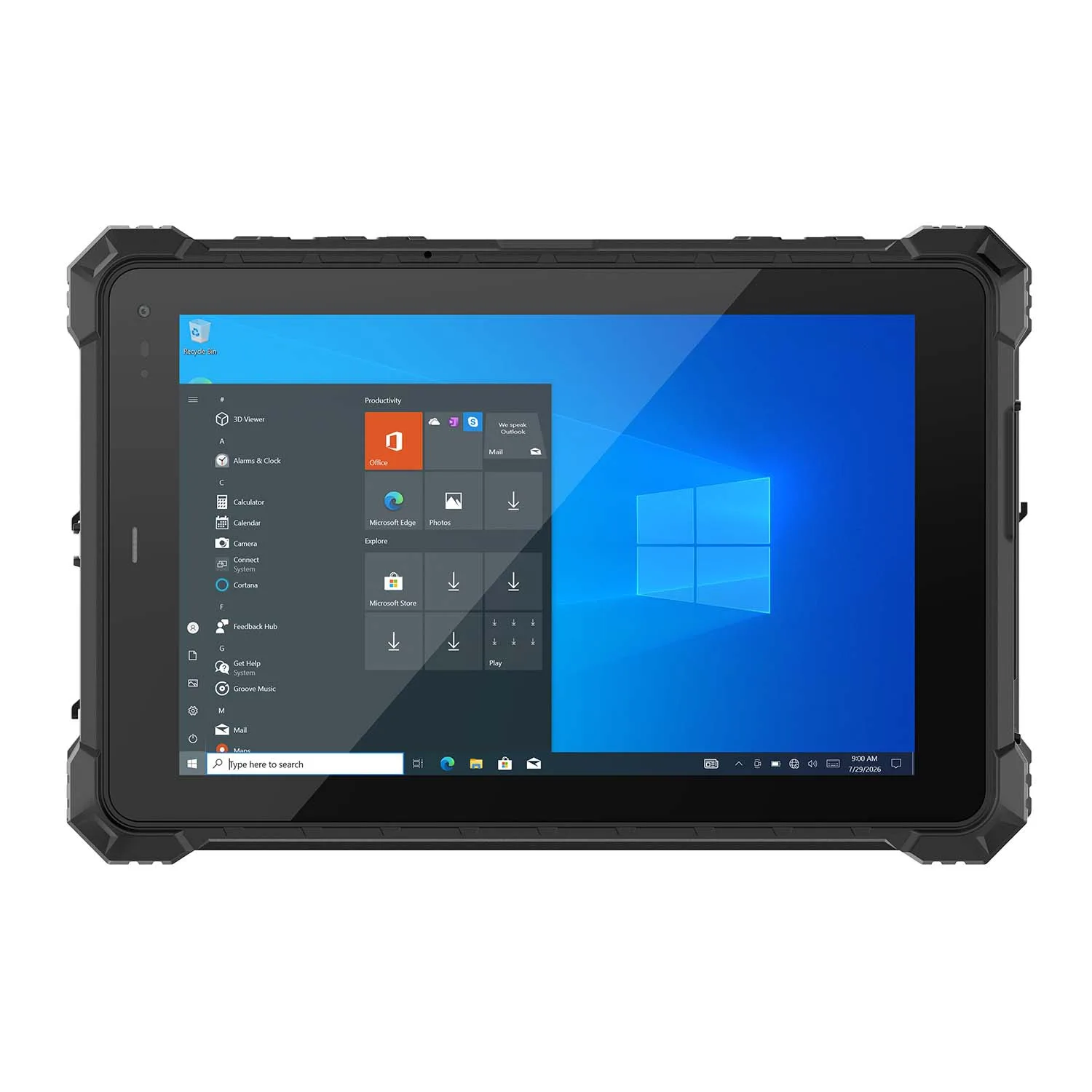
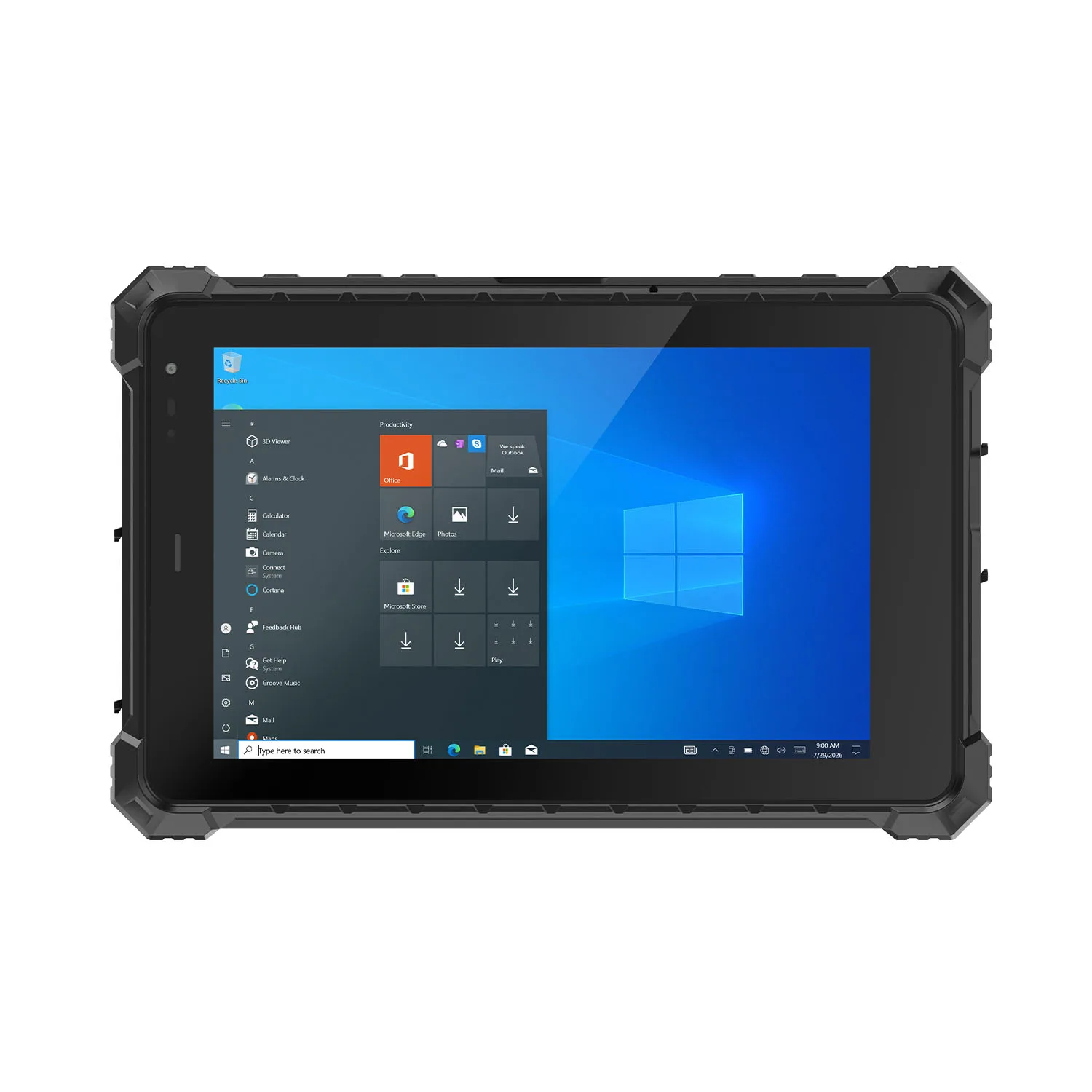
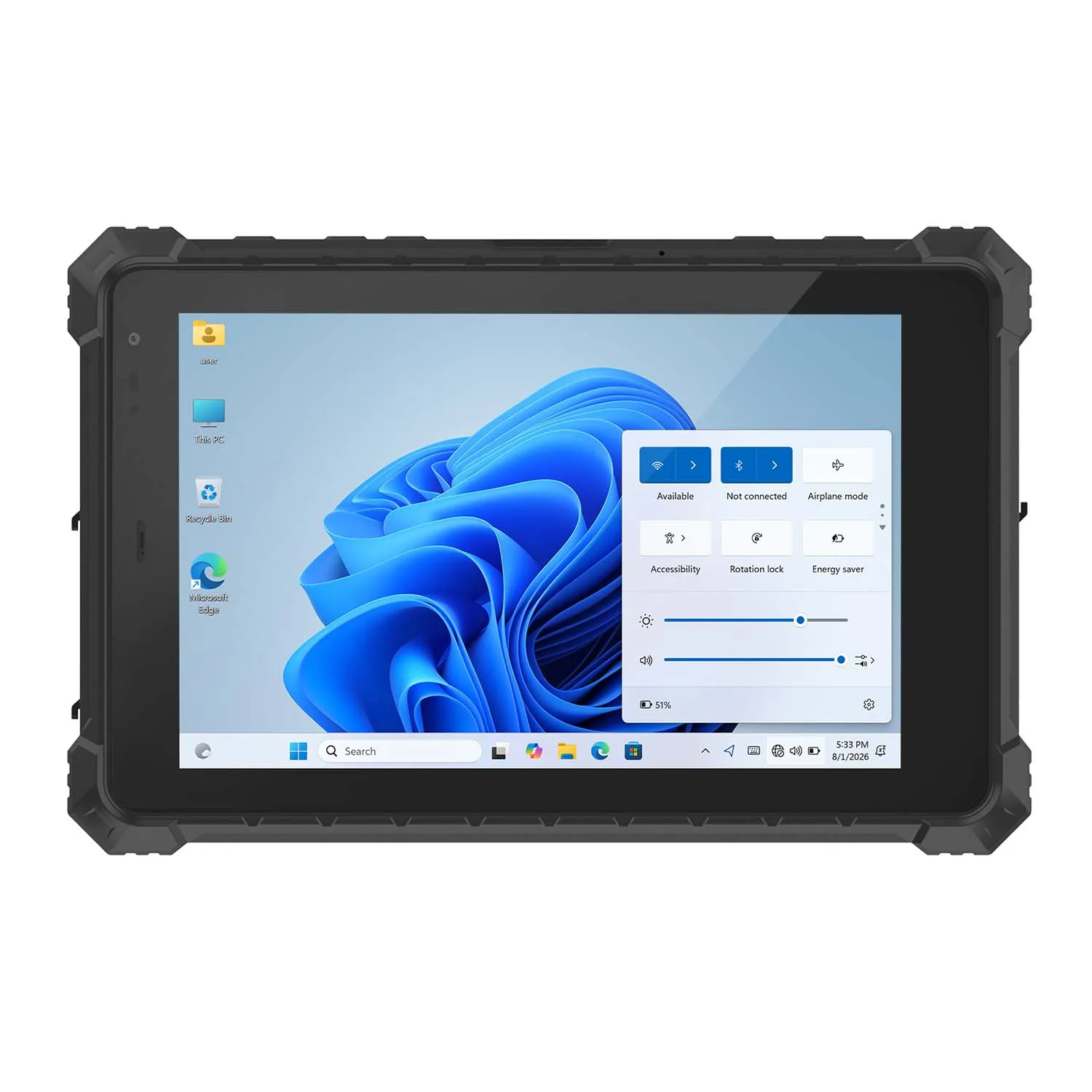
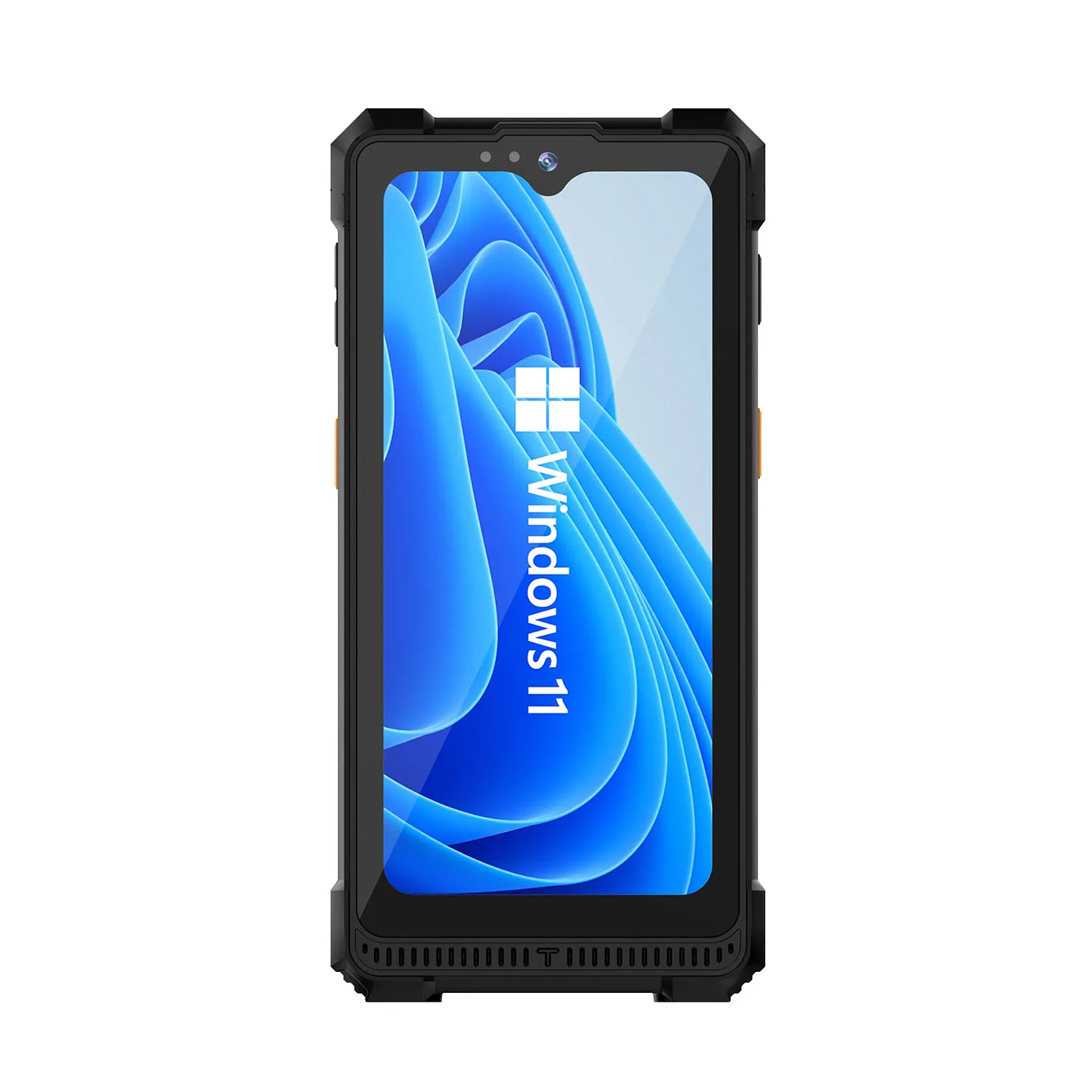
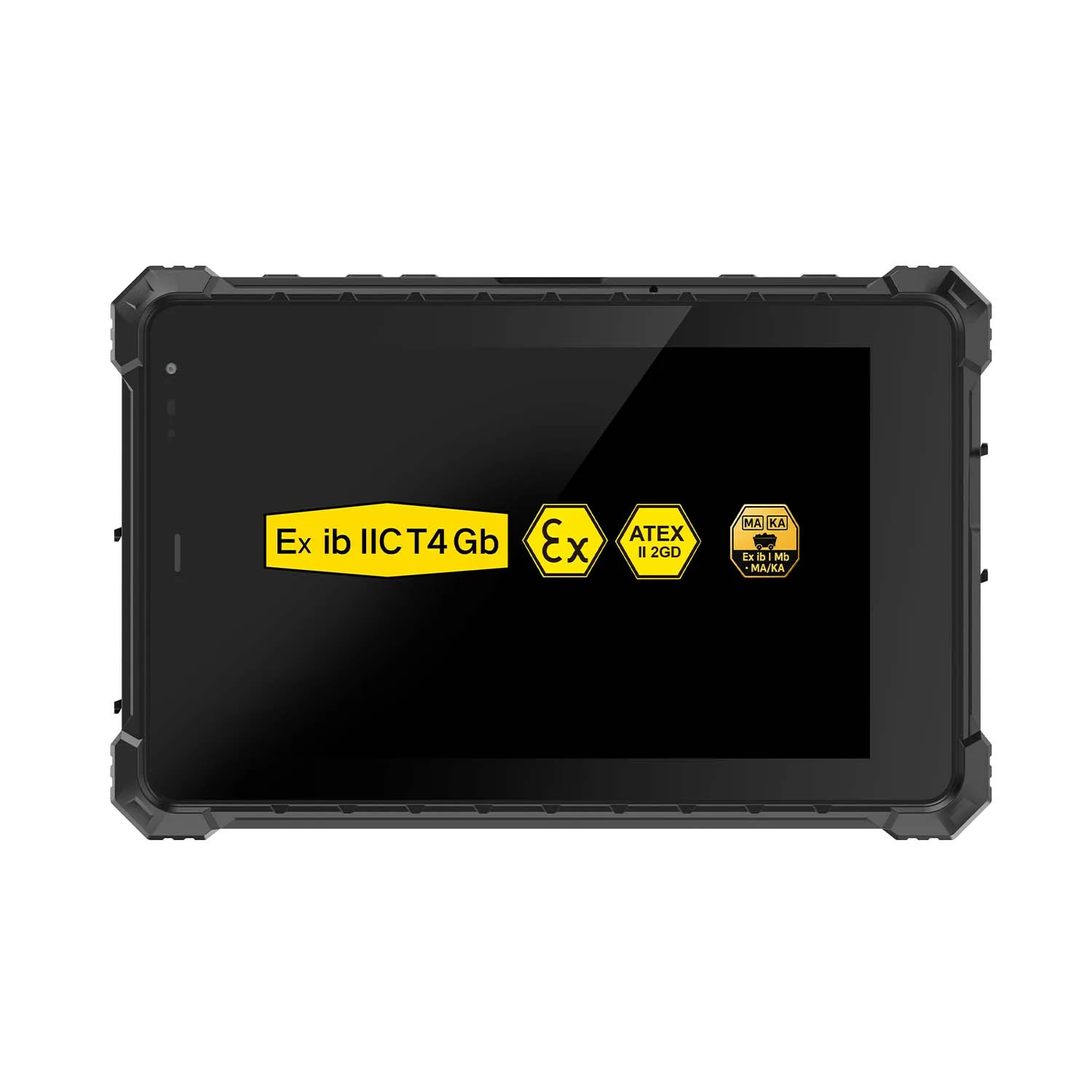
| W80N N5100 | 8-inch / Windows | IP68 | Compact Windows workflows; USB and RJ45; no built-in DB9 RS232 |
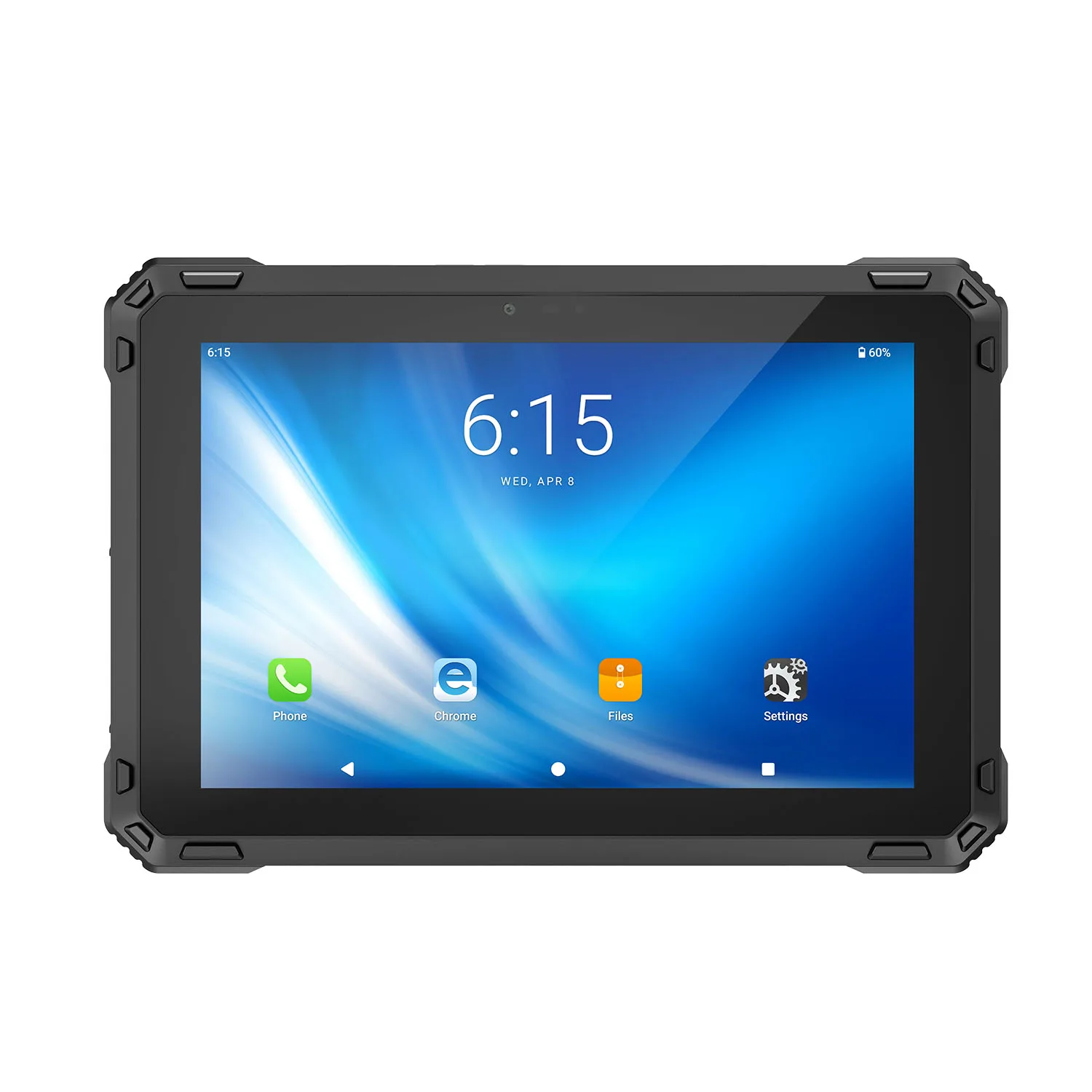
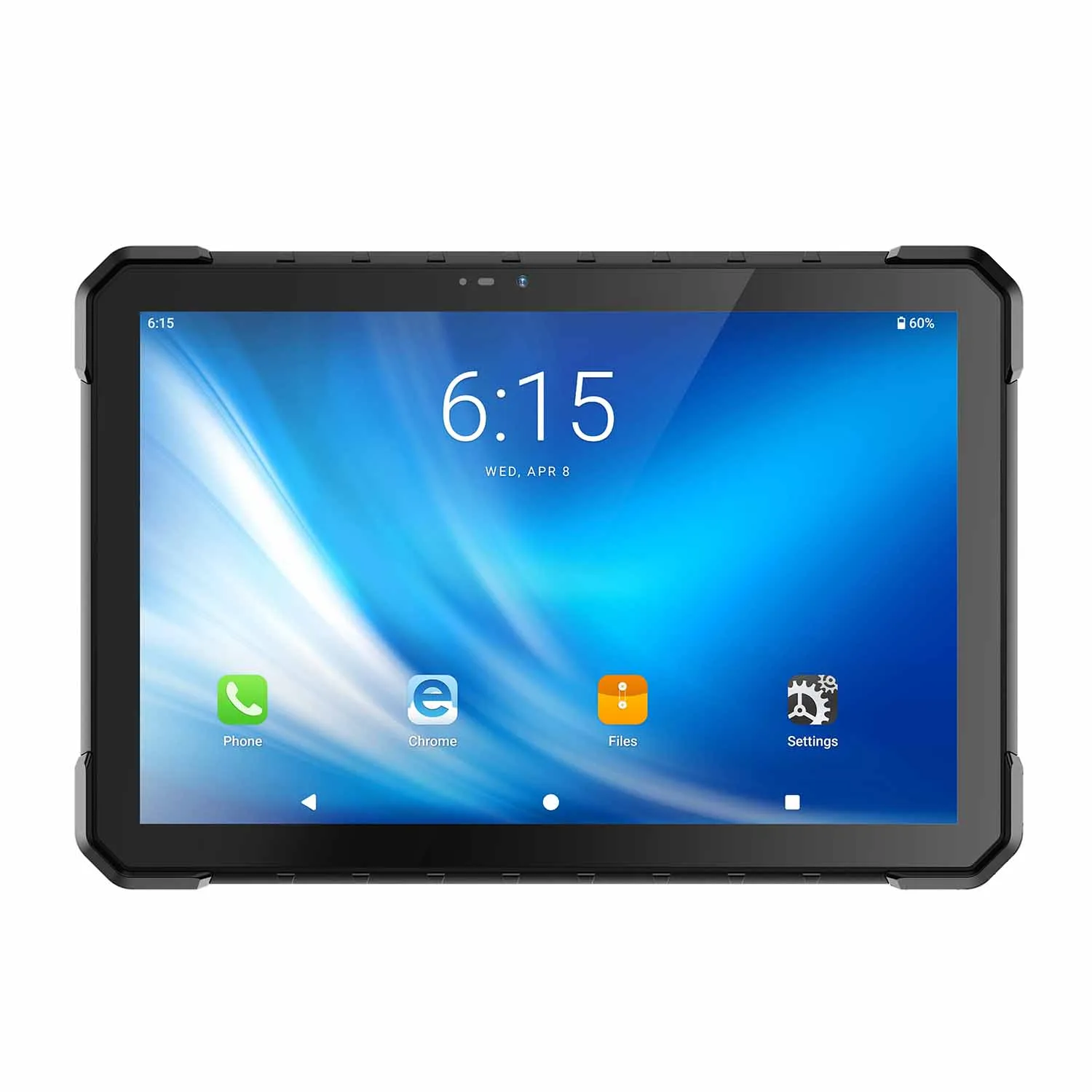
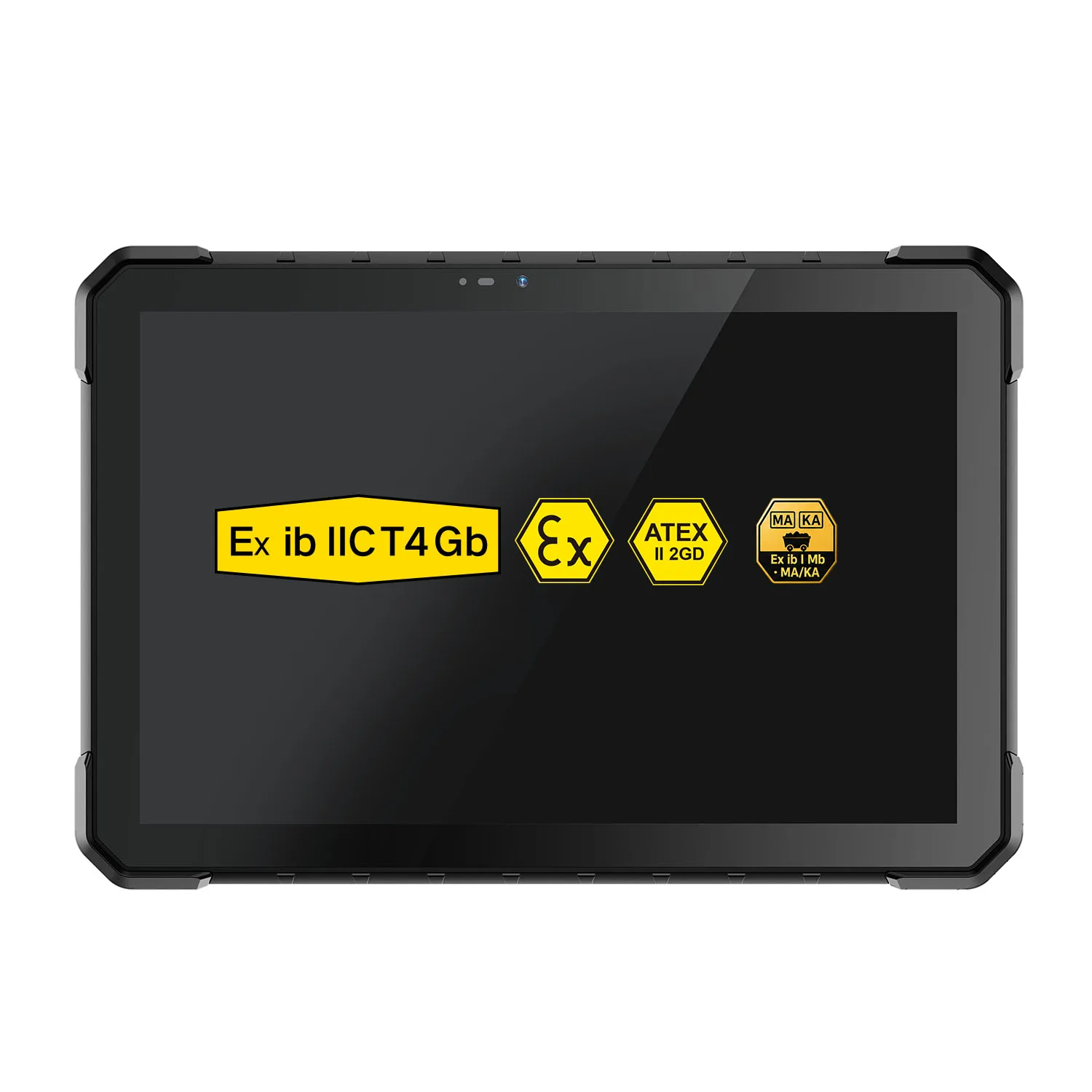
| W10NX N5100 | 10.1-inch / Windows | IP67 | Wired equipment servicing; DB9 RS232, RJ45 and removable battery |
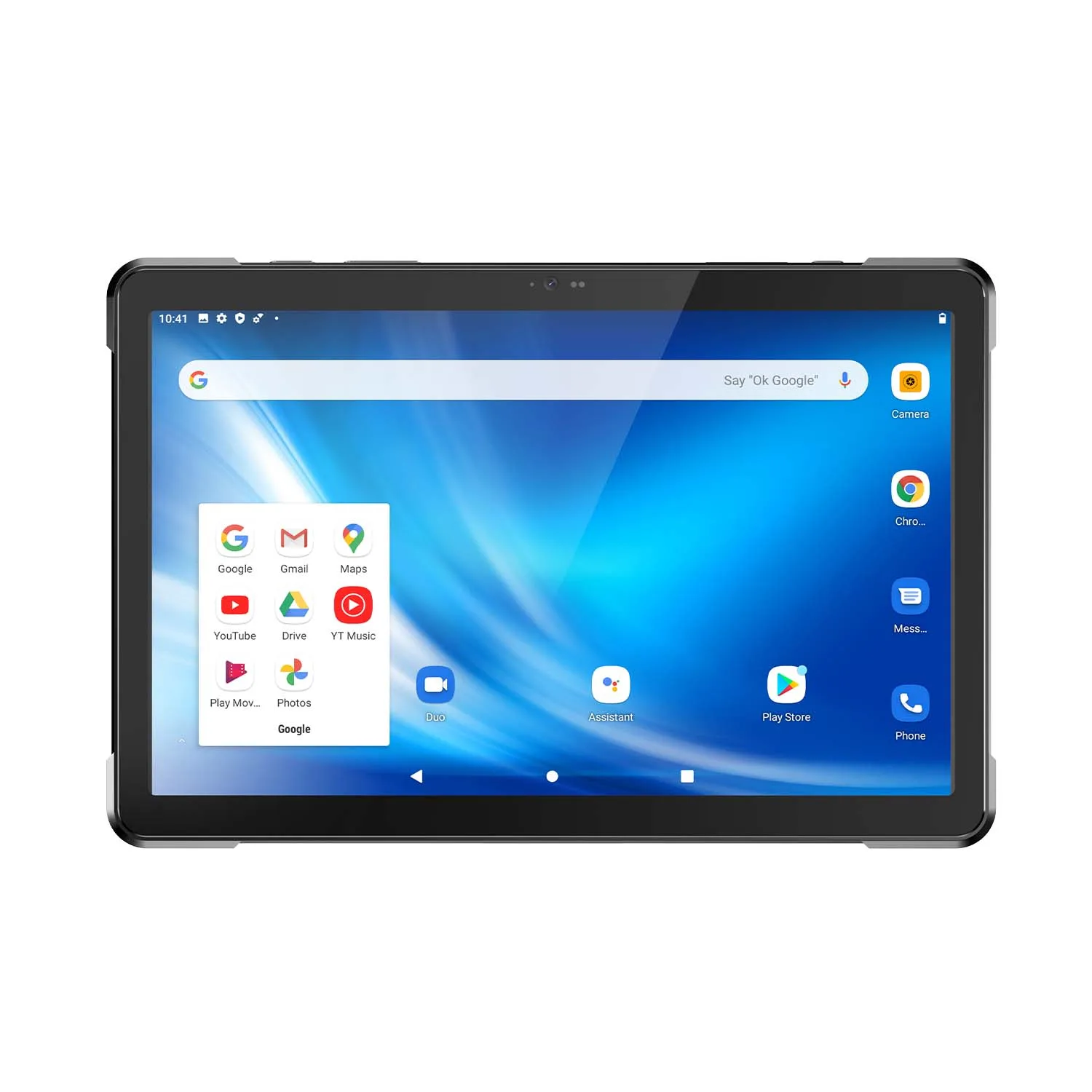
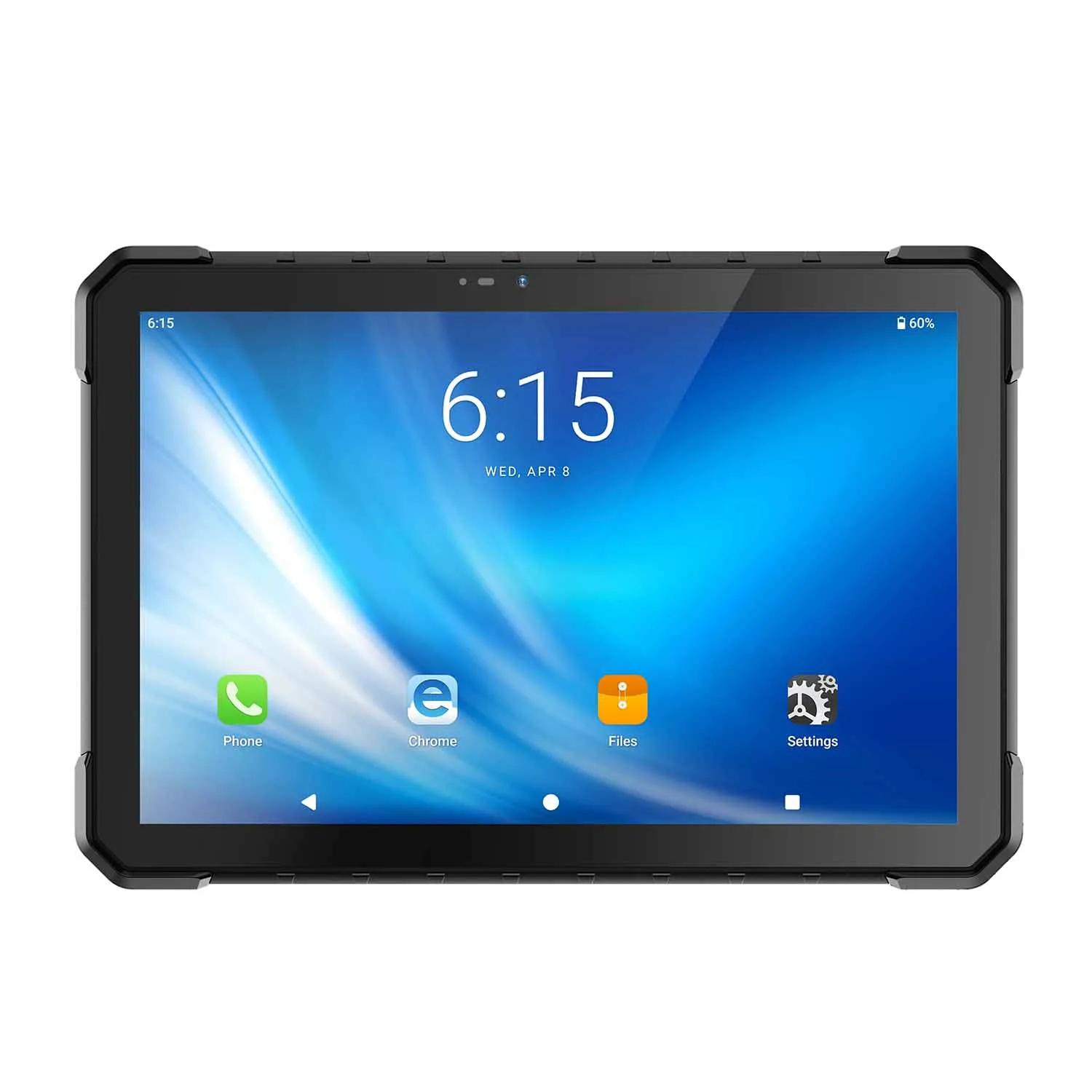
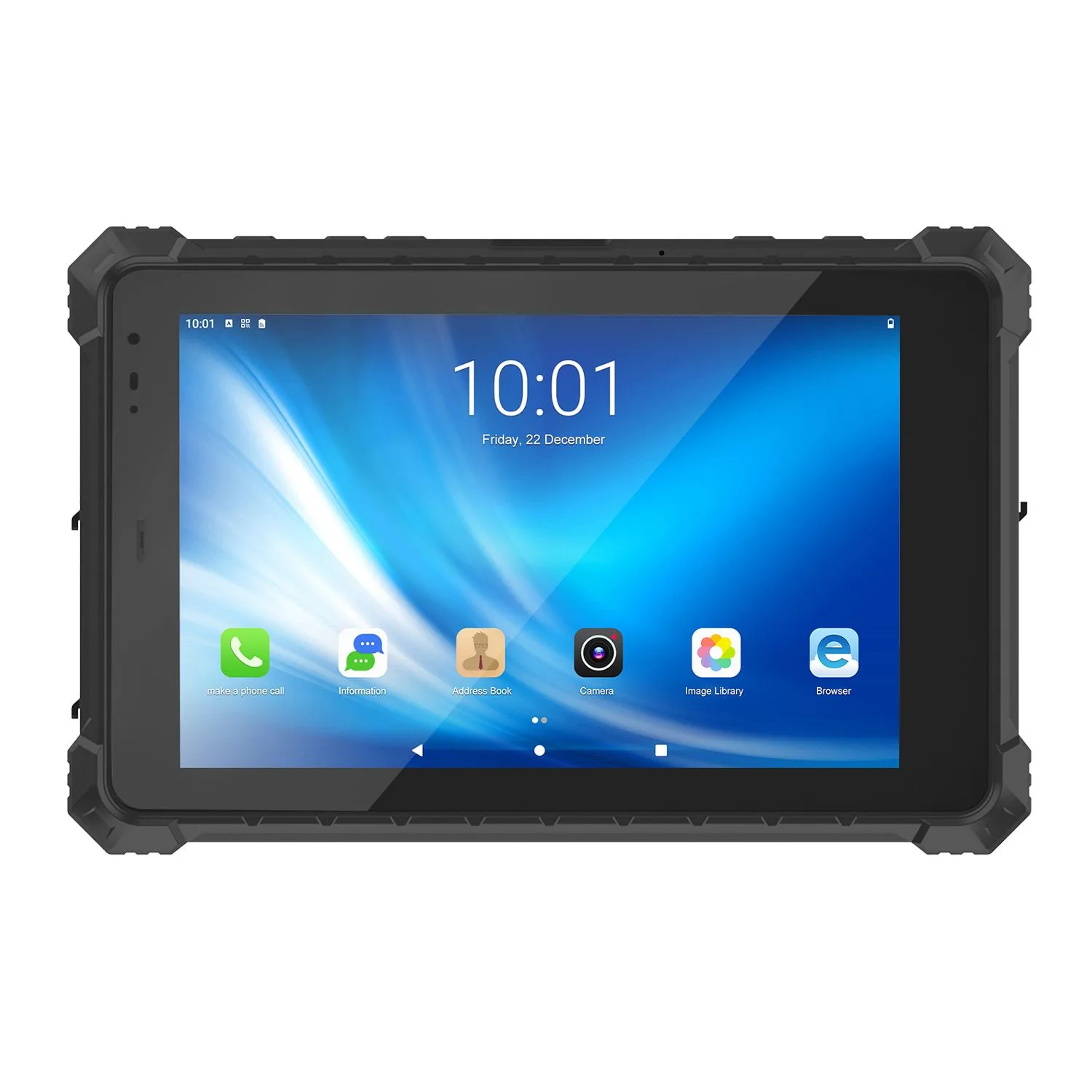
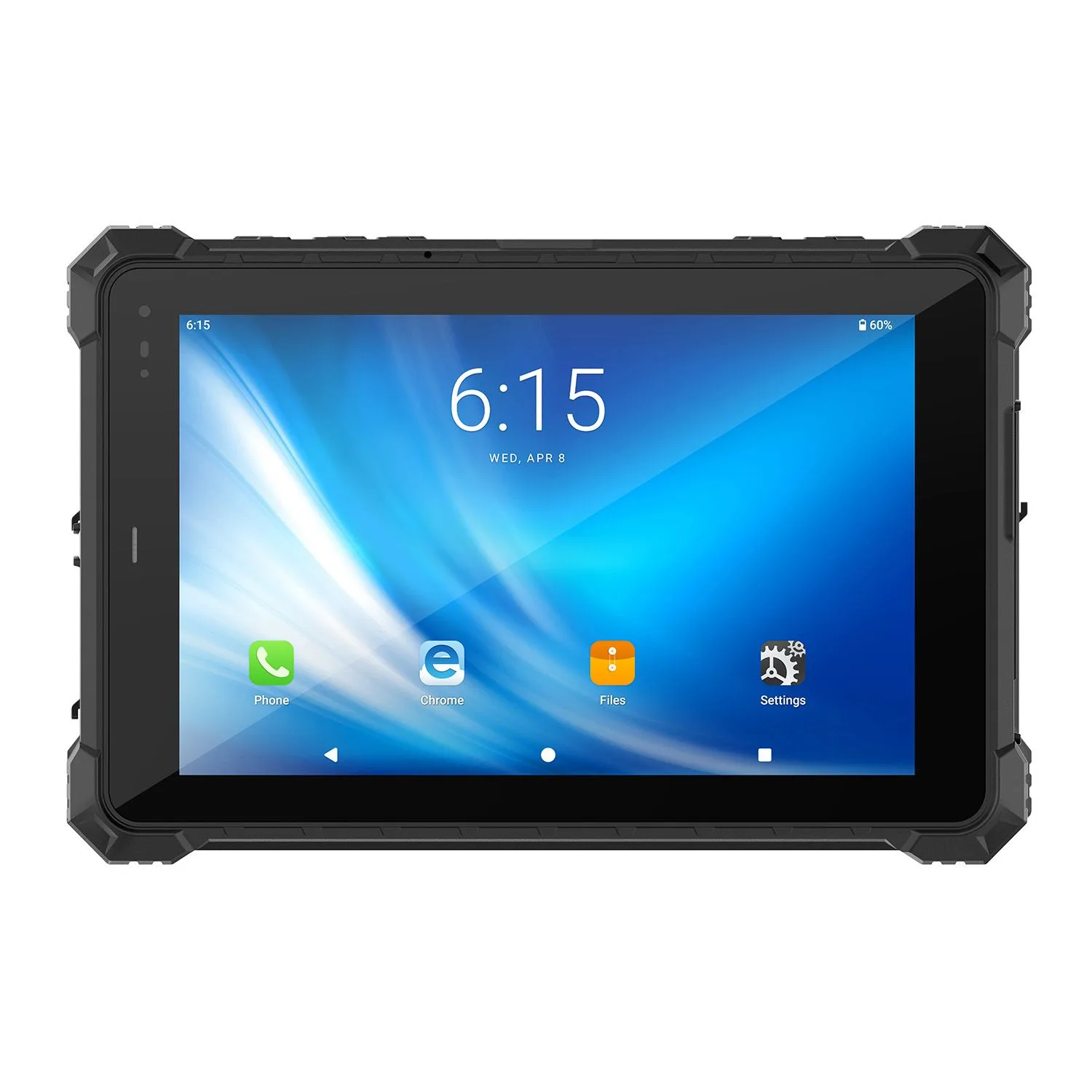
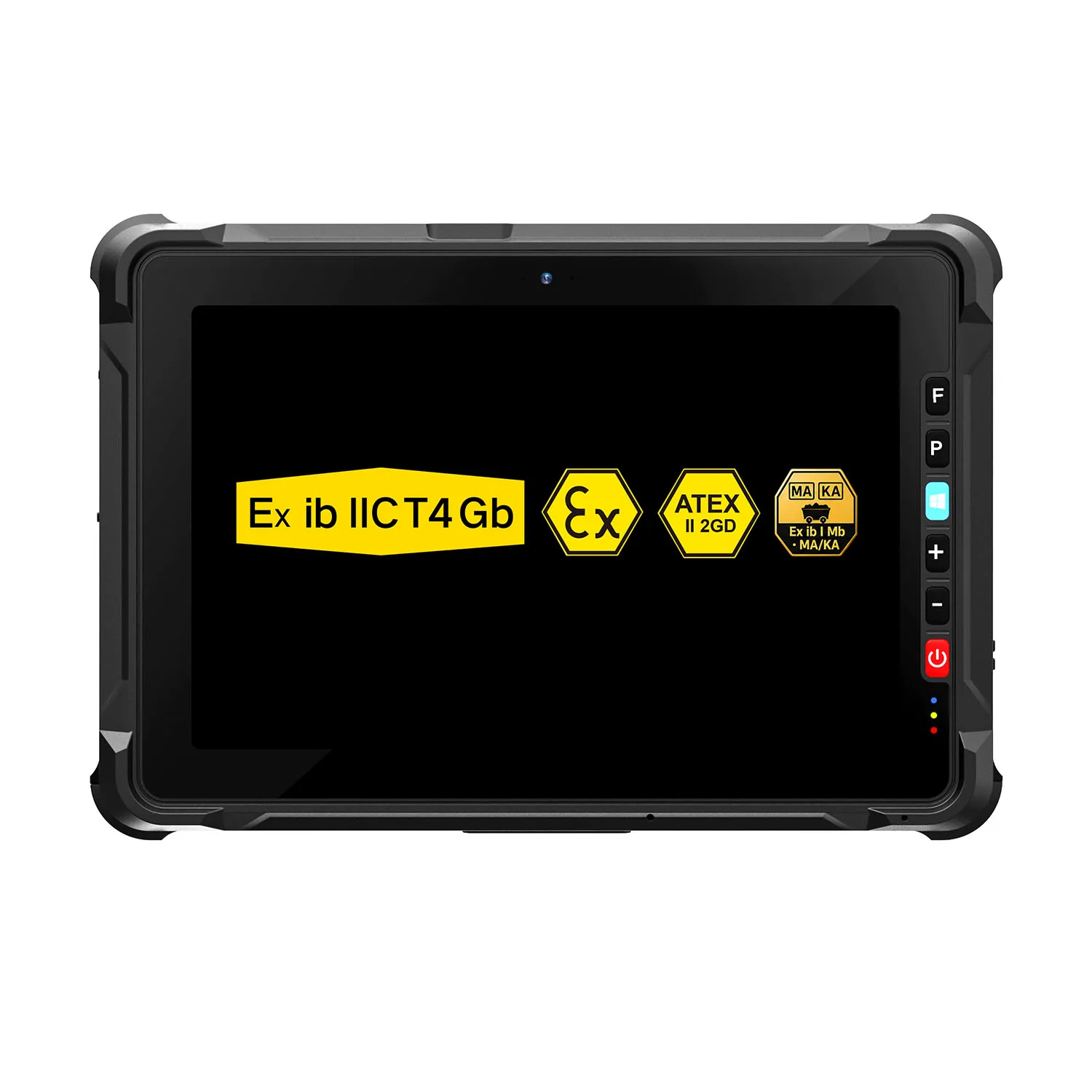
| A18ST MT8781 | 10.1-inch / Android 13 | IP68 | Mobile forms and inspection rounds; approximately 859g; no built-in RJ45 or RS232 |
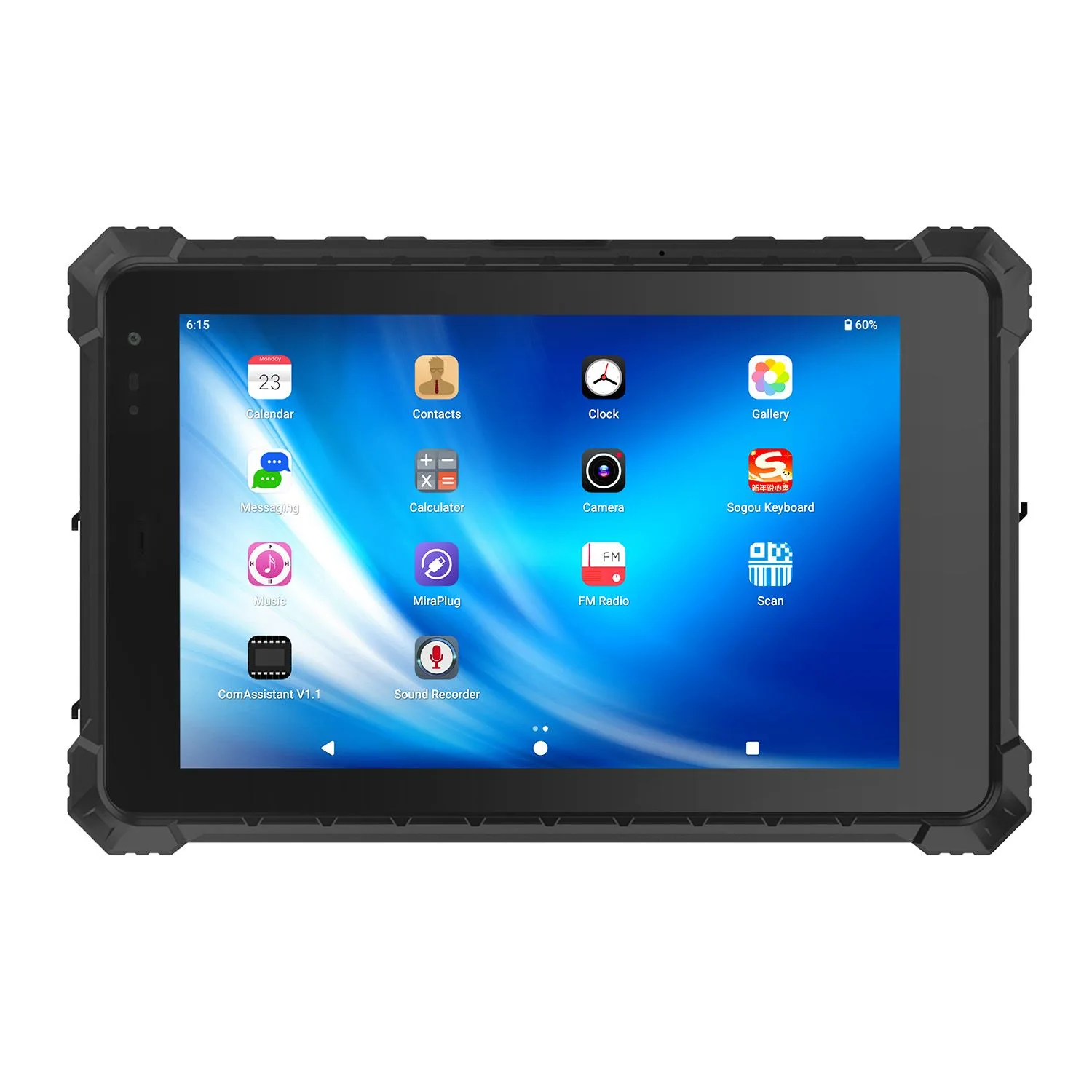
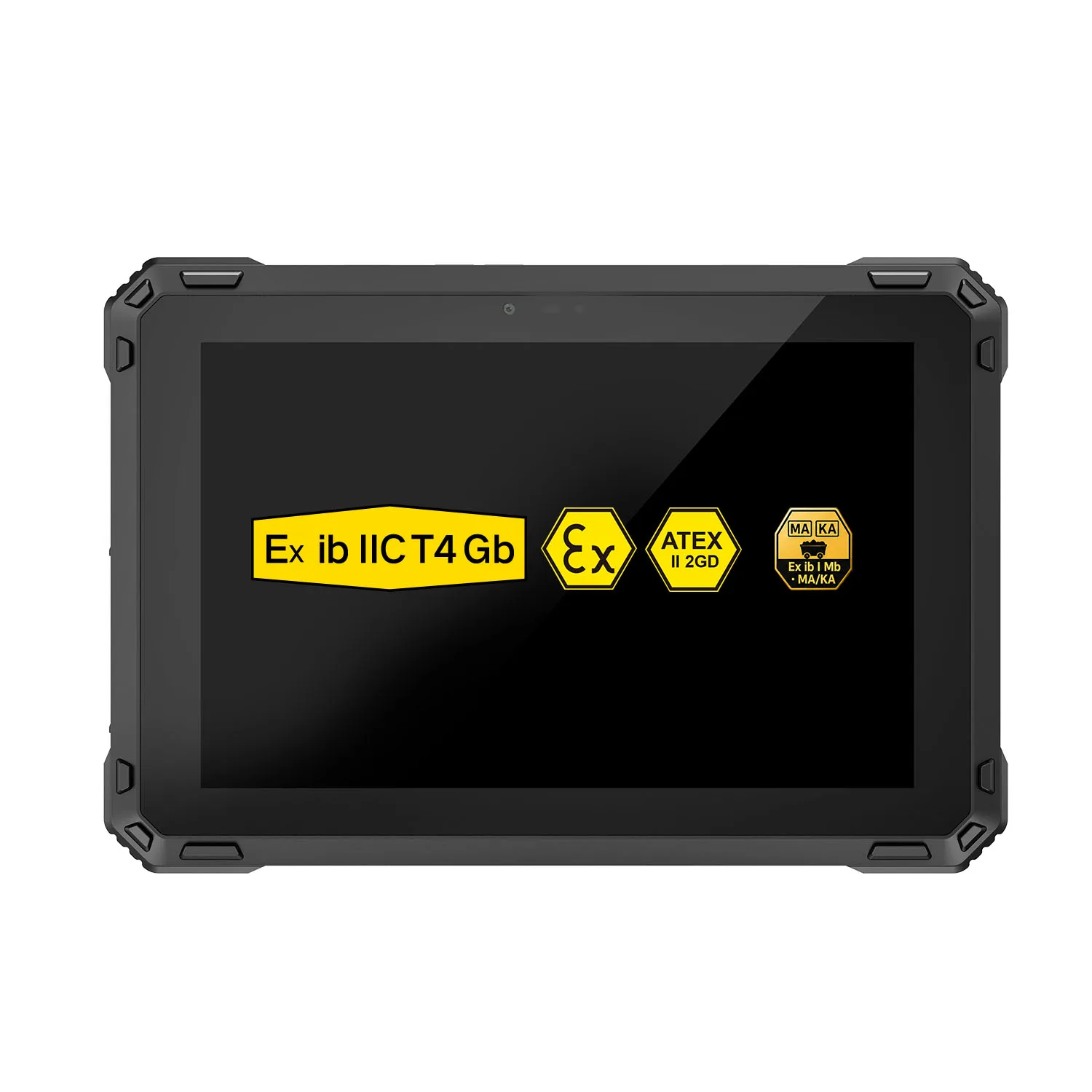
| A10ST MT8781 | 10.1-inch / Android 13 | IP68 | Android workflows requiring integrated RJ45 and RS232 connections |
These models provide different starting points for selection. Confirm the exact operating system version, application requirements, memory, storage and optional modules for your project. Test diagnostic software and connected instruments on the proposed configuration.
Configure Devices for Your Service Team
CENAVA offers OEM/ODM discussions covering branding, hardware options, software configuration and accessories. Start with the service workflow shared by your technicians, then identify specialist requirements such as scanning, wired diagnostics or a particular carrying arrangement.
Use a sample to complete a representative visit: receive the work order, identify the asset, connect the tool, capture results and submit the report. Include a period without network coverage if that occurs in normal work. Agree on the approved configuration before ordering for the wider team.
Frequently Asked Questions About Field Service Tablets
1. What is a field service tablet?
A field service tablet is a mobile computer used by technicians to access job information, inspect assets, run compatible service tools and record completed work. Rugged models add hardware protection and industrial configuration options for demanding working environments.
2. Should technicians use Windows or Android?
Choose Windows when the service workflow depends on a supported desktop application or Windows-specific equipment driver. Android is an option for compatible mobile service, inspection and asset-management apps. Check the software provider’s supported operating systems and versions before selecting hardware.
3. Can the tablet run our field service management software?
Compatibility depends on the application, operating system, browser requirements and device configuration. Share the software name and version, together with any plug-ins or connected tools. Evaluate sign-in, attachments, scanning and report submission on a sample.
4. Can technicians work without an internet connection?
Yes, when the application supports offline work and the required records are stored locally. Test access to manuals, saving photographs, completing forms and synchronization after reconnection. Confirm how the software handles conflicting updates.
5. Will the battery last for the entire working day?
Runtime depends on the workload, display settings, wireless activity and temperature. Measure it across a typical service route. Depending on the model, the deployment plan may include charging between visits, a suitable vehicle charger or spare removable batteries.
6. Can the tablet scan asset labels or record locations?
Selected configurations offer barcode or RFID options and satellite positioning. Confirm the reader, tag type and application integration, along with any location-accuracy requirement. The software must associate captured data with the correct asset record.
7. Can our IT team manage the tablets centrally?
Confirm compatibility with your mobile device management platform for the exact operating system, firmware and enrollment method. Define requirements for application installation, account access, updates and device recovery during the technical review.
8. What information should I provide for a quotation?
Send your application names, service tasks, preferred screen size, operating system and required diagnostic interfaces. Include connectivity needs, working conditions, daily carrying time, estimated quantity, deployment country and delivery schedule.