

-1.jpg)
.jpg)





Construction & Site Work
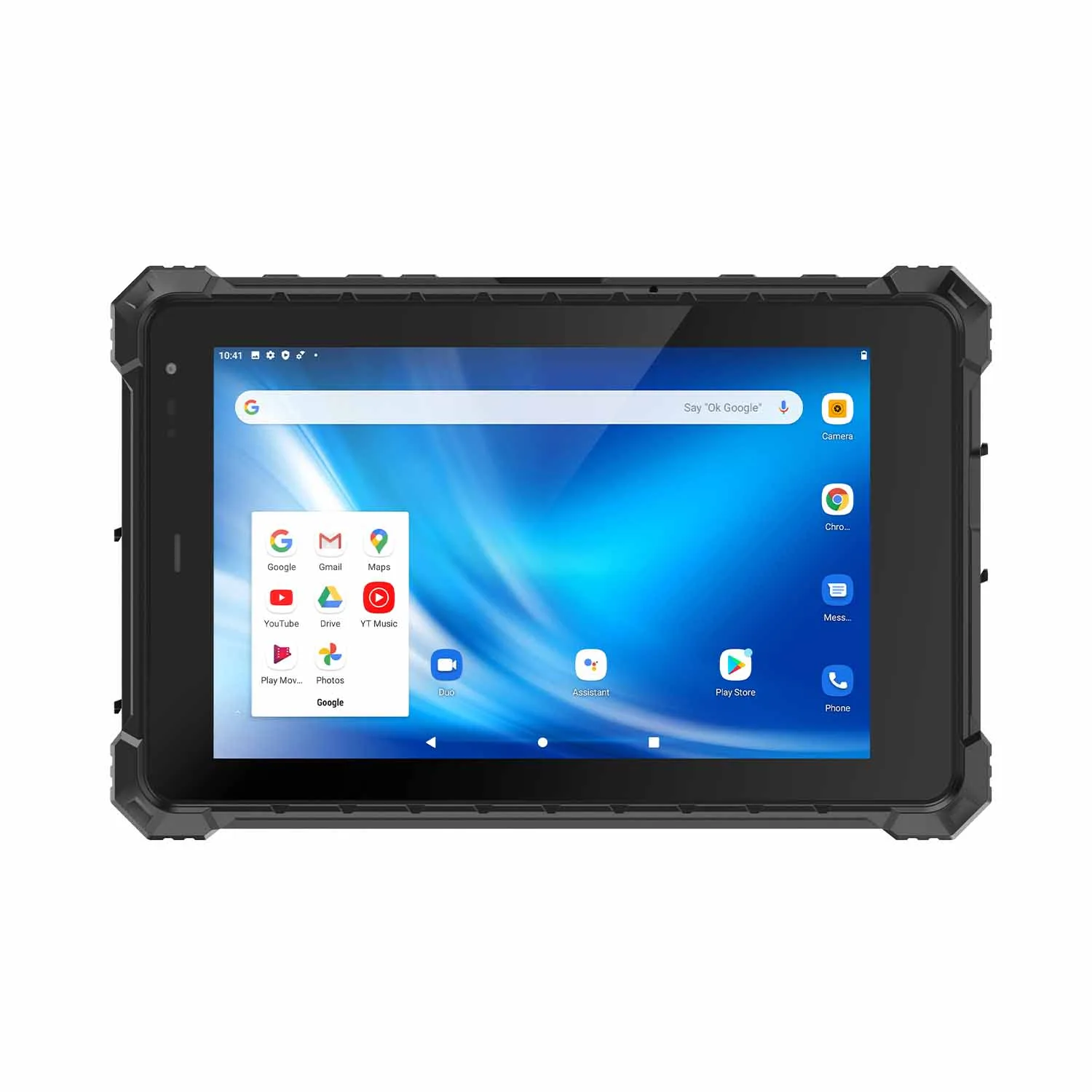
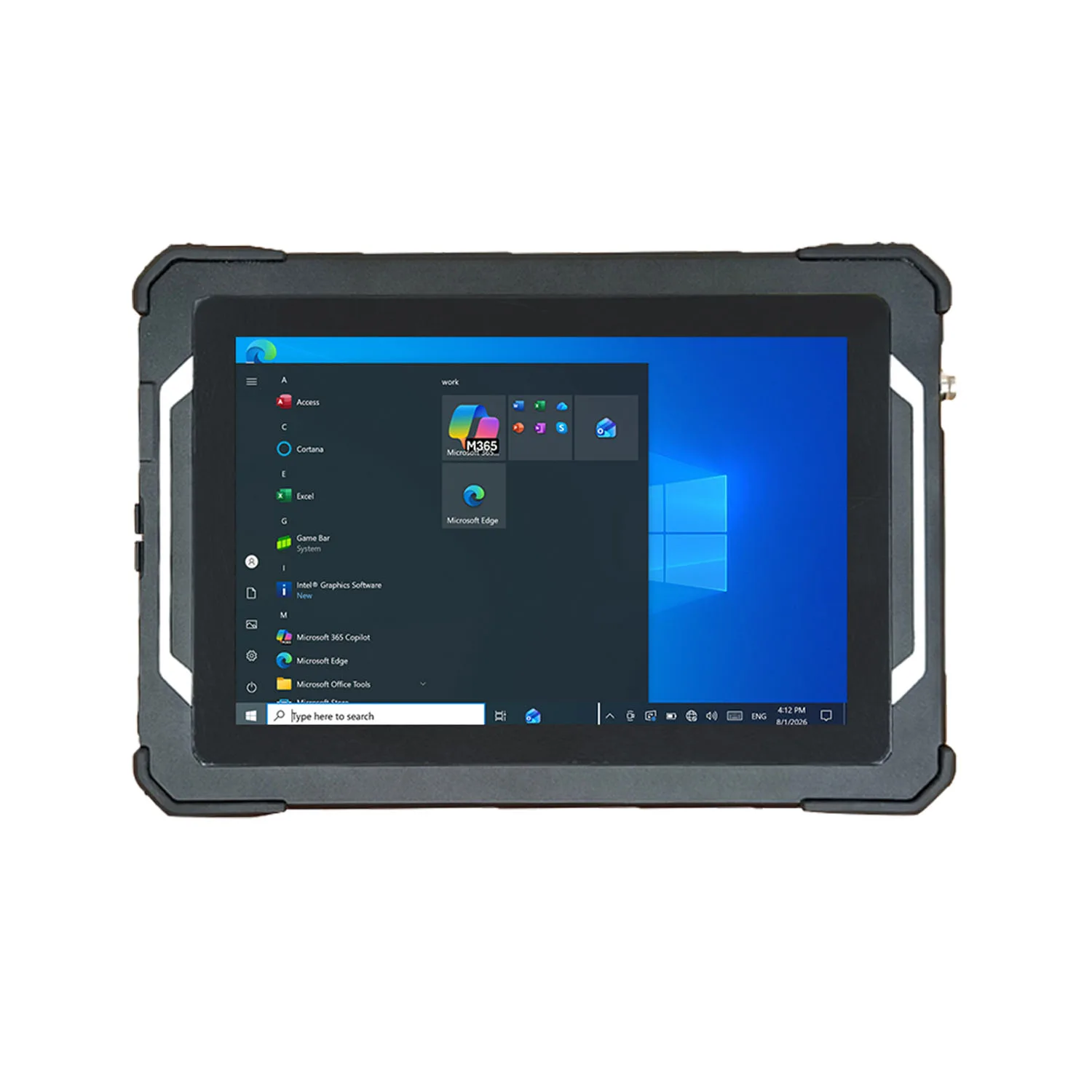
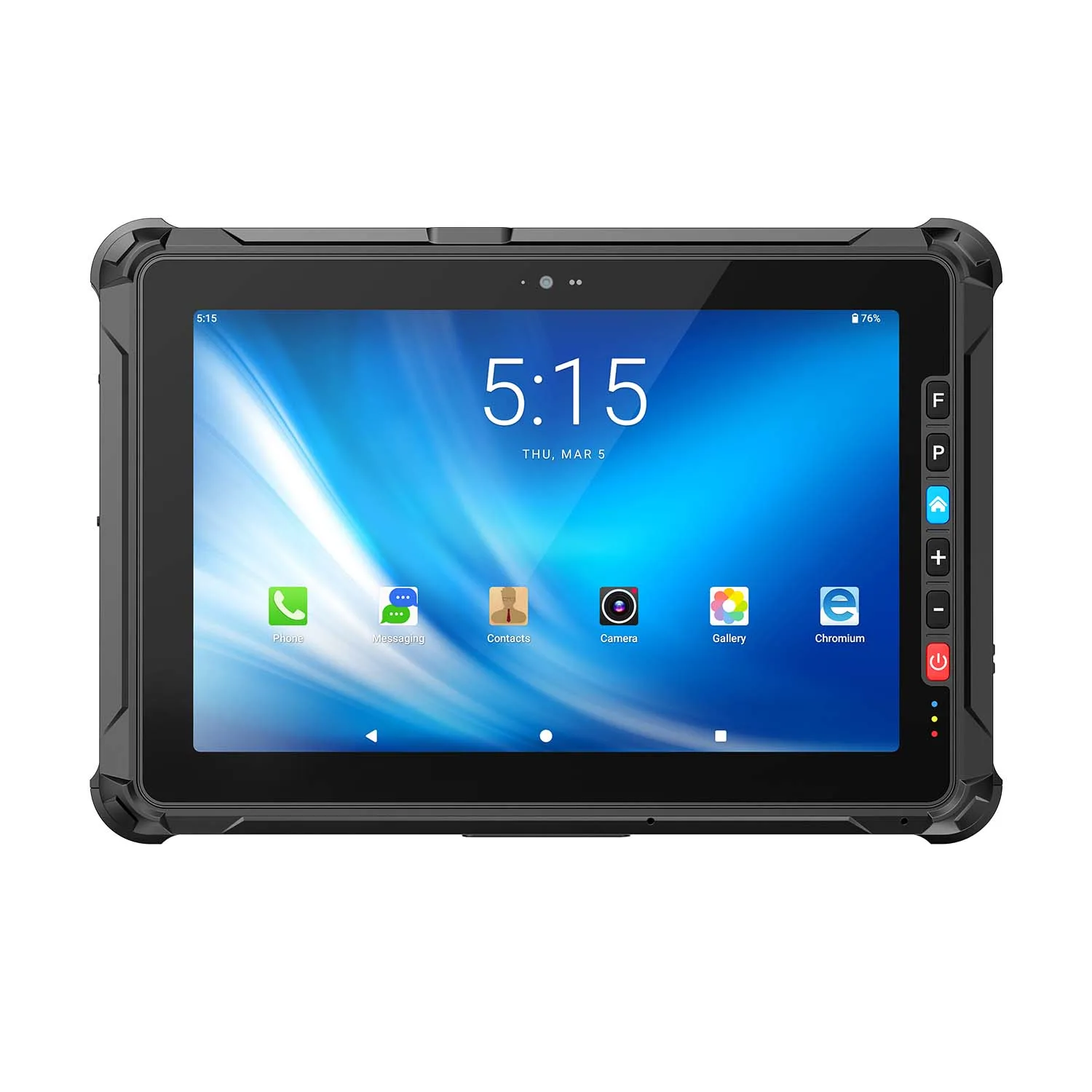
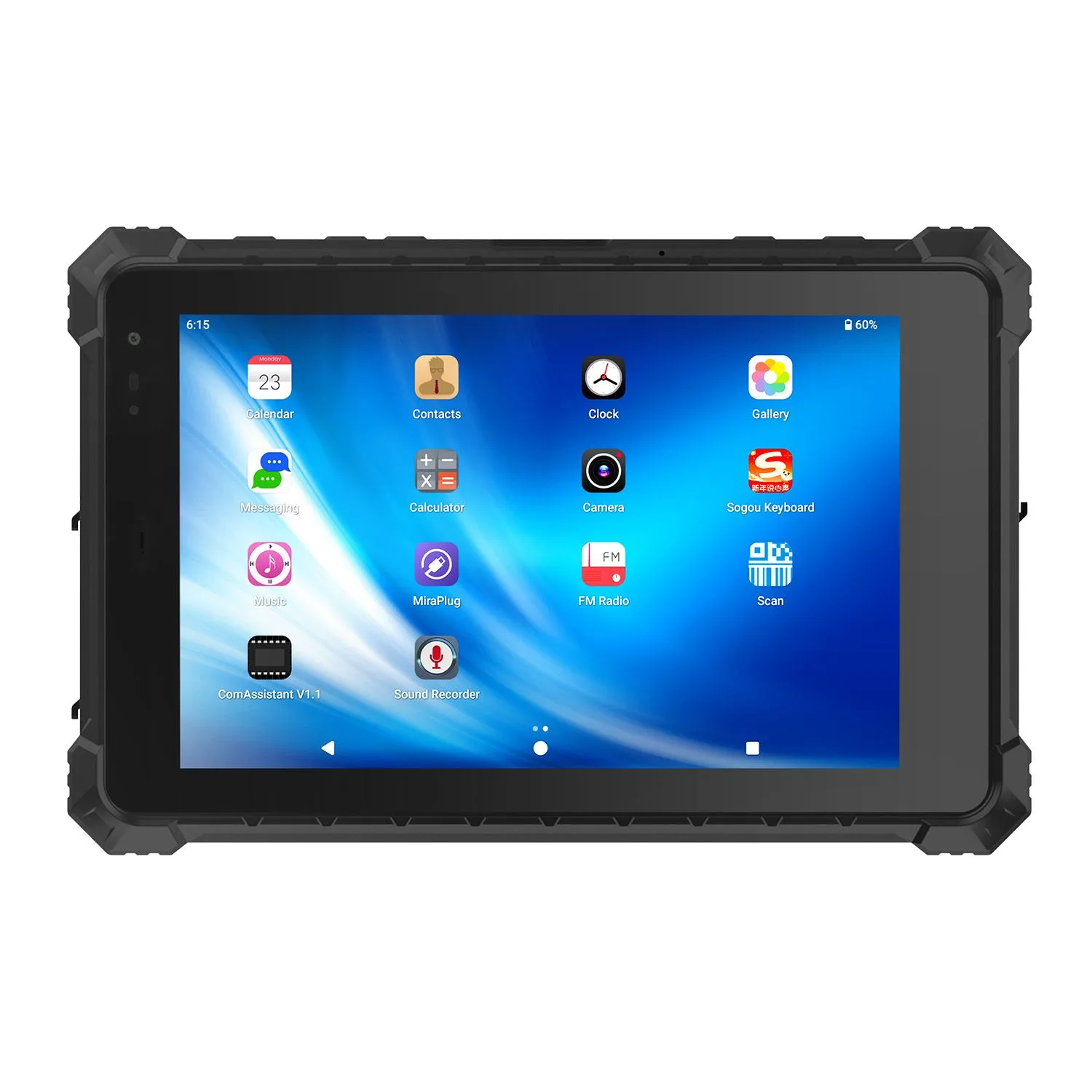
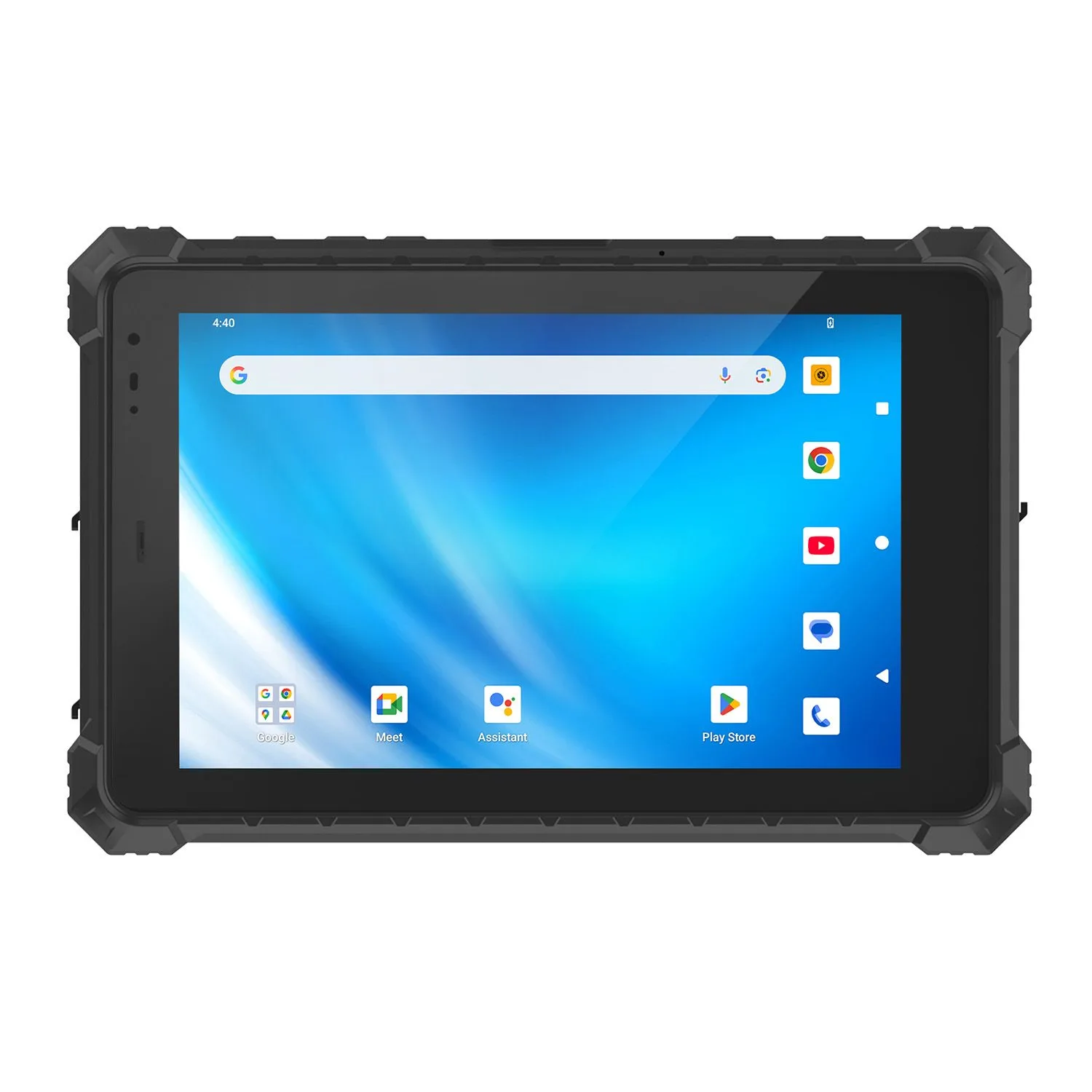
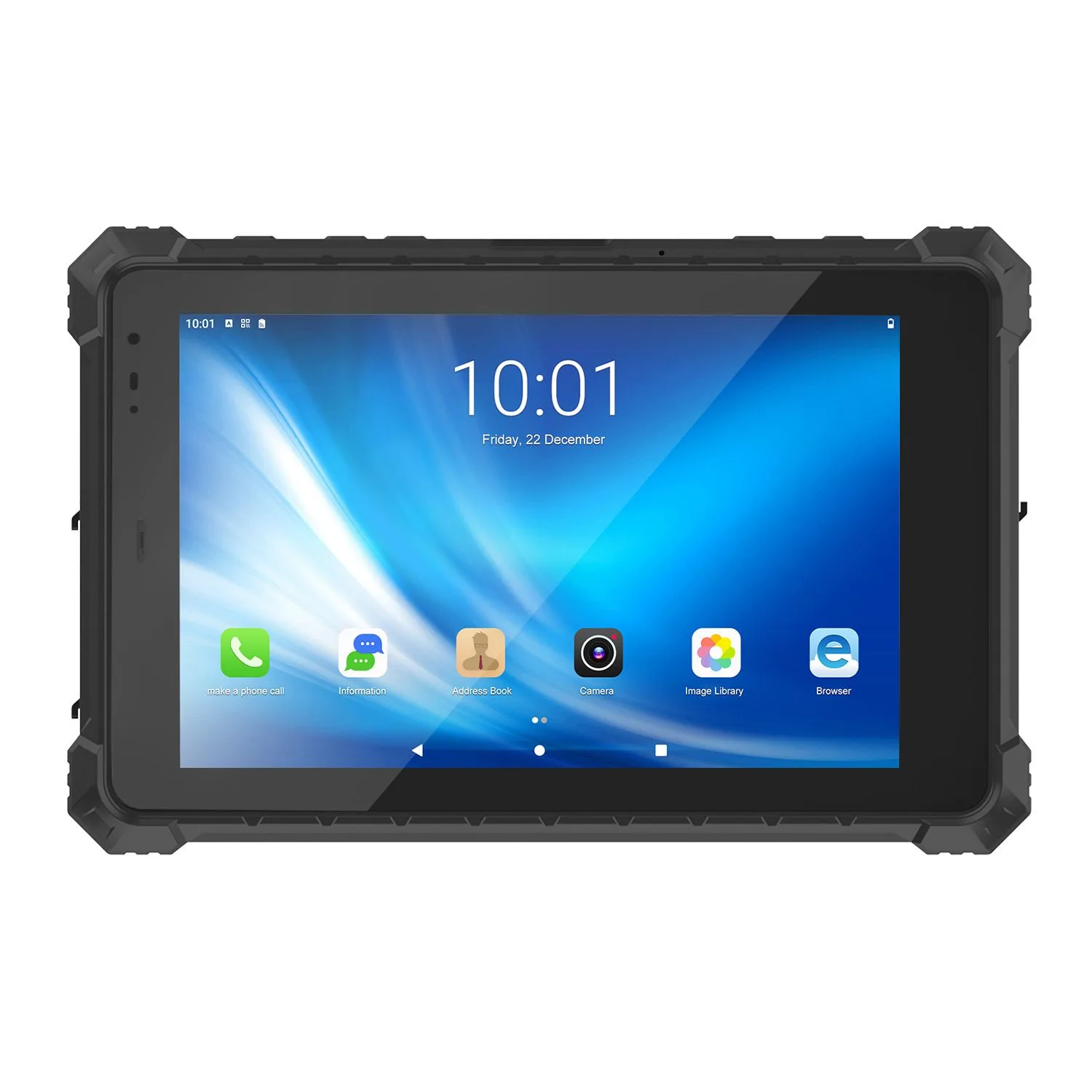
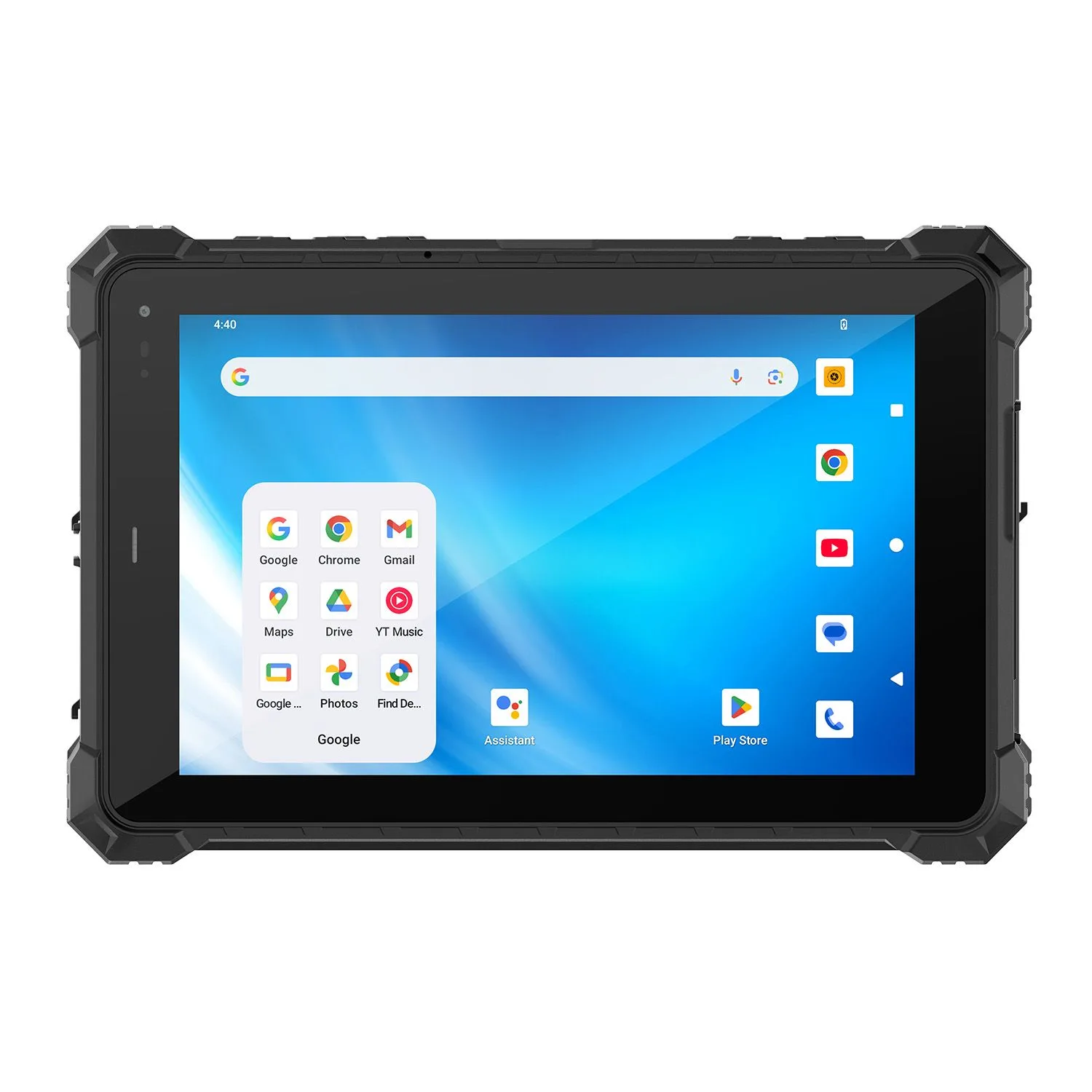
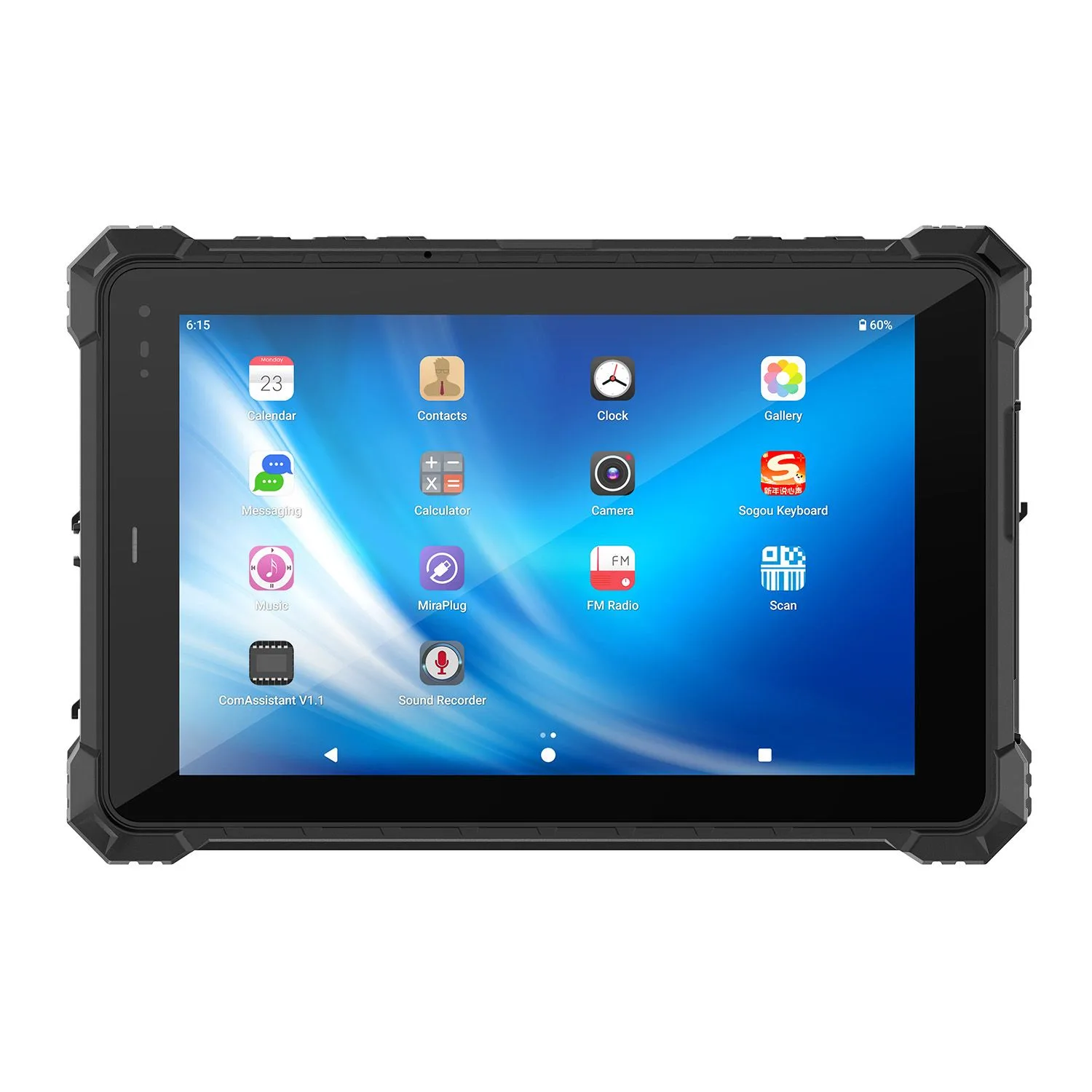
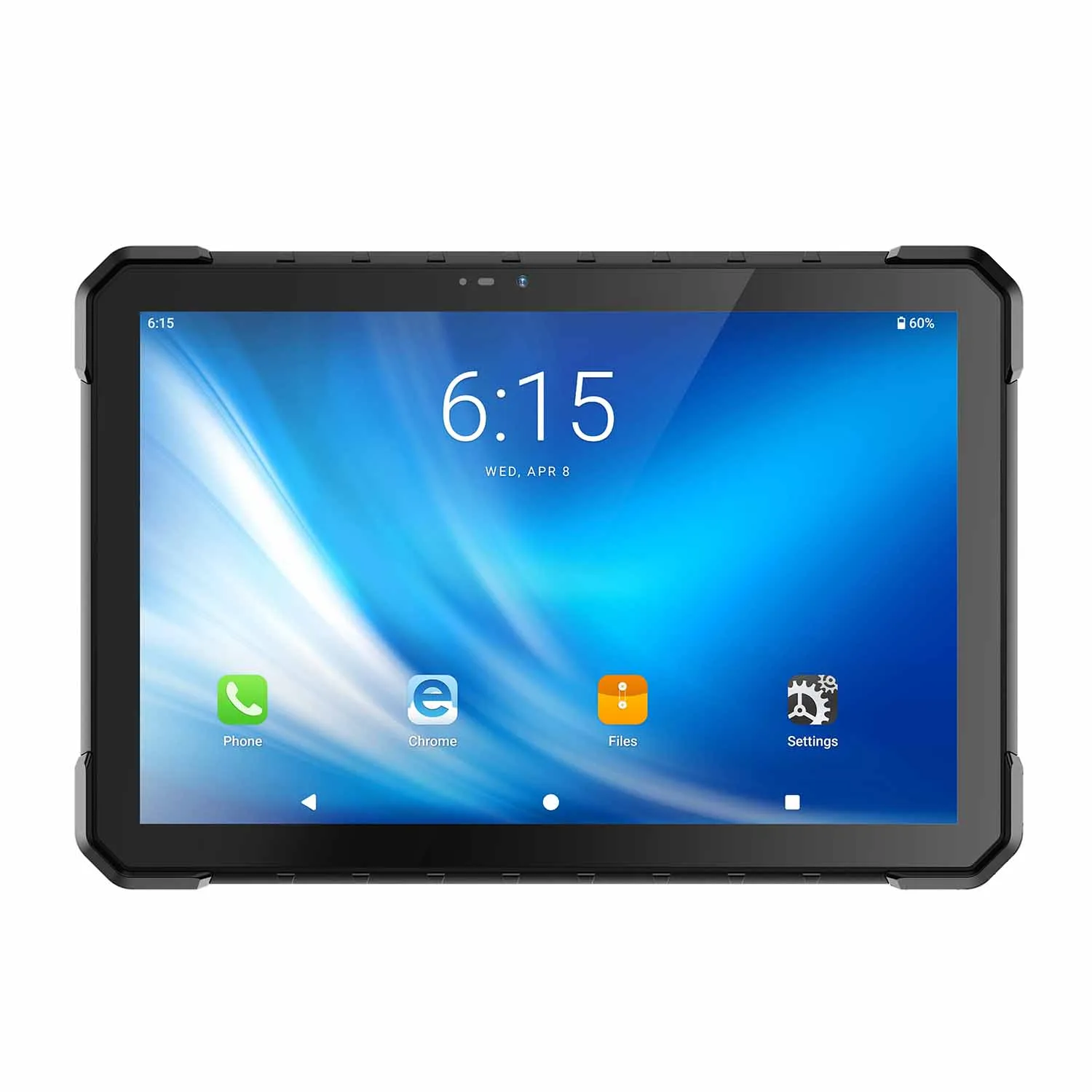
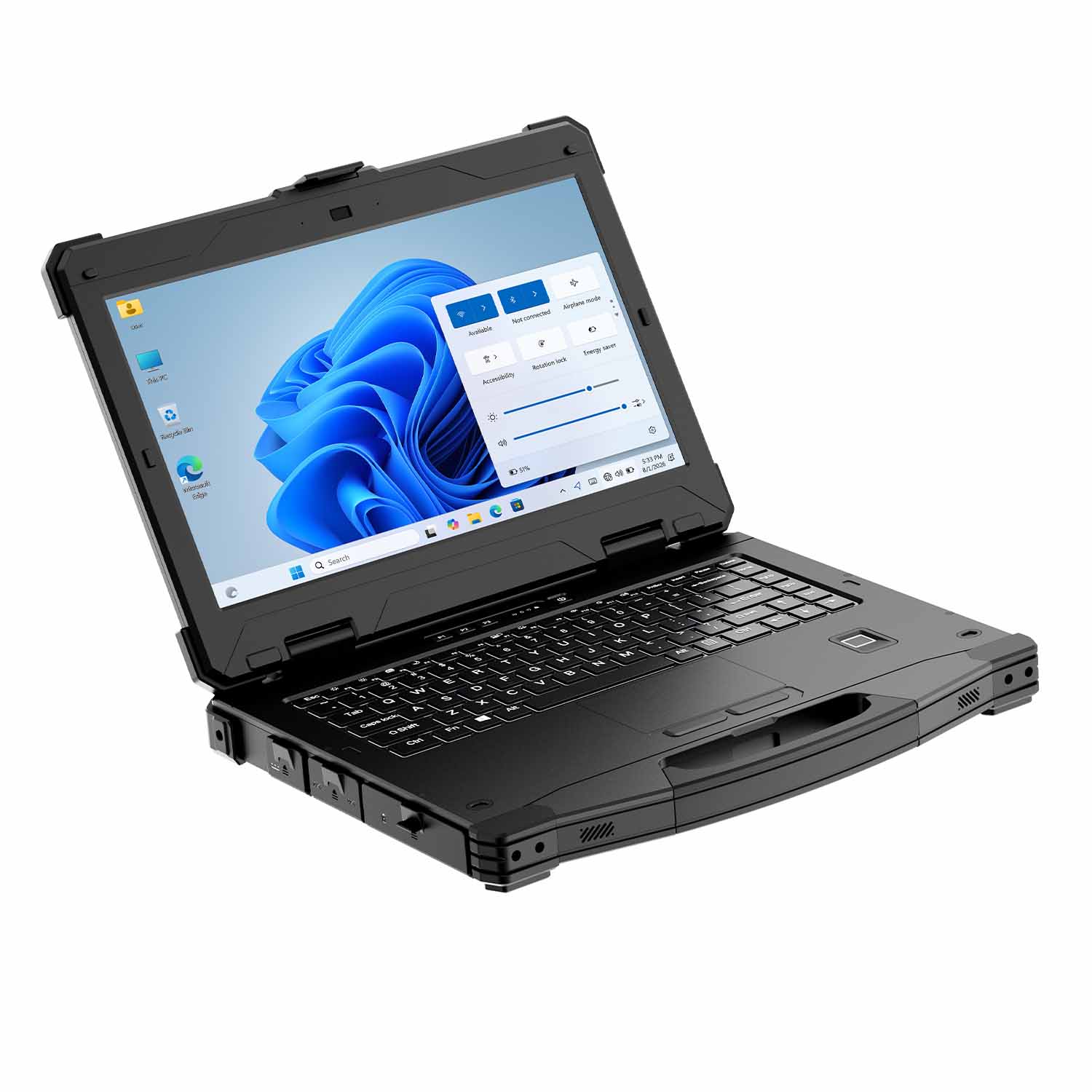
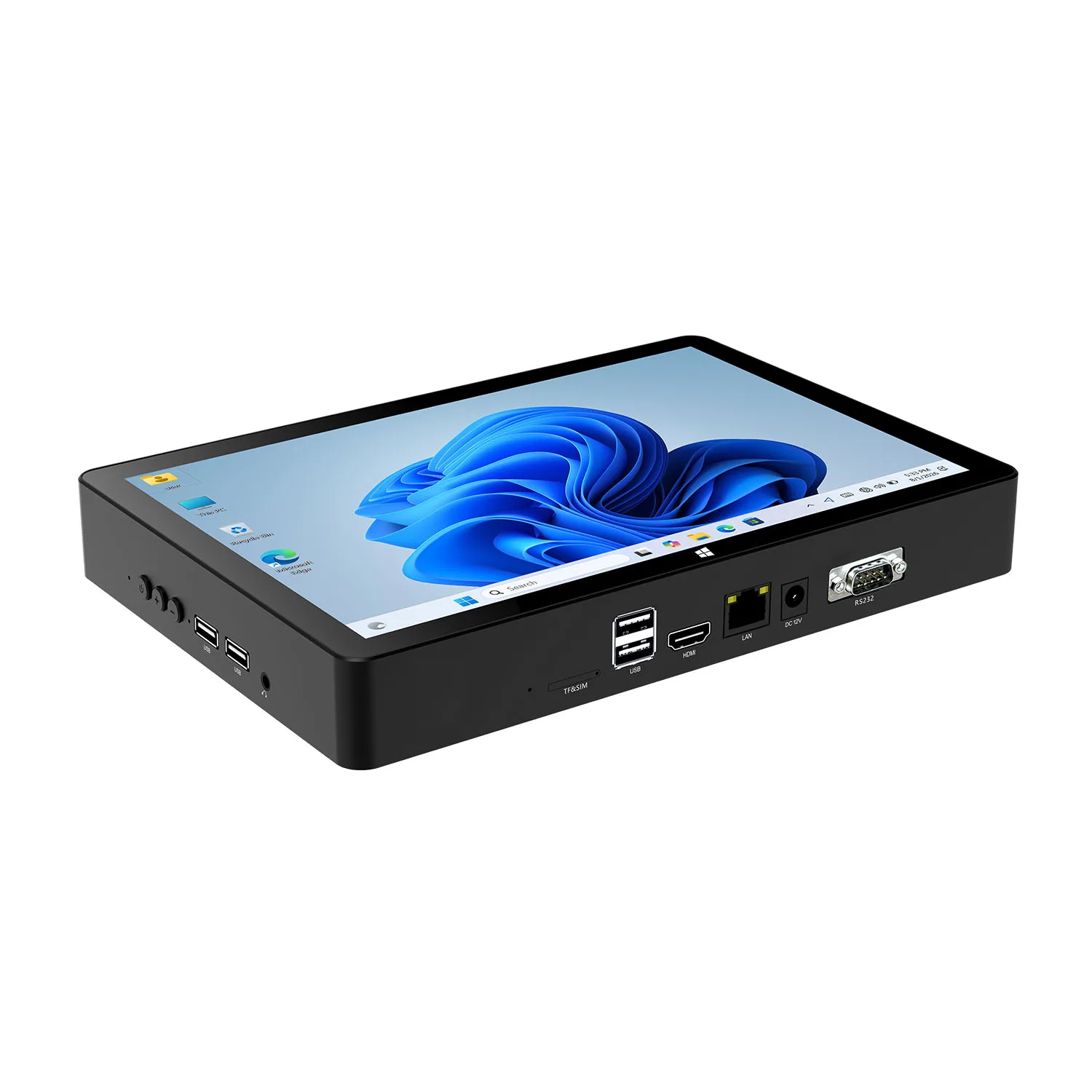
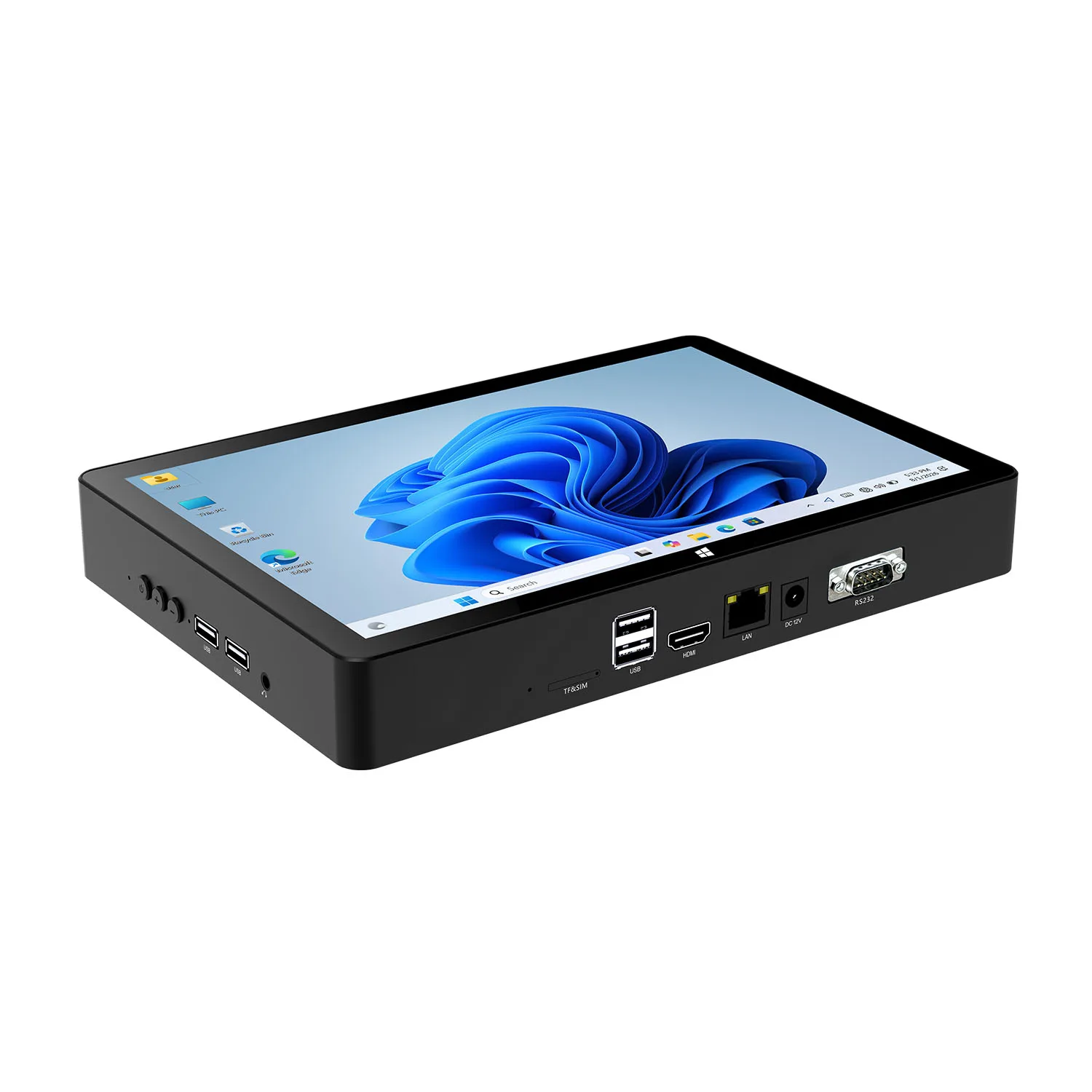
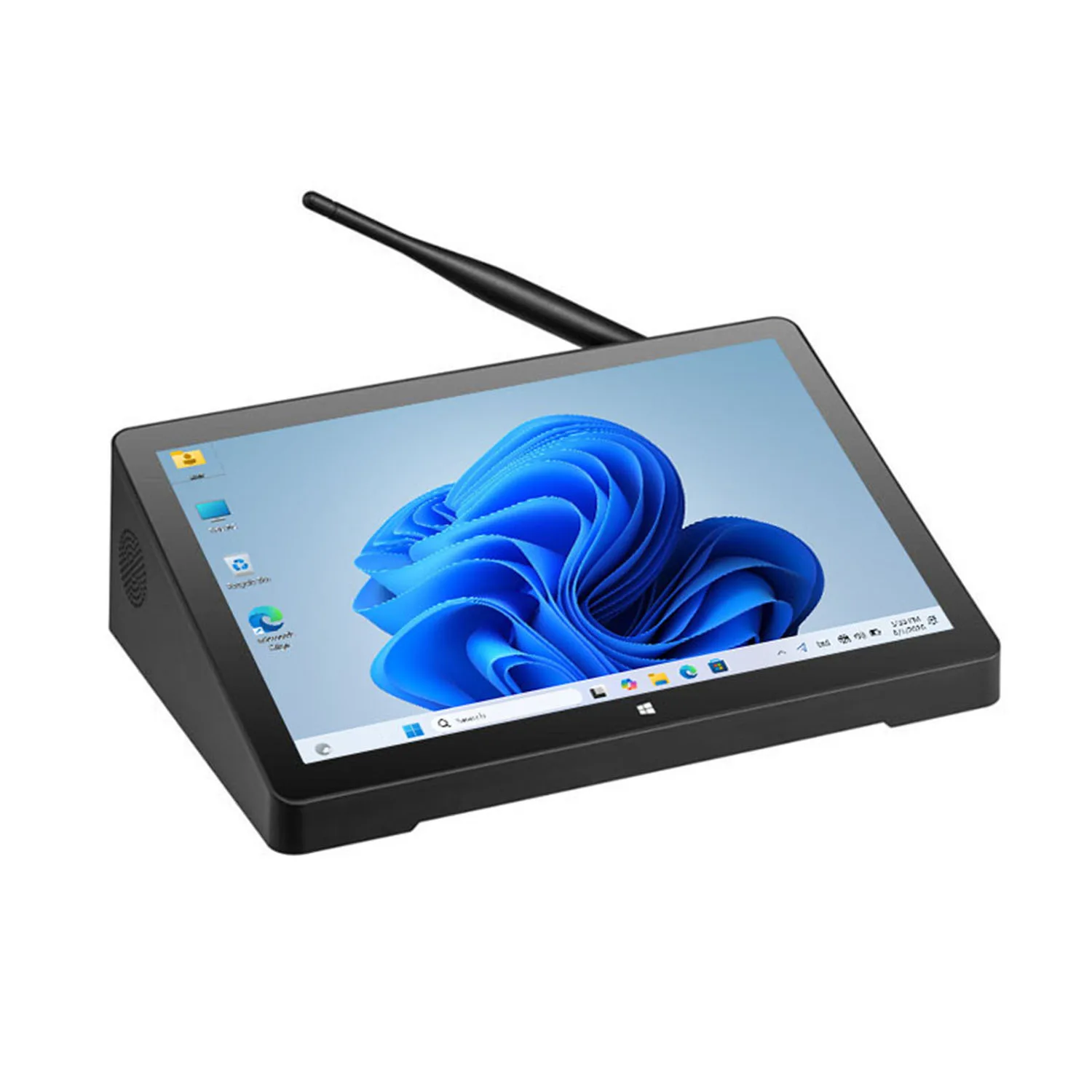
Rugged Tablets and Laptops for Construction & Site Work
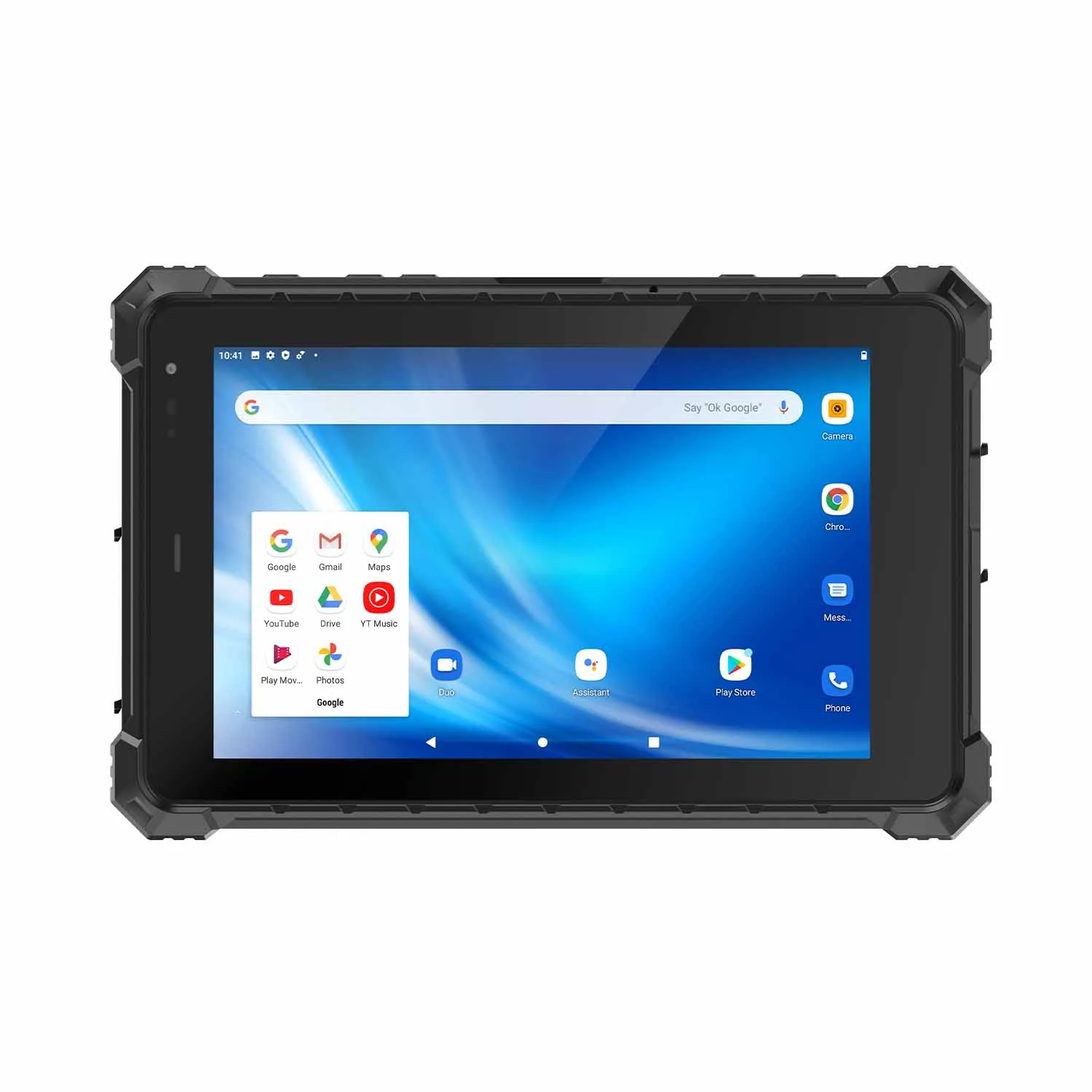
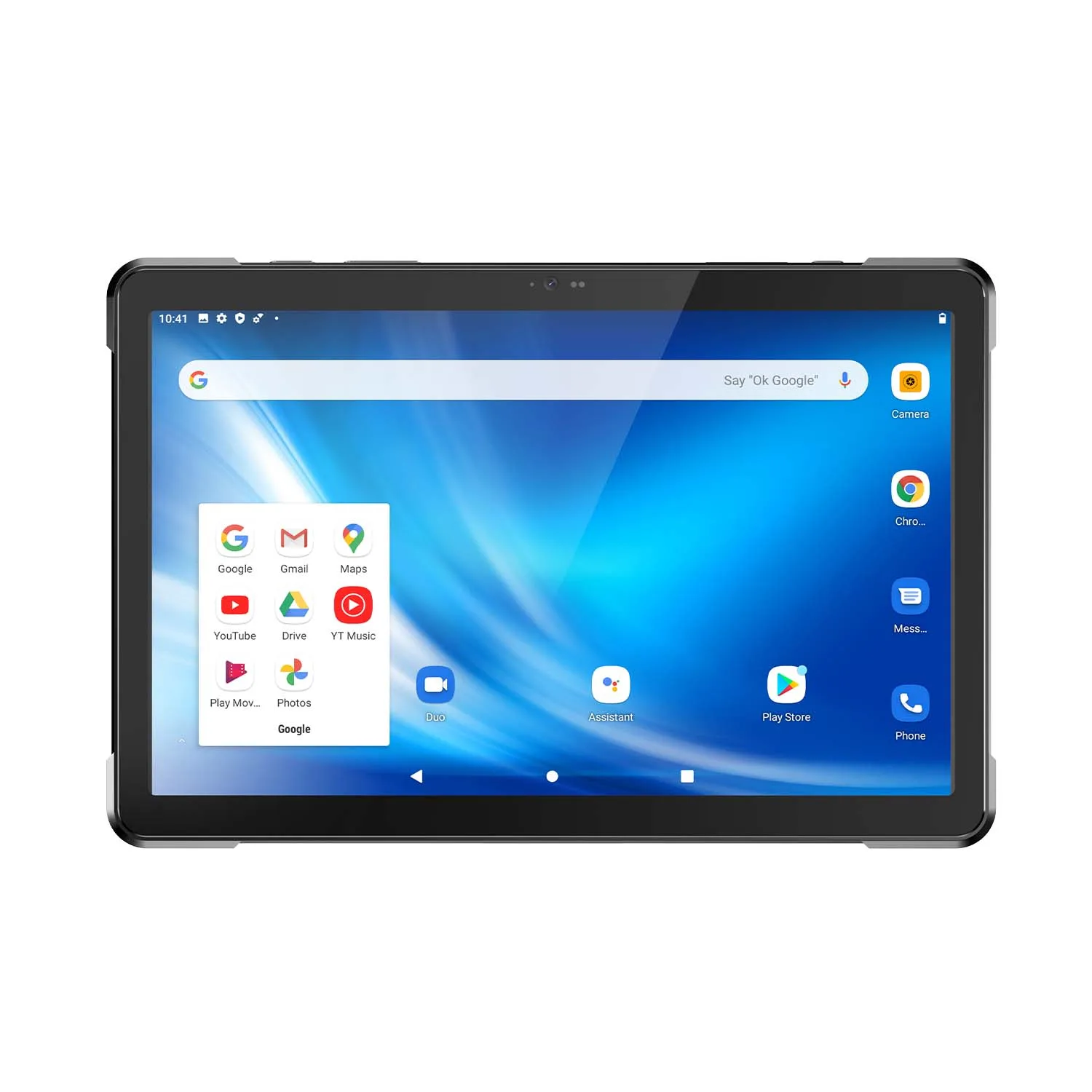
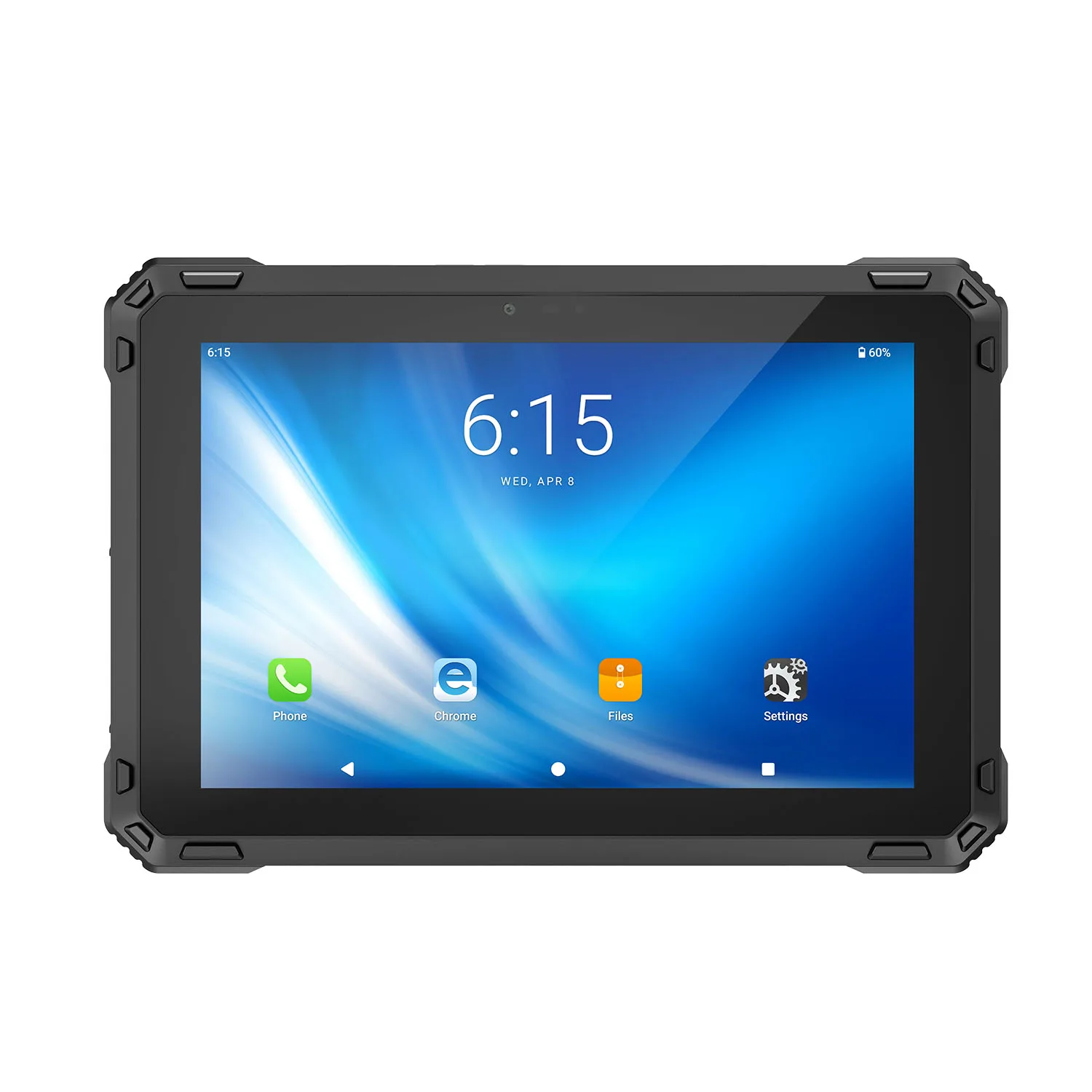
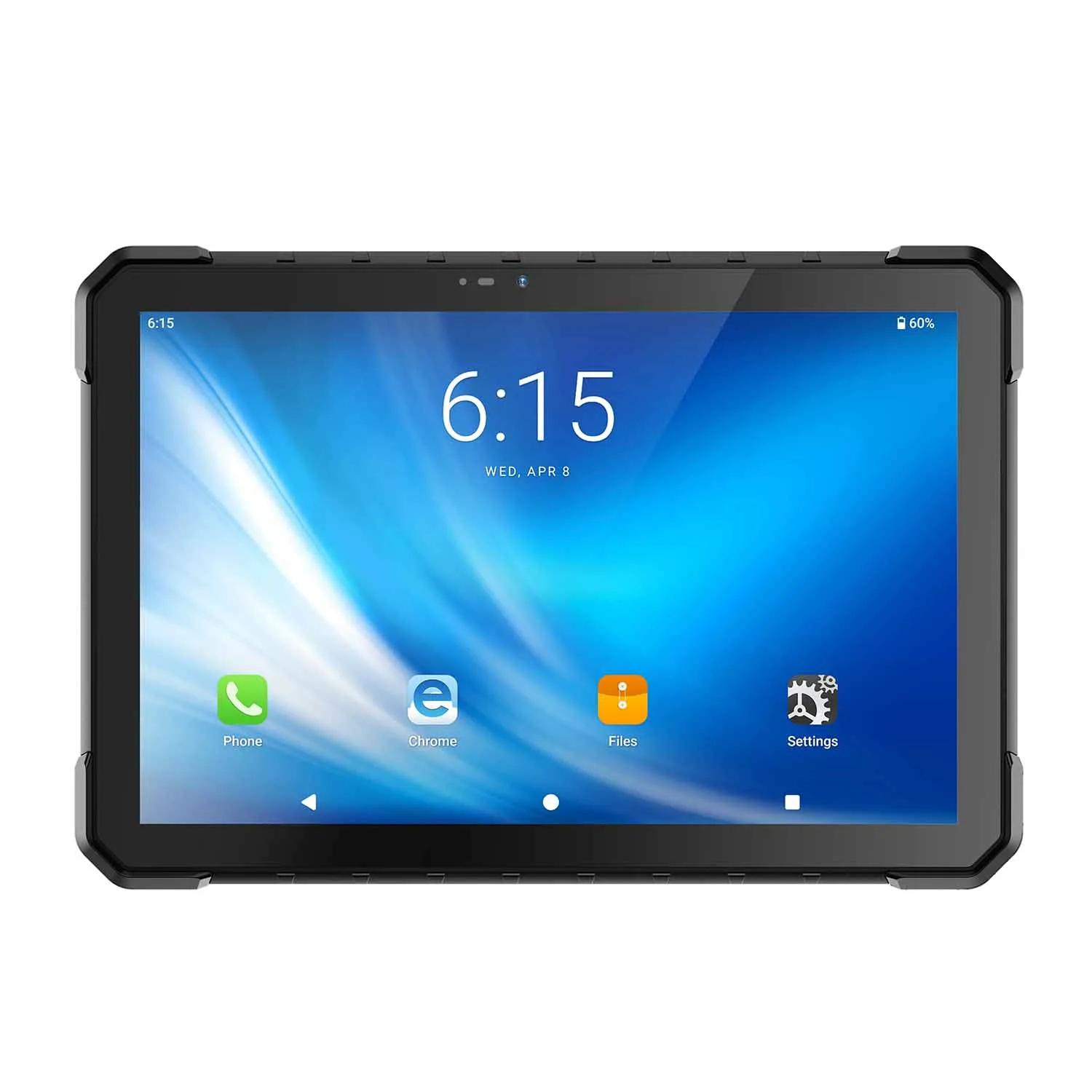
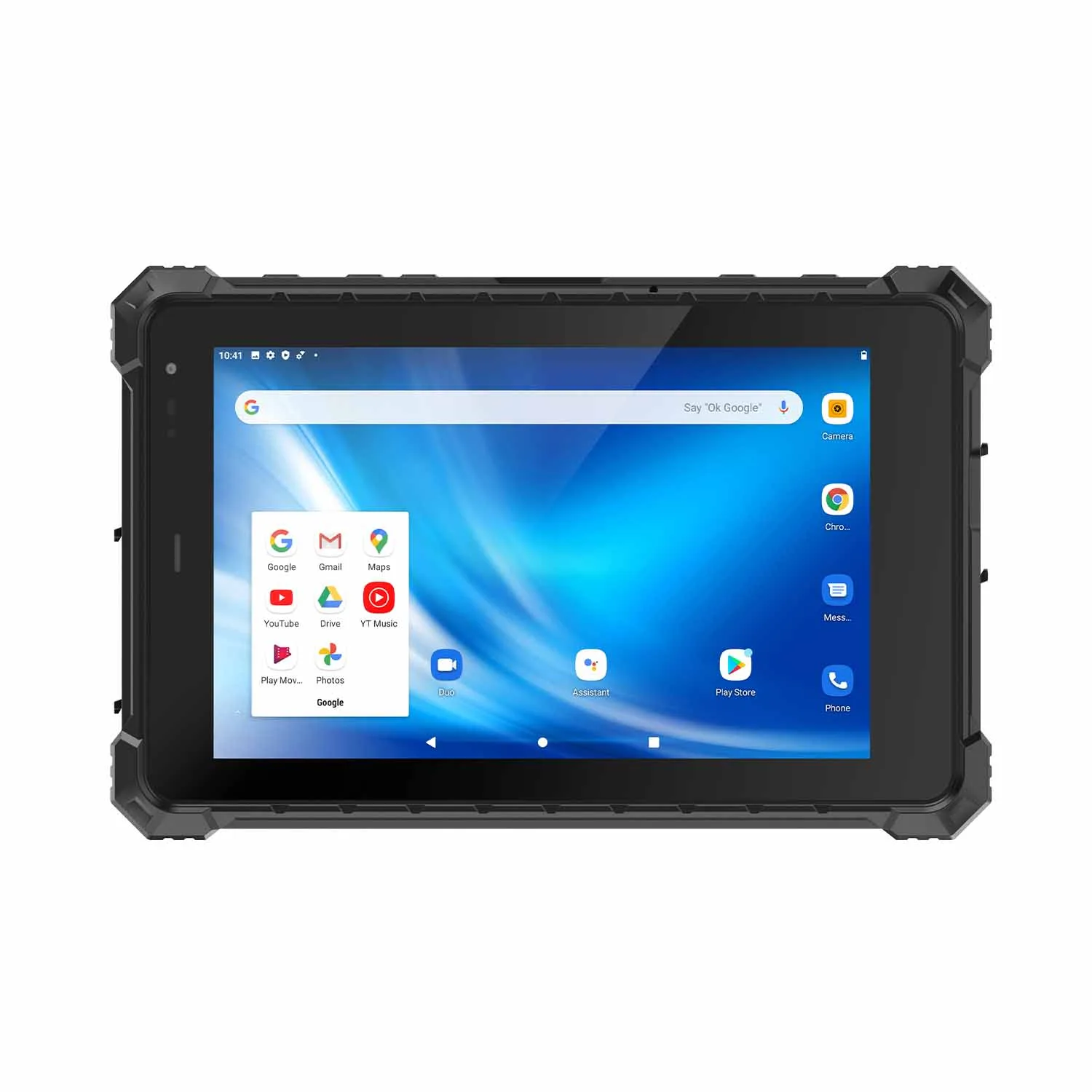
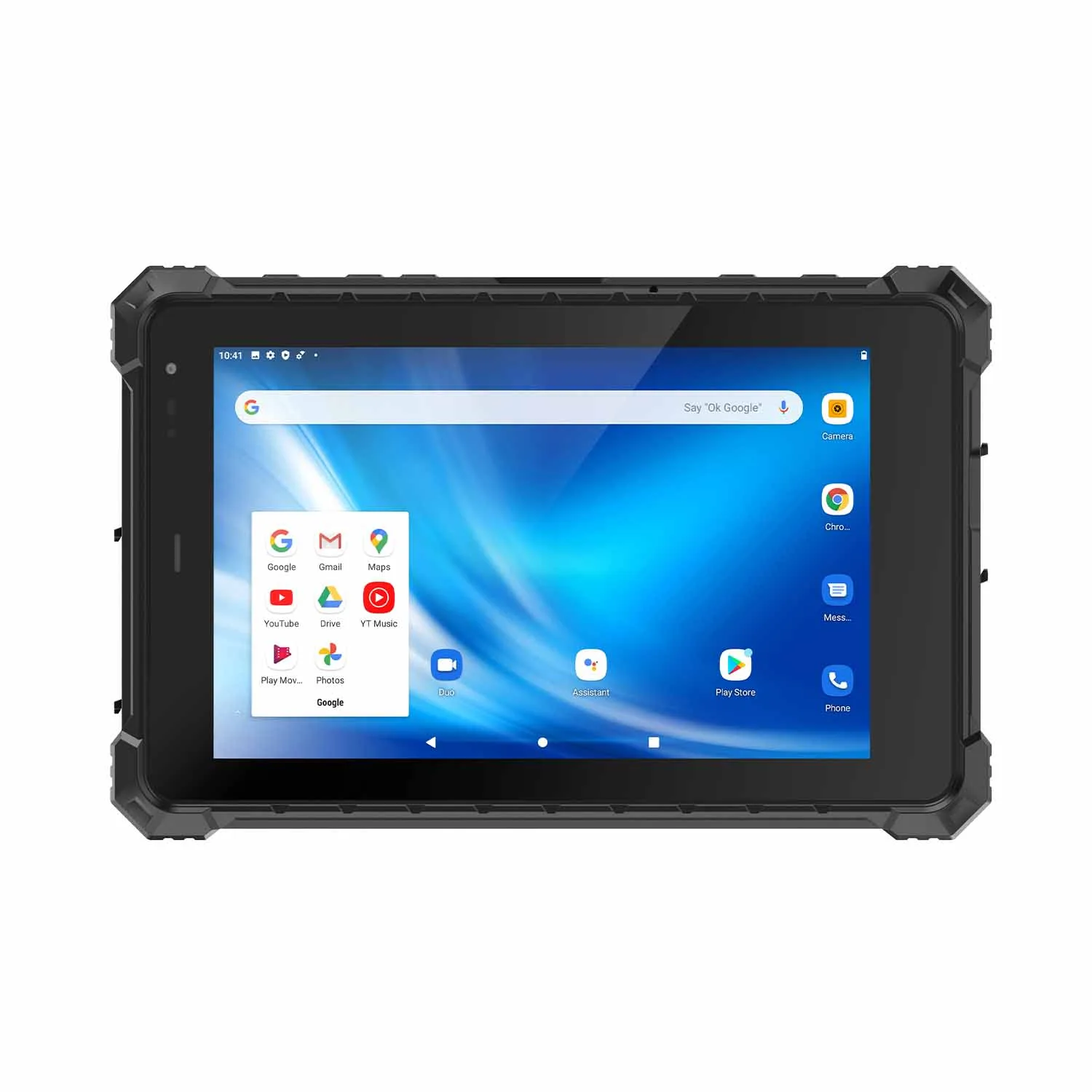
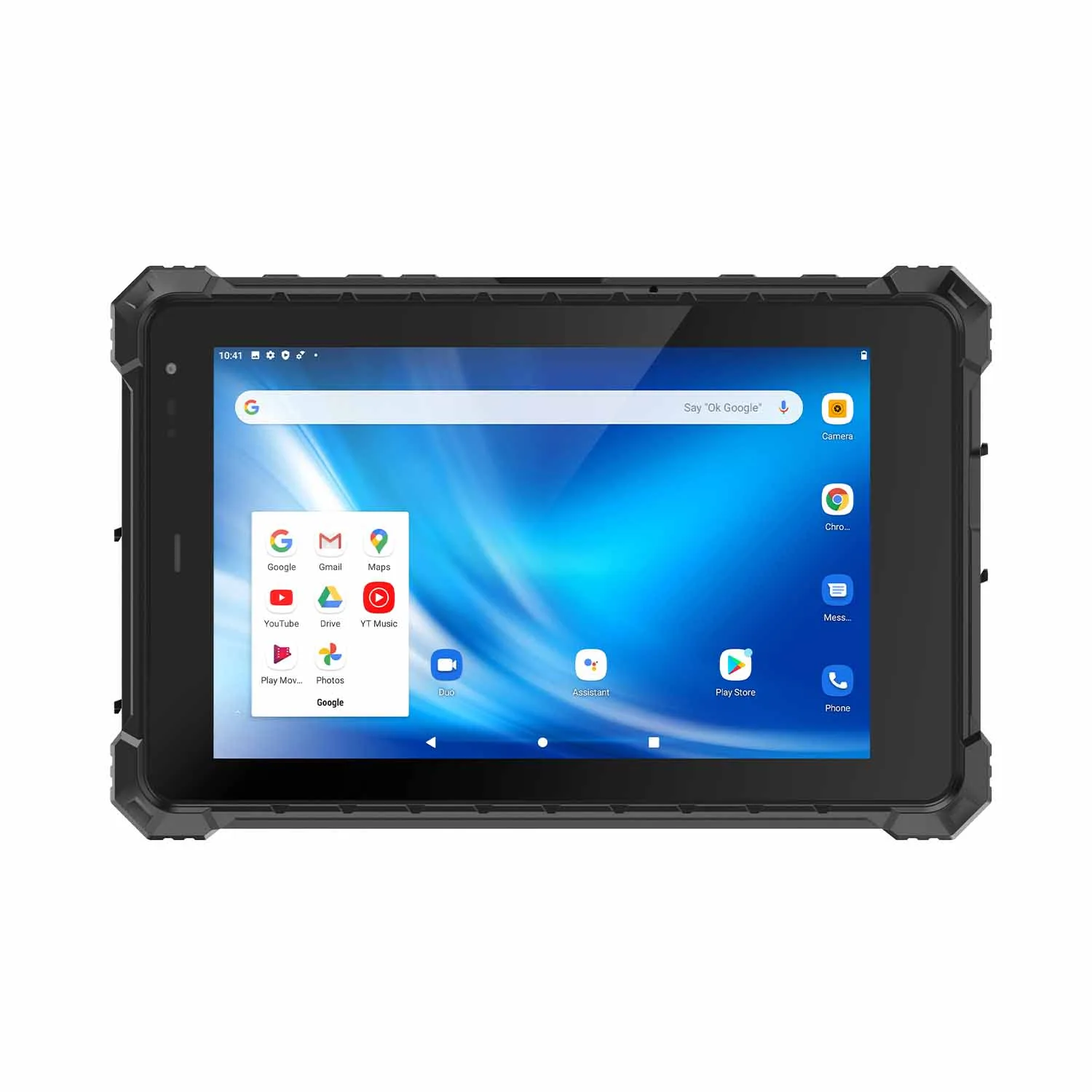
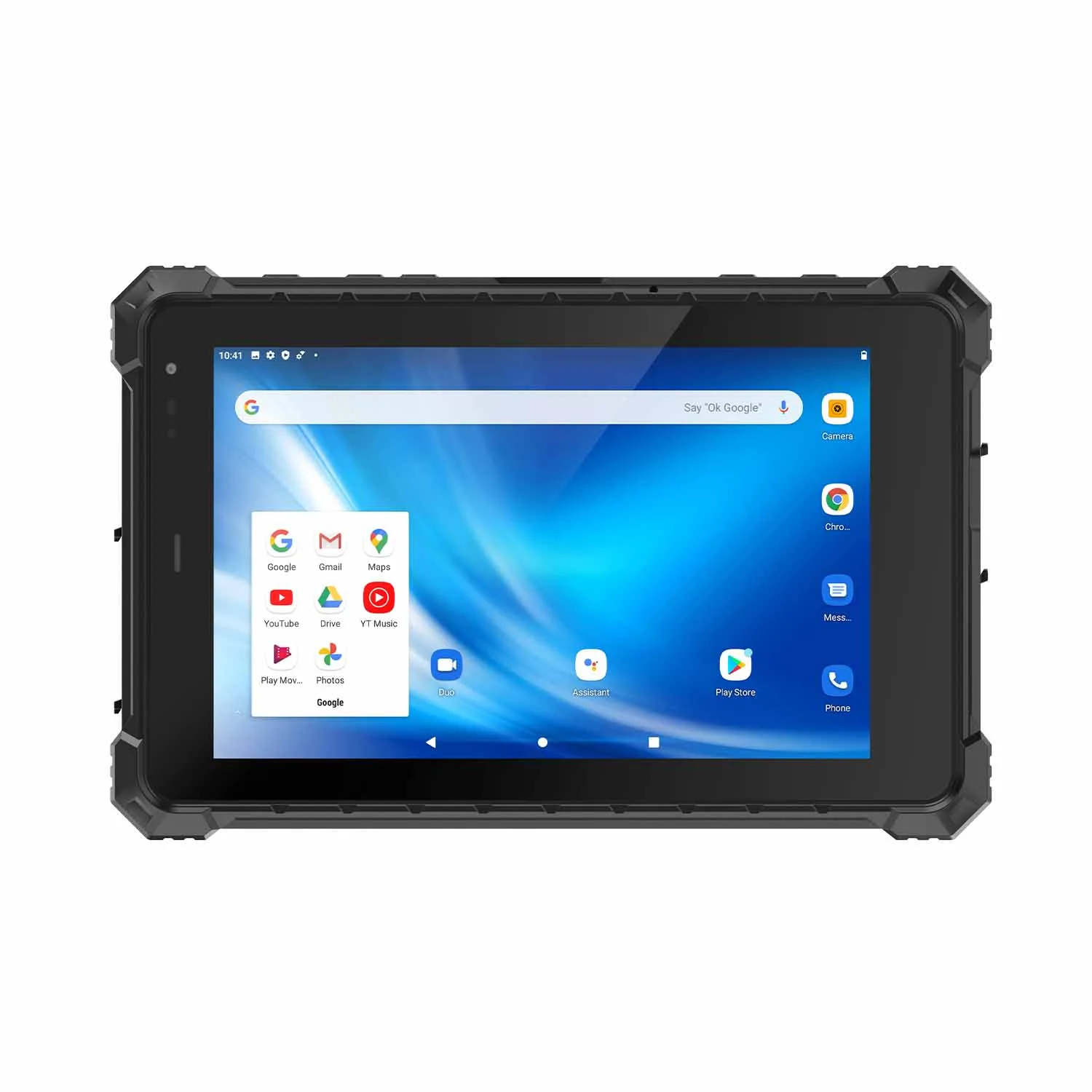
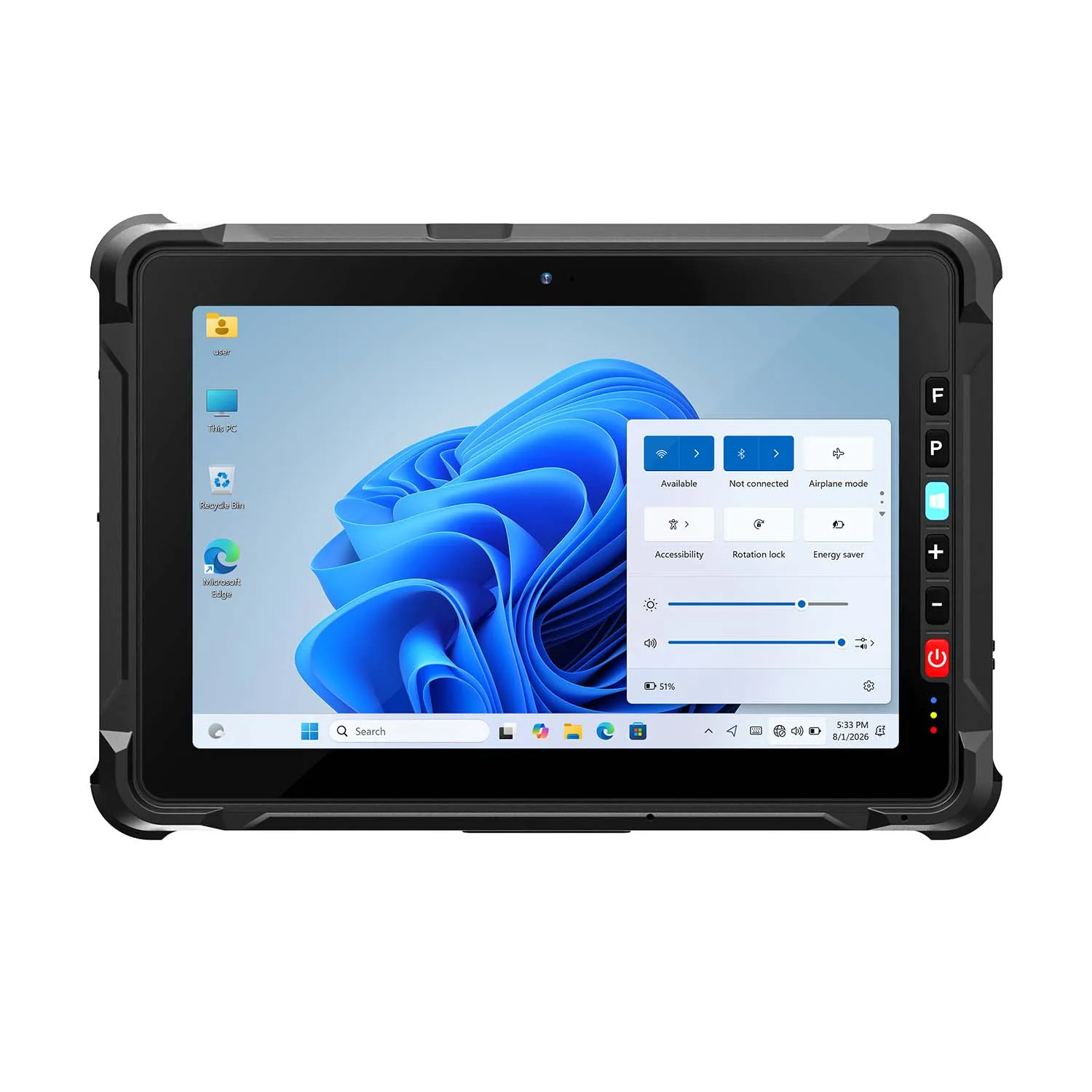
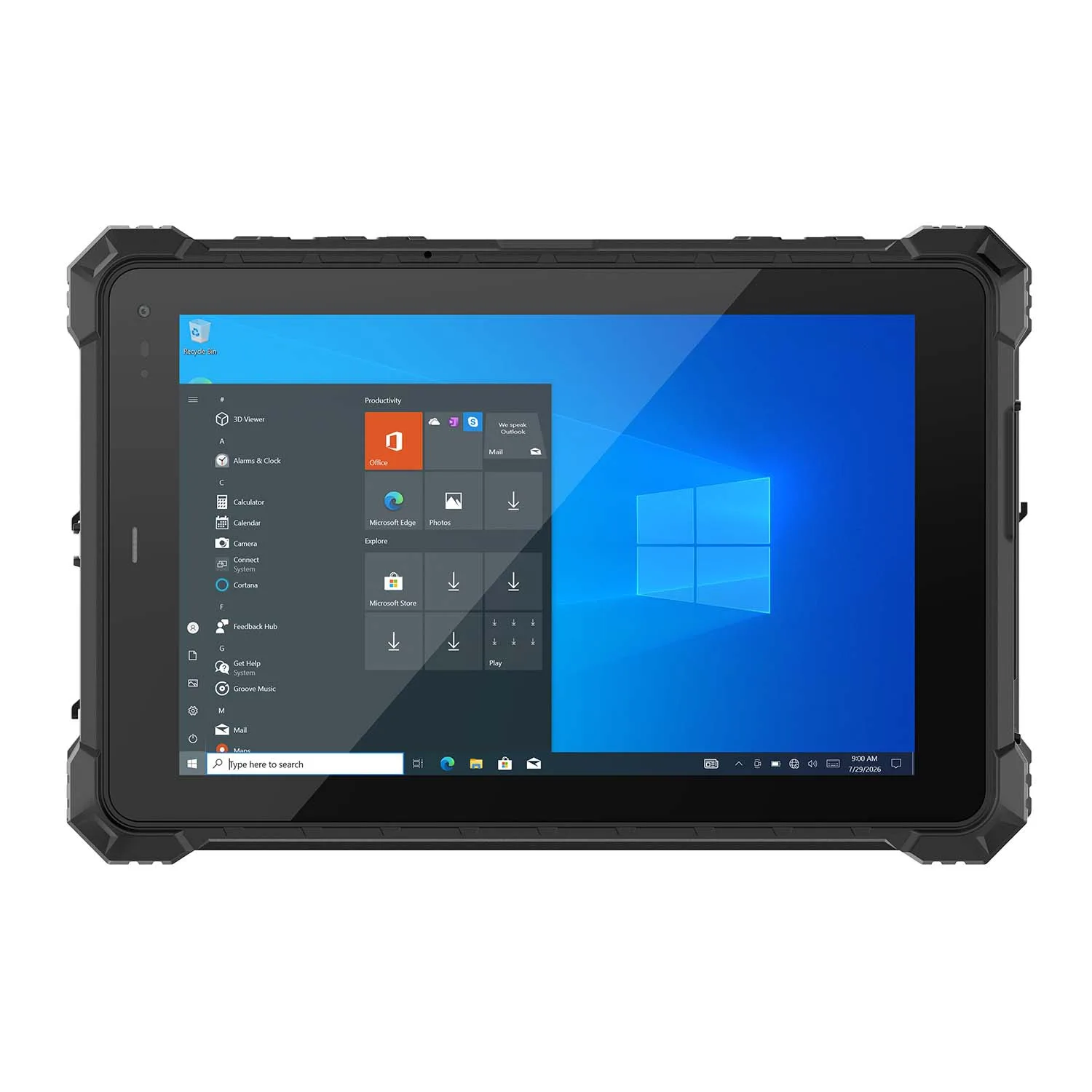
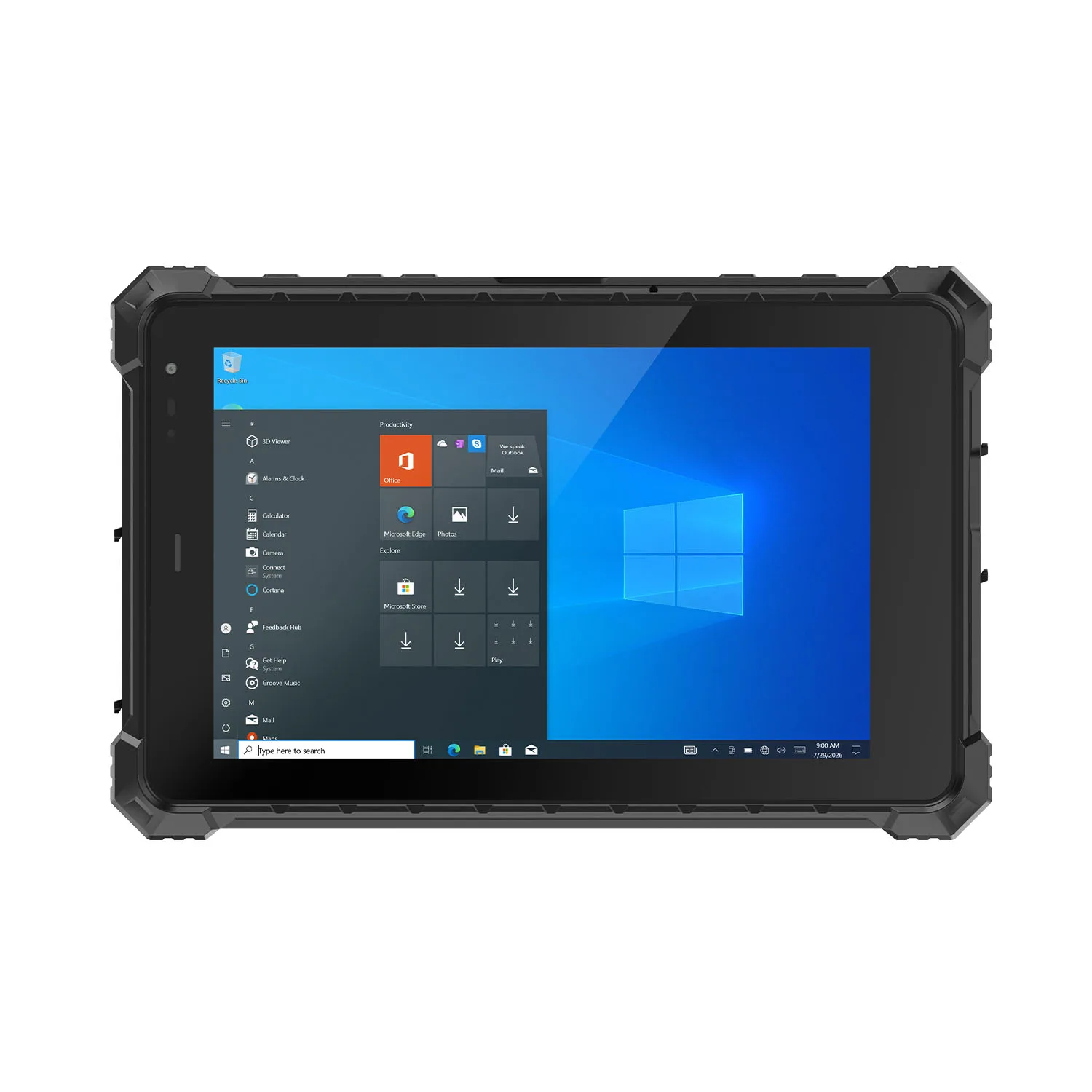
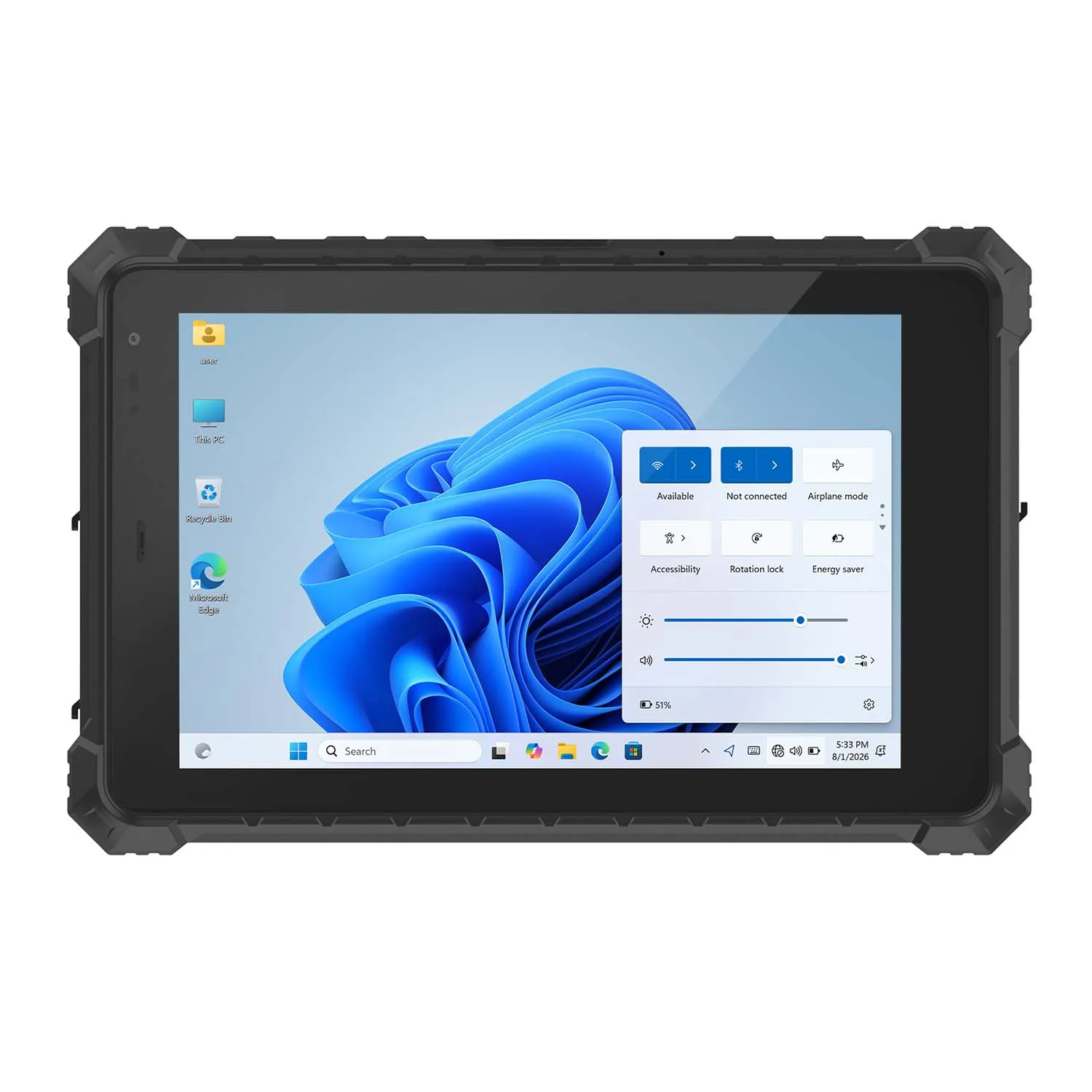
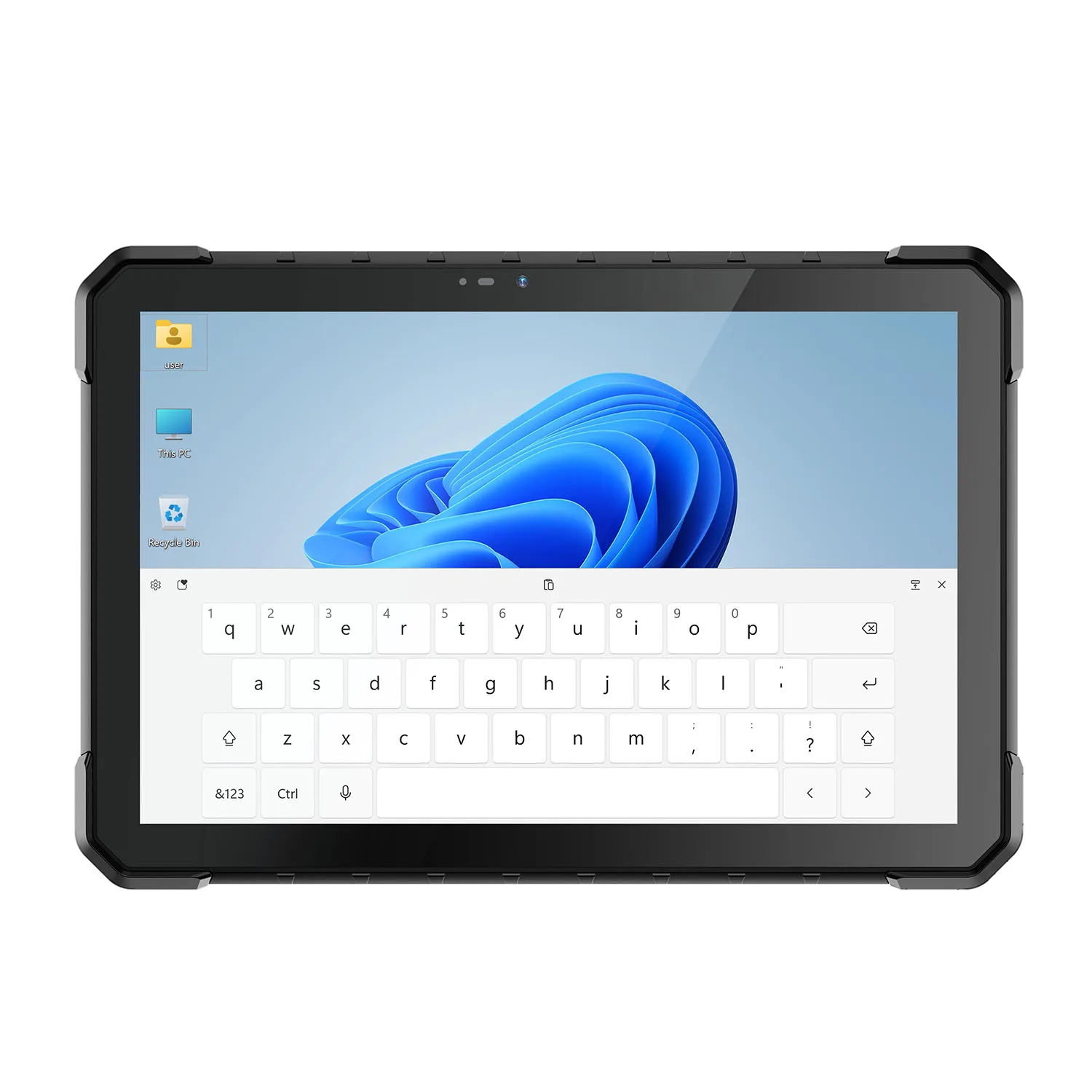
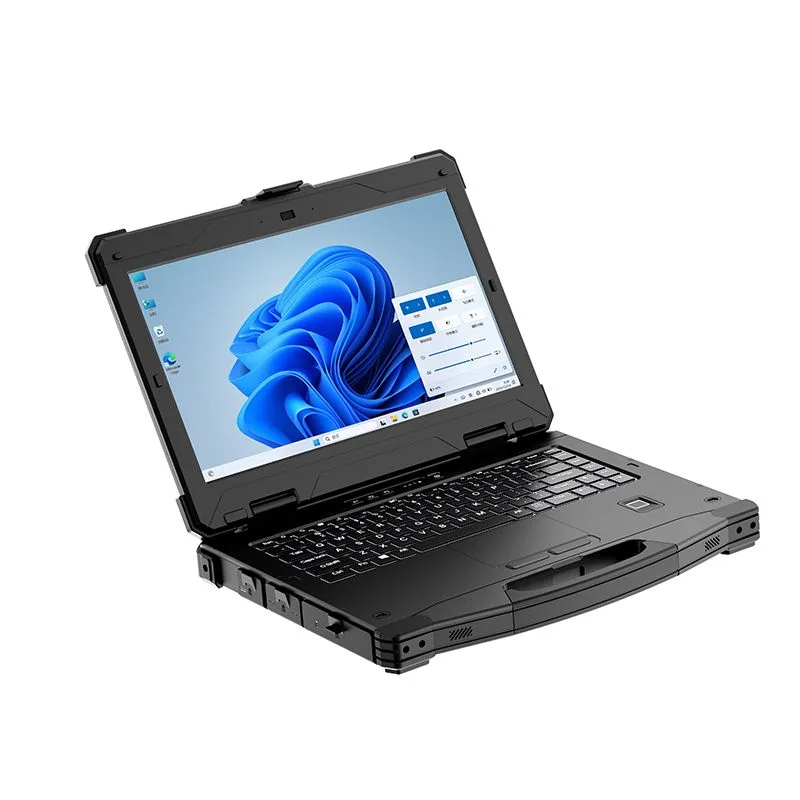
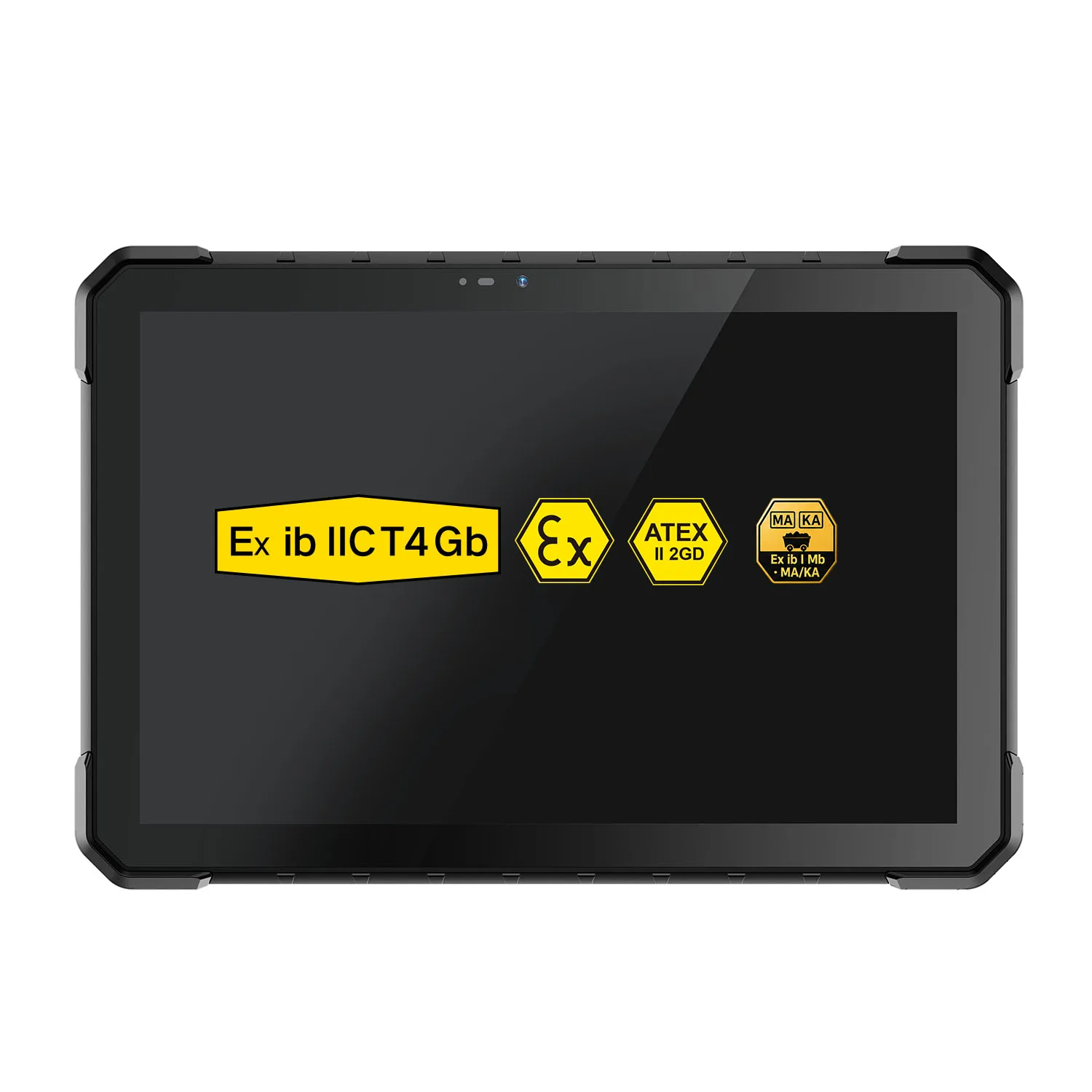
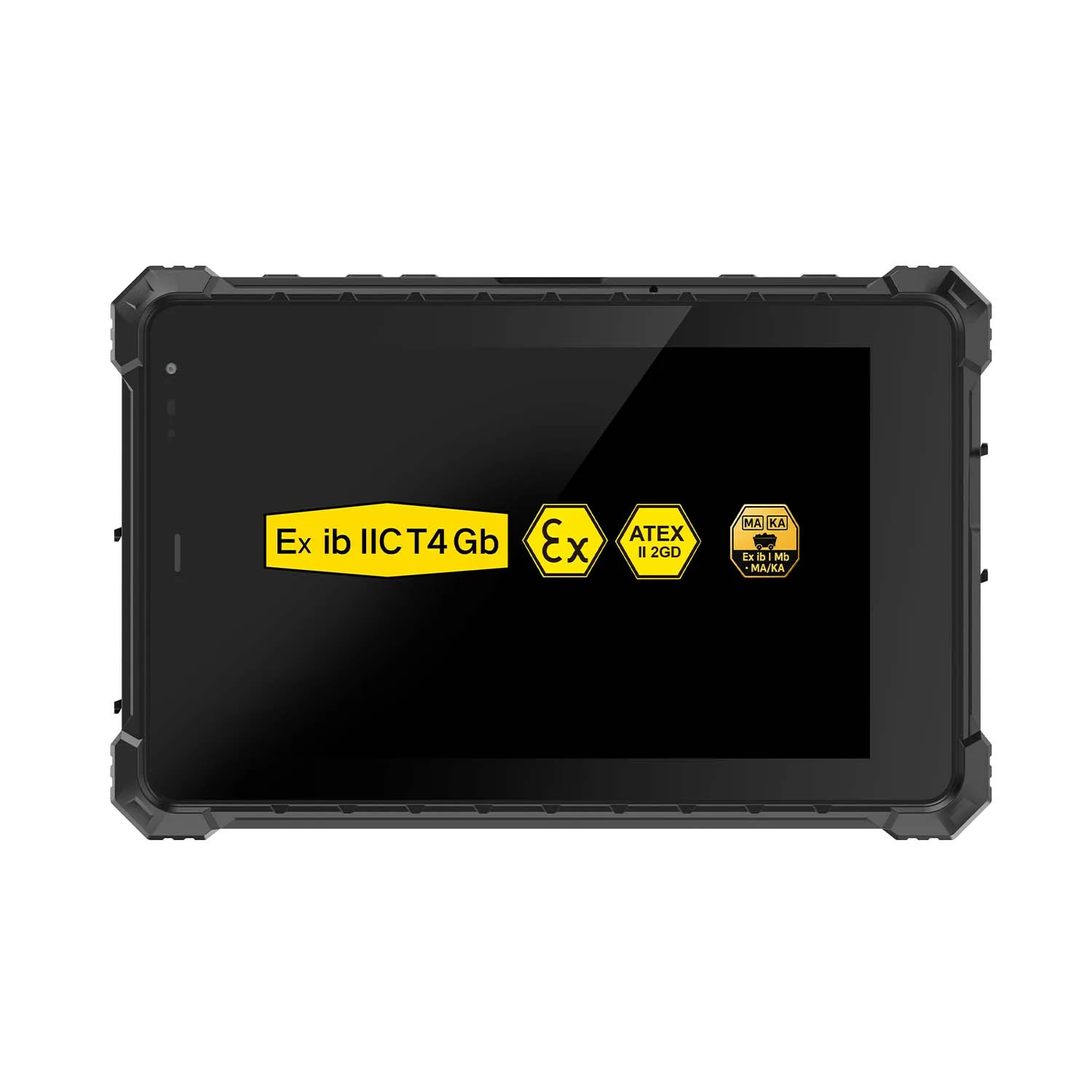
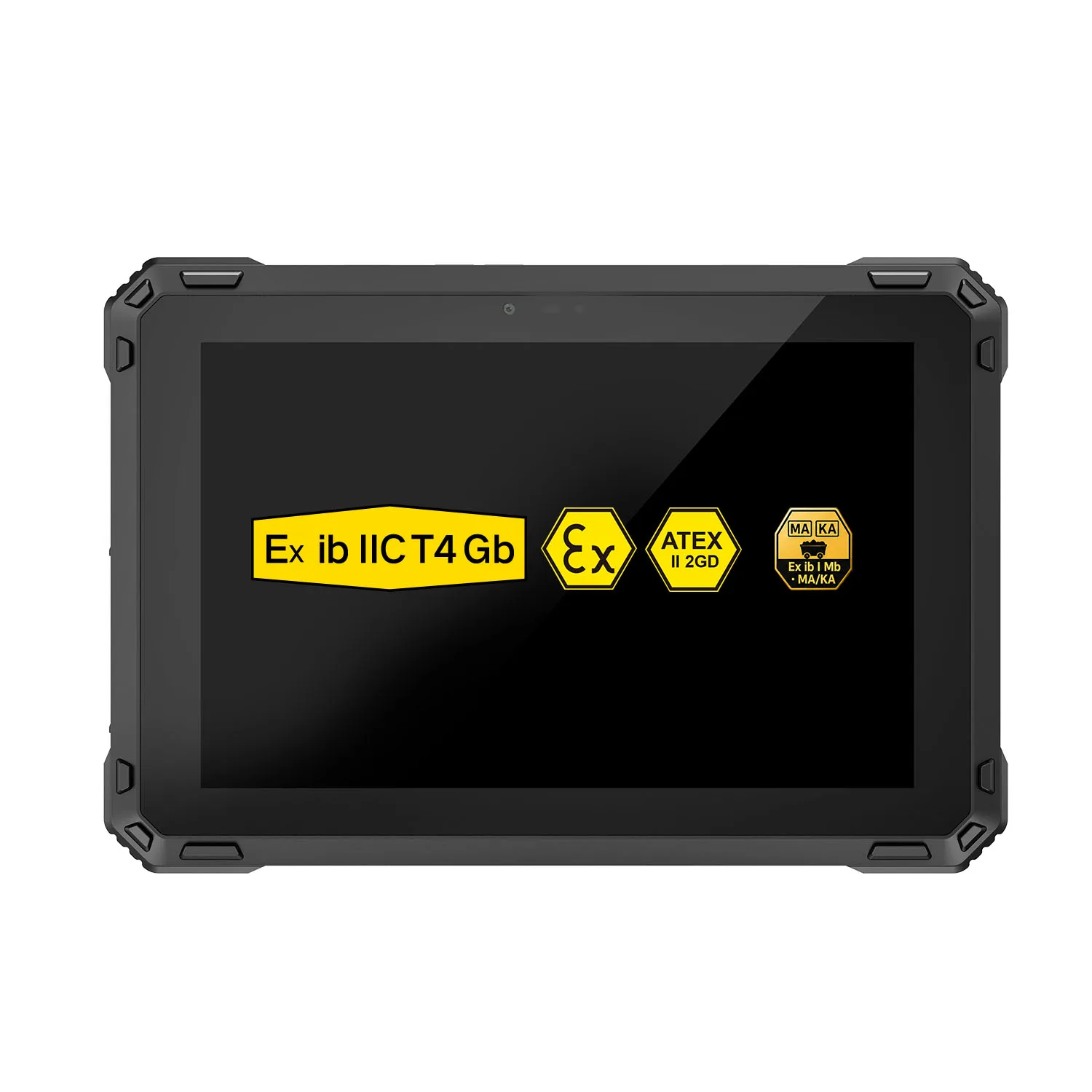
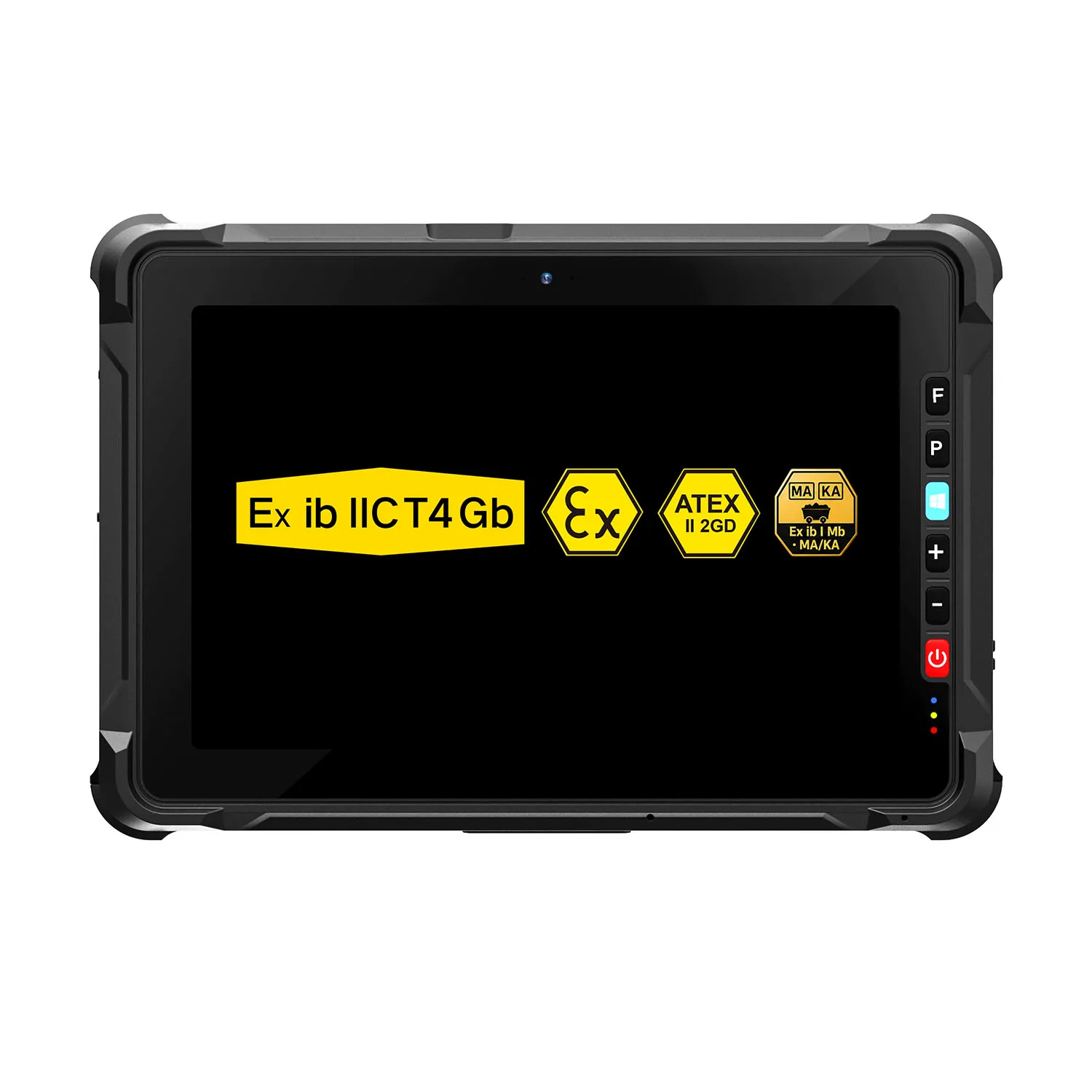
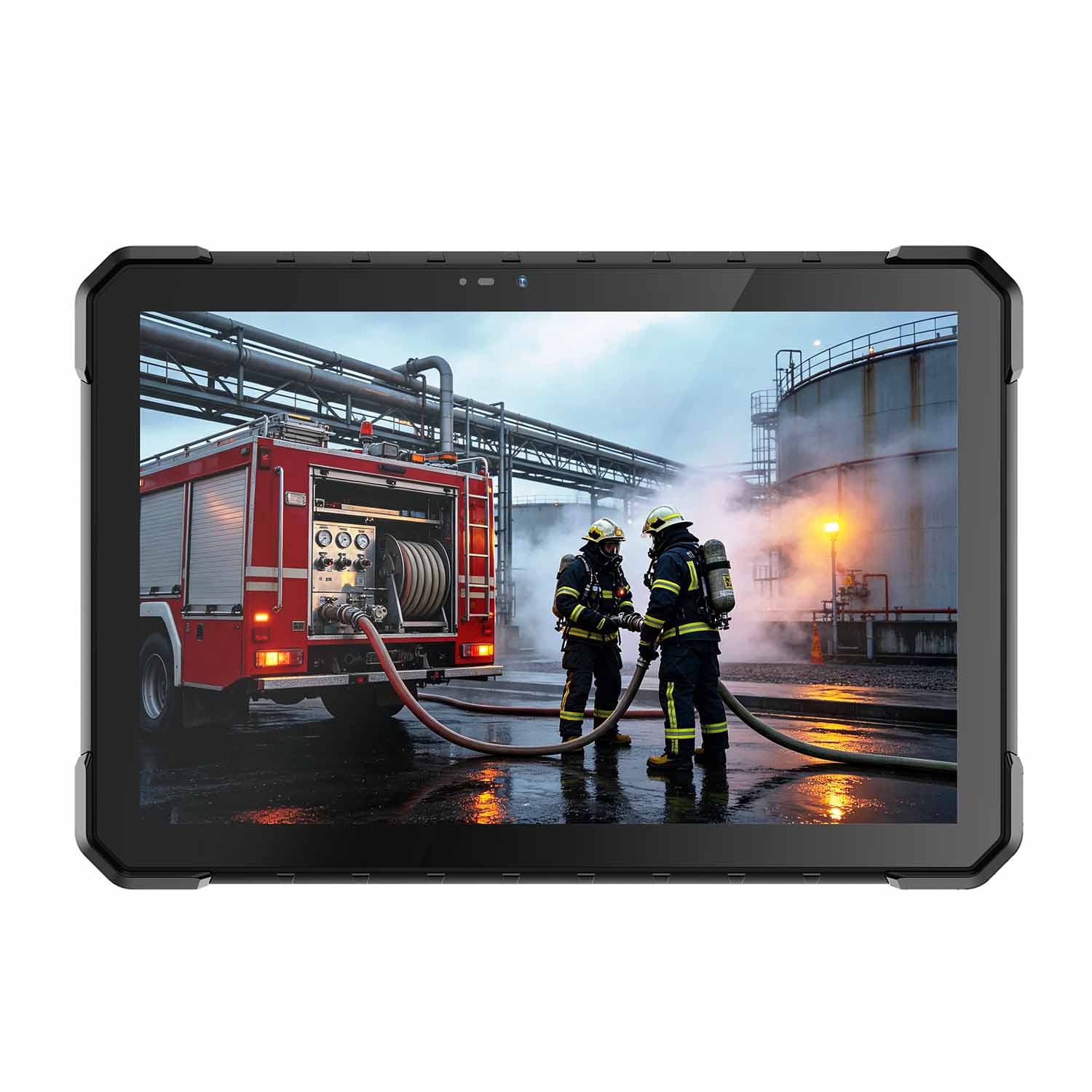
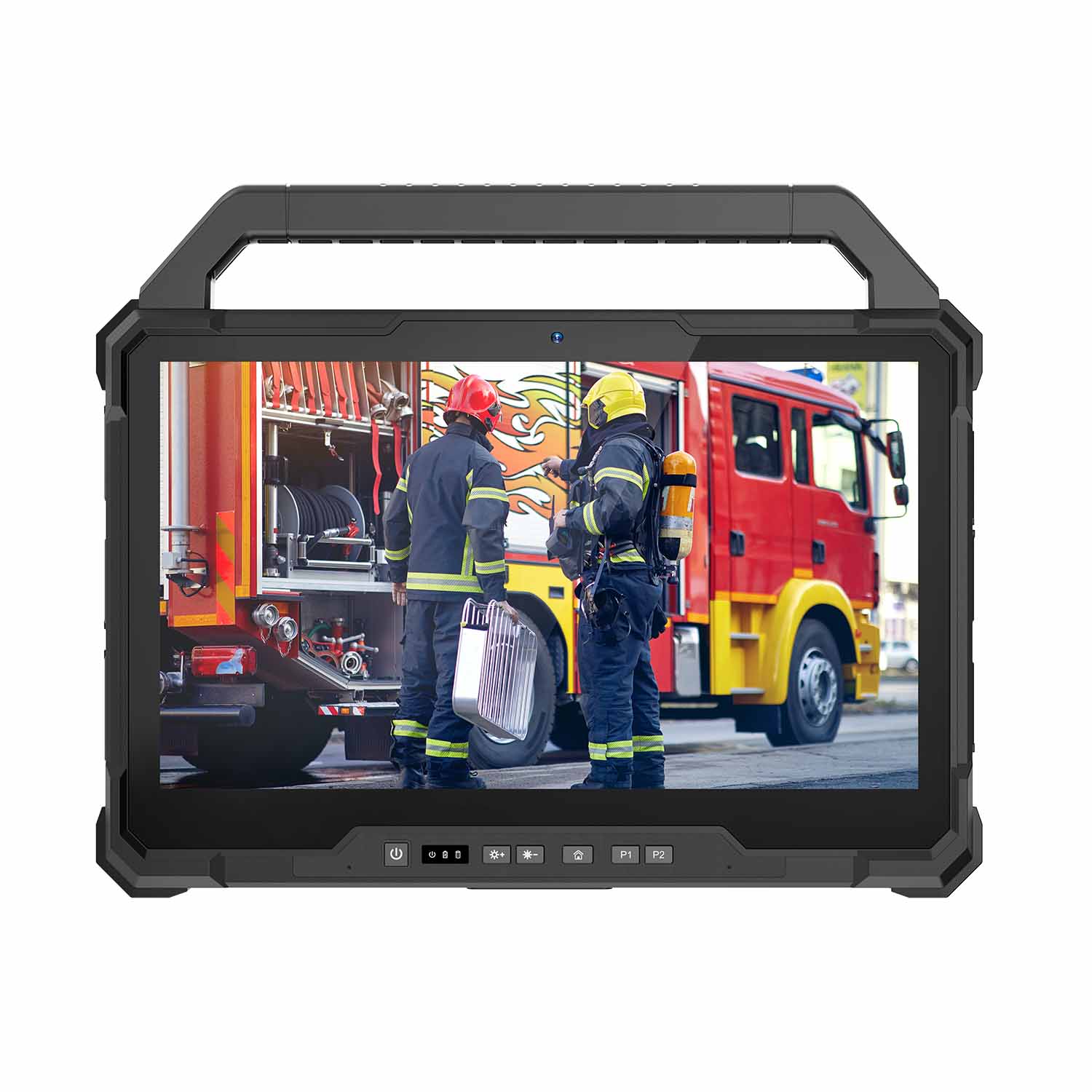
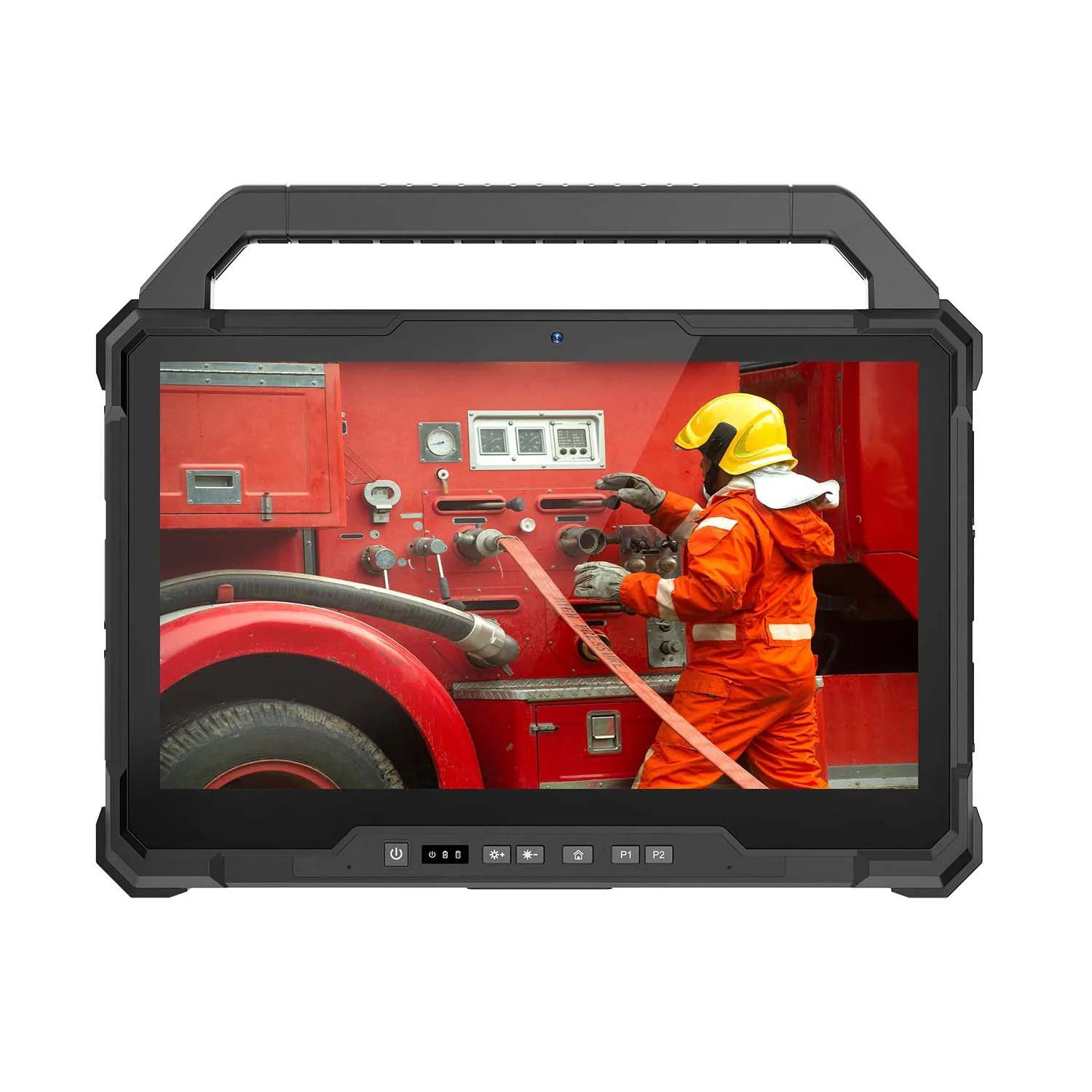
A site inspector who still carries paper drawings loses them to rain by week two; one who carries a consumer laptop loses the fan to concrete dust by month three. CENAVA rugged tablets and laptops are built for what actually happens on a construction site — dust, rain, waist-height drops, vehicle vibration and all-day outdoor use.
The highest ruggedness specification is rarely the right purchase. A BIM viewer needs screen size and brightness; a diagnostics technician needs RS-232 and Windows; a punch-list inspector needs a camera and a battery that outlasts the walkthrough. Start from the workload, not the spec sheet.
Why Ordinary Computers Struggle on Construction Sites
Site teams need their drawings, models and reports at the workface: … The catch: all of it happens far from anything resembling an office.
Construction computers may be exposed to:
Concrete and silica dust
Rain and splashing water
Direct sunlight
Mud
Repeated transportation
Vehicle vibration
Accidental drops
Hot or cold outdoor conditions
A consumer laptop designed for a desk may depend on cooling openings, conventional hinges and relatively unprotected connectors.
A consumer tablet may be easier to carry but can still become difficult to use when the screen is exposed to direct sunlight, gloves are required or charging opportunities are limited.
For construction projects, computer selection should therefore consider both computing performance and the physical conditions of the jobsite.
Rugged Computing Designed for Site Work
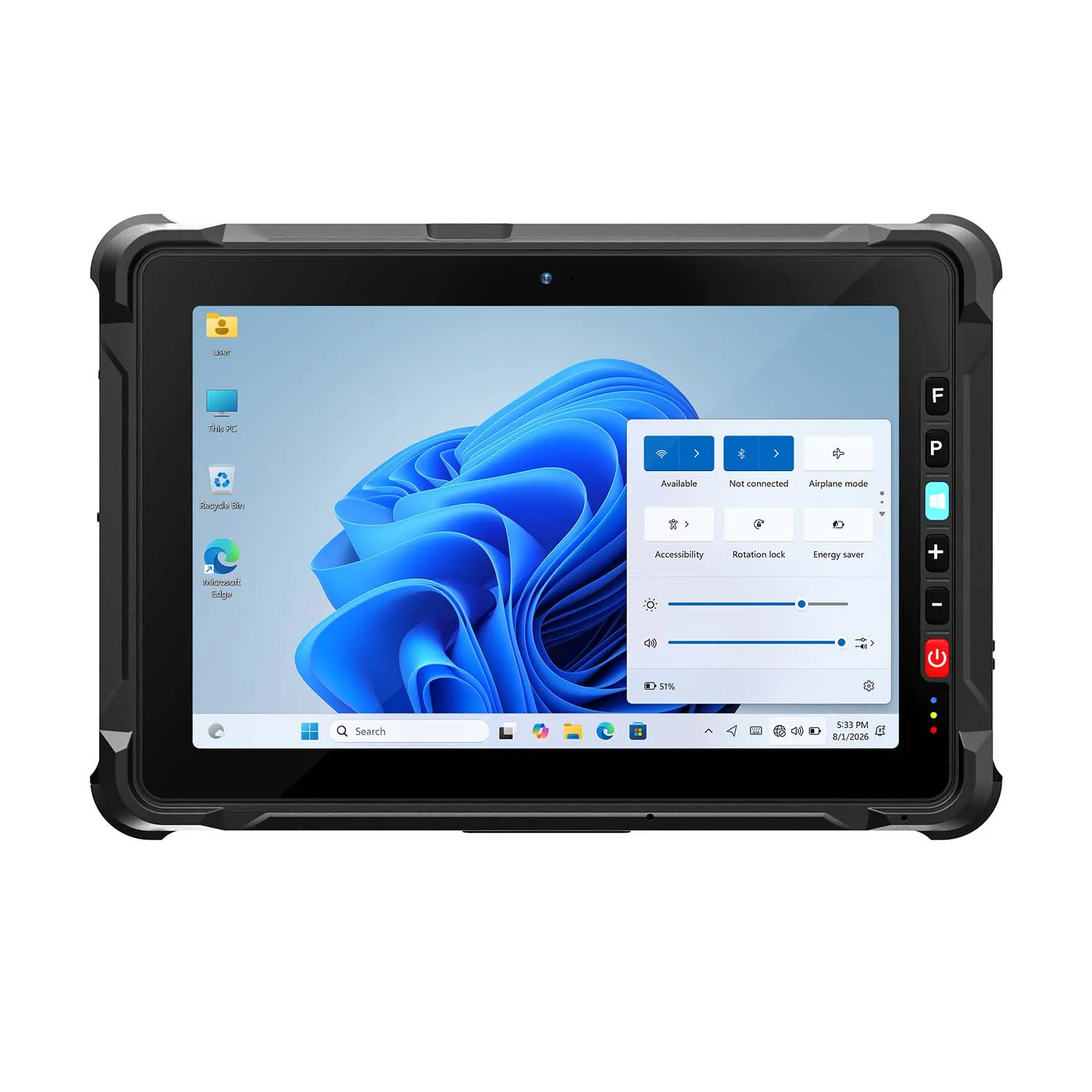
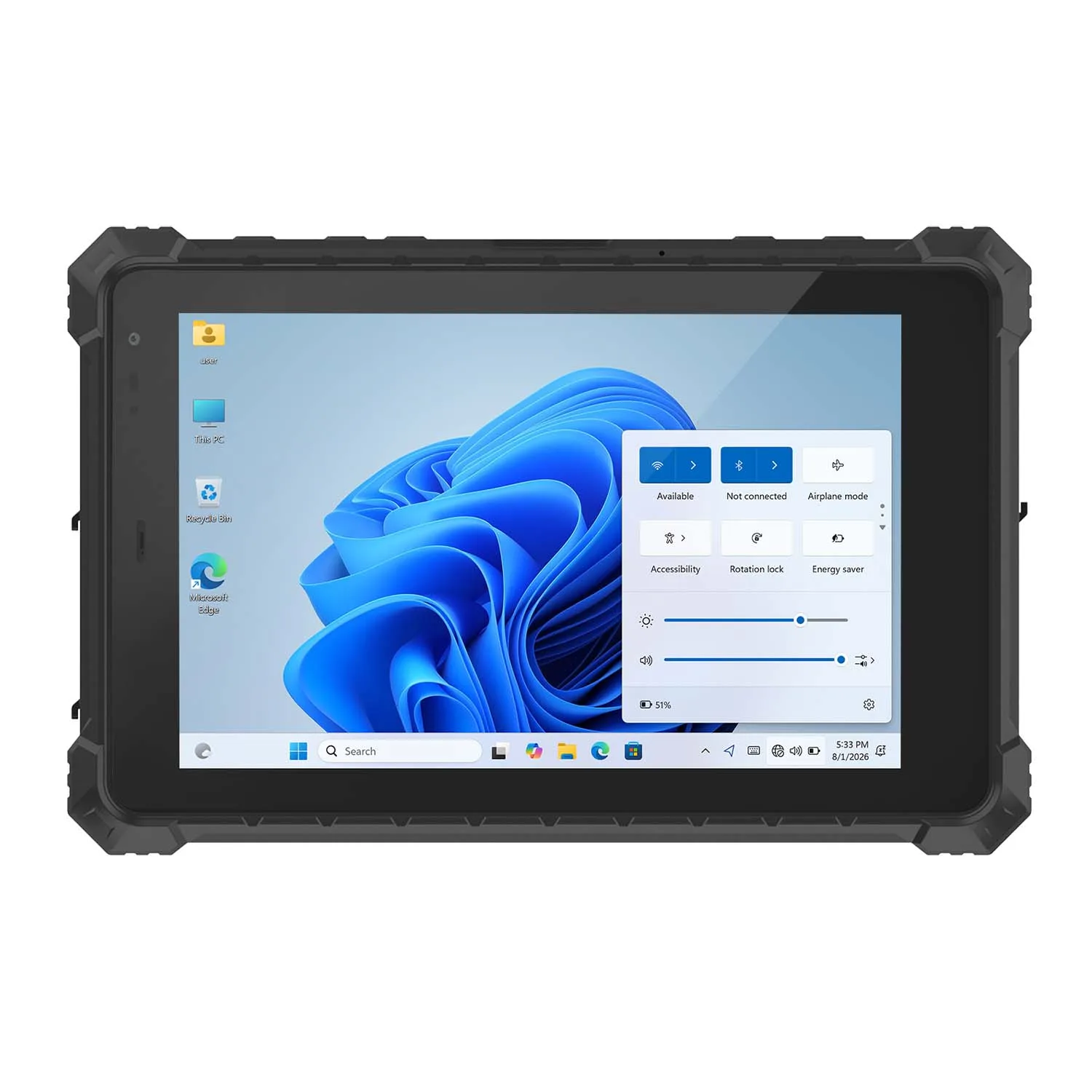
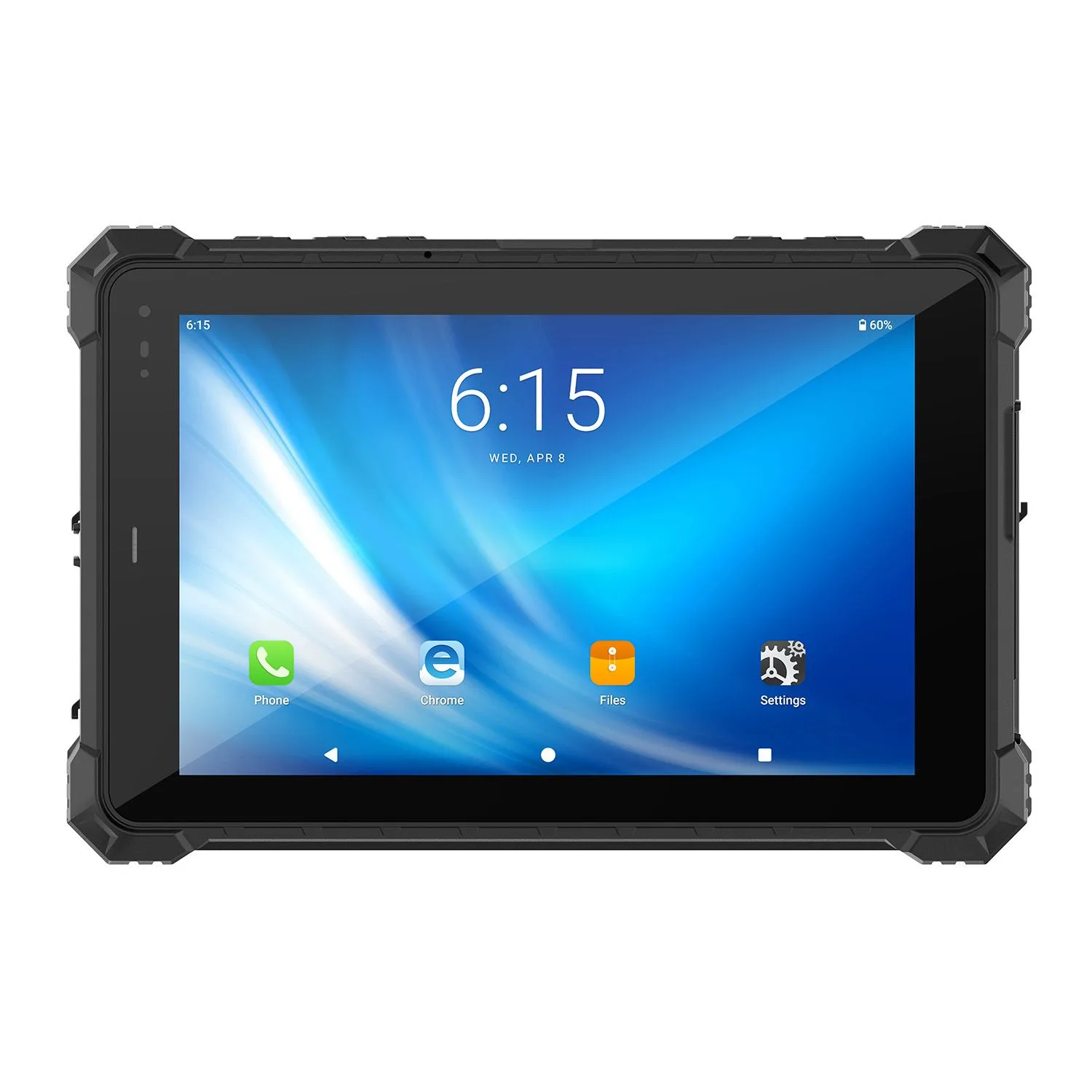
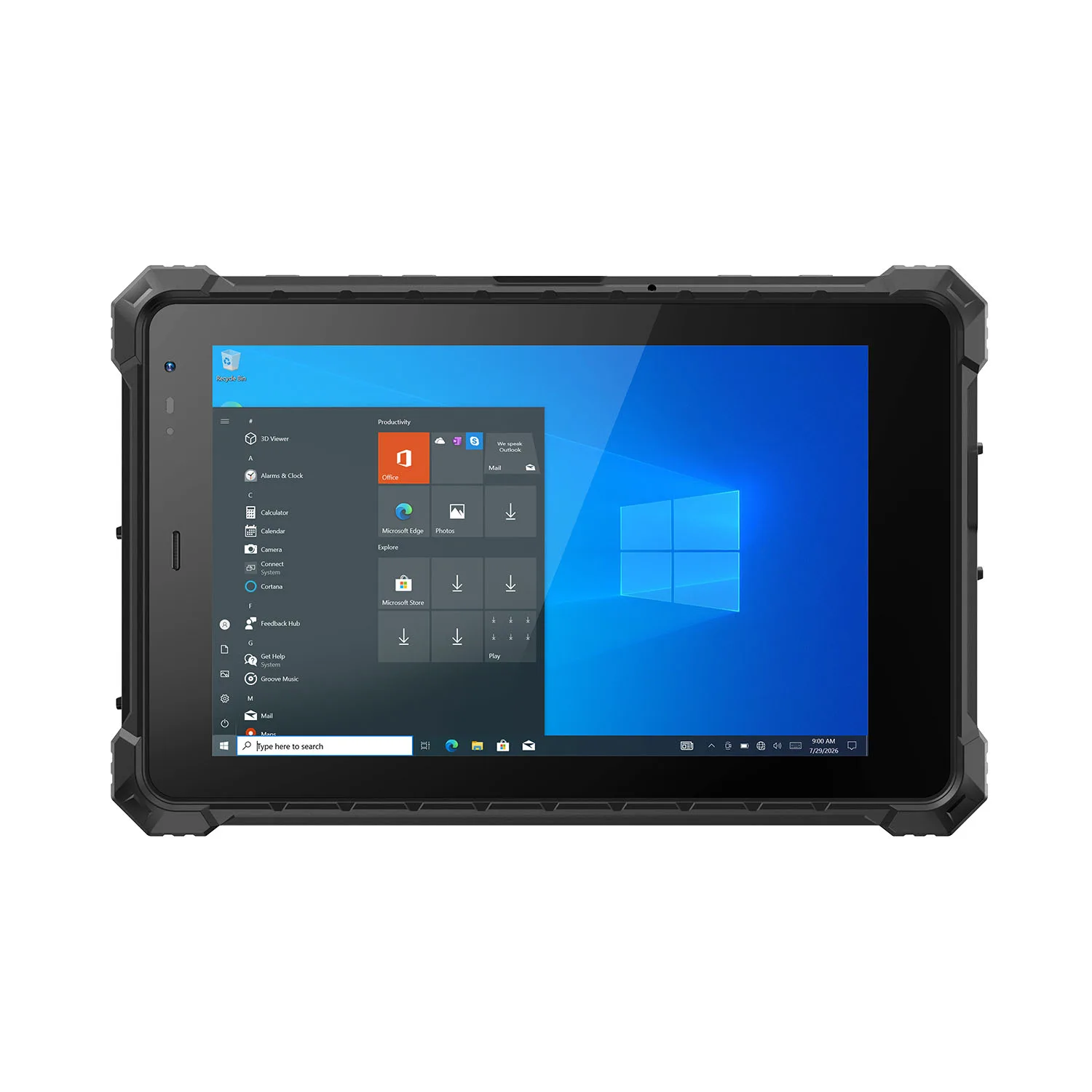
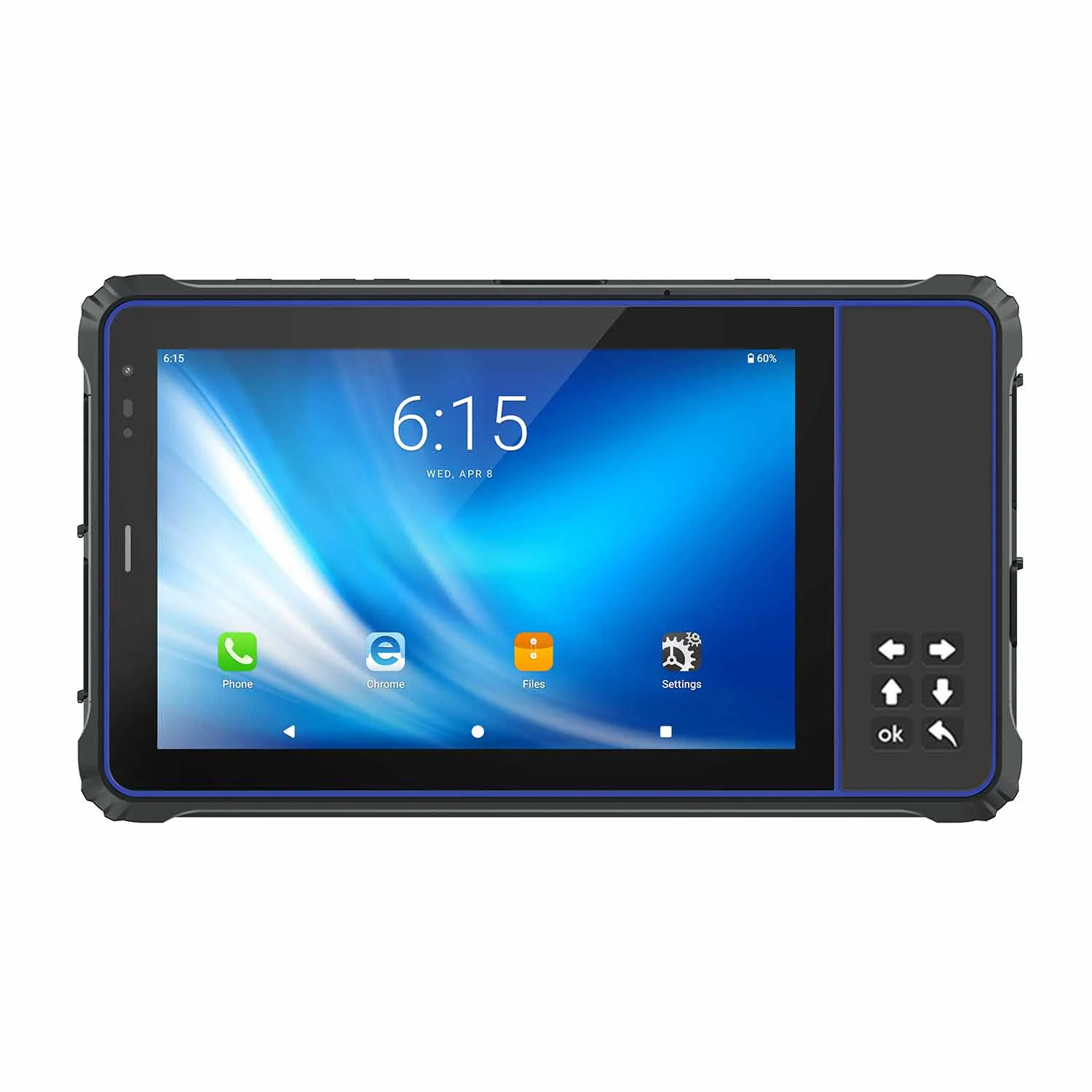
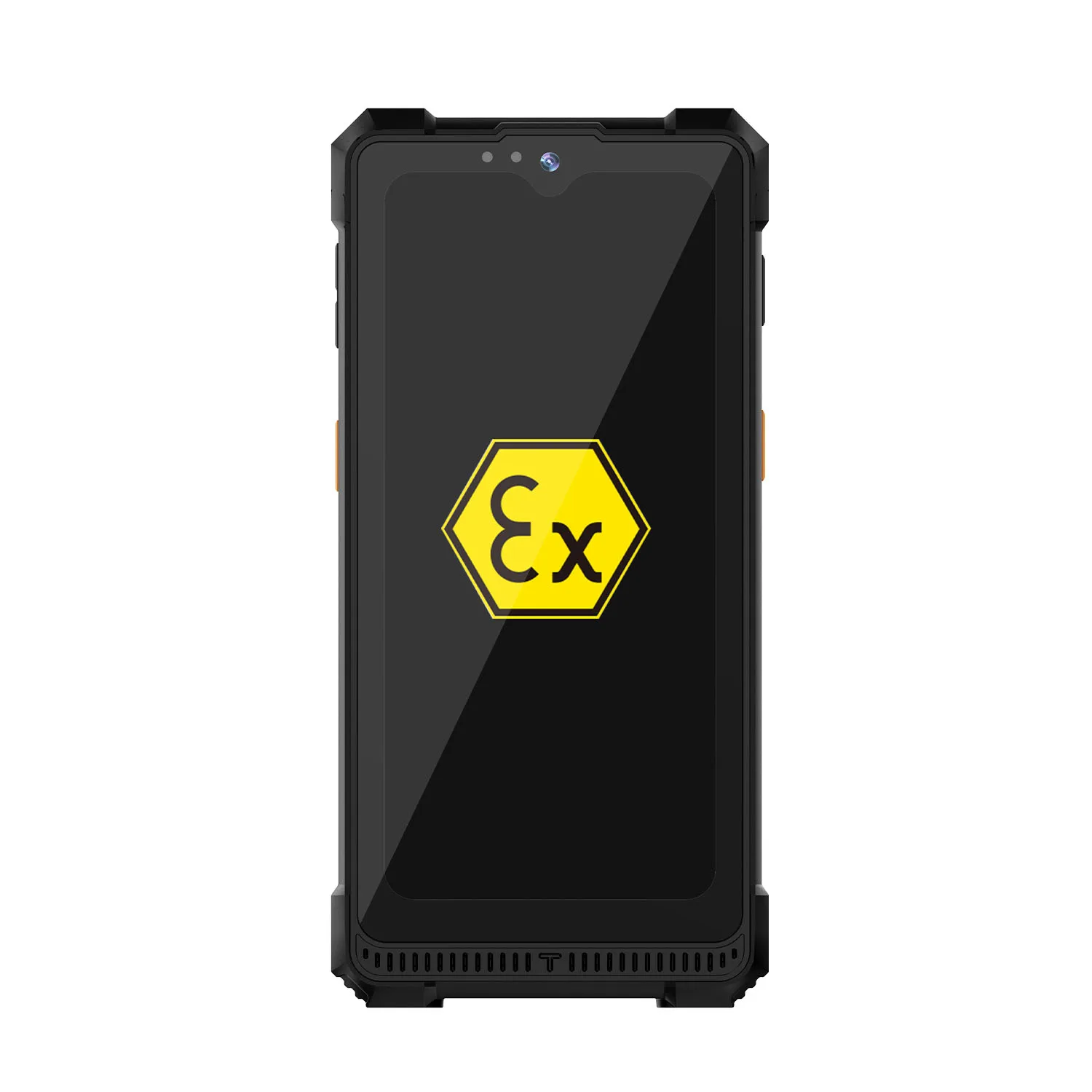
CENAVA provides rugged tablets and laptops for construction, engineering and field-service applications.
Selected models use reinforced housings, sealed ports and fanless or protected cooling architectures to reduce exposure to dust and moisture.
Current CENAVA rugged devices are available with different protection levels, including IP65, IP67 and IP68 depending on model.
Selected products are also tested according to applicable MIL-STD-810H procedures, including defined drop tests.
Read both numbers narrowly. IP68 means the unit survived a defined dust-and-water test; MIL-STD-810H means it survived defined environmental stresses. Neither makes a computer indestructible — a forklift fork still wins.
Drop Resistance on Construction Sites
Drops are one of the most common risks for mobile computers used in construction.
A tablet can fall from:
A workbench
A vehicle seat
Temporary site furniture
A technician's hand
Equipment steps
Our rugged tablets and laptops take the MIL-STD-810H drop test: 26 drops from 1.22 m onto plywood over concrete, per Method 516.8, Procedure IV. Ask for the test report of the exact model with your inquiry — we send it with the quotation.
IP Protection for Dust and Water Exposure
Construction sites can expose electronics to fine dust and water.
The range covers IP65, IP67 and IP68 — which one you need depends on where the device actually goes.
For example, different protection levels may be appropriate for:
Site cabins
Outdoor inspection
Road construction
Utility construction
Vehicle use
Equipment maintenance
IP65, IP67 and IP68 are not interchangeable marketing labels.
They represent different defined levels of protection against solids and water.
The required IP rating should therefore be chosen according to where and how the device will actually be used.
An IP rating also does not automatically prove resistance to:
Concrete chemicals
Fuels
Hydraulic oil
Solvents
Salt spray
Long-term UV exposure
Where those conditions are important, material compatibility should be reviewed separately.
BIM Model and Drawing Review
One of the most common construction applications for rugged computers is accessing design information directly at the point of work.
A field engineer may use a rugged tablet or laptop to review:
BIM model views
PDF construction drawings
Detail drawings
Shop drawings
Specifications
Installation instructions
RFIs
Revision histories
Instead of walking back to the site office, the engineer confirms it standing at the workface. On a high-rise fit-out, that round trip can cost an inspector 40 minutes per query — multiplied by every drawing check on every floor.
However, BIM requirements vary considerably.
"BIM software" covers two very different purchases: a viewer that opens a federated model in a browser tab, and an authoring seat that edits a 2 GB multidisciplinary model with live clash detection. The first runs comfortably on a mid-range rugged tablet; the second wants a workstation-class laptop.
BIM Viewer Is Different from Full BIM Authoring
The phrase “BIM software” can describe very different workloads.
A field device may only need to:
Open a model
Navigate model views
Check dimensions
Review clash information
Add comments
Compare drawings
Access cloud project data
These tasks can often be handled by a suitable mobile or Windows platform.
Full BIM authoring, rendering and complex coordination can require substantially more CPU, memory and graphics performance.
For applications involving software such as full desktop BIM or CAD packages, project teams should check the software vendor's current hardware requirements before selecting the rugged computer. Running Windows does not by itself guarantee that a specific BIM or CAD package will perform well — the vendor's CPU, GPU and memory requirements are the deciding document.
CAD Drawing Review and Markup
Construction teams frequently need to mark up drawings during inspections and coordination work.
Typical workflows include:
Open the current drawing.
Navigate to the work area.
Identify an issue.
Add a comment or markup.
Capture supporting photographs.
Assign or record the issue.
Synchronize the updated information with the project platform.
A touchscreen and stylus can make these workflows more convenient than using a conventional laptop alone.
Where detailed markup is important, screen resolution, display size and stylus compatibility should be considered during device selection.
Quality Inspection
Paper checklists on an active site end up photographed on someone's phone and re-typed at 7 pm.
One device handles the full inspection loop:
Installation inspections
Material inspections
Concrete inspections
MEP inspections
Finish-quality checks
Commissioning records
Defect documentation
A typical inspector may open the relevant drawing, complete the inspection checklist, record measurements, photograph the condition and submit the result from the same device.
That kills the evening re-typing session — the record exists once, in the system, with the photo attached.
Safety Inspection and Site Documentation
Rugged tablets can also support digital safety workflows.
Safety workflows run on the same hardware:
Daily safety inspections
Toolbox records
Equipment checklists
Hazard observations
Corrective-action tracking
Permit documentation
Incident reporting
Safety photographs
The computer provides the field interface, while the actual safety process remains controlled by the contractor's procedures and software.
Punch Lists and Snag Management
Near project completion, site teams may need to inspect hundreds or thousands of items across multiple floors or work areas.
Punch-list work on the move means:
Open the relevant room, area or drawing.
Identify the defect.
Record a description.
Capture a photograph.
Assign the responsible contractor.
Set status or priority.
Close the issue after verification.
A rugged tablet is particularly useful when the same device must move continuously through active construction areas.
Progress Reporting
Project managers and supervisors increasingly record construction progress digitally.
Progress reporting from the field covers:
Daily site reports
Progress photographs
Quantity records
Workforce records
Delivery confirmation
Equipment usage records
Work-package status
Site diaries
With network connectivity, information can be synchronized with the project's central platform while the supervisor remains on site.
Where connectivity is unavailable, the selected application should provide an appropriate offline workflow.
Photo Documentation
Site records worth capturing:
Installation conditions
Defects
Completed work
Hidden works
Equipment nameplates
Delivery damage
Safety observations
A photo of a cracked beam is evidence only if it is bound to the right asset, level and date — an unlinked photo is just a picture. If image documentation is the primary use, test the camera the way your inspectors actually work: low light in a basement plant room, autofocus through a dusty screen protector, and upload into your project platform from a stairwell with one bar of signal.
Heavy-Equipment Diagnostics
Construction equipment maintenance can require computers with different requirements from ordinary site inspection.
A technician may need a Windows rugged tablet or laptop to connect to:
Excavators
Loaders
Cranes
Trucks
Generators
Drilling equipment
Other construction machinery
Typical jobs at the machine:
Diagnostic software
Fault-code reading
Parameter monitoring
Service manuals
Maintenance records
Telematics dashboards
For these applications, a consumer laptop is not enough. Three things routinely break a diagnostics deployment: a serial adapter that drops the connection mid-flash, a vendor application that requires a USB license dongle, and a driver signed only for a specific Windows build. Verify all three on the exact tablet model before the first service call — not at the machine, with the customer watching.
The complete diagnostic system should be checked against the actual equipment and software before deployment.
Rugged Laptops for Engineering and Diagnostics
A rugged laptop may be a better choice than a tablet where users require:
A physical keyboard
Multiple USB ports
RJ45 Ethernet
Serial communication
Larger storage
Desktop Windows software
Extended typing
Complex diagnostic tools
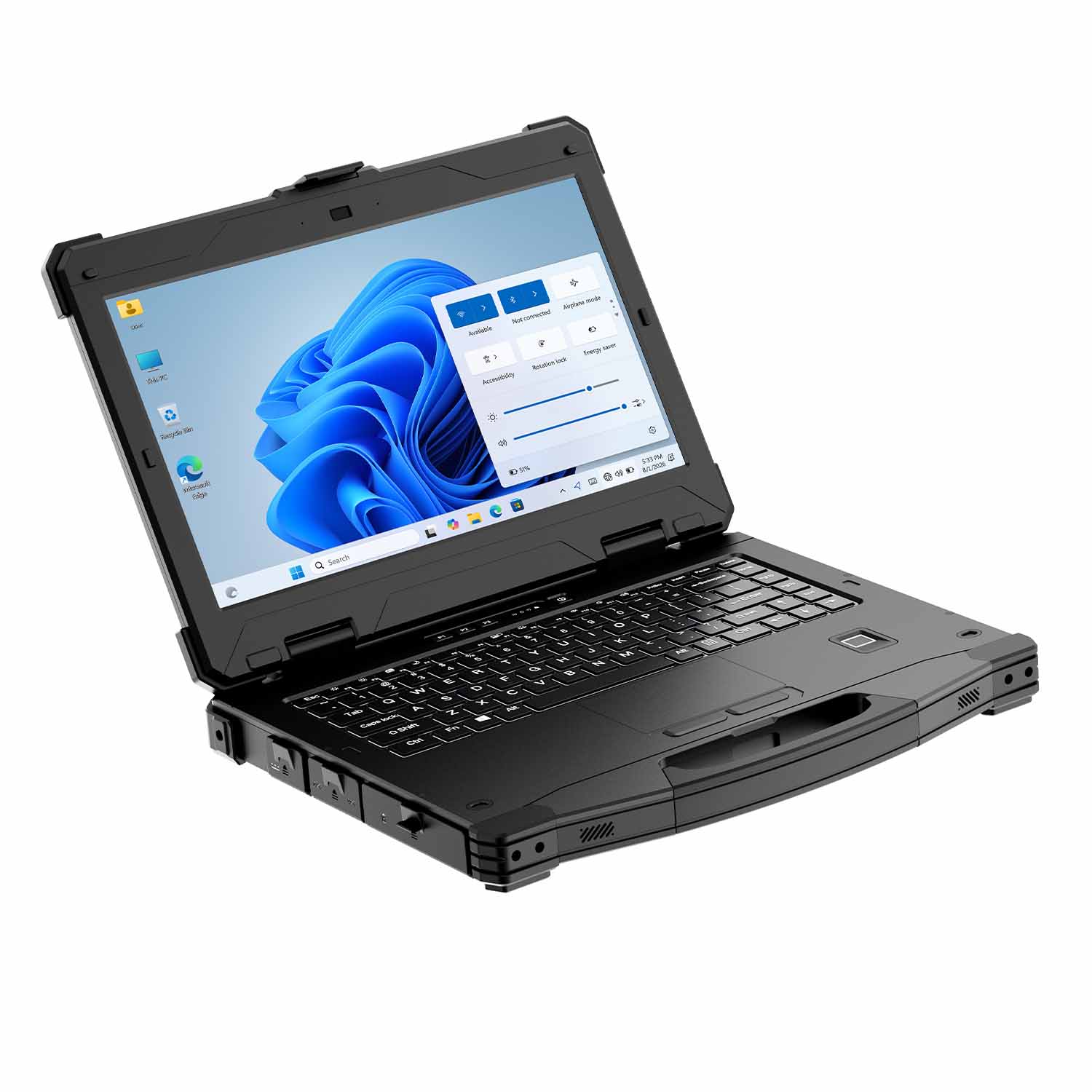
Our rugged laptops run Windows with the industrial interfaces diagnostics work requires — multiple USB, Ethernet and RS-232, with RS-422/485 on selected configurations.
A laptop therefore remains useful for commissioning engineers, equipment technicians and site personnel who require more traditional PC connectivity.
Rugged Tablets for Mobile Site Teams
Tablets are often better suited to workers who move continuously around a site.
Applications include:
Inspection
Drawing review
Punch lists
Progress reporting
Safety checks
Photo documentation
Equipment records
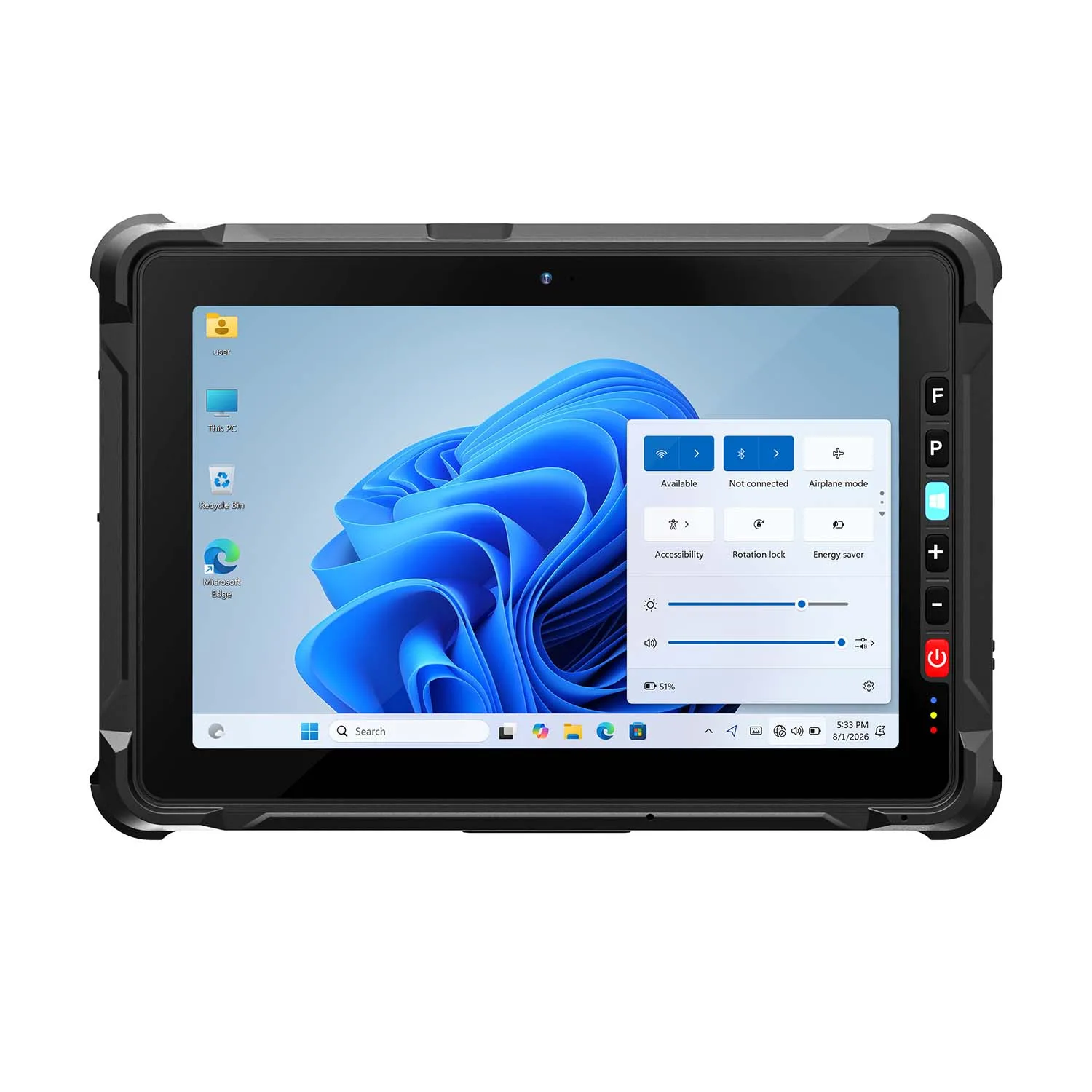
A 10-inch tablet offers a balance between portability and drawing visibility.
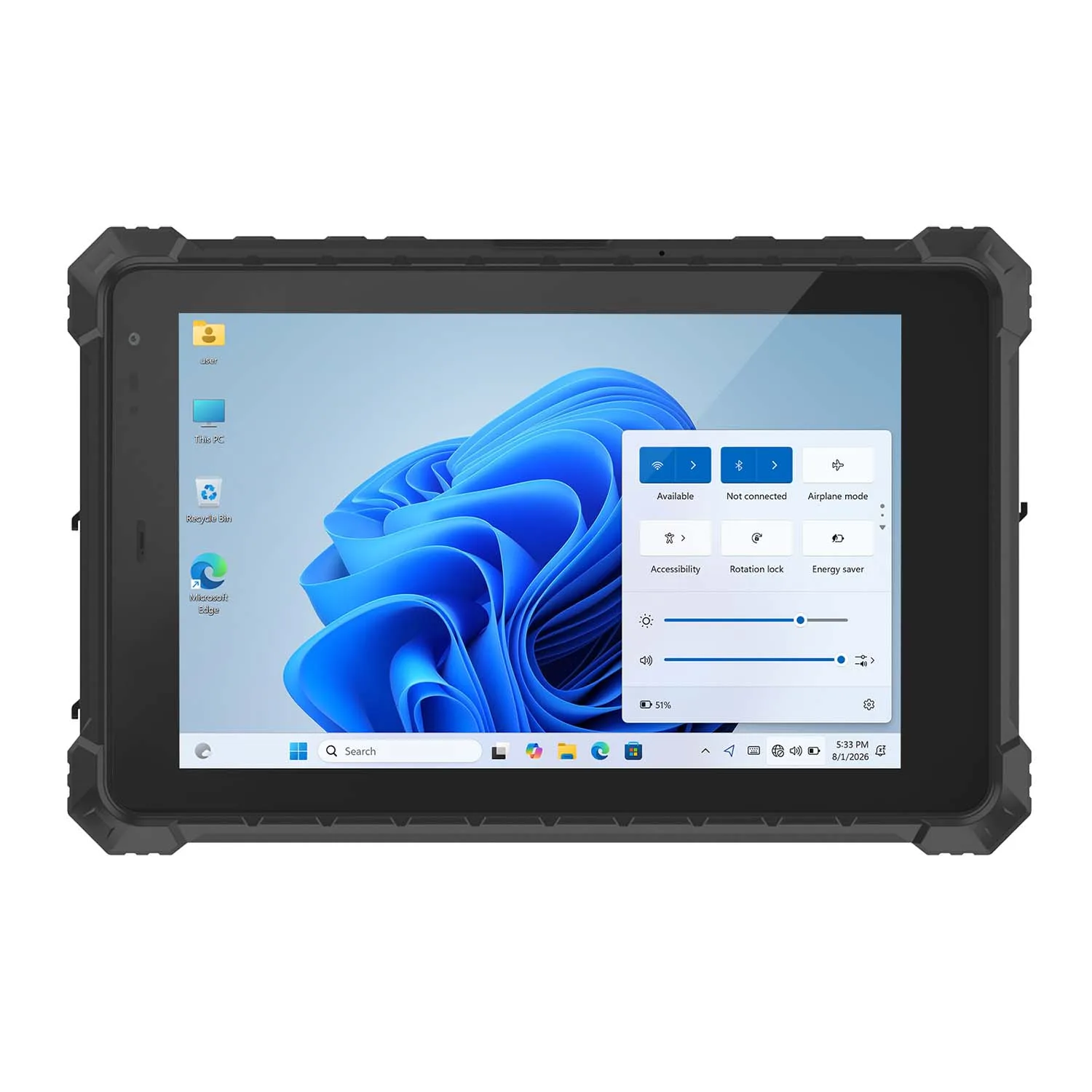
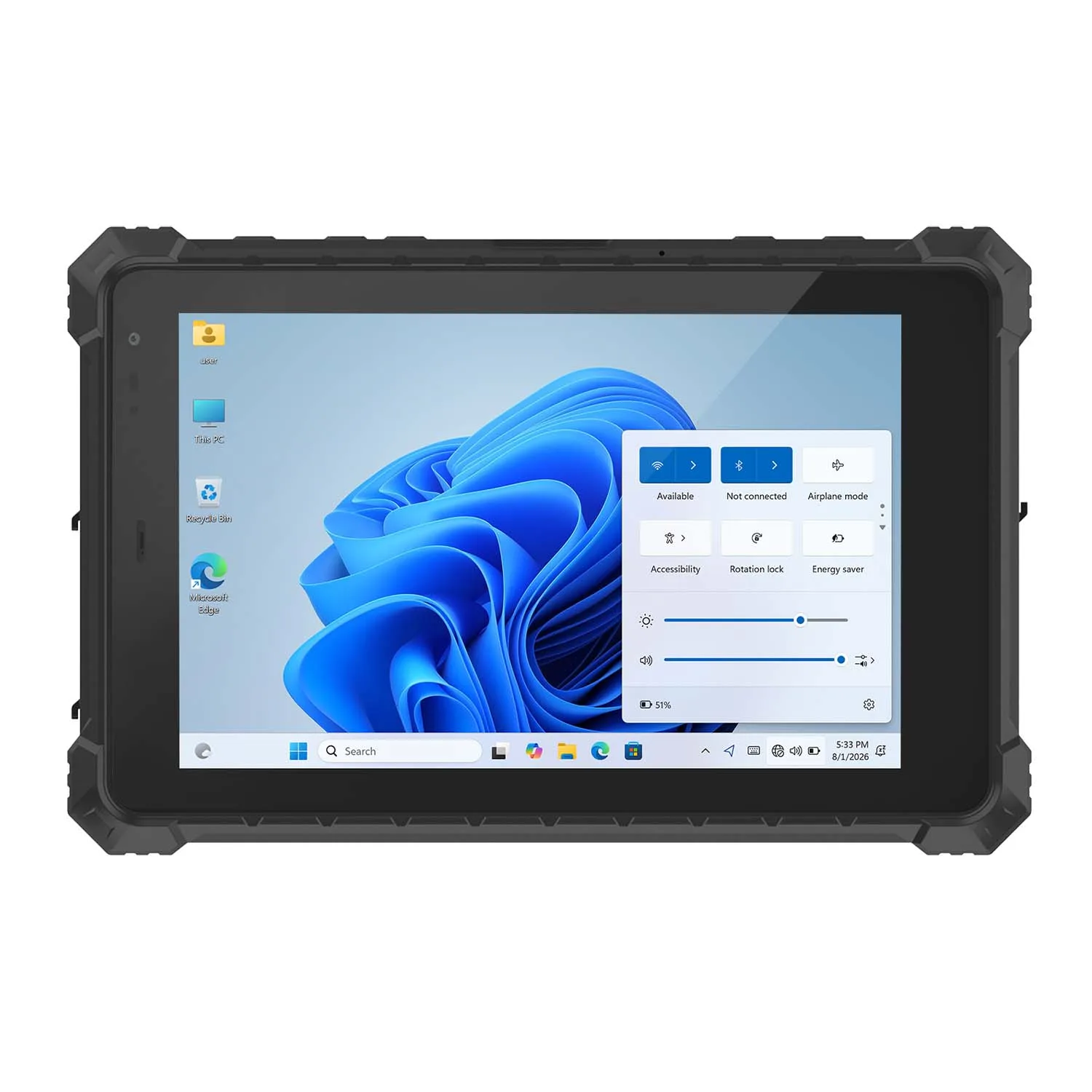
An 8-inch tablet suits meter reading and checklist work where the device lives in a chest pocket; it is too small for drawing review.
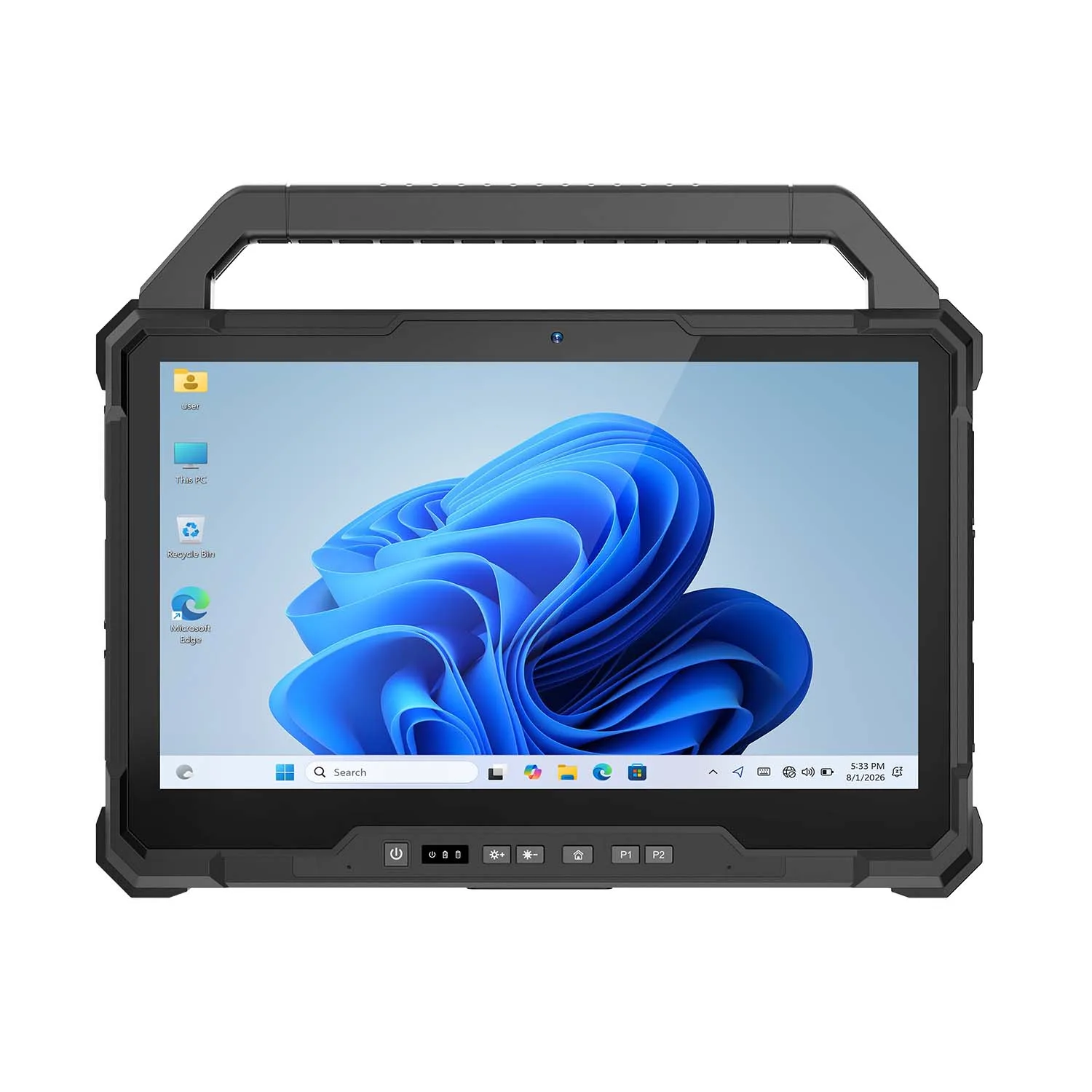
Larger 13-inch rugged tablets can provide additional viewing space for drawings, forms and engineering applications.
The correct screen size depends on how often the device will be carried versus how much information needs to be displayed at one time.
Sunlight-Readable Displays
Outdoor construction work creates a display challenge.
A standard indoor screen may become difficult to read under direct sunlight.
Outdoor models push brightness to 700 cd/m², with a 1000 cd/m² customization path for sites that review drawings in direct sun.
Depending on model, current options include displays around 700 cd/m², while selected configurations can be customized with brightness up to approximately 1000 cd/m². The datasheet for the exact model is the only reliable brightness figure.
Outdoor readability is also affected by:
Screen reflectance
Anti-glare treatment
Contrast
Viewing angle
Display bonding
Sun position
For projects involving frequent outdoor drawing review, the display should be evaluated in conditions representative of the actual site.
Glove and Wet-Hand Operation
Construction workers may need to operate tablets while wearing protective gloves.
Glove-touch and wet-hand touch are available — but both must be tested with the actual gloves your crew wears, during the pilot, not after rollout.
Wet-hand touch is also available on selected configurations.
These features can be useful during:
Outdoor inspection
Utility work
Road construction
Equipment maintenance
Rainy conditions
Touch performance varies with glove material and thickness. If your crew wears heavy-duty gloves, bring those exact gloves to the pilot — a touchscreen that works with a thin liner glove can fail completely under a leather rigger.
Windows and Android Options
Construction applications are available across both Windows and Android environments.
Windows Rugged Devices
Windows can be useful for:
Desktop engineering applications
Equipment diagnostics
Existing corporate software
Legacy construction applications
USB peripheral integration
Serial or Ethernet equipment
Windows-based BIM or CAD viewers
Android Rugged Tablets
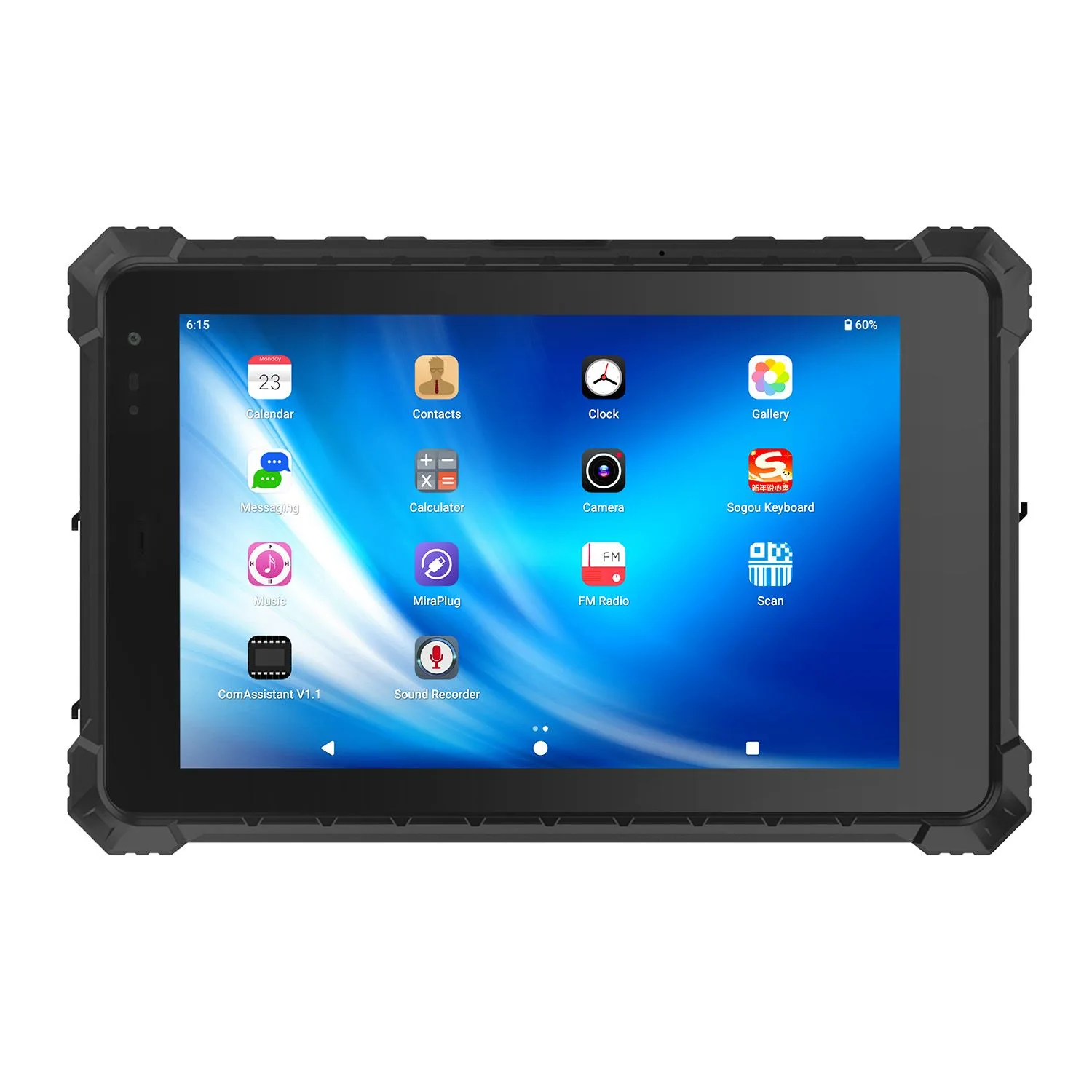
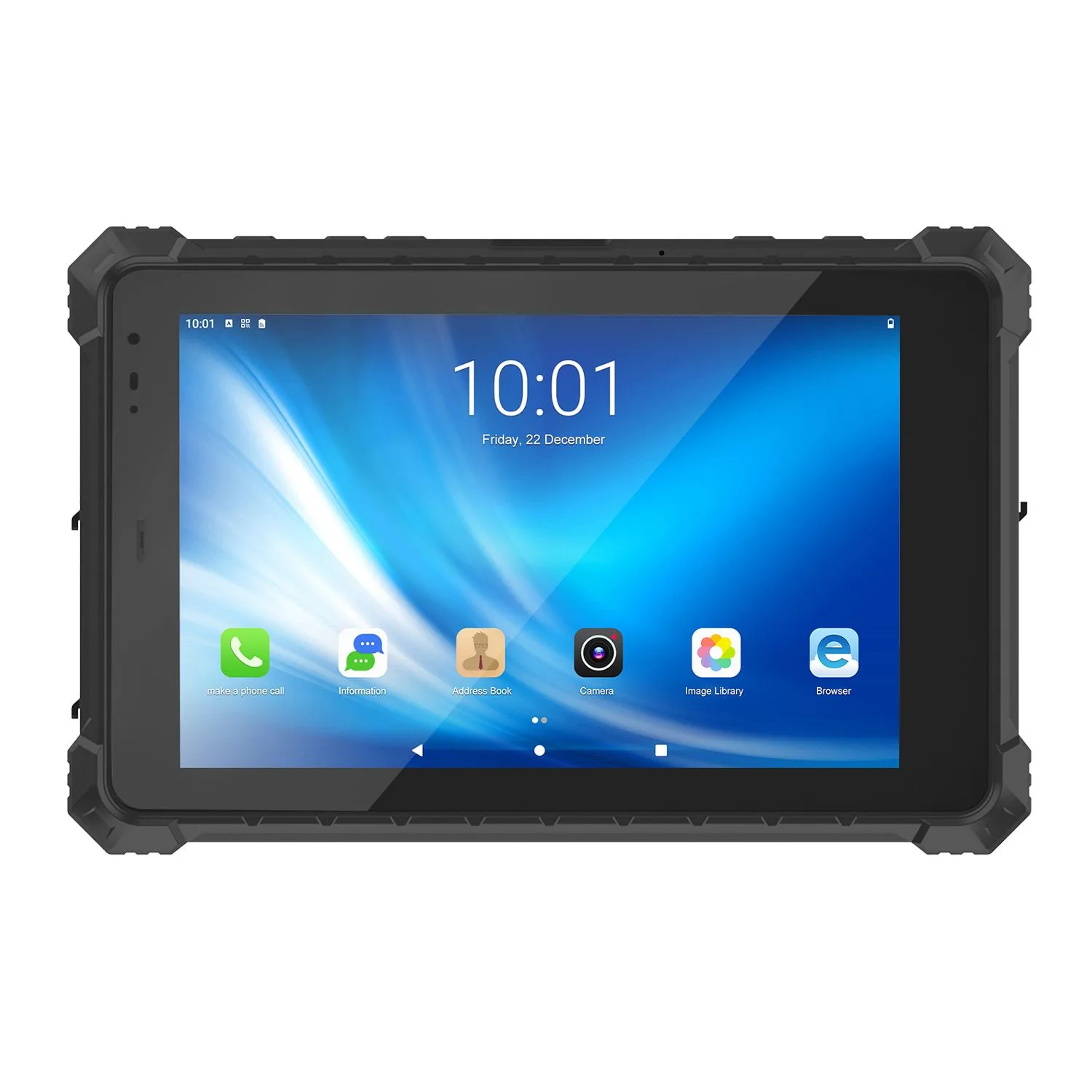
Android can be suitable for:
Cloud construction platforms
Inspection apps
Mobile forms
Photo documentation
Work orders
Punch lists
Field-service applications
Choose Windows when the workload is diagnostics, legacy desktop applications or full CAD authoring — and accept the weight and price that come with it. Choose Android when the workload is forms, checklists, photos and barcode scanning — the device is lighter, cheaper, and boots straight into the app. Then confirm the exact application version and every peripheral (dongles, printers, scanners) before standardizing the fleet.
Connectivity Across the Jobsite
Construction sites rarely have the same network environment as an office.
Depending on the project stage, workers may move between:
Site Wi-Fi
Temporary offices
Cellular networks
Areas with weak coverage
Completely offline areas
Wi-Fi is standard; 4G and 5G are options on applicable models — and cellular bands must match the deployment country, so tell us where the fleet is going.
Cellular connectivity can support:
Project-platform synchronization
Drawing downloads
Work-order updates
Photo uploads
Messaging
Remote support
Real-time sync still depends on coverage. Any field app you standardize on needs an offline mode that survives a basement plant room with zero bars.
GNSS and Location-Based Field Work
Selected rugged tablets also support GNSS positioning.
Positioning feeds workflows like:
Recording inspection locations
Tracking field teams or vehicles
Navigating large project sites
Locating utility or infrastructure assets
Integrated GNSS in a rugged tablet typically delivers 2–4 metre accuracy — fine for asset tagging and team tracking, not enough for construction layout. If the task needs centimetre-level positioning, specify an RTK-capable configuration or a dedicated survey receiver at quotation time.
Battery Planning for Construction Work
A construction field device may spend an entire working day away from a charging outlet.
Actual battery runtime depends on:
Display brightness
CPU workload
Wi-Fi
Cellular communication
GNSS
Cameras
Application use
Ambient temperature
Battery options run from high-capacity single packs to true hot-swap systems with backup power. Hot-swap earns its cost only on multi-shift sites — for single-shift inspection work, a removable battery plus one spare is cheaper and simpler.
These features should be described separately.
A removable battery may require shutdown.
A true hot-swap system uses backup power so that the main battery can be replaced without interrupting operation.
Projects should select the battery architecture according to shift duration and charging opportunities rather than assuming every construction tablet requires hot swapping.
Vehicle and Site-Cabin Use
A rugged tablet may move between handheld use, a supervisor vehicle and a temporary site office.
Accessories worth ordering with the tablet:
Vehicle chargers
Docking interfaces
Backplate mounts
Desktop docks
Charging bases
Adjustable stands
A docking arrangement can allow the same tablet to function as a mobile field device and a fixed workstation.
However, the exact dock, electrical interfaces and mounting accessories vary by product family.
They should be confirmed during device selection.
How to Select a Rugged Computer for Construction
1. Start with the Software
Identify the exact applications the device must run.
Examples include:
BIM viewer
CAD viewer
Project-management software
Inspection application
Equipment-diagnostic software
Browser-based platform
Then determine the required operating system, CPU, memory, storage and graphics capability.
2. Define the Physical Environment
Determine whether the device will face:
Dust
Rain
Drops
Vehicle vibration
Outdoor sunlight
Hot or cold conditions
Choose the IP rating and rugged configuration accordingly.
3. Determine the Required Screen Size
Smaller tablets improve portability.
Larger tablets provide more workspace for drawings and BIM views.
Rugged laptops are more appropriate where frequent typing or desktop applications are required.
4. Check Interfaces
For equipment diagnostics and commissioning, identify the required:
USB
Ethernet
Serial ports
Video output
Docking interfaces
before selecting the model.
5. Evaluate Connectivity
Determine whether the device requires:
Wi-Fi
4G
5G
Bluetooth
GNSS
Cellular bands should also be checked for the country and network where the device will be deployed.
6. Plan Battery and Charging
Estimate field runtime using realistic screen brightness and application workload.
Then determine whether the project requires:
Larger battery
Removable battery
Hot swapping
Vehicle charging
Charging docks
Spare devices
7. Run a Site Pilot
A construction pilot should test the complete workflow rather than only the hardware specification.
Evaluate:
Drawing readability
BIM performance
Touch response
Glove operation
Battery runtime
Network coverage
Photo workflow
Drop handling
Vehicle mounting
Software compatibility
Peripheral connectivity
A small pilot can reveal problems before a large fleet is standardized.
Total Cost of Ownership
Rugged devices usually cost more to purchase than consumer tablets or laptops.
Whether they reduce total cost depends on the actual deployment.
Relevant costs include:
Hardware replacement
Screen damage
Device downtime
IT setup
Spare equipment
Repair logistics
Accessories
Software redeployment
Worker interruption
Consumer devices fail on construction sites in predictable ways — cracked screens from waist-height drops, fan intake blocked by concrete dust, charging ports corroded by site moisture. Each failure costs the device plus the re-imaging, the spare logistics and the inspector's lost day. Rugged devices cost more up front; the question is how many of those failure days your site can avoid.
Fleet Deployment and Standardization
Large contractors may deploy devices across multiple projects, regions or countries.
At that scale, hardware consistency becomes important.
Fleet planning may include:
Standard hardware configurations
Operating-system images
Application pre-installation
Asset identification
MDM enrollment
Accessory packages
Spare-device planning
Replacement batteries
Repair procedures
RMA processes
For larger deployments we configure hardware to the project and handle OEM/ODM requirements in-house. Software imaging, branding and device management get locked before mass production — not after the first container ships.
Frequently Asked Questions
Why Contractors and Engineering Teams Choose CENAVA
From Site Pilot to Multi-Project Deployment
The requirements of a five-device site pilot are different from those of a standardized contractor fleet.
During the pilot stage, the priority should be confirming:
Software performance
Drawing visibility
Connectivity
Battery runtime
Worker ergonomics
Accessory compatibility
For larger deployments, additional considerations include:
Hardware consistency
Long-term availability
Software images
Device enrollment
Spare pools
Charging infrastructure
Repair procedures
Replacement accessories
Resolving these issues before fleet rollout can reduce support complexity across multiple projects.
Talk to CENAVA About Your Construction Project
Tell us three things and we'll come back with a configuration: the software your crew runs (name and version), the worst environment the device will see (not the average one), and how many devices the first pilot needs. Our team will evaluate a configuration for BIM review, inspection, punch-list, diagnostics or any other site workflow.