

-1.jpg)
.jpg)
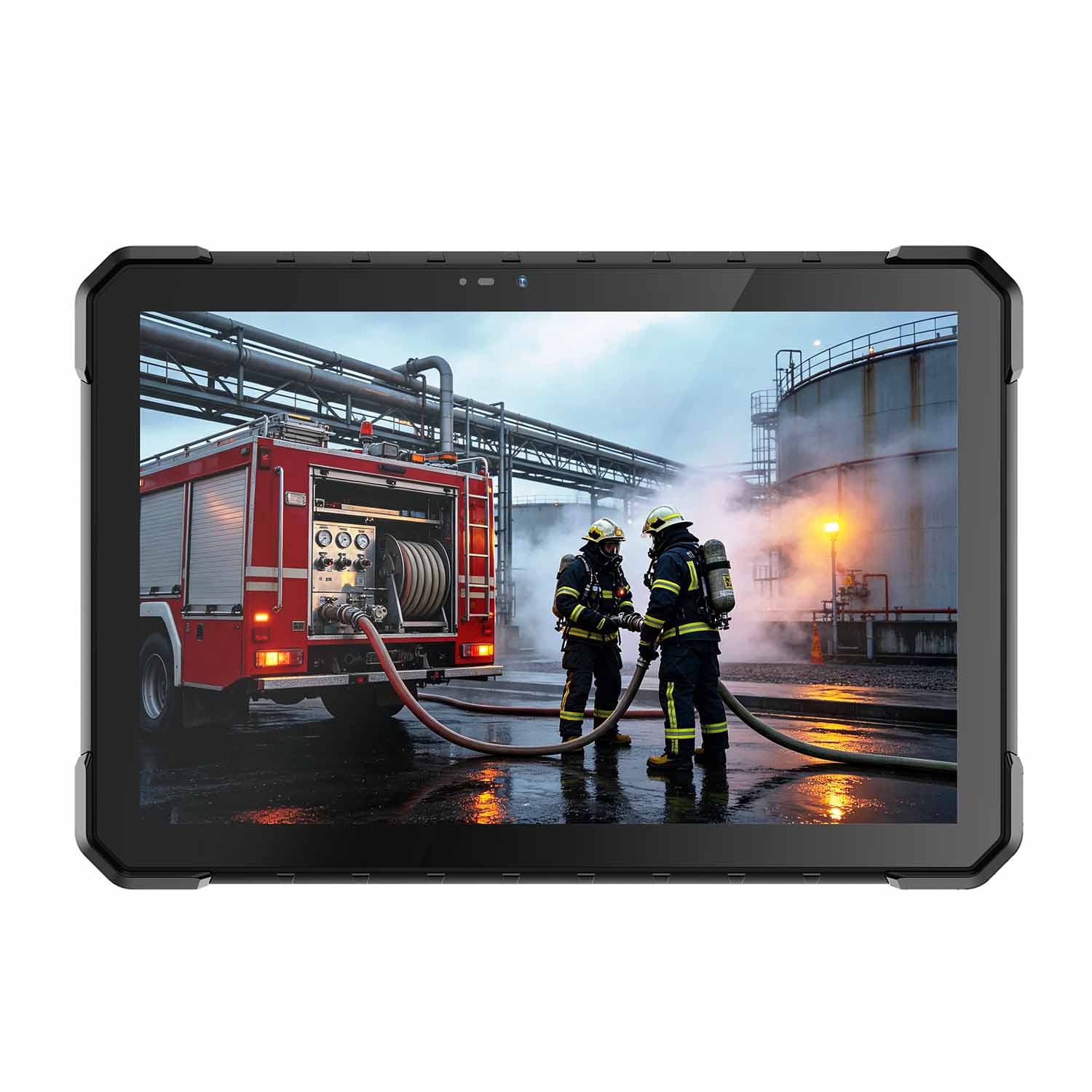
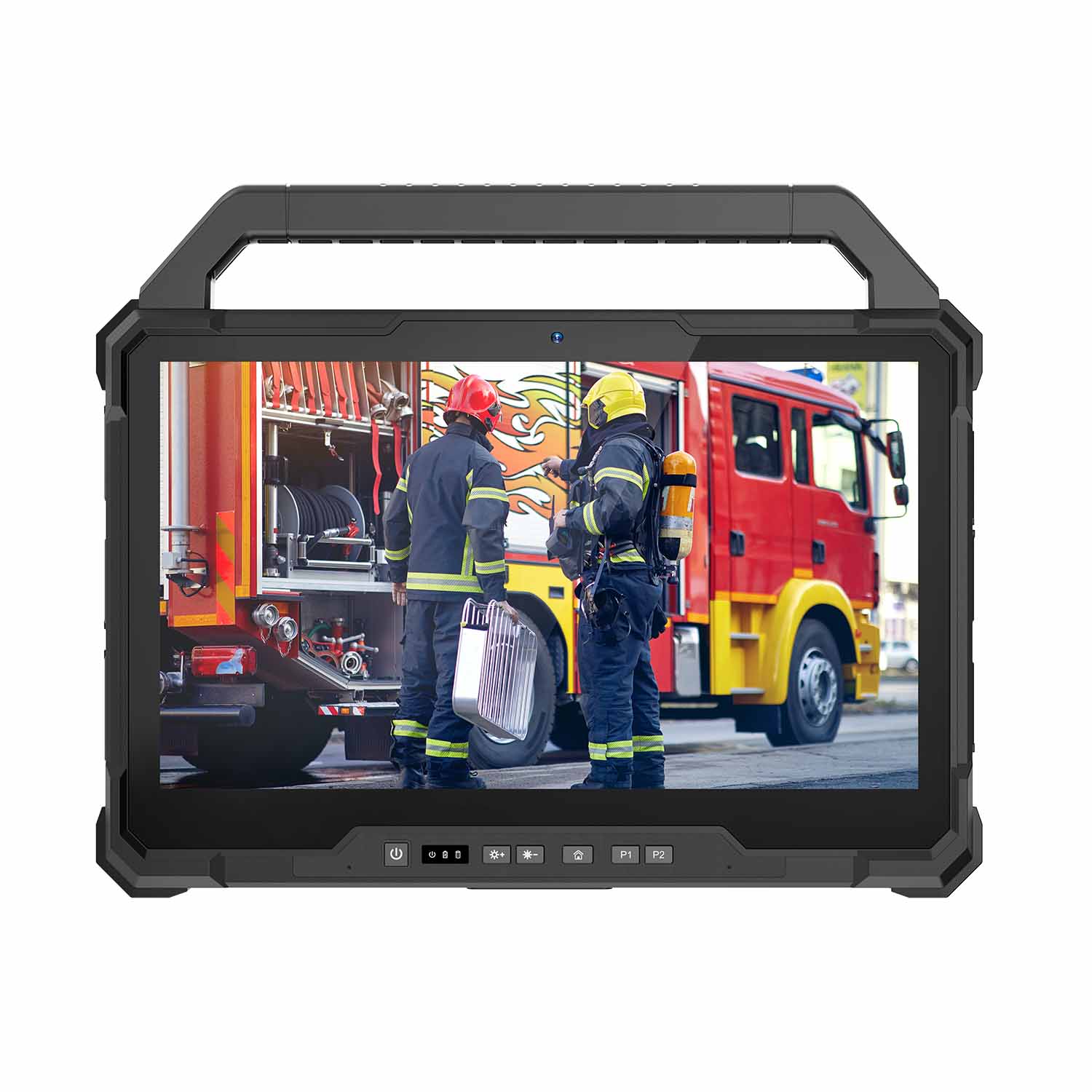
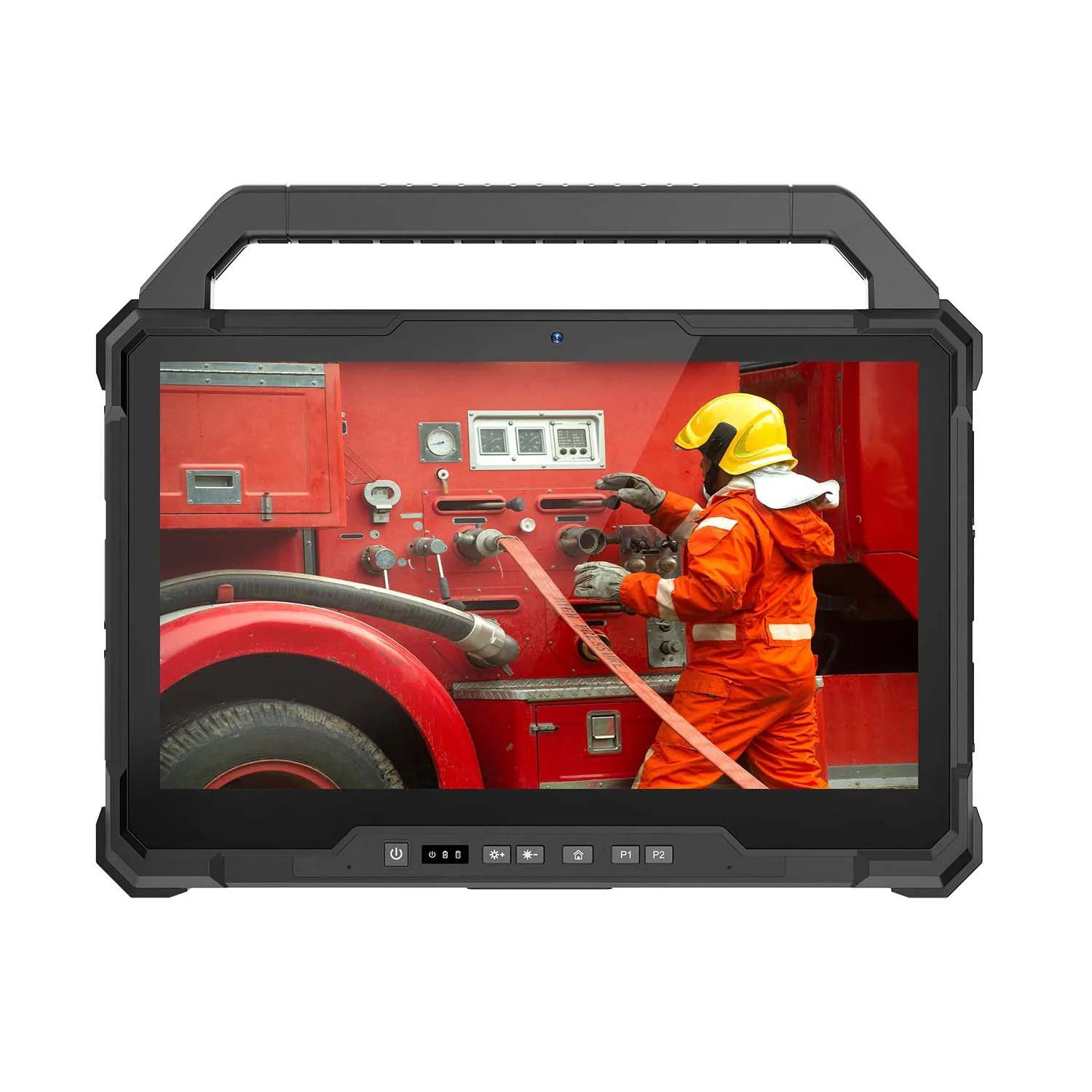
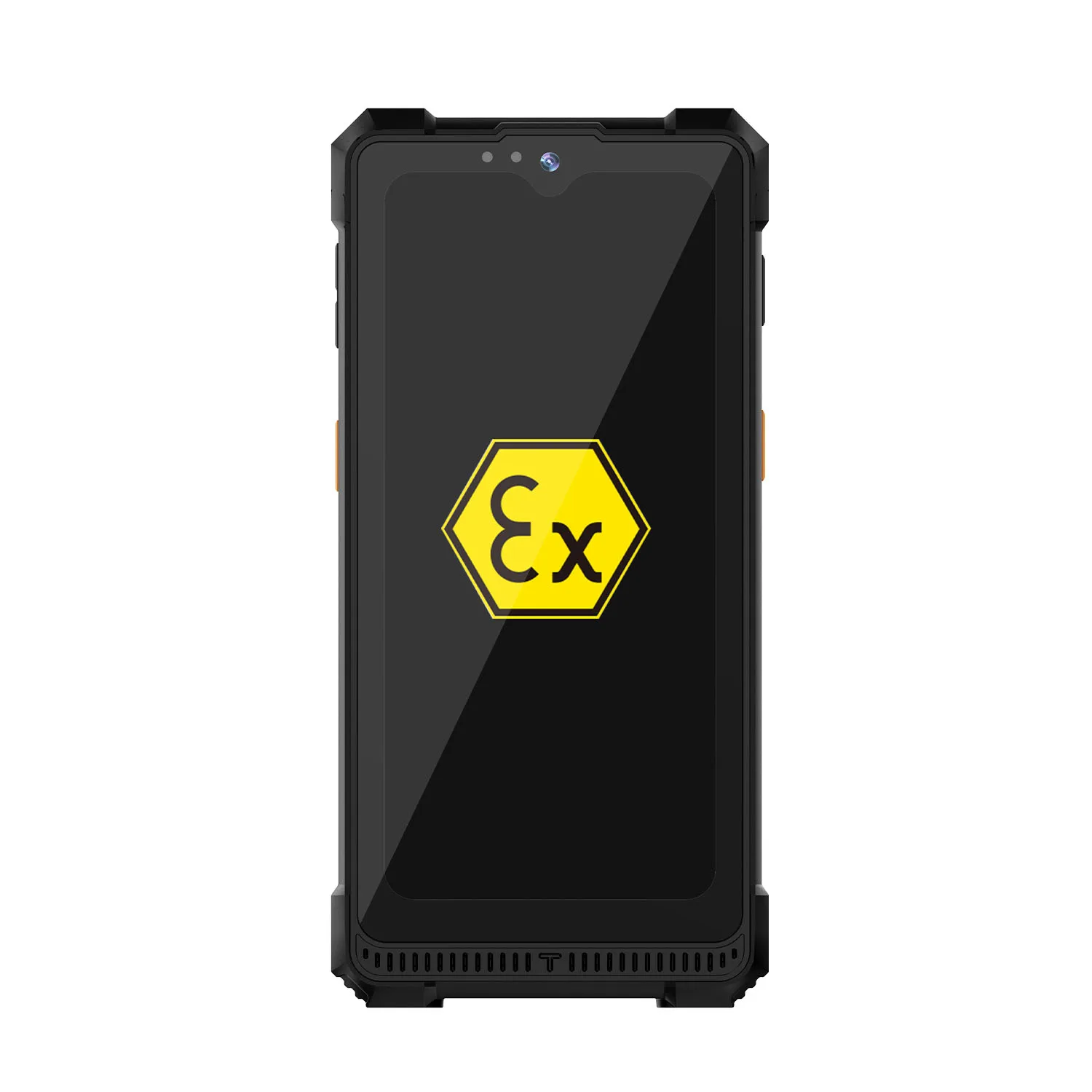
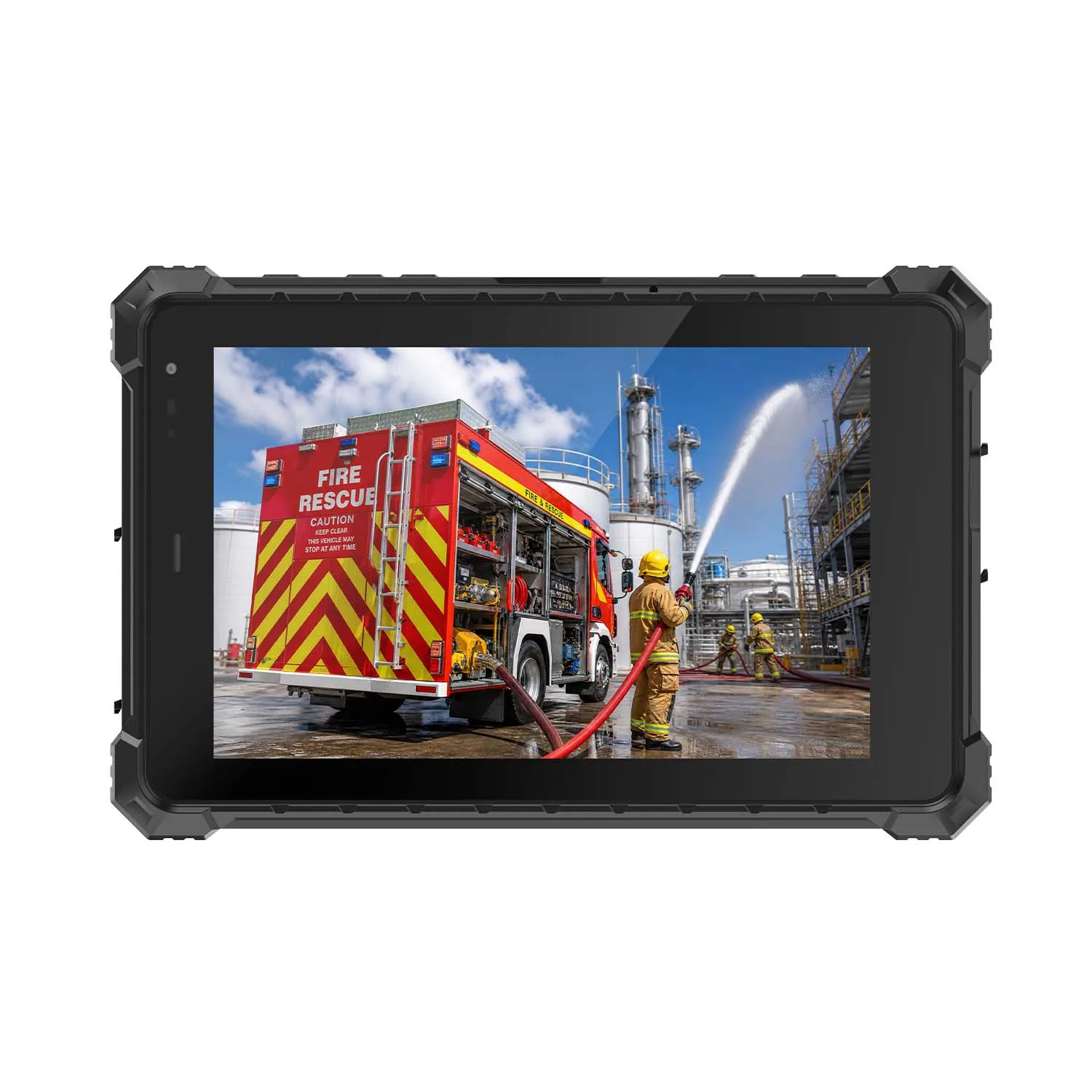





Vehicle Mounted Tablets
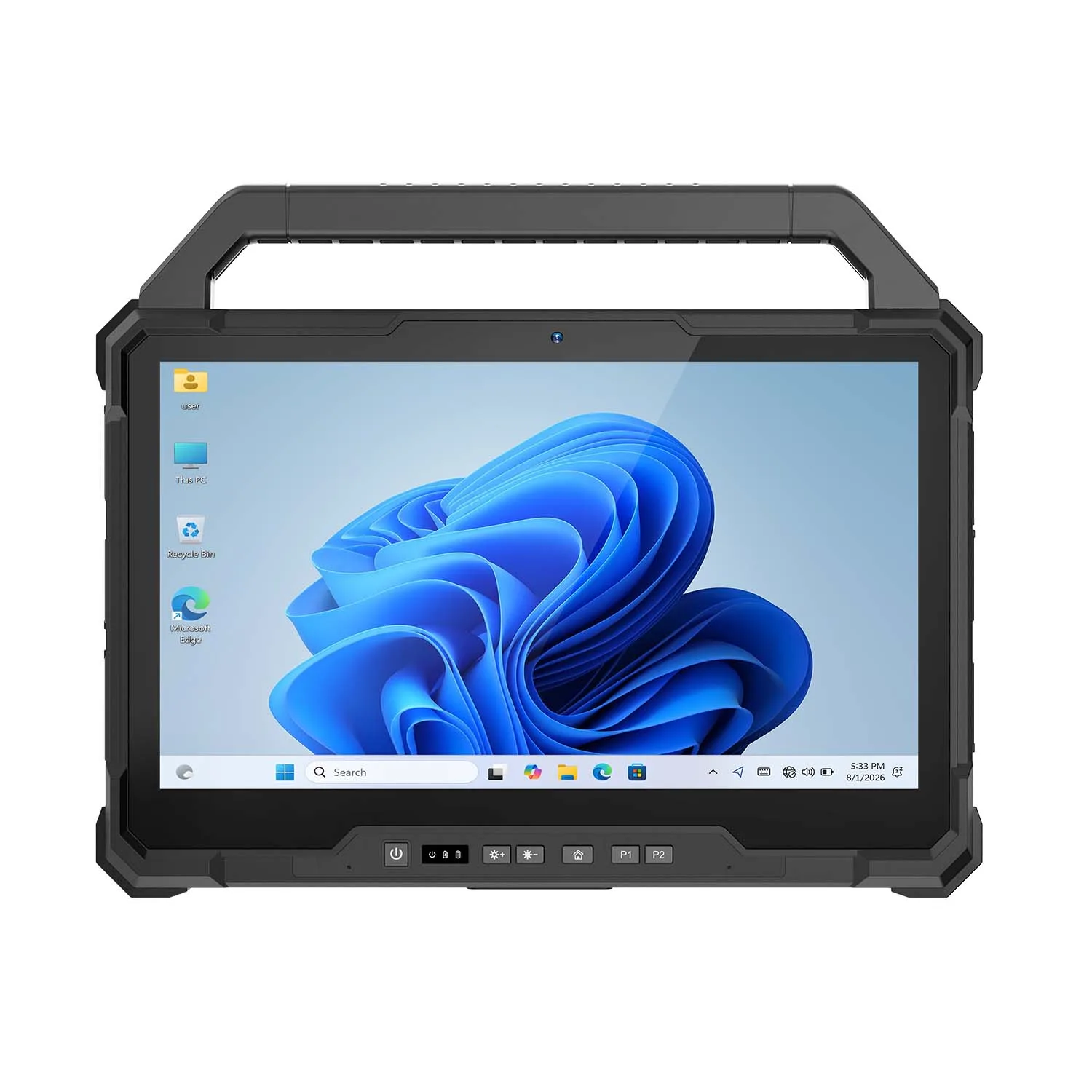
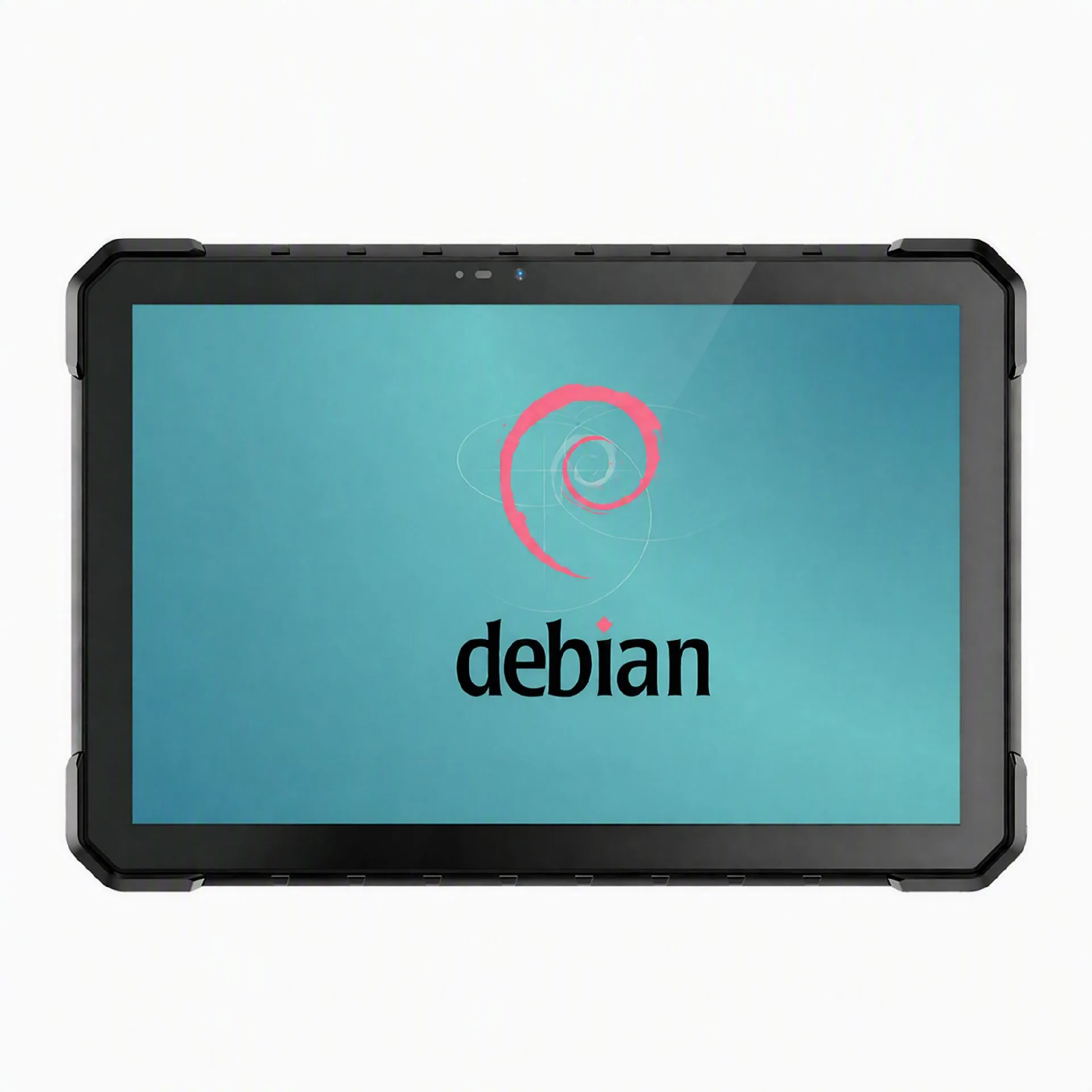
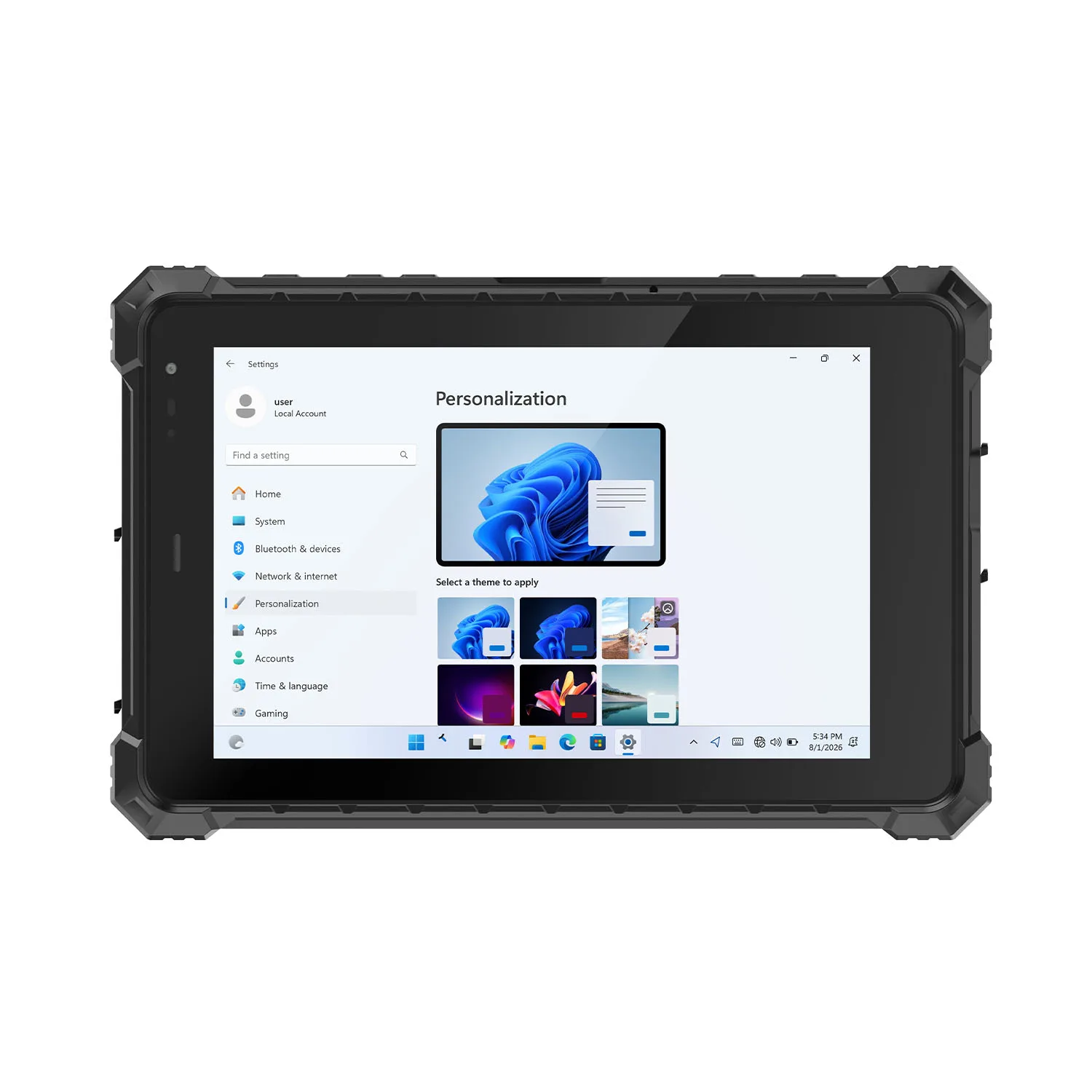
Vehicle Mounted Tablets for Forklifts, Fleets & Field Service
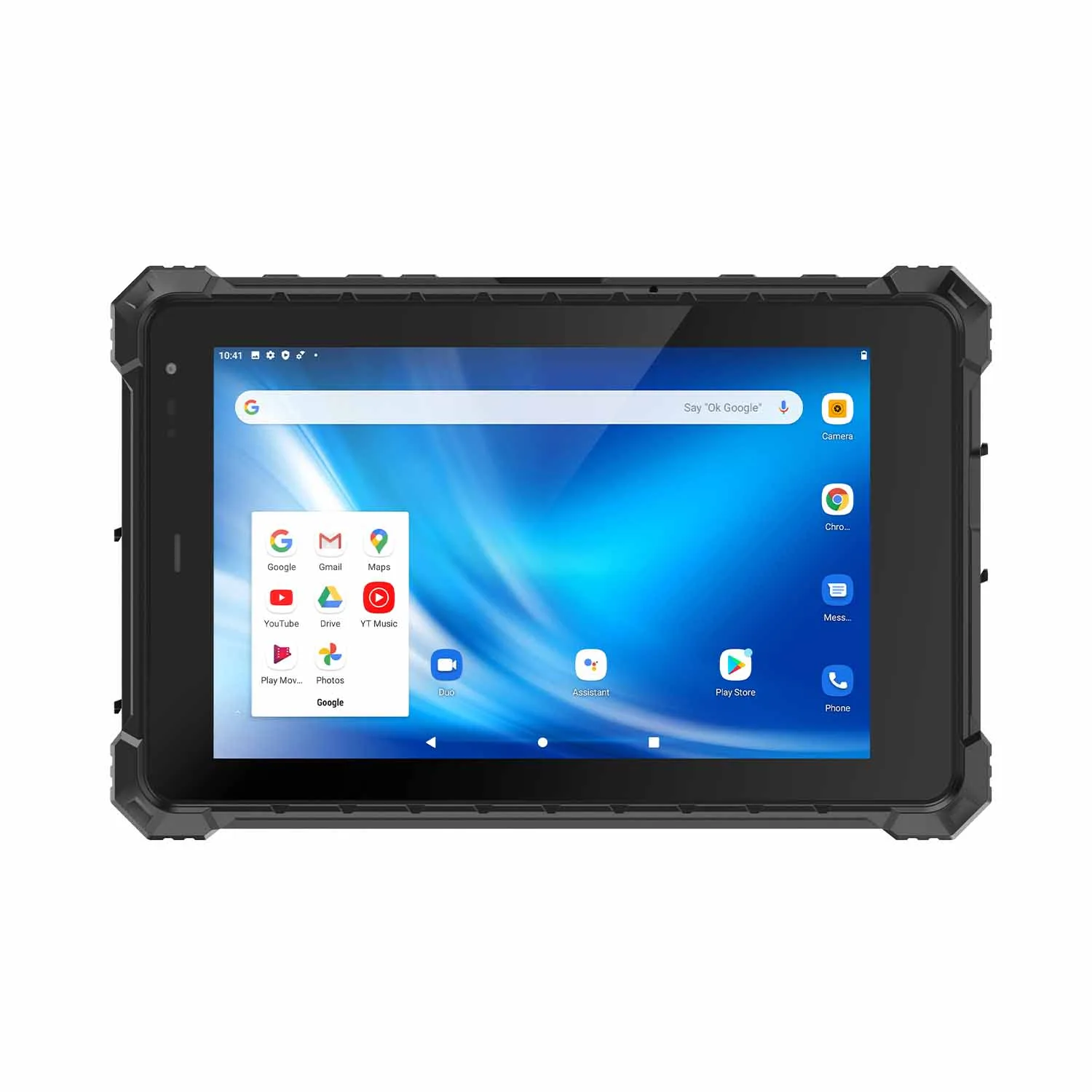
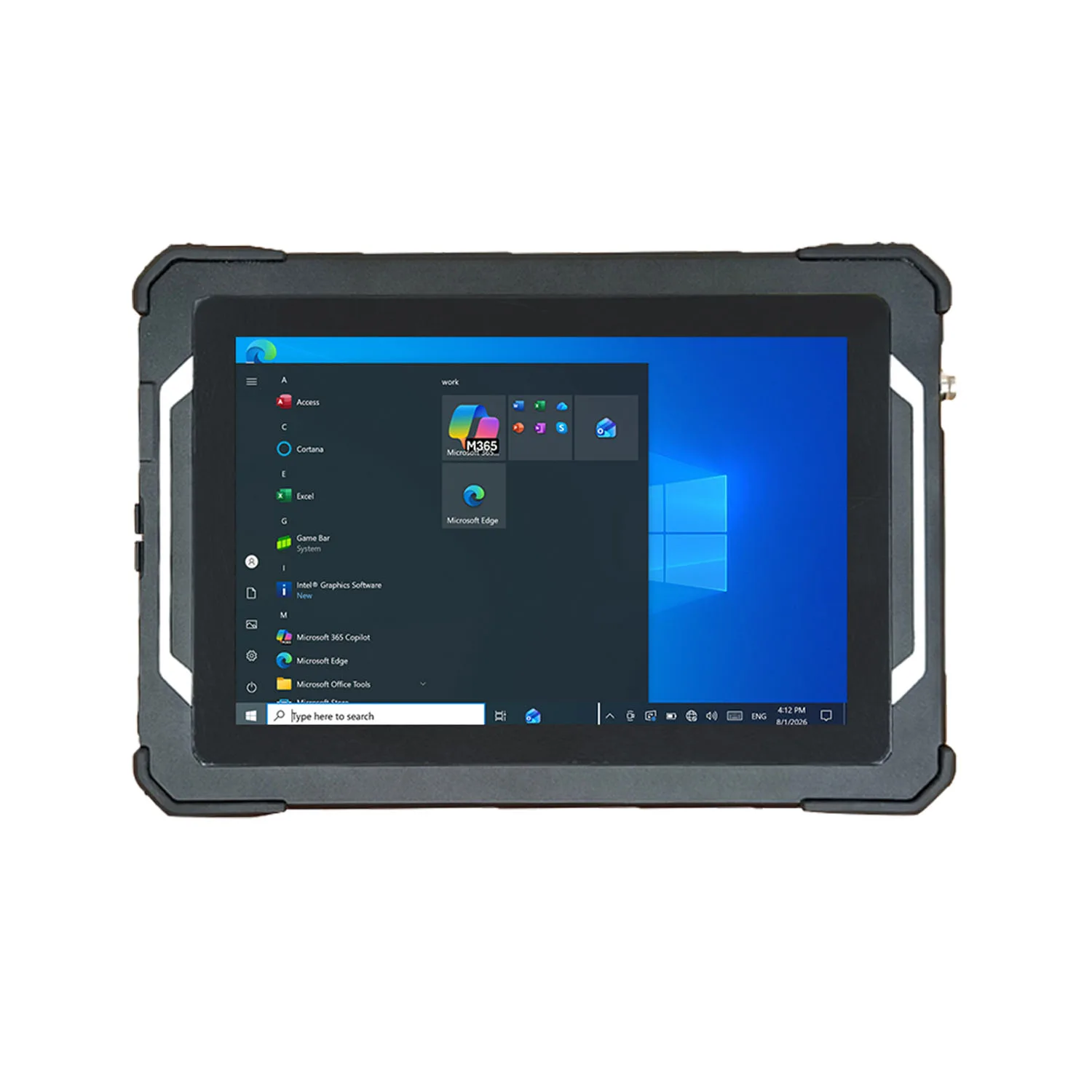
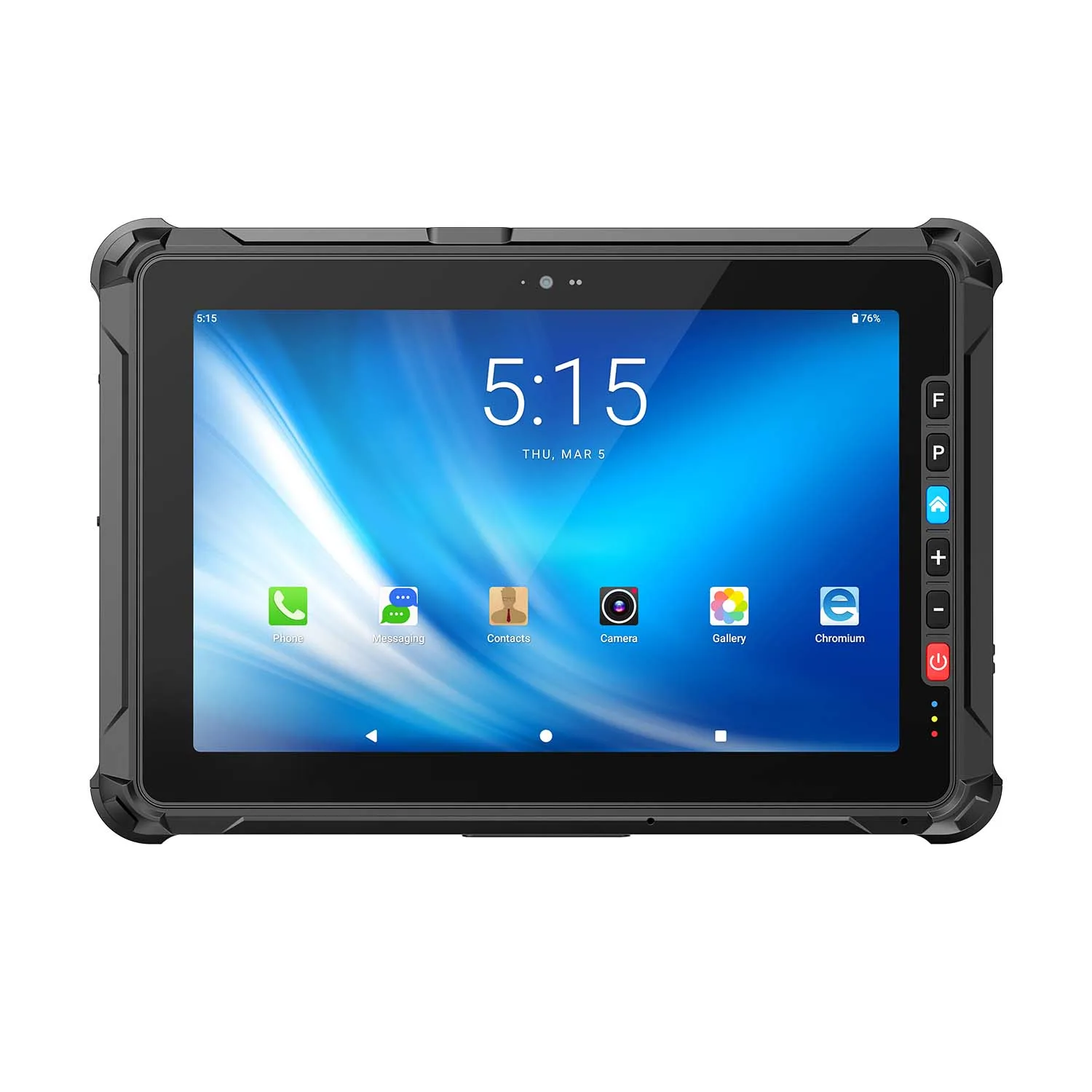
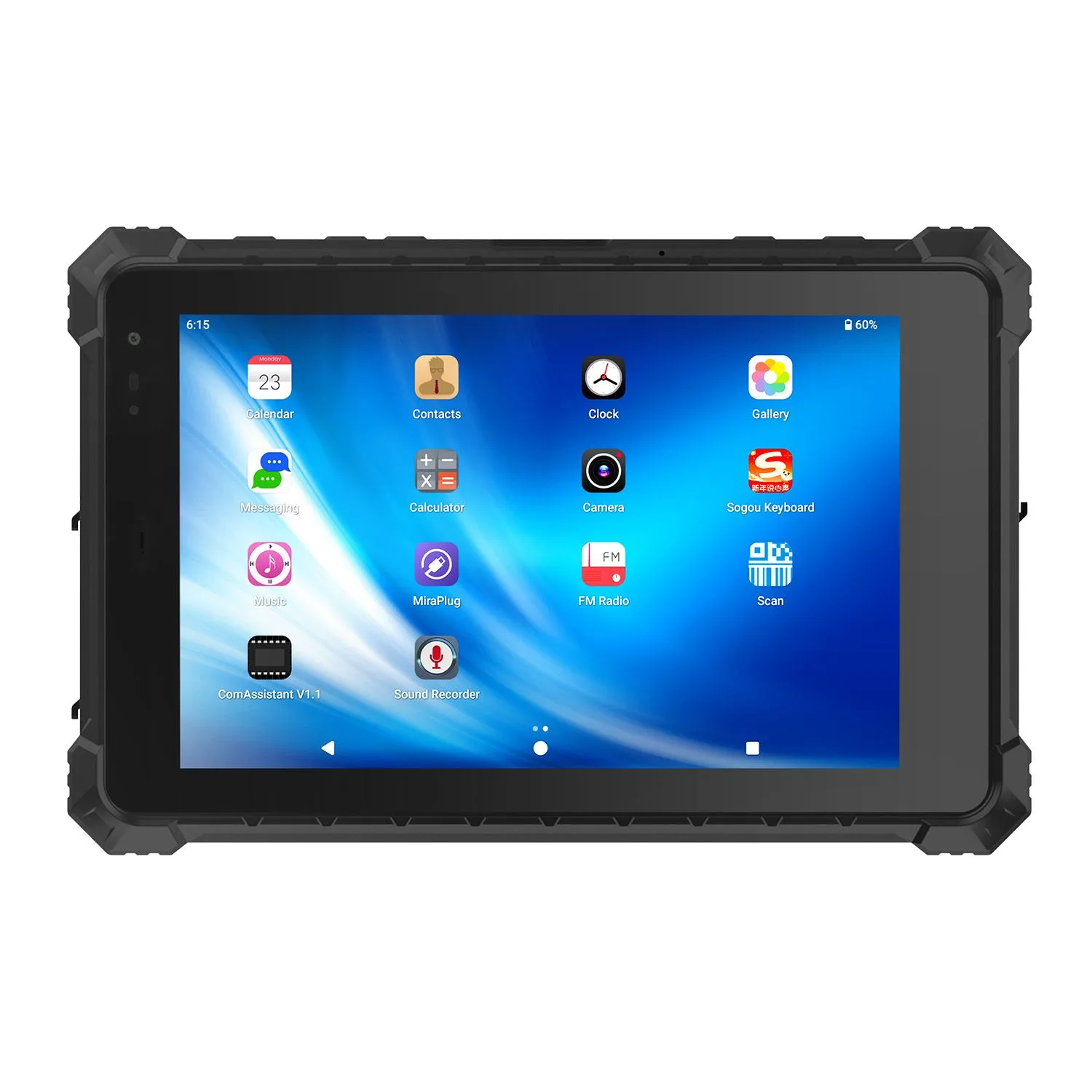
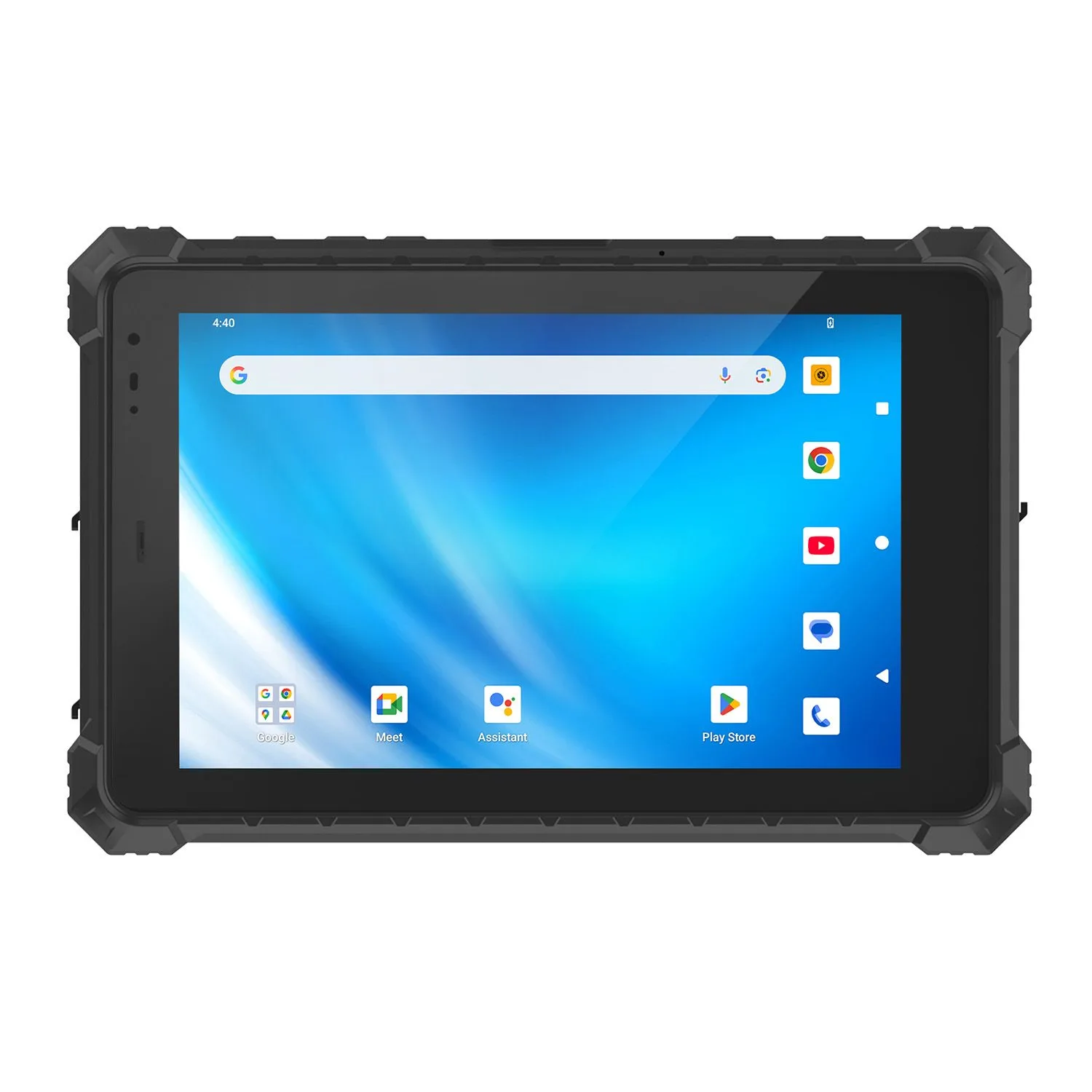
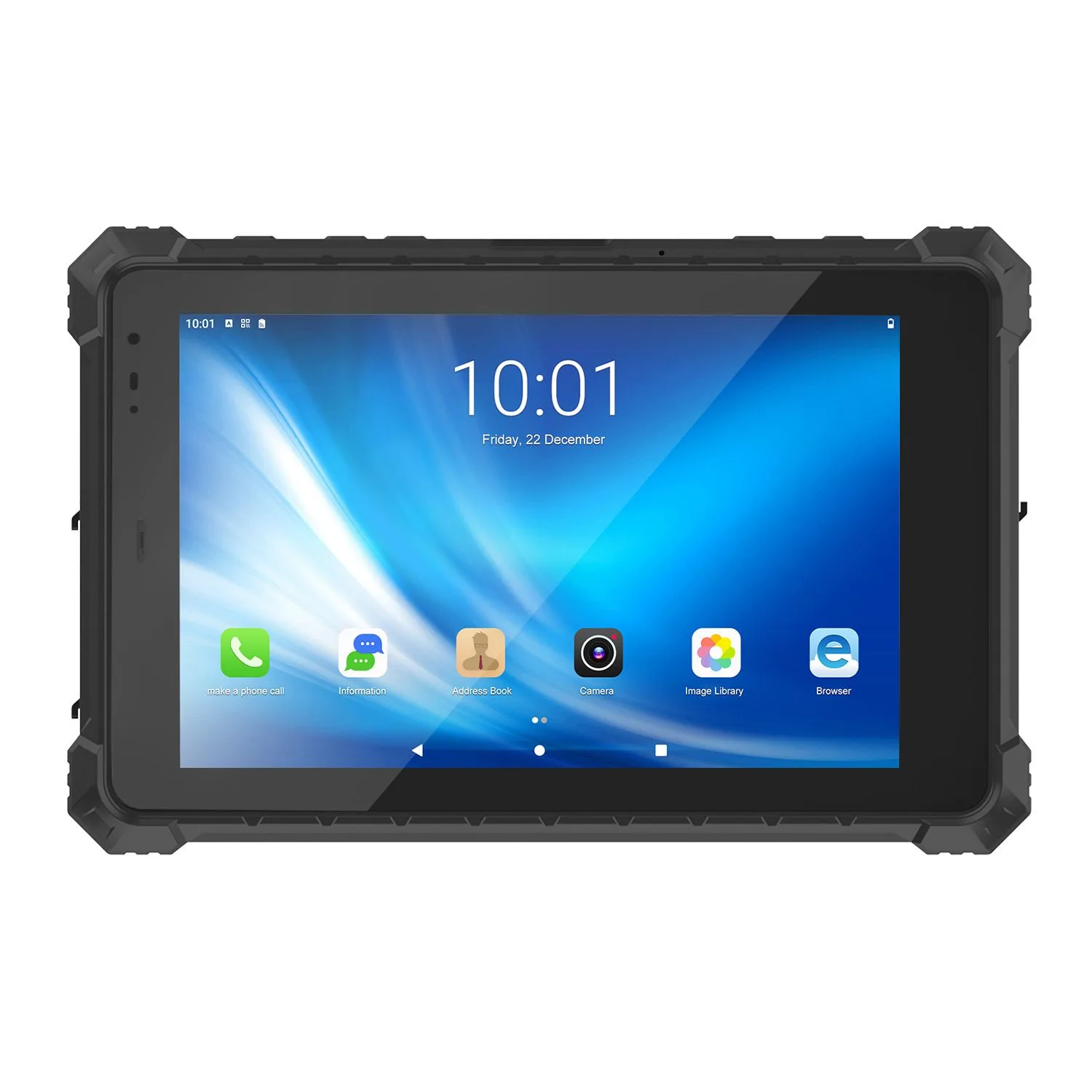
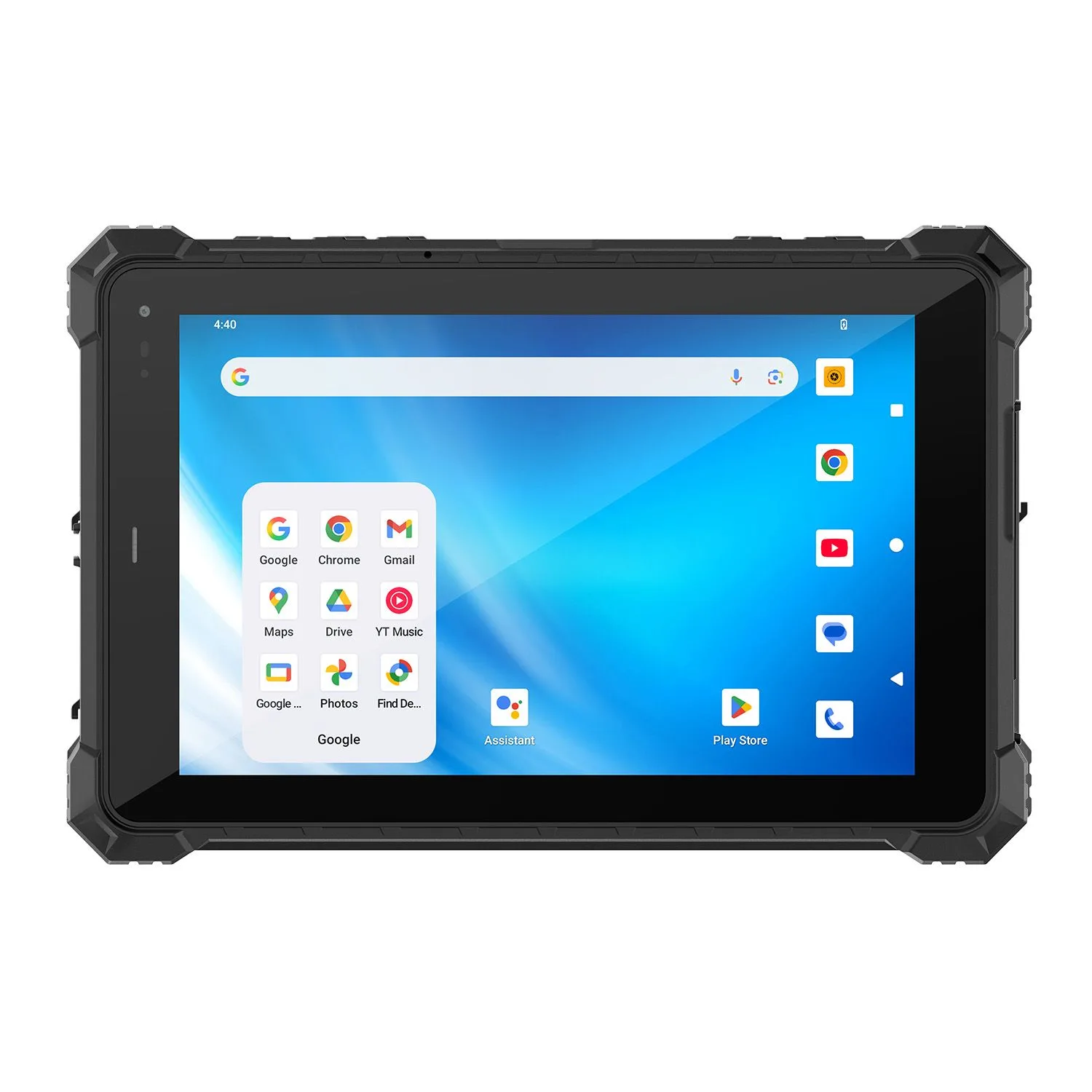
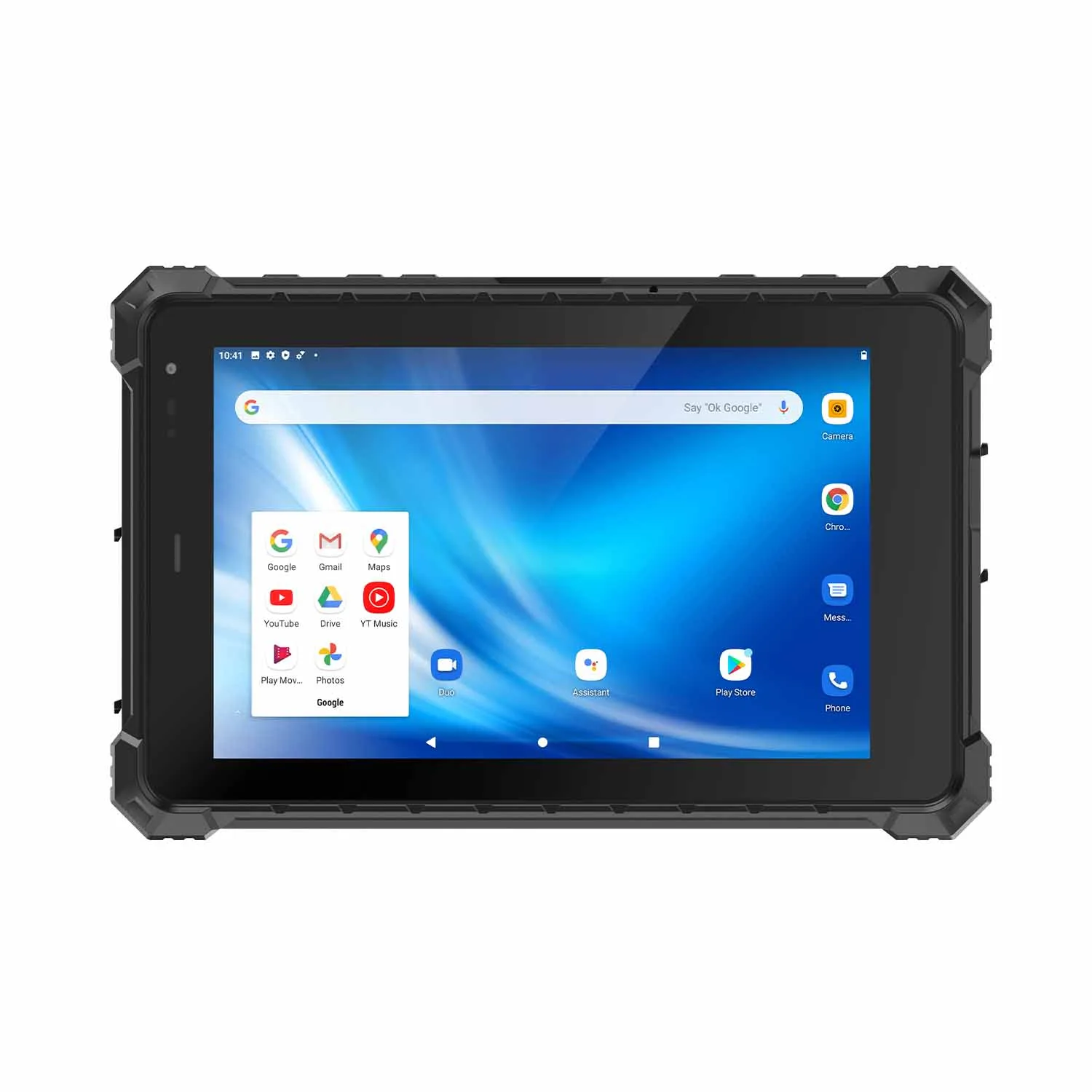
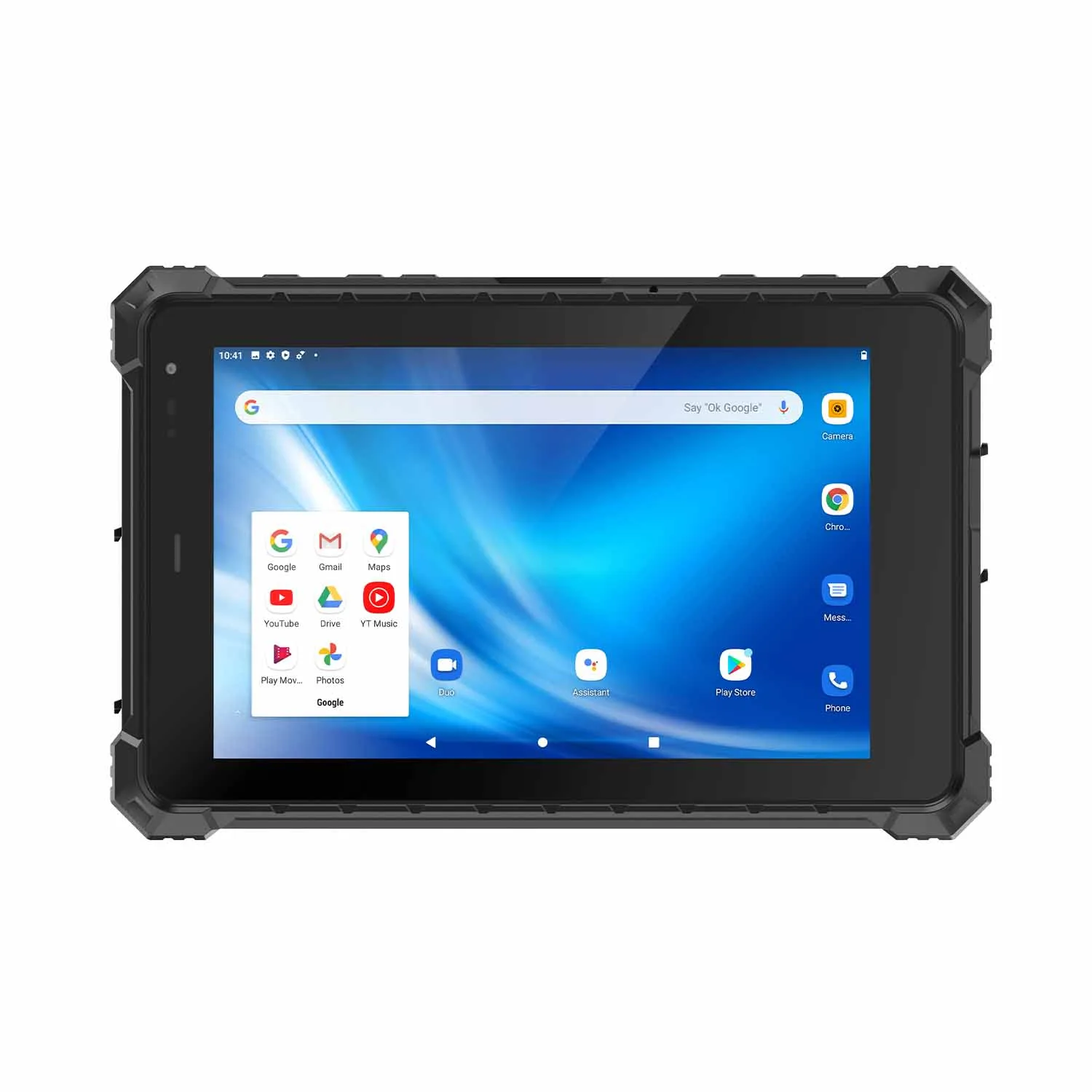
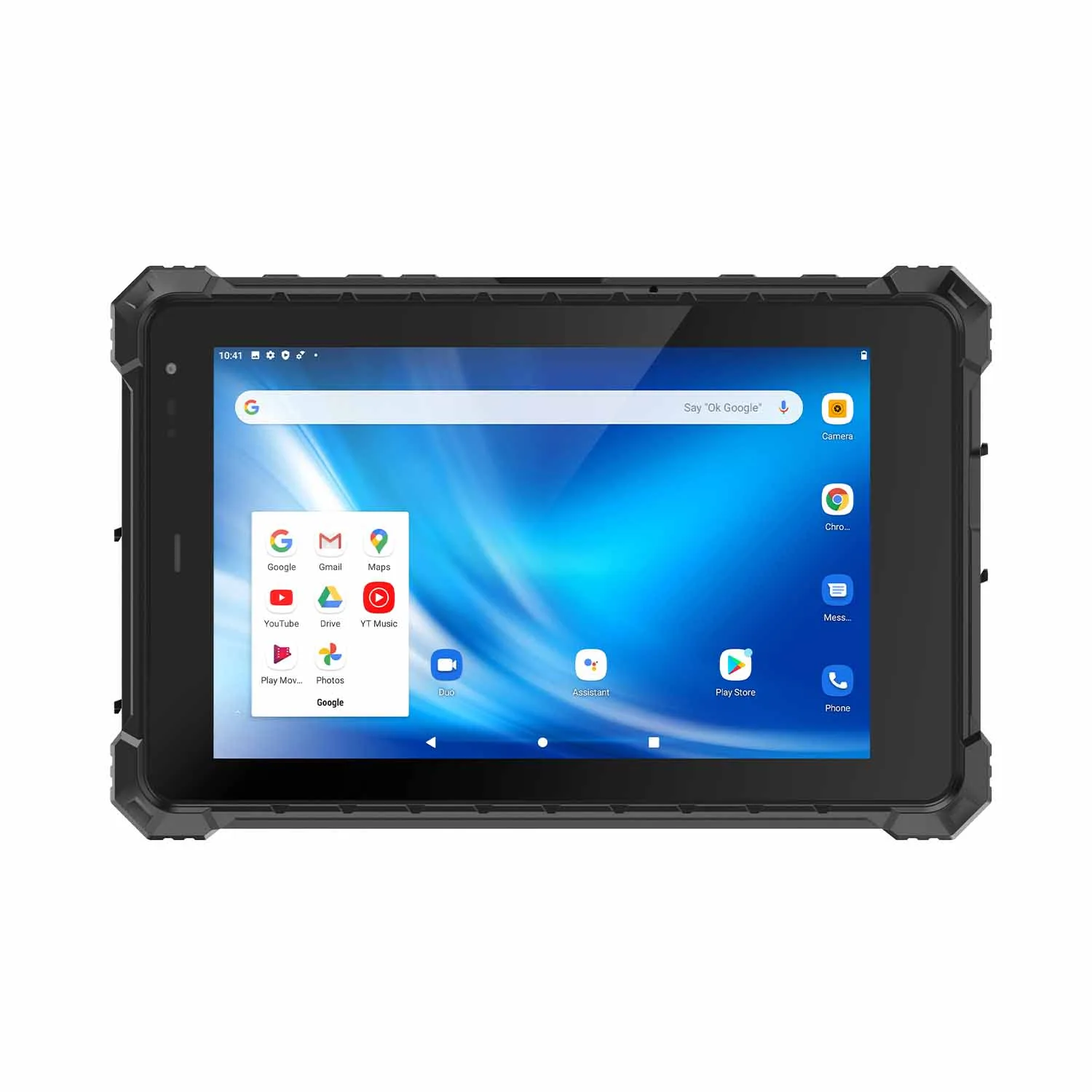
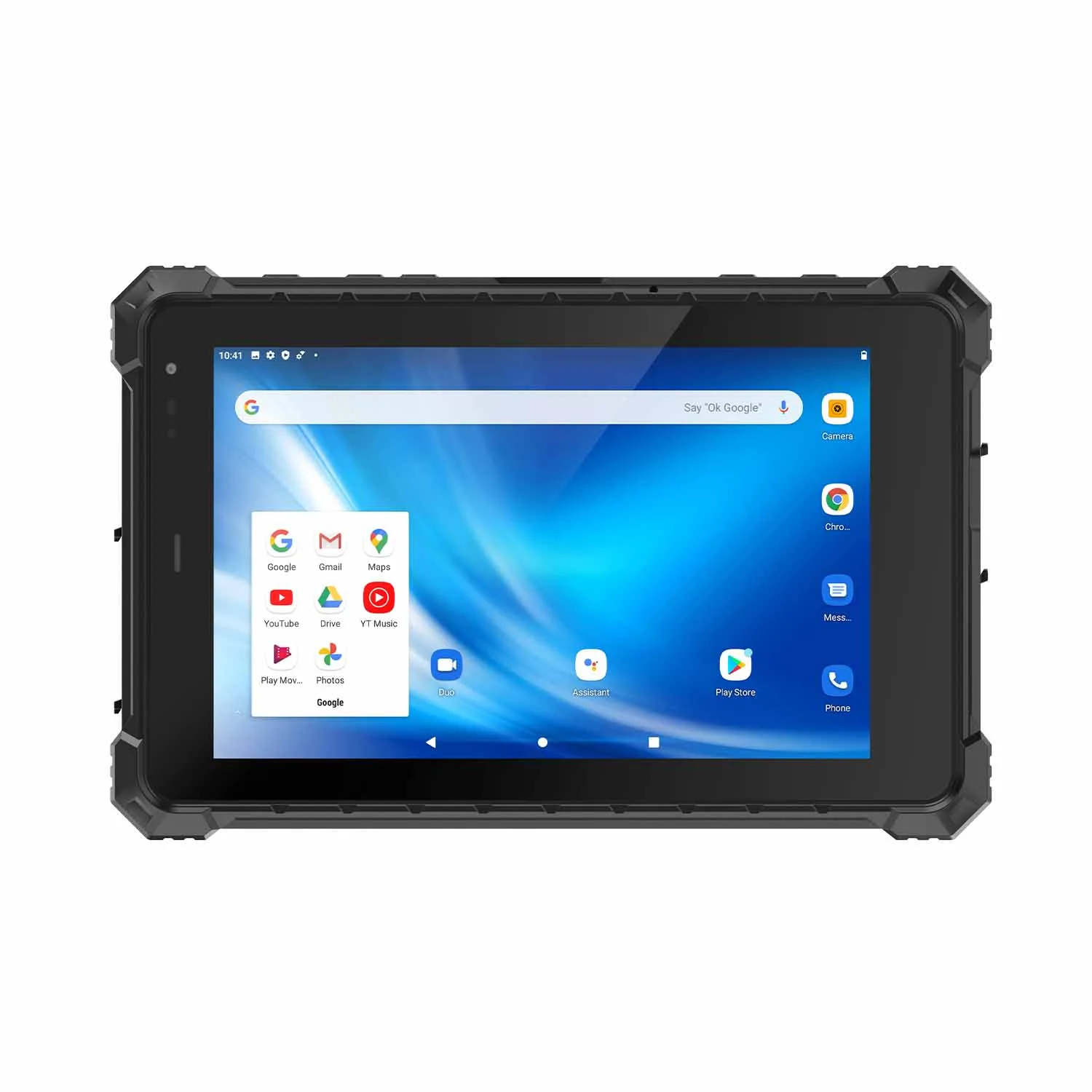
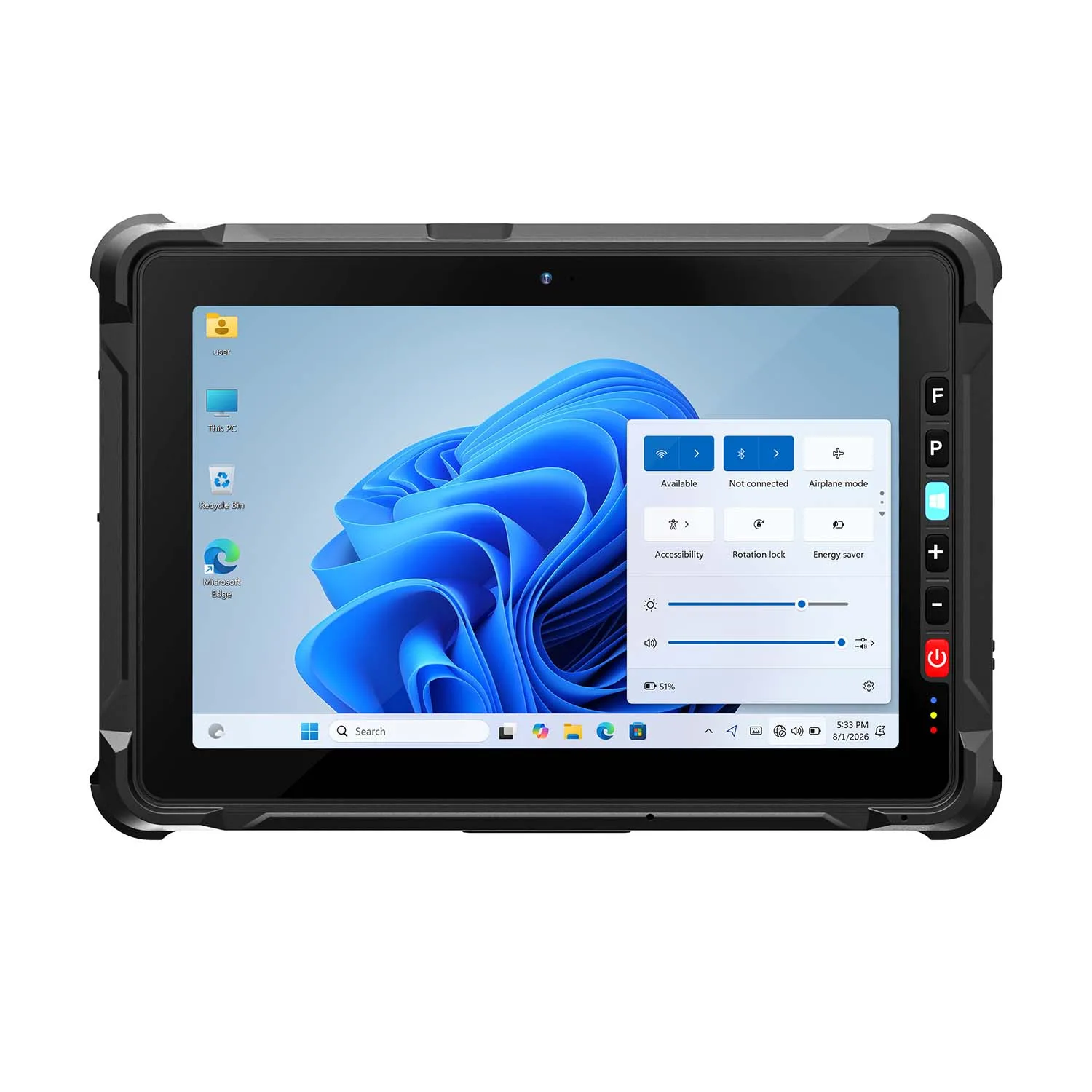
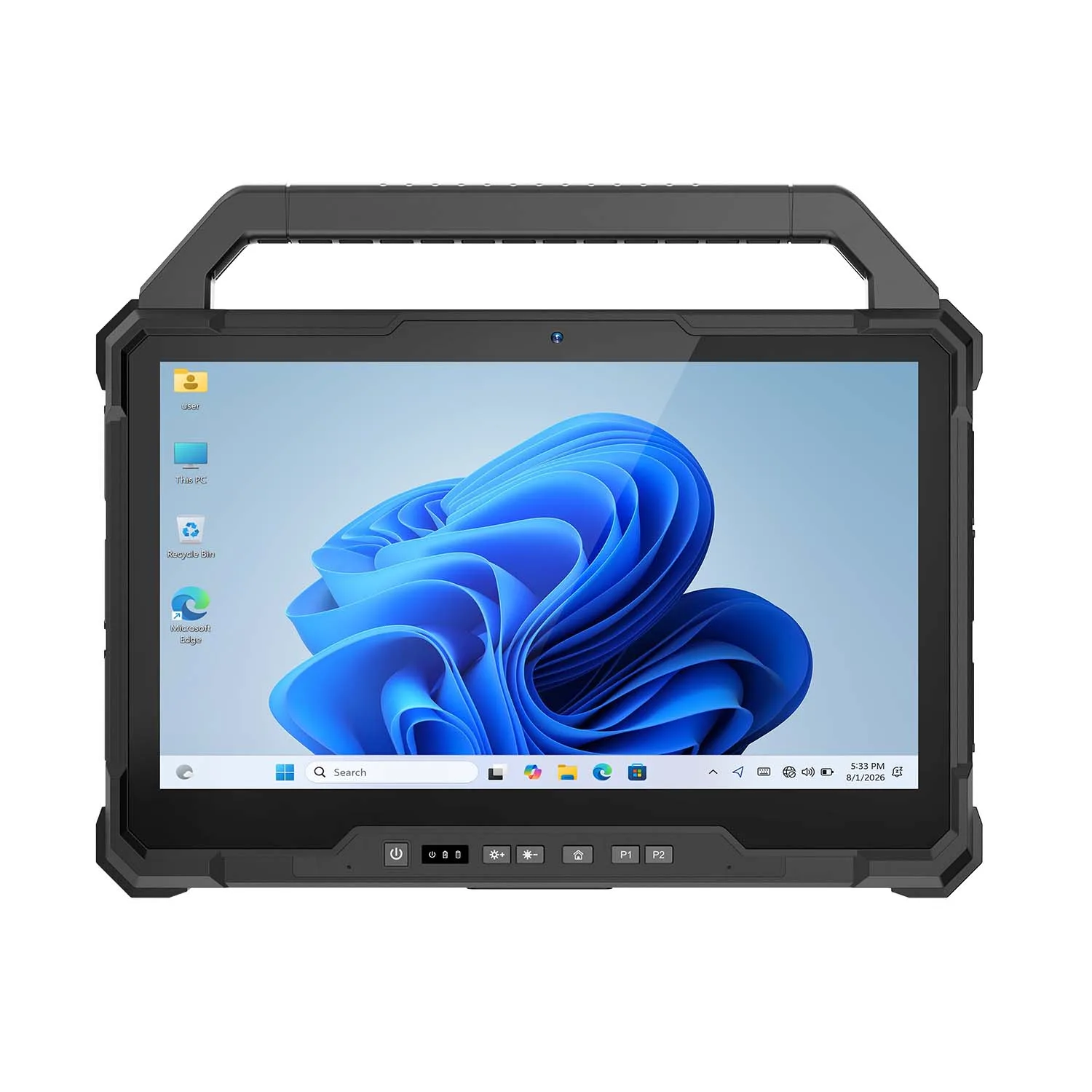
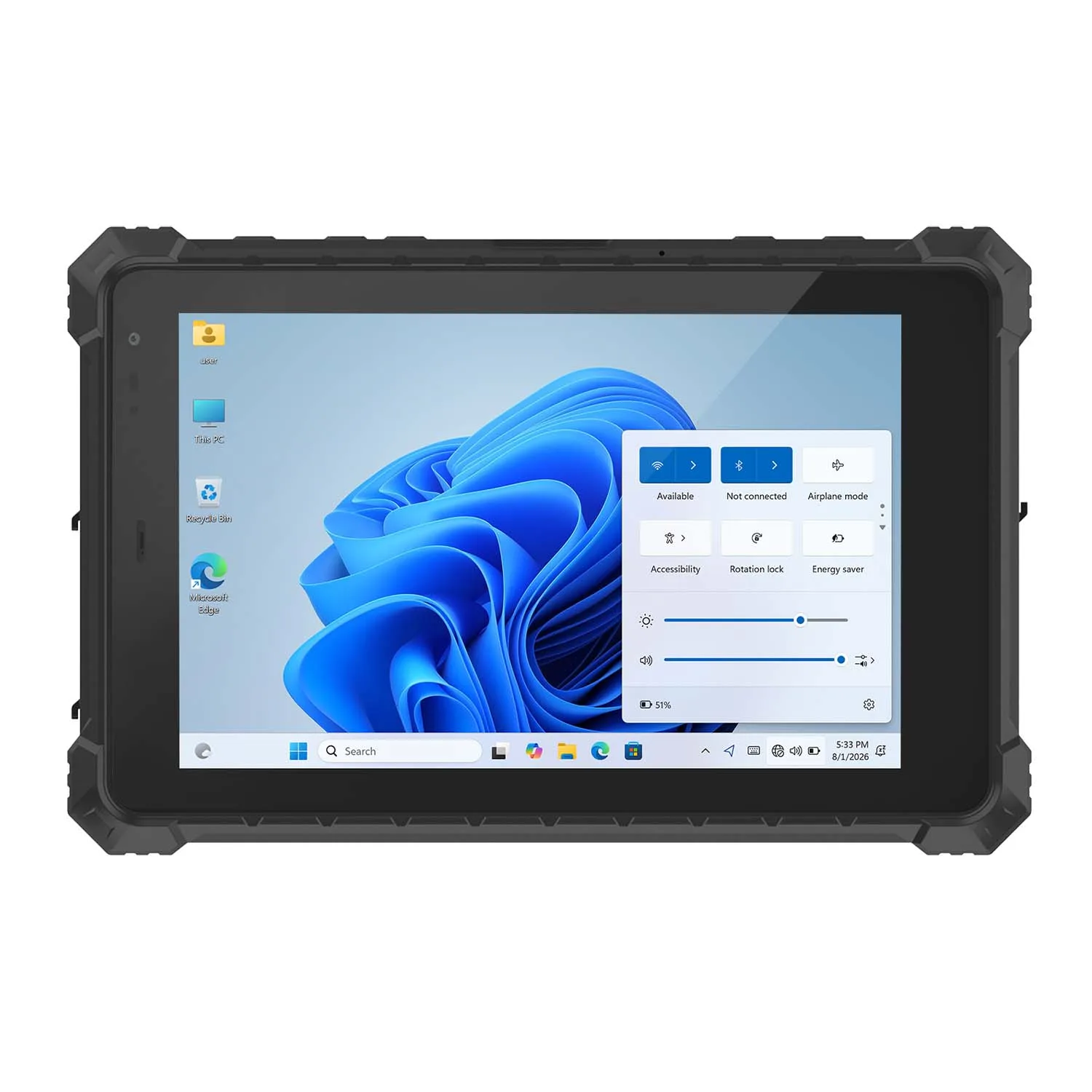
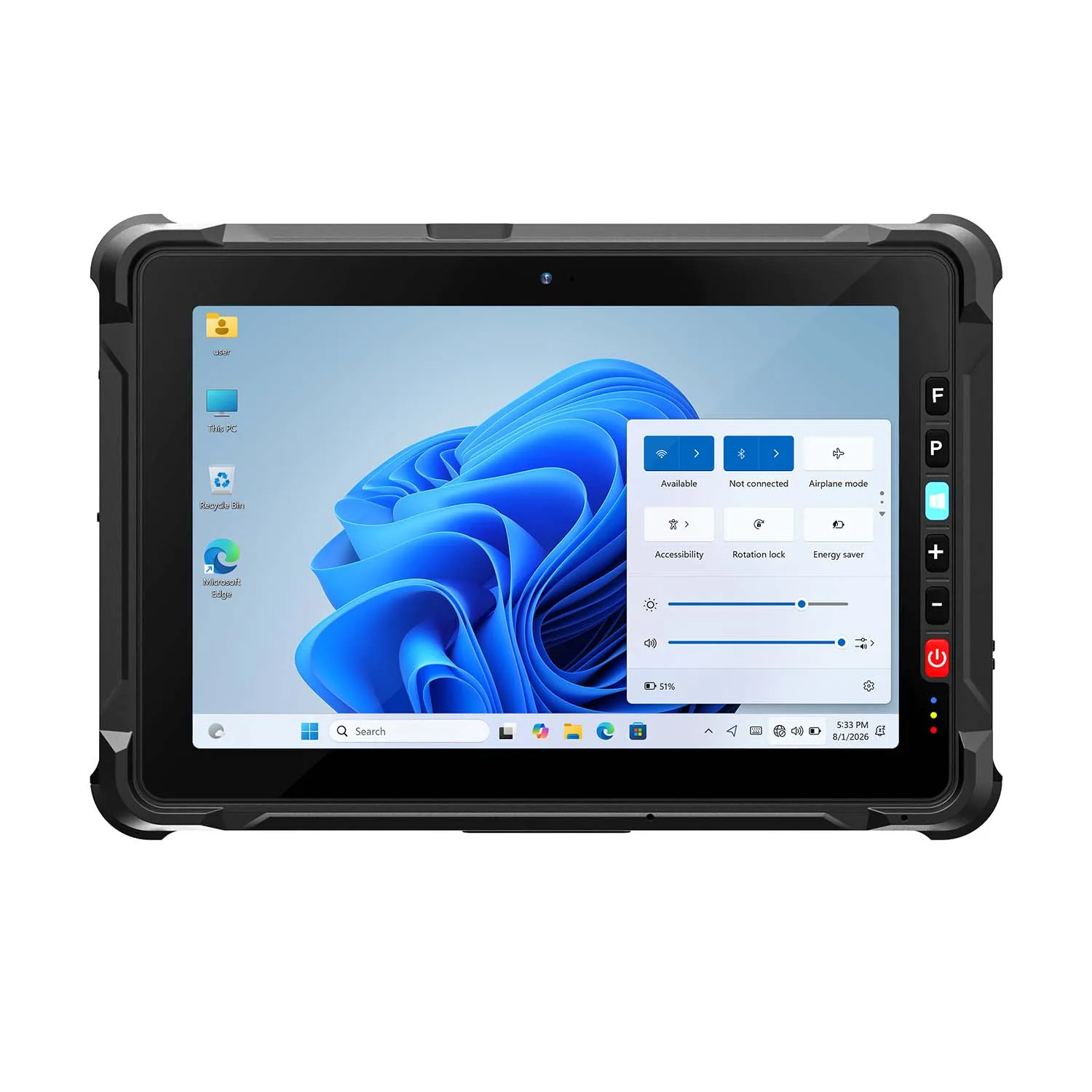
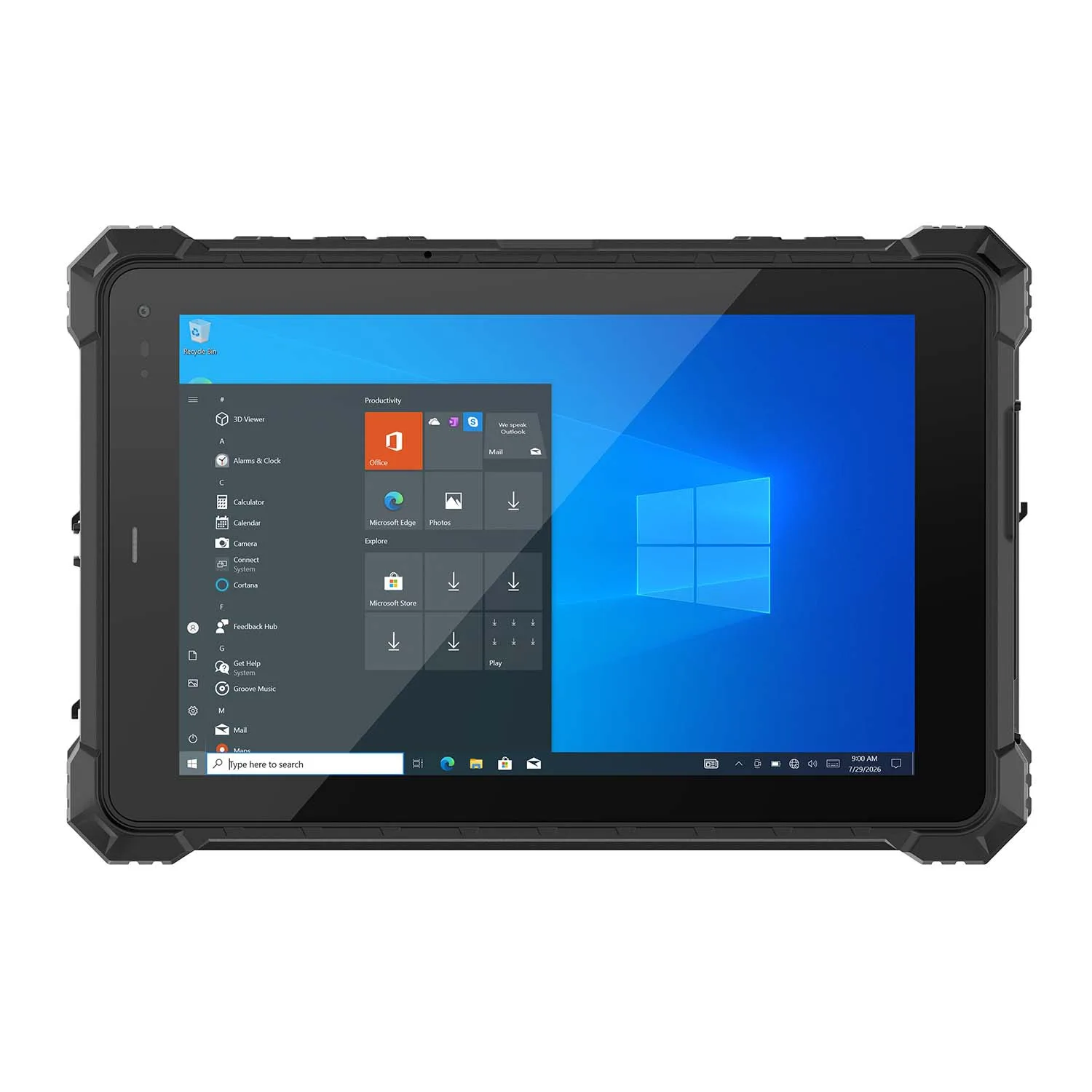
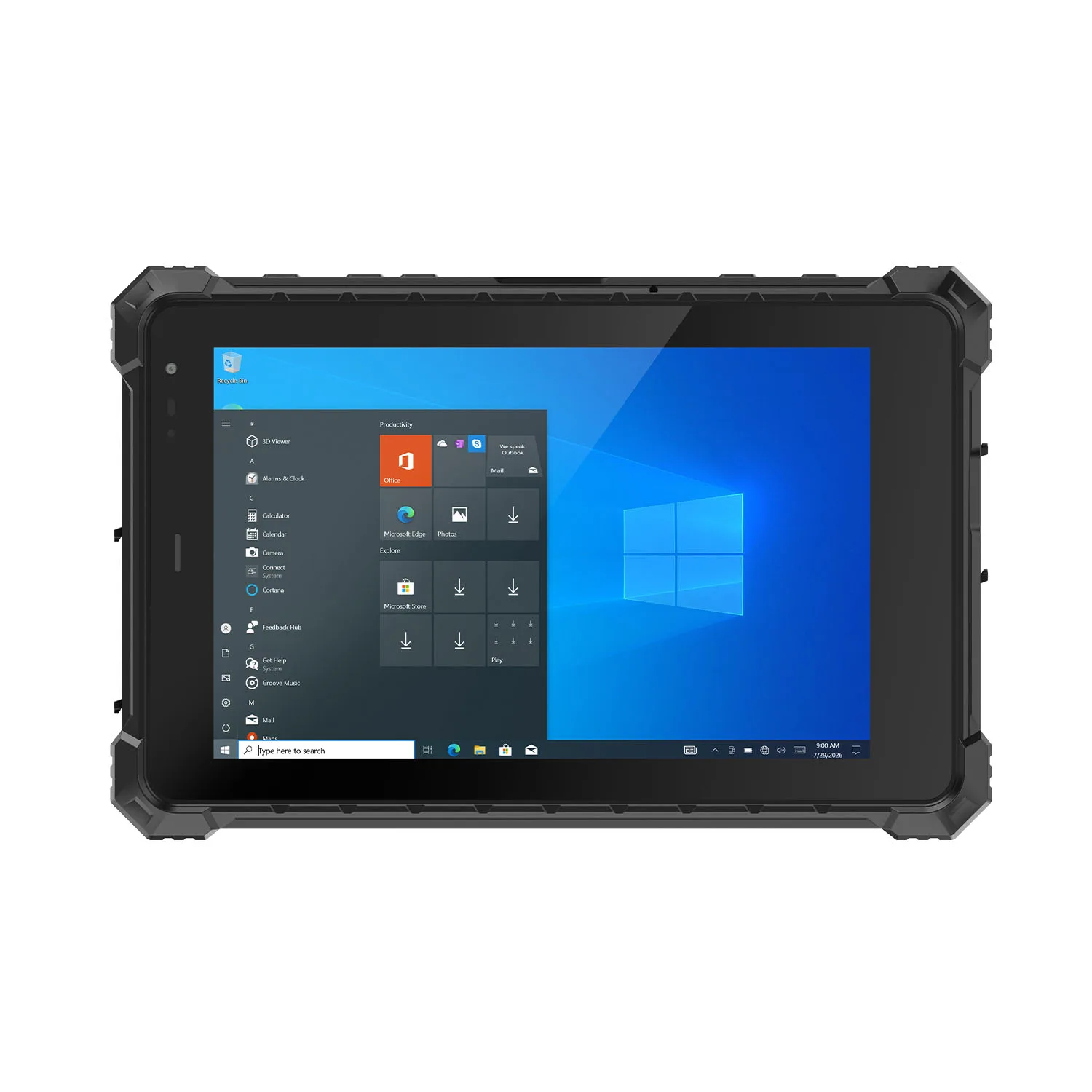
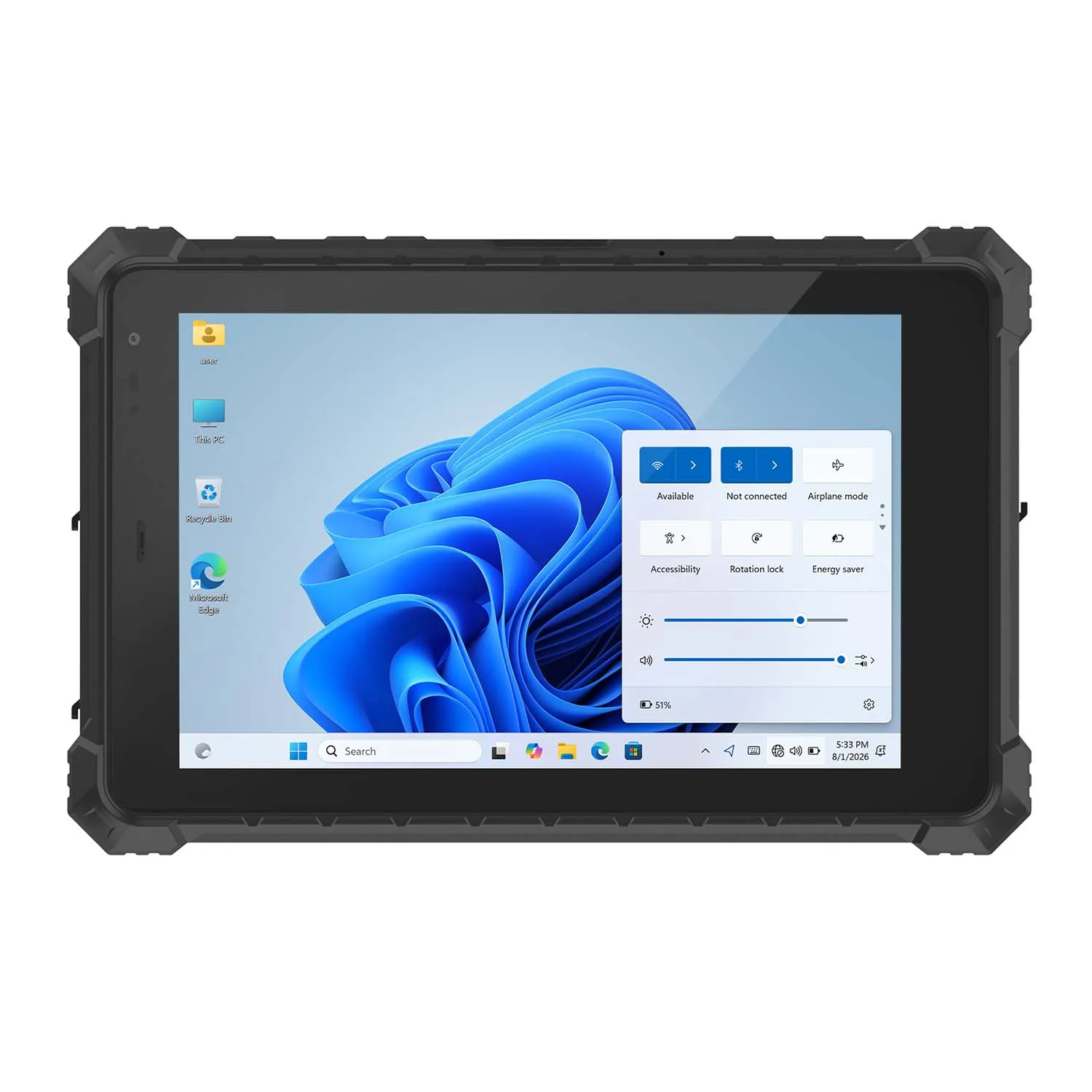
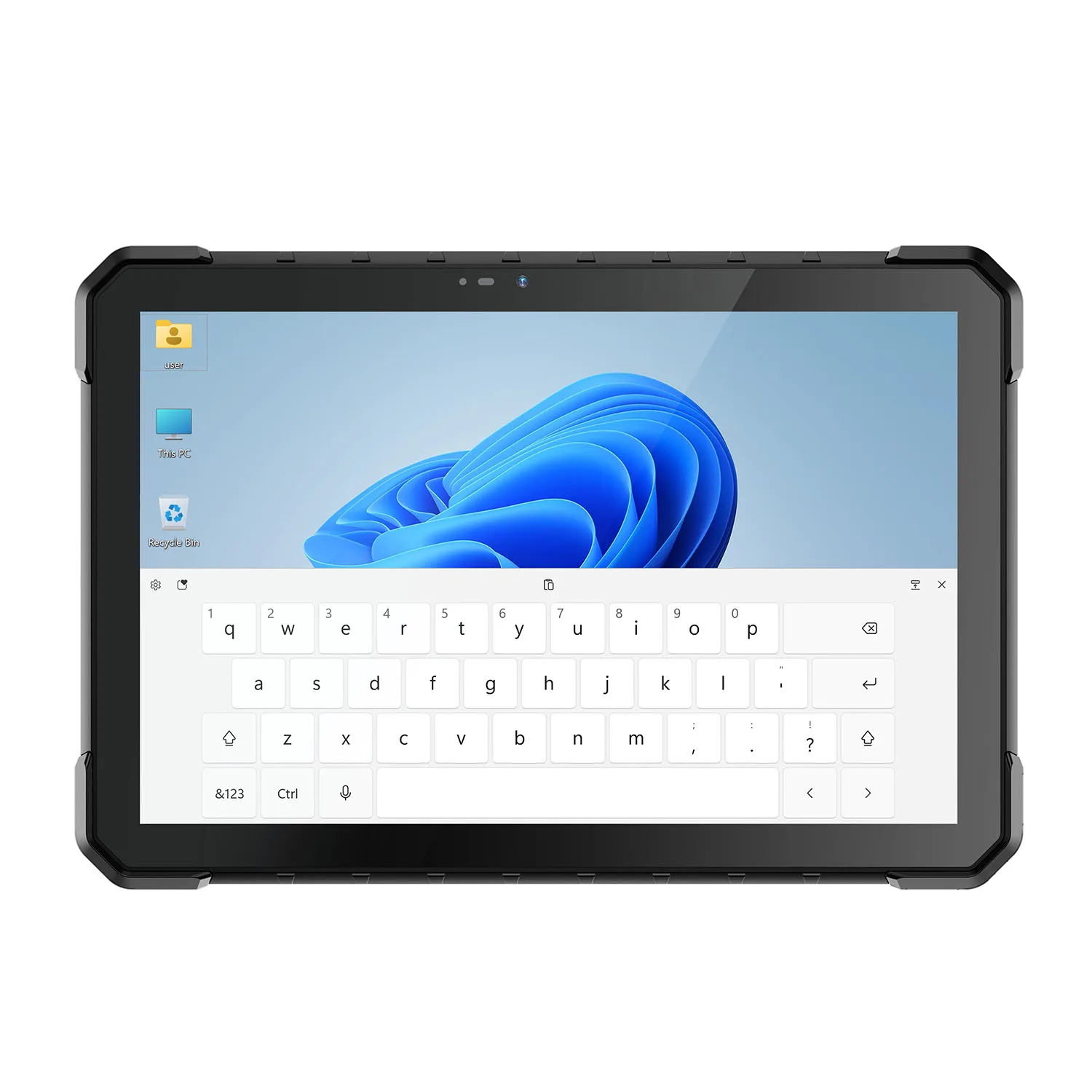
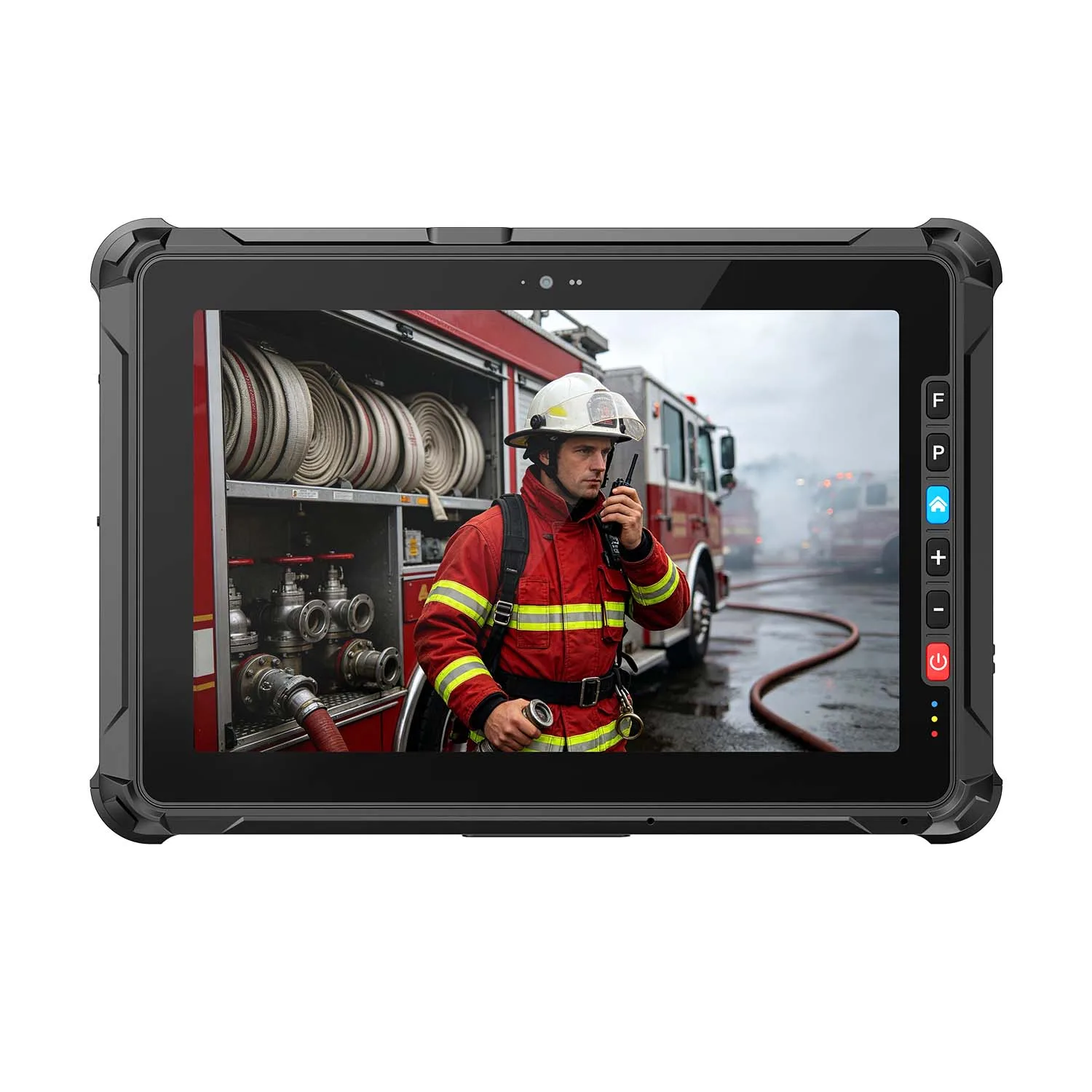
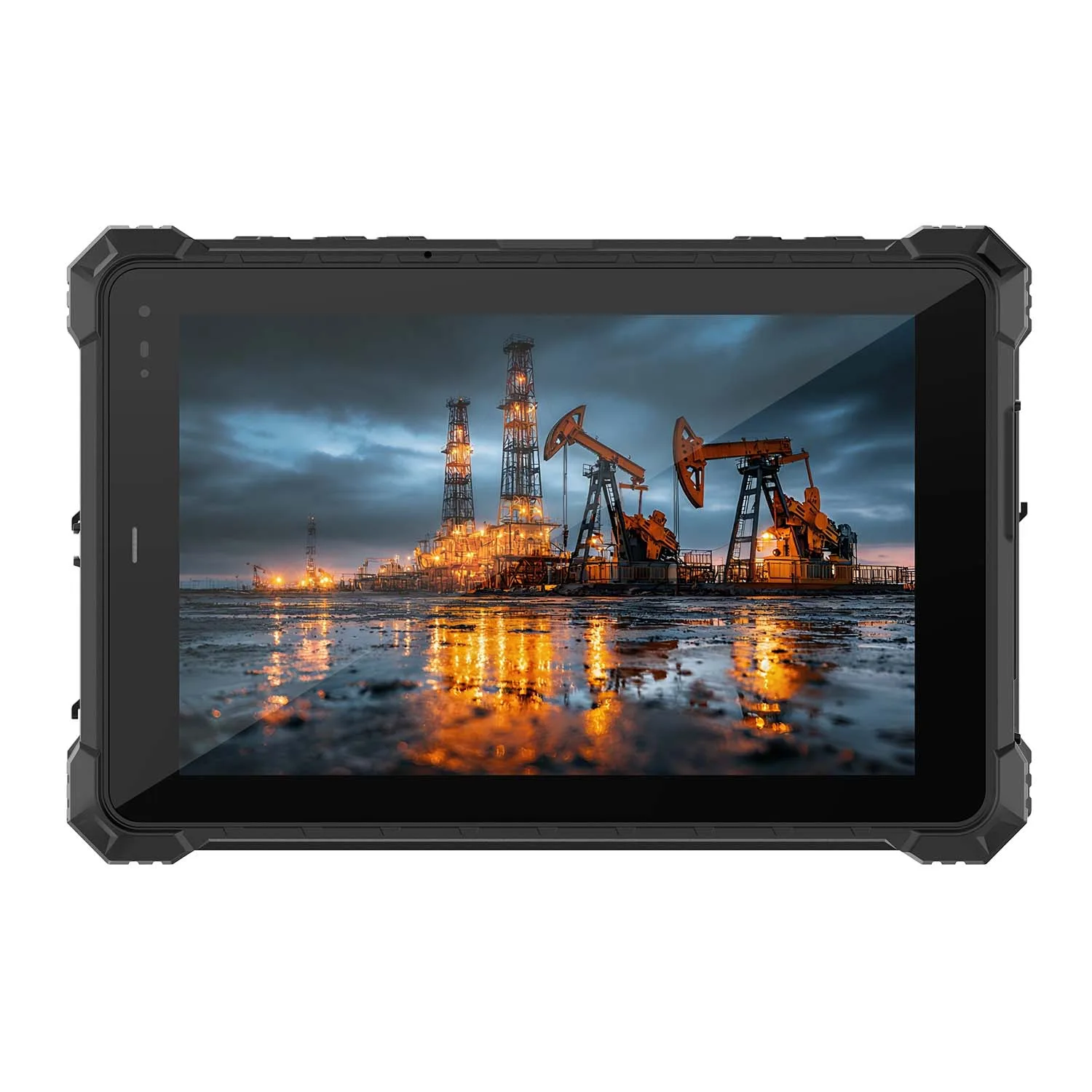
A vehicle mounted tablet puts your warehouse software, dispatch app or service system in the cab, where the work actually happens. We build the CENAVA range in 8-inch and 10.1-inch sizes, on Windows or Android, and we fit the mounts, docks and power gear that hold up under daily vibration.
An operator checking a pallet location needs a different setup from a technician reviewing a service order. Pick the screen size and port set around that workflow, and put the mount where the operator actually looks. If the job continues on foot, choose a dock that releases the tablet in seconds.
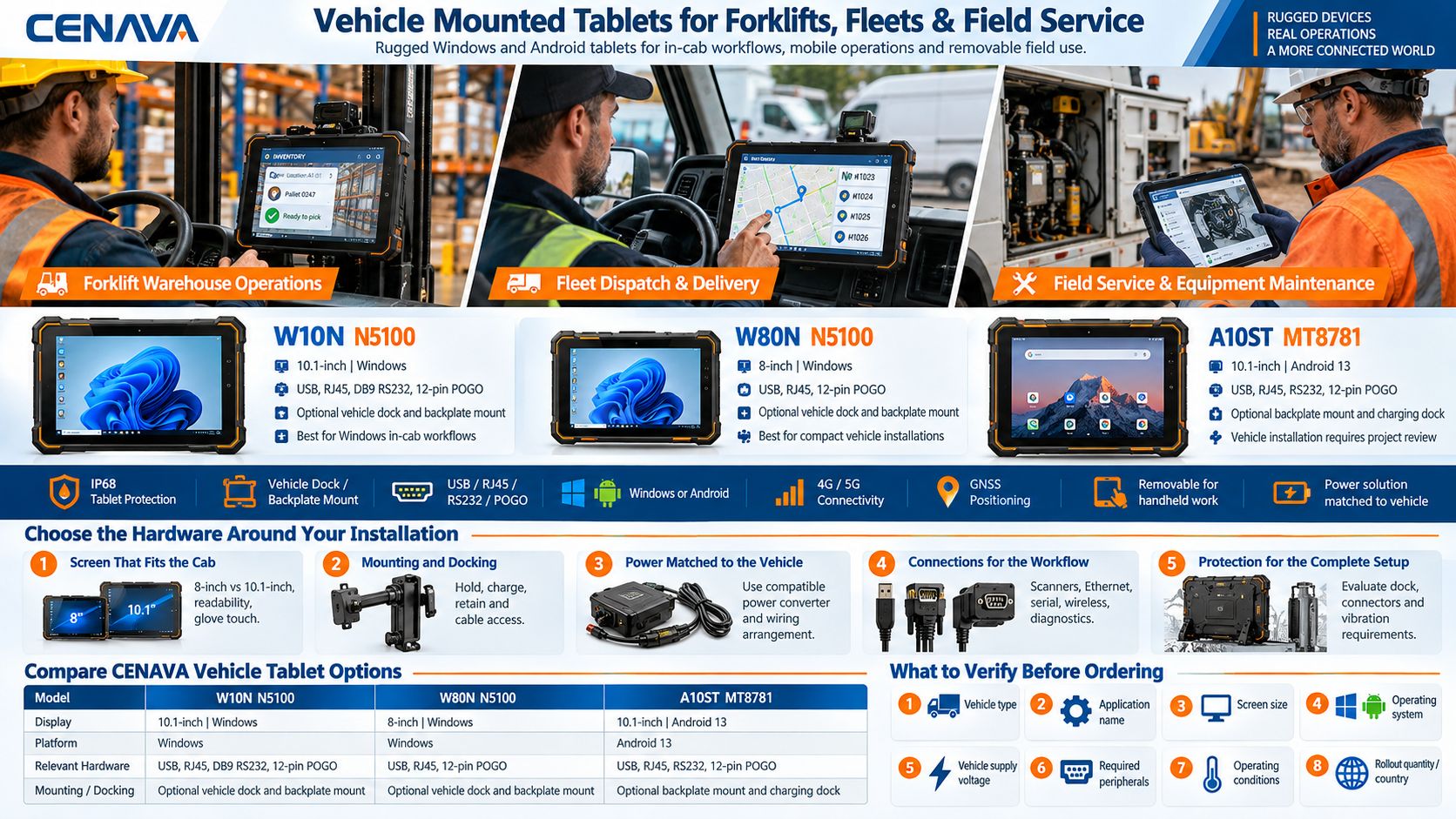
Keep Work Connected Inside and Outside the Cab
Forklift Tablets for Warehouse Operations
Display picking instructions, confirm stock movements and access warehouse management software from the forklift. A compatible scanner can capture pallet or location codes at the point of work.
Position the display and the scanner together. The operator must reach the controls when stopped and read the screen without leaning; nothing may block the view of the forks. Then test wireless coverage along the real warehouse routes, not the floor plan — racking eats signal.
Fleet Dispatch and Delivery Workflows
Use matched fleet software to receive assignments, review delivery details and record completed stops. Cellular keeps the tablet talking away from the depot; GNSS feeds location to any application that asks for it.
When a delivery requires a photograph or signature, a removable installation allows the same tablet to accompany the operator. The application determines how records are stored, transmitted and linked to the correct job.
Field Service and Equipment Maintenance
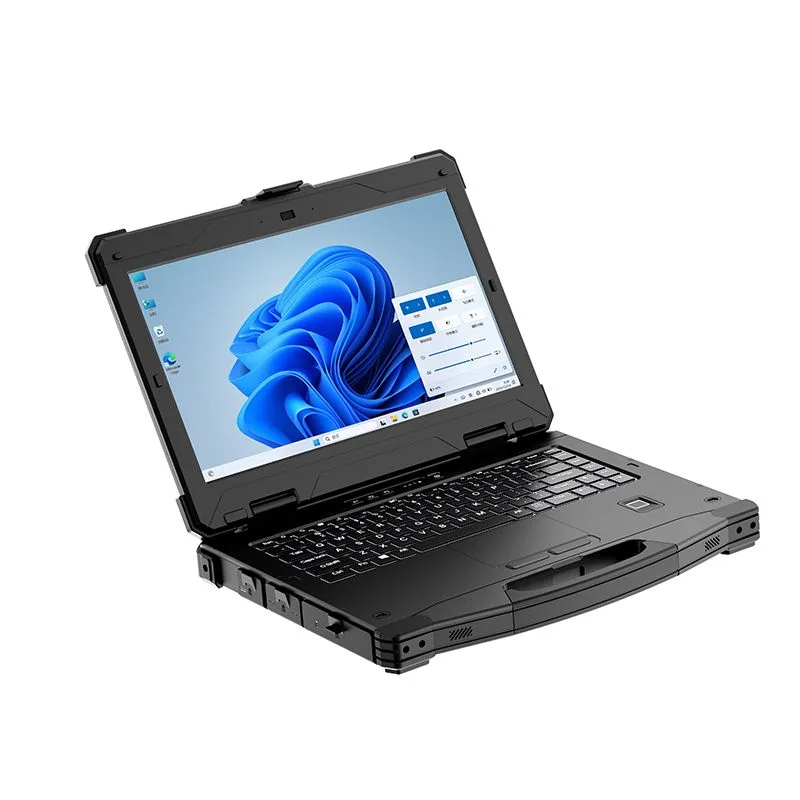
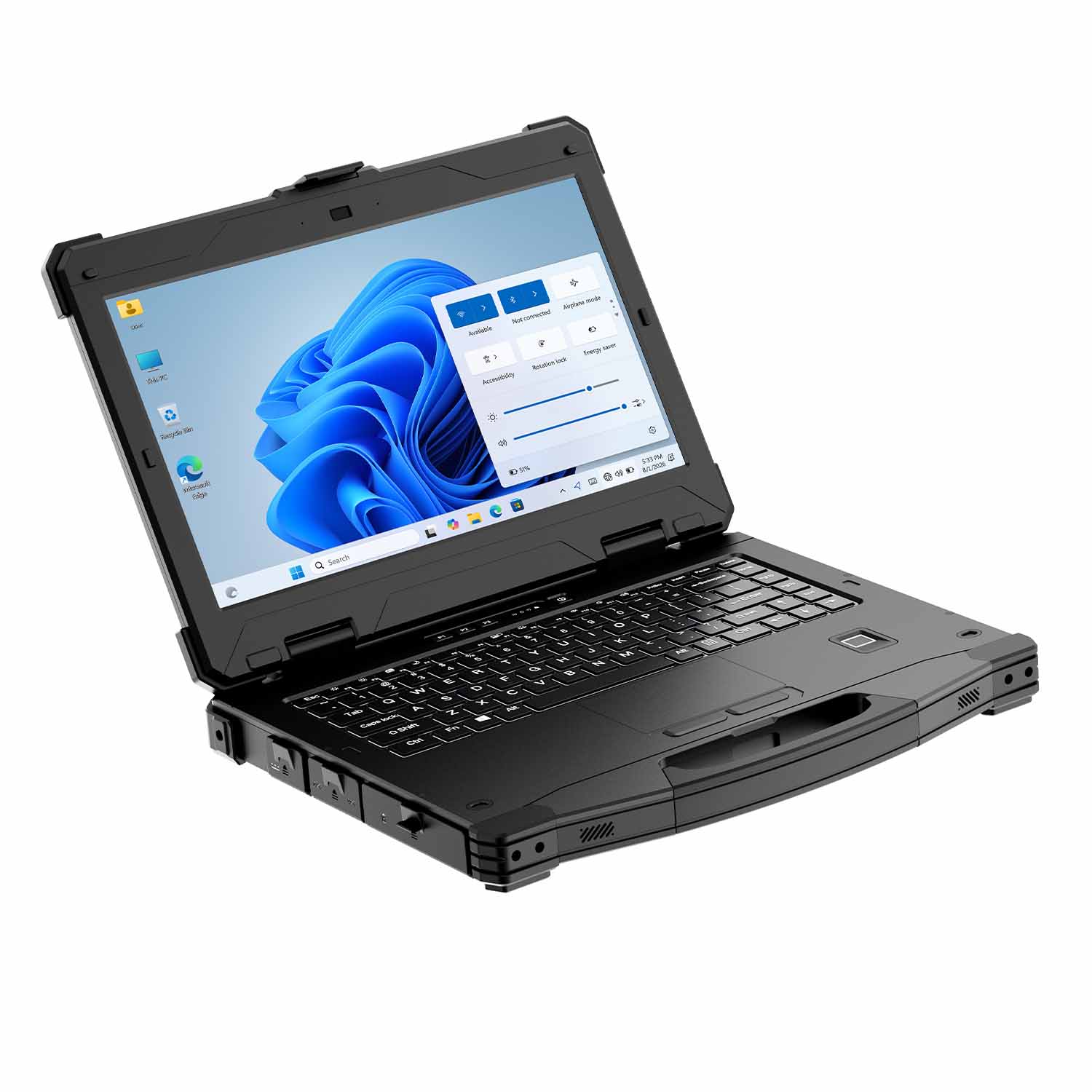
Keep service instructions and work orders available in the vehicle, then carry the tablet to the equipment. Capture inspection results, retrieve documents and connect supported diagnostic tools through the required interfaces.
Windows service software with specific drivers points at the W10N. Android inspection apps point at the A10ST MT8781. Deciding early keeps the whole vehicle setup aligned with the tools your technicians already use.
Choose the Hardware Around Your Installation
A Screen That Fits the Cab
An 8-inch tablet suits installations where space is limited and frequent removal matters. A 10.1-inch screen provides more room for warehouse forms, maps and service records.
Evaluate the display from the normal seated position. Brightness, reflections, viewing distance and application text size all affect readability. Test touch input with the gloves used on the job.
Mounting and Docking Options
The three models in the table below take optional vehicle docks, backplate mounts or charging docks. We match the mount to the fixing points in your cab, the tablet's weight and how often it comes off.
Tell us what the dock must do: hold the tablet, charge it, or break out peripheral connections. We then check the mounting dimensions and retention mechanism; cable access gets verified for that exact accessory combination before we quote.
Power Matched to the Vehicle
Define the vehicle supply and the required tablet or dock input before selecting a charger. Include the power needed by connected peripherals and the desired behavior when the vehicle is switched off.
For installations using vehicle power, agree on a matching power converter and wiring arrangement. The published DC input tells you what the tablet expects — 12V on the W10N, 5V/3A on the A10ST MT8781 — not what your vehicle's electrical system will hand it. That gap is ours to close with the right power gear.
Connections for the Actual Workflow
USB, Ethernet, serial interfaces and wireless connections serve different tasks. A warehouse installation may need a scanner and reliable access to the WMS; a service vehicle may need a wired connection to diagnostic equipment.
List each peripheral, its interface and its software requirements. Decide which connections should remain with the vehicle and which must travel with the tablet.
Protection for the Complete Setup
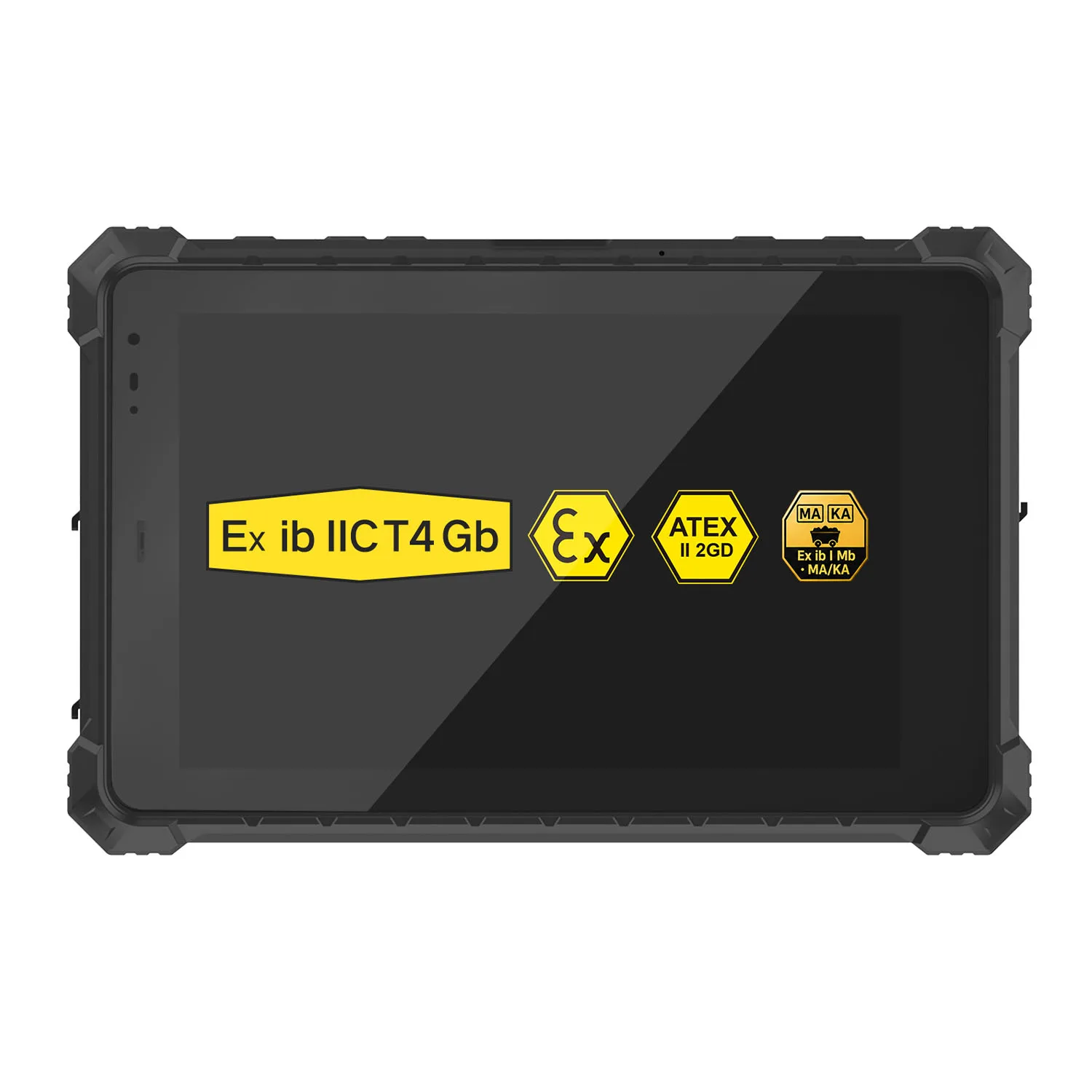
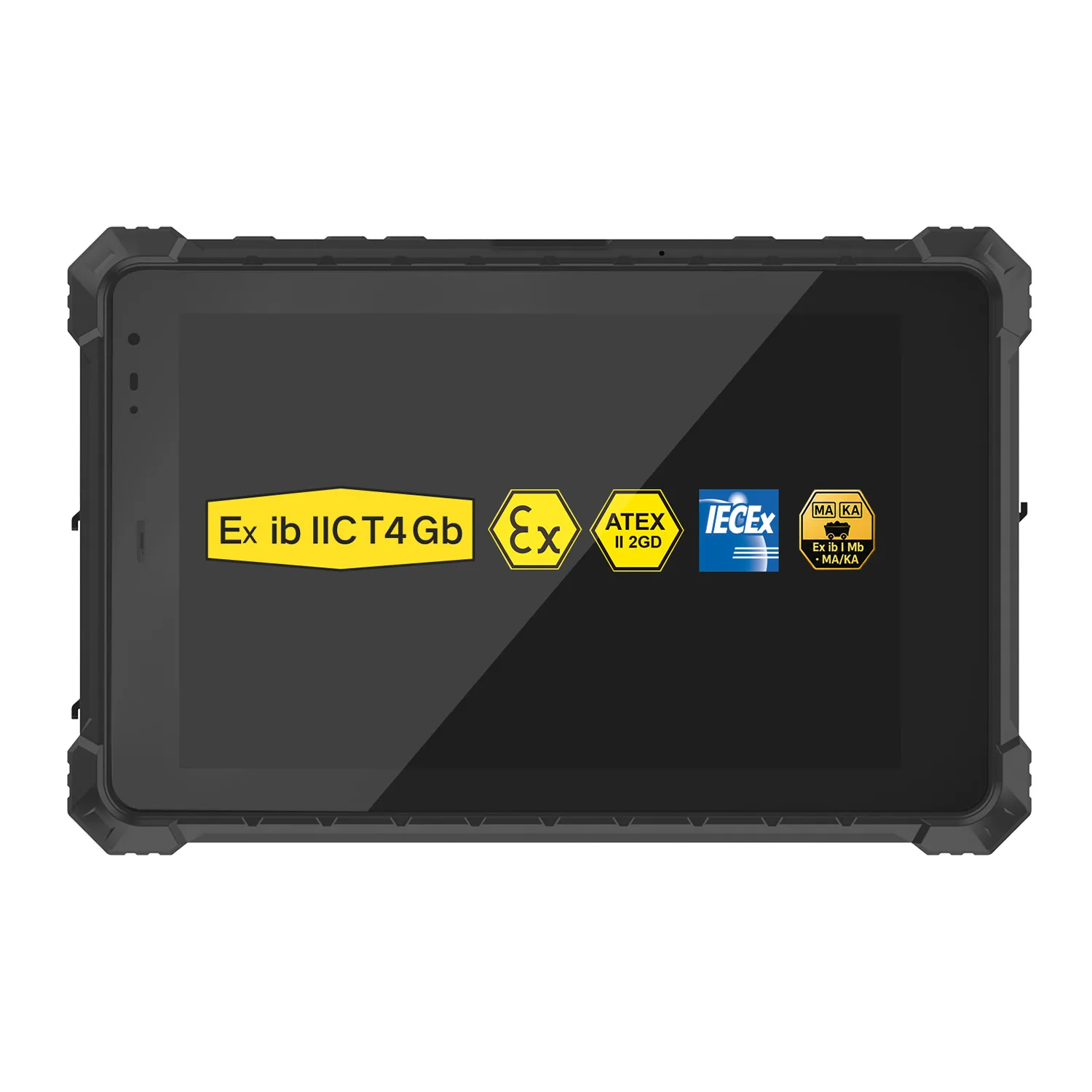
The models below are listed with IP68 tablet protection. Evaluate the dock, connectors and installed cables separately, especially where charging or data connections require port covers to remain open.
For regular vehicle use, request vibration-test details relevant to the proposed installation. Include the mount, dock and connected accessories in the evaluation.
Compare CENAVA Vehicle Tablet Options
| Model | Display | Platform | Relevant Hardware | Mounting and Docking |
|---|---|---|---|---|
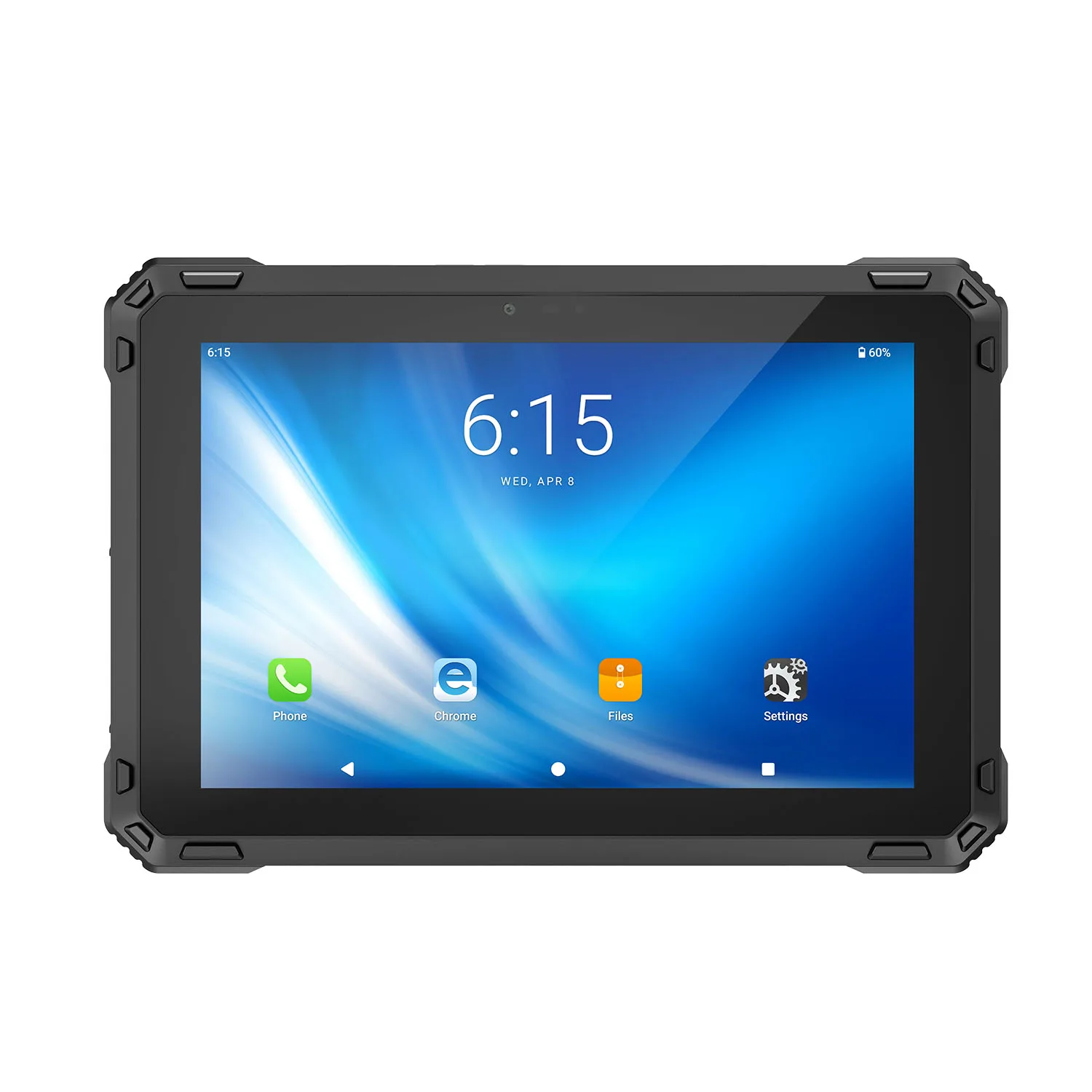
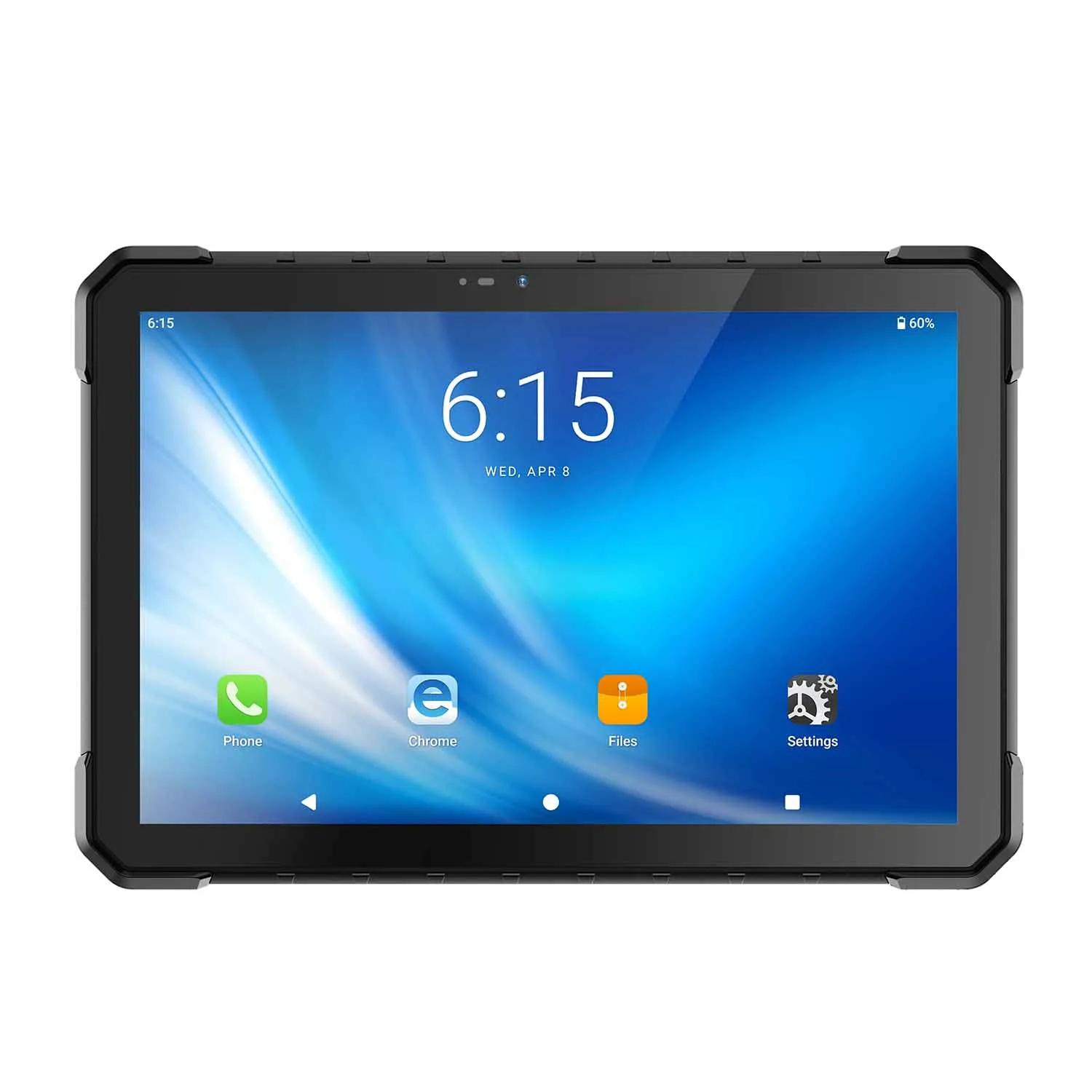
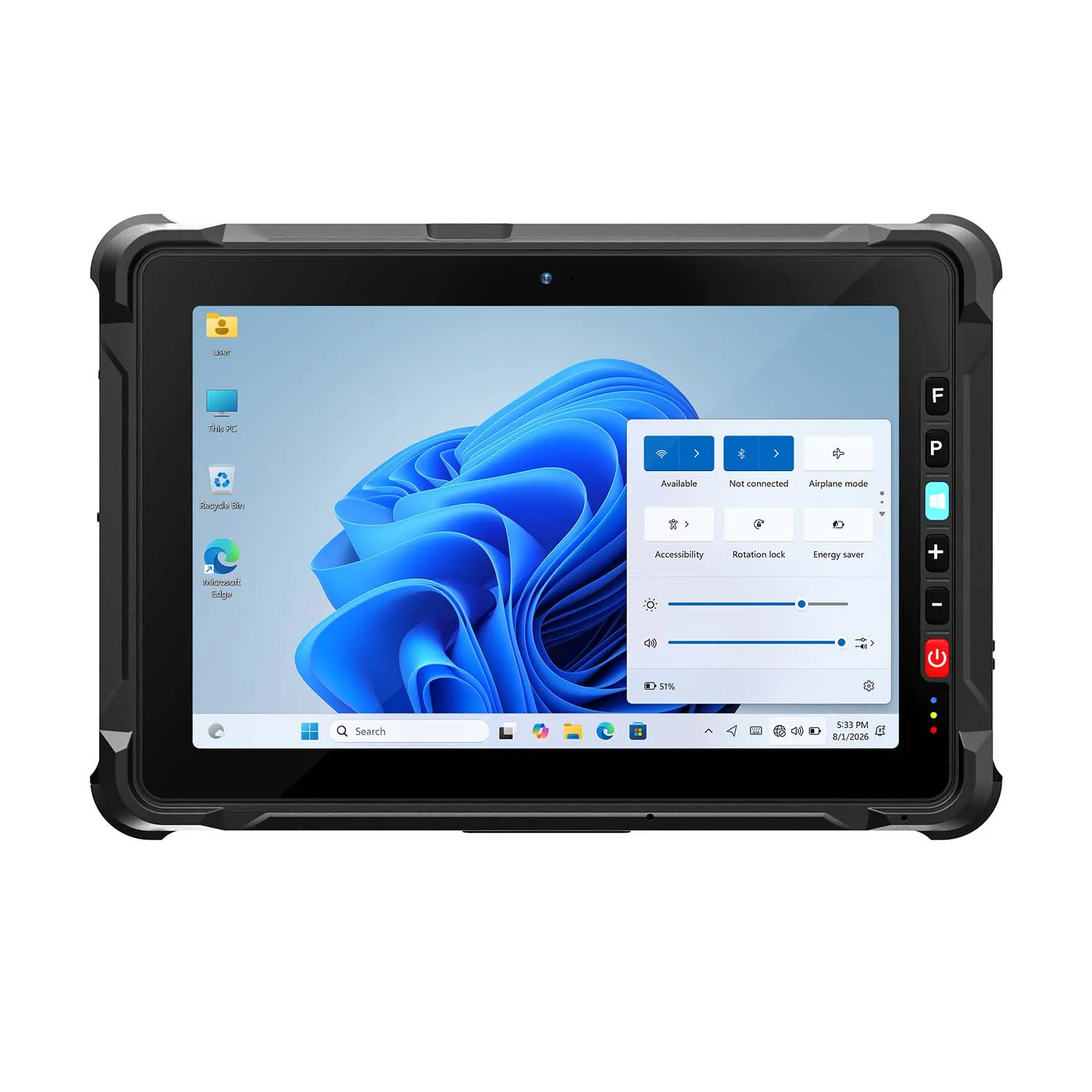
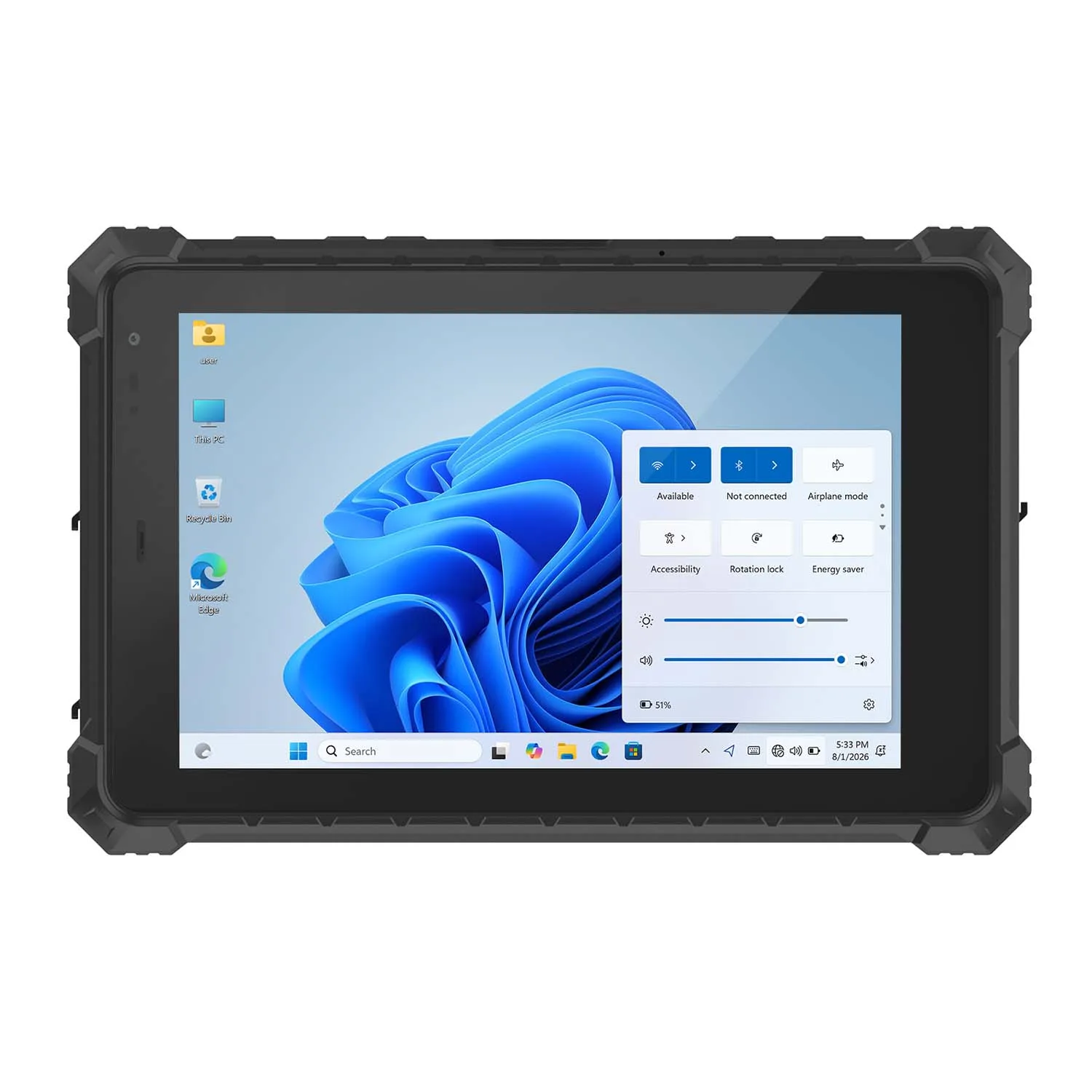
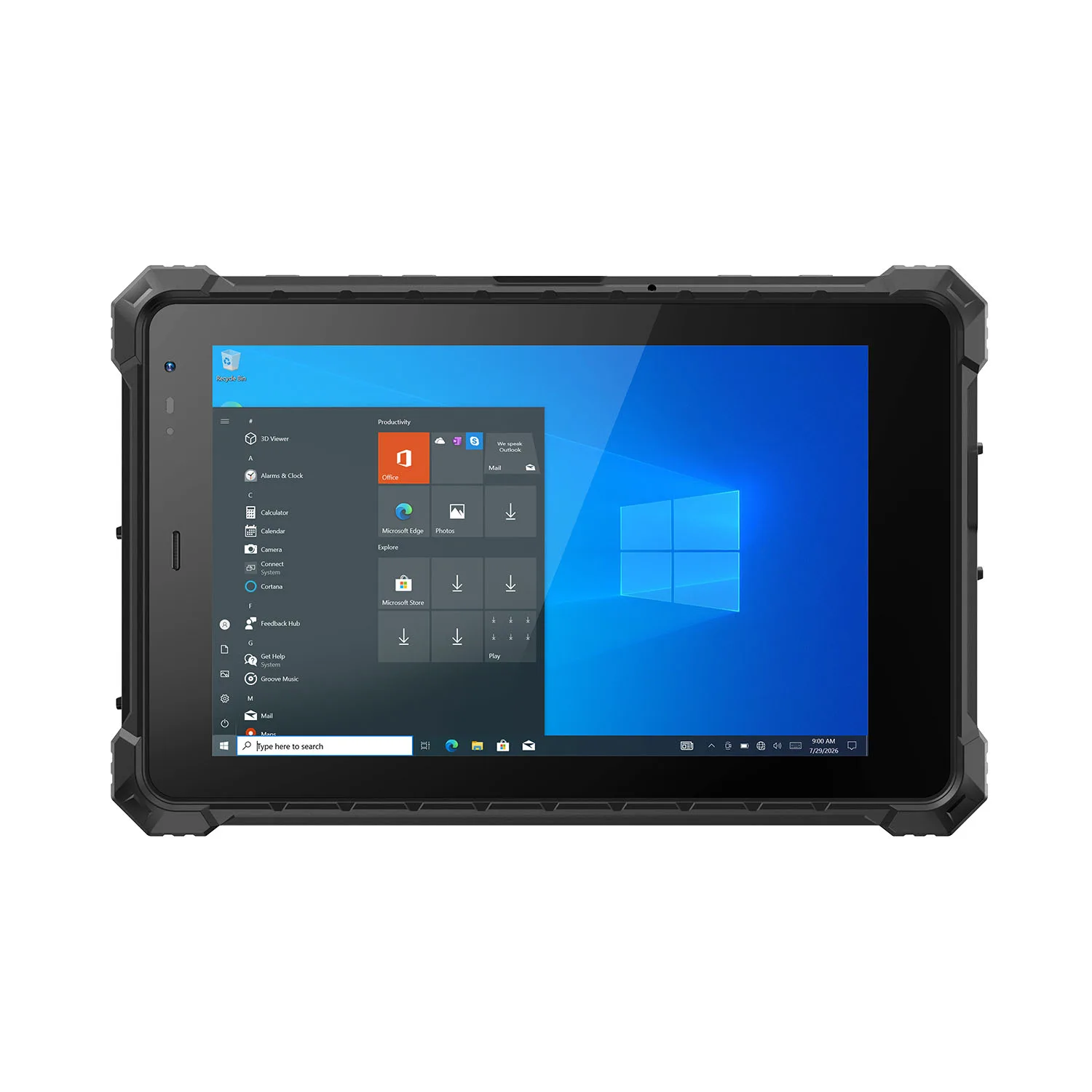
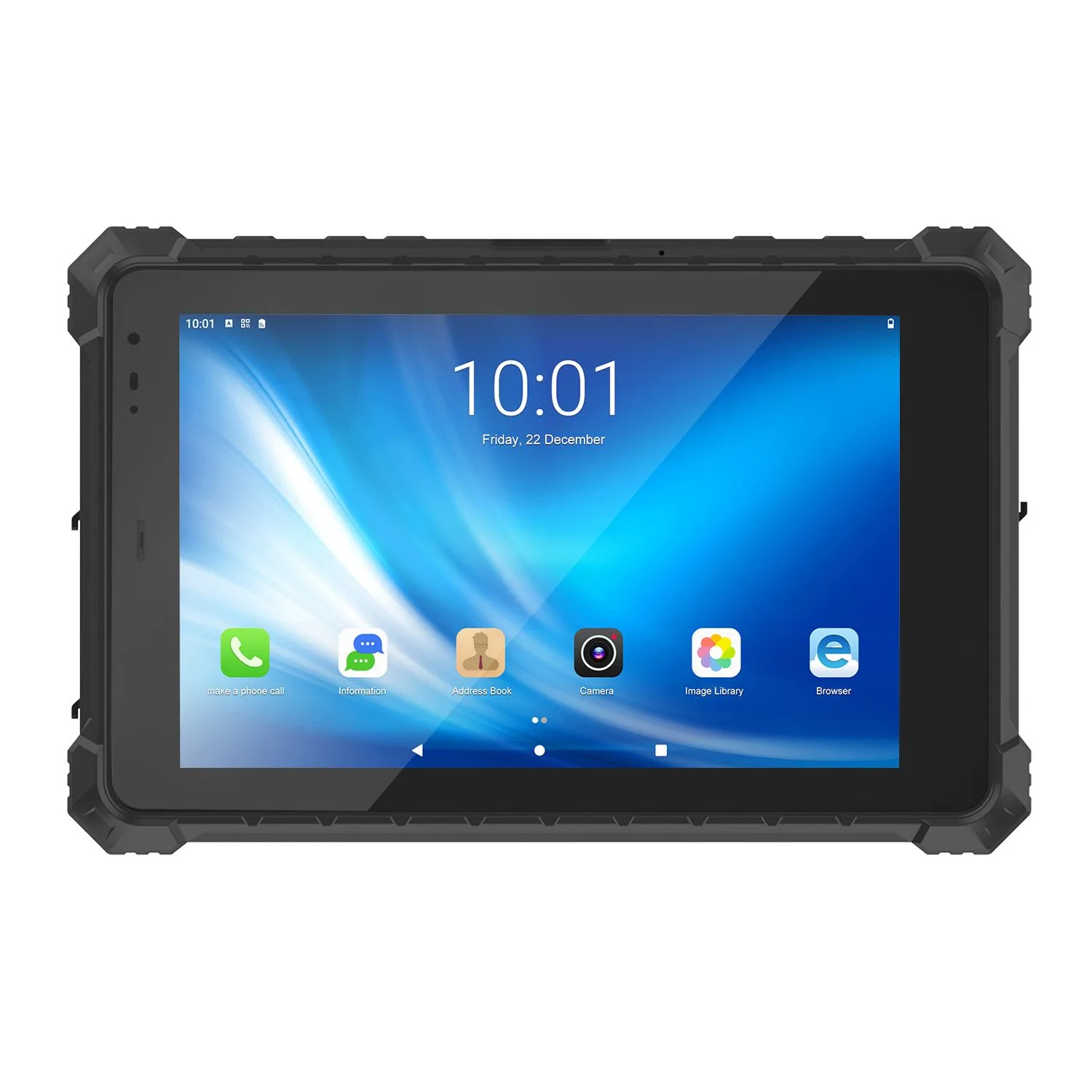
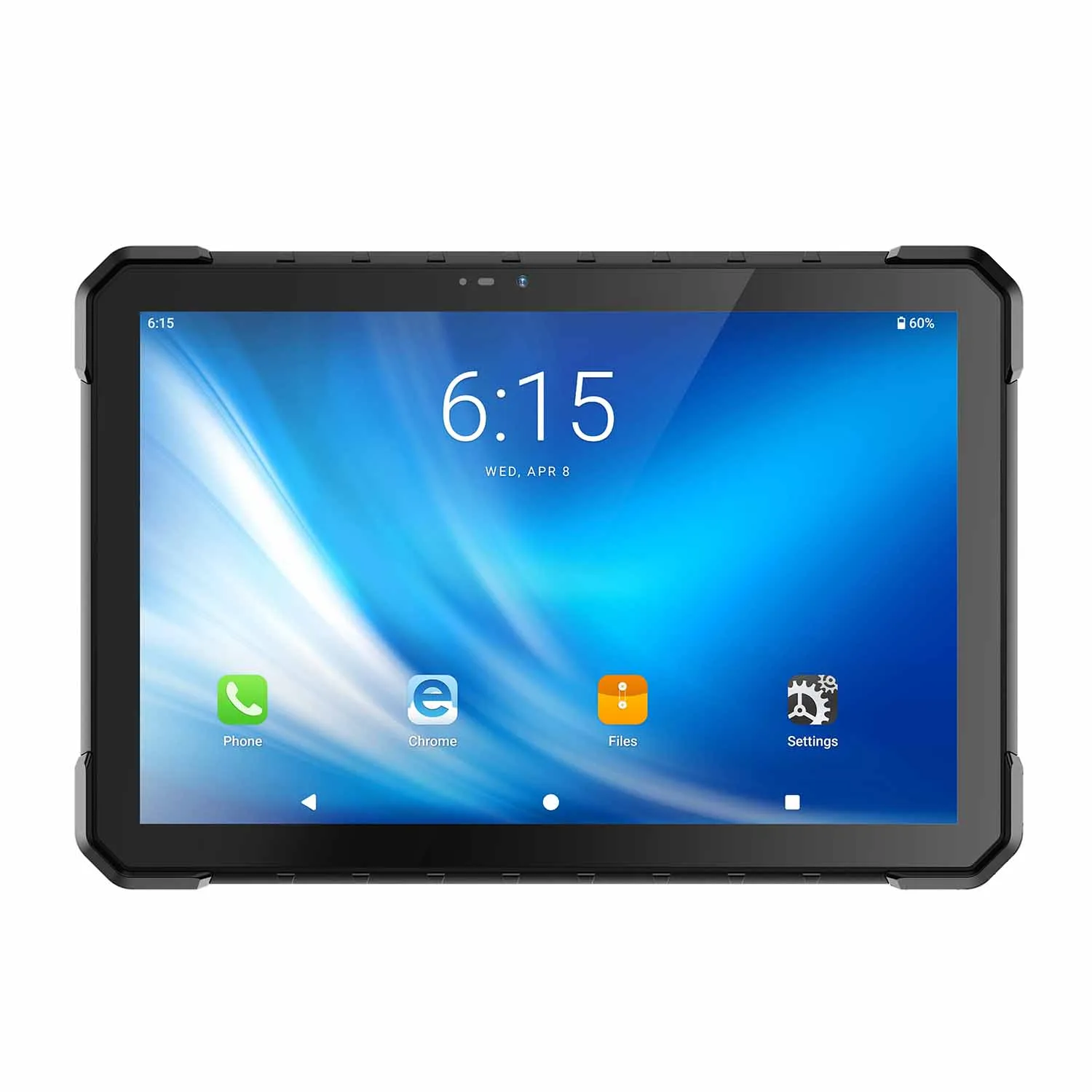
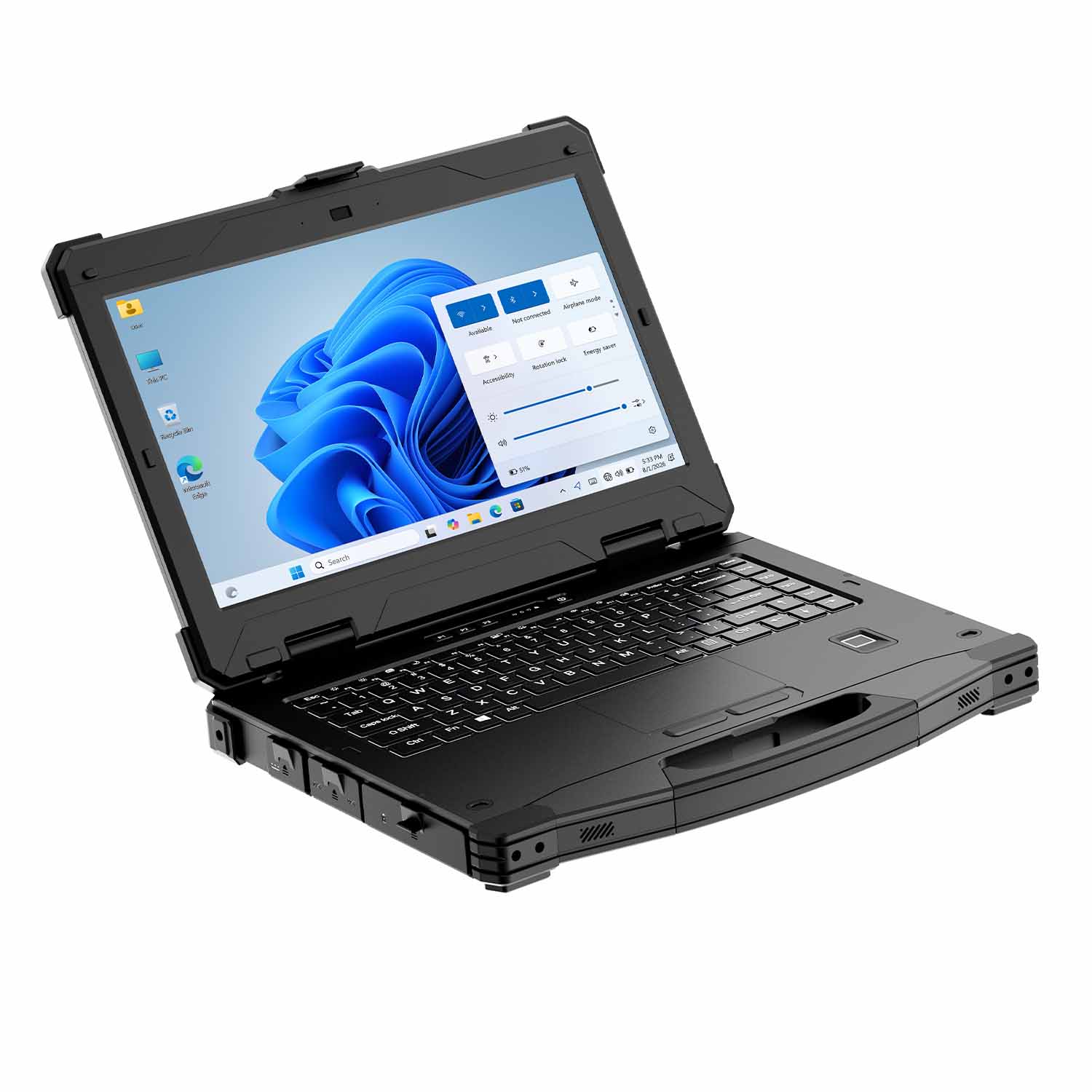
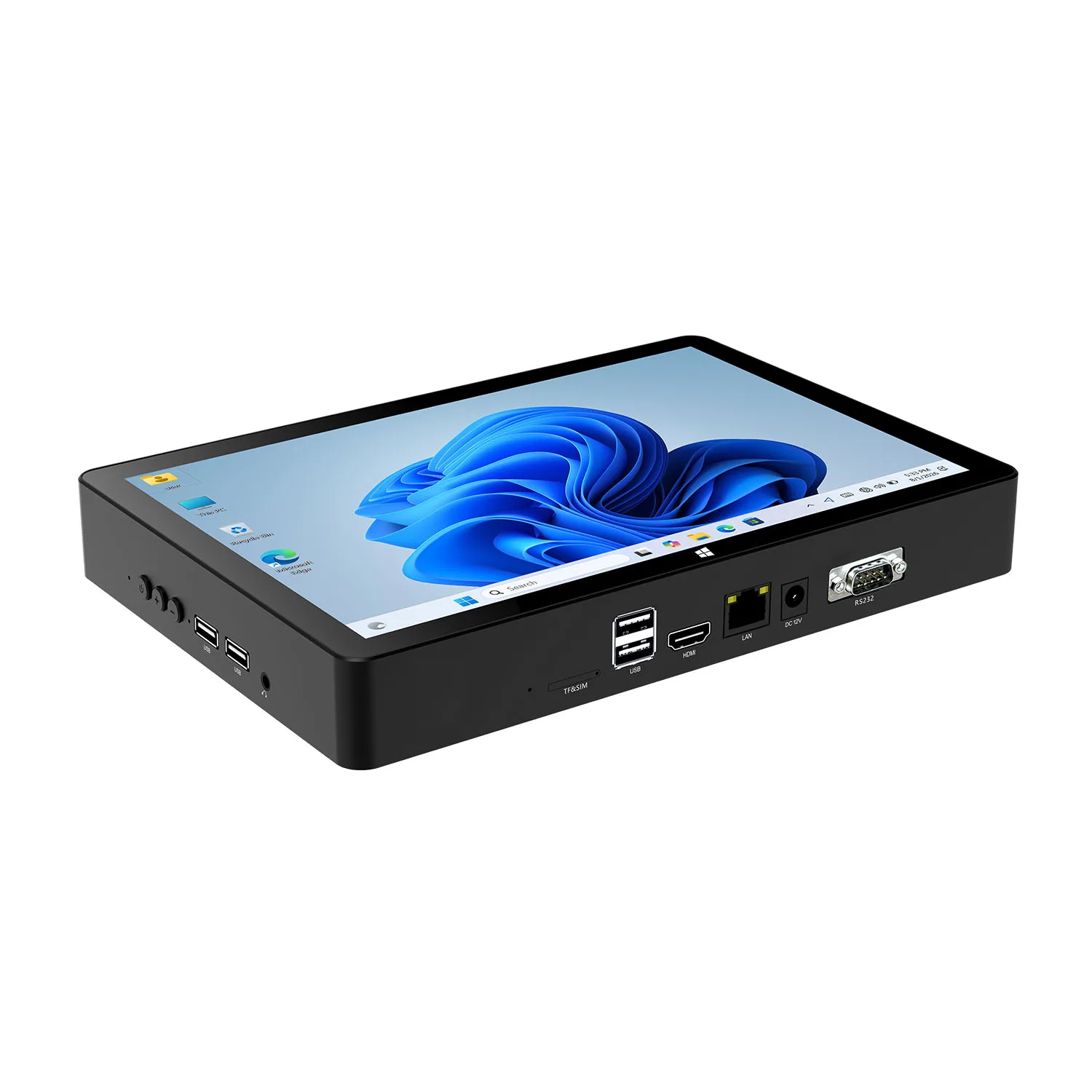
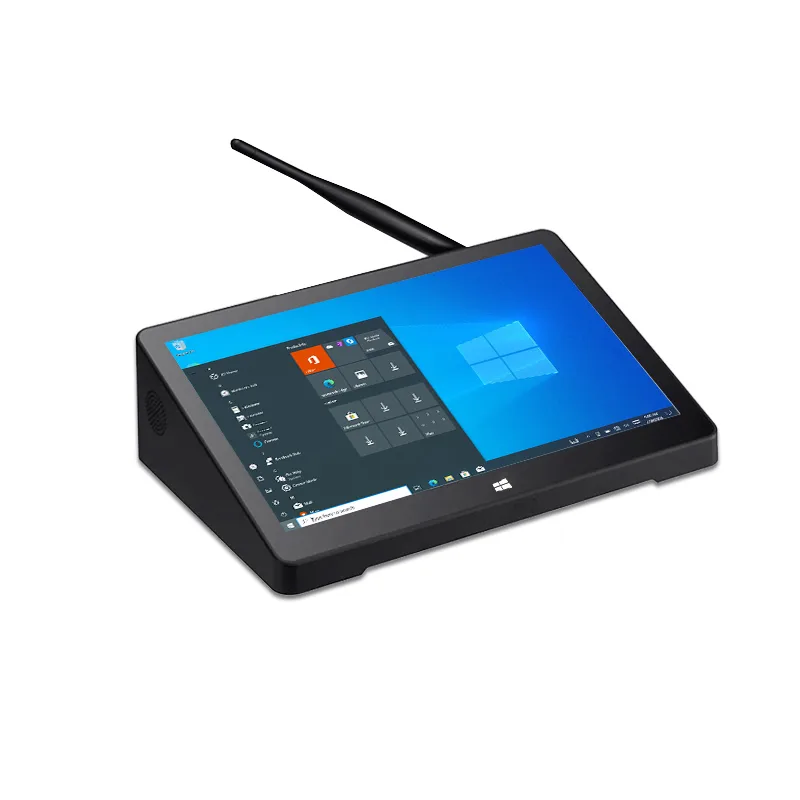
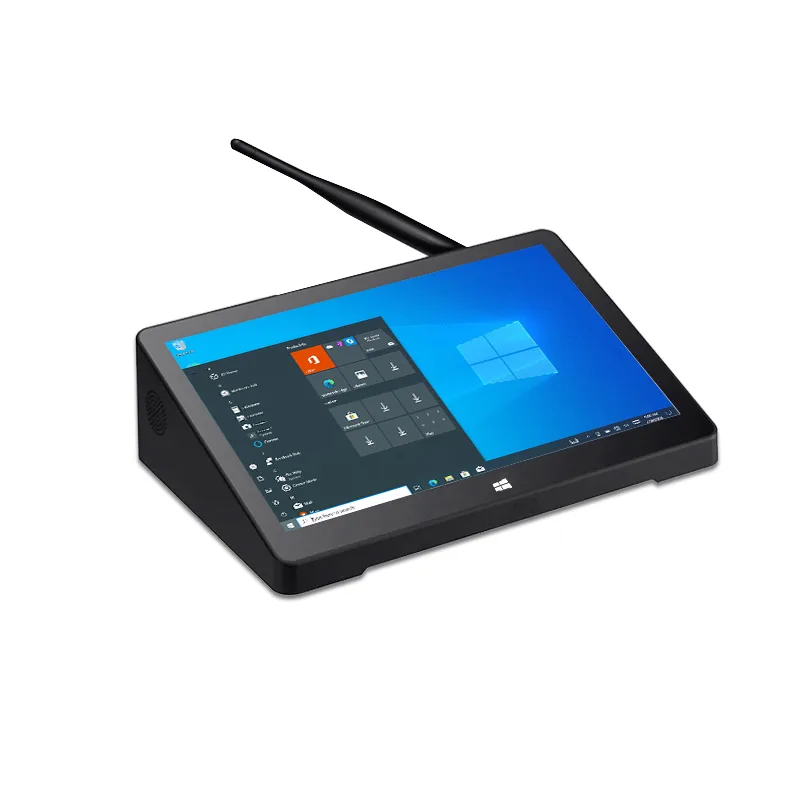
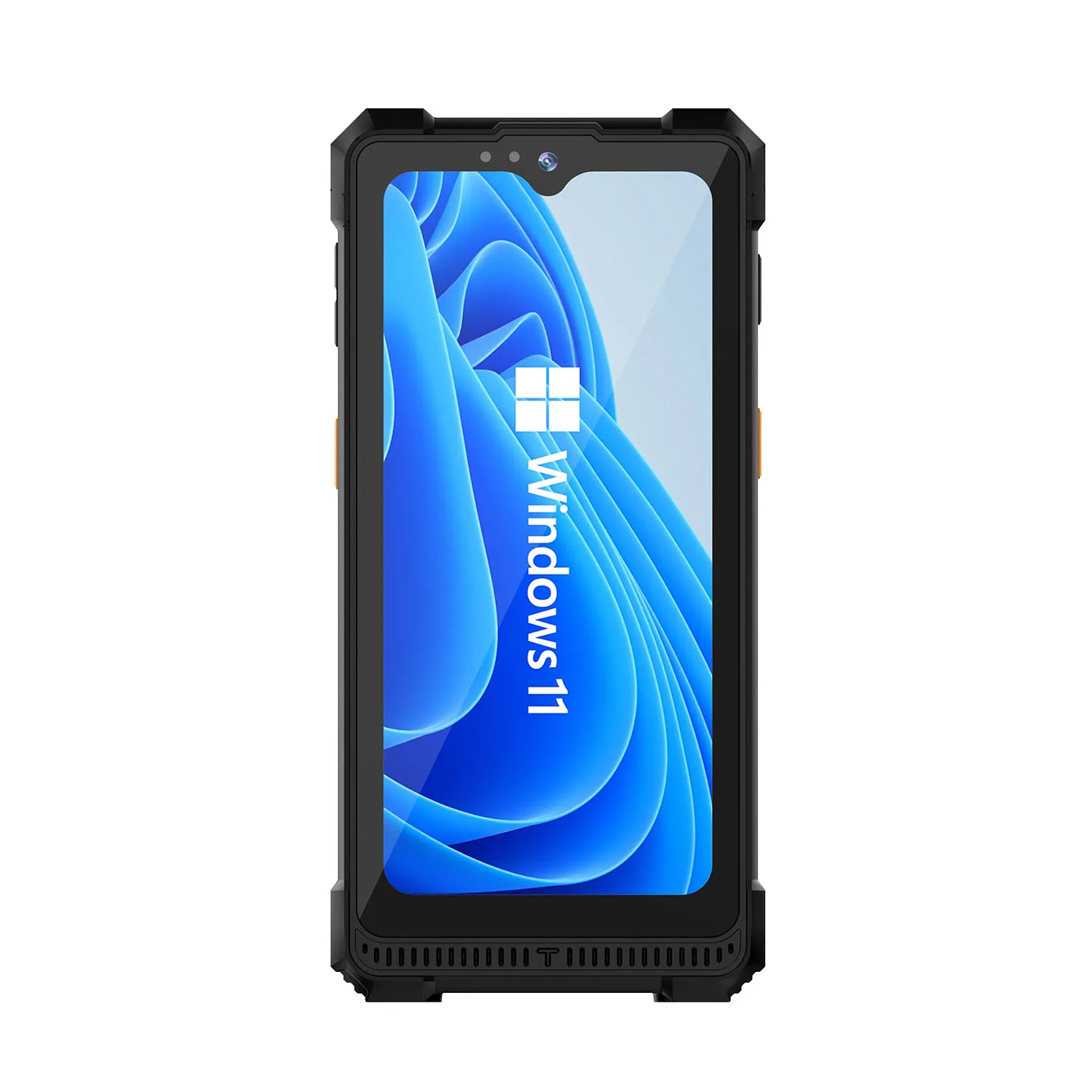
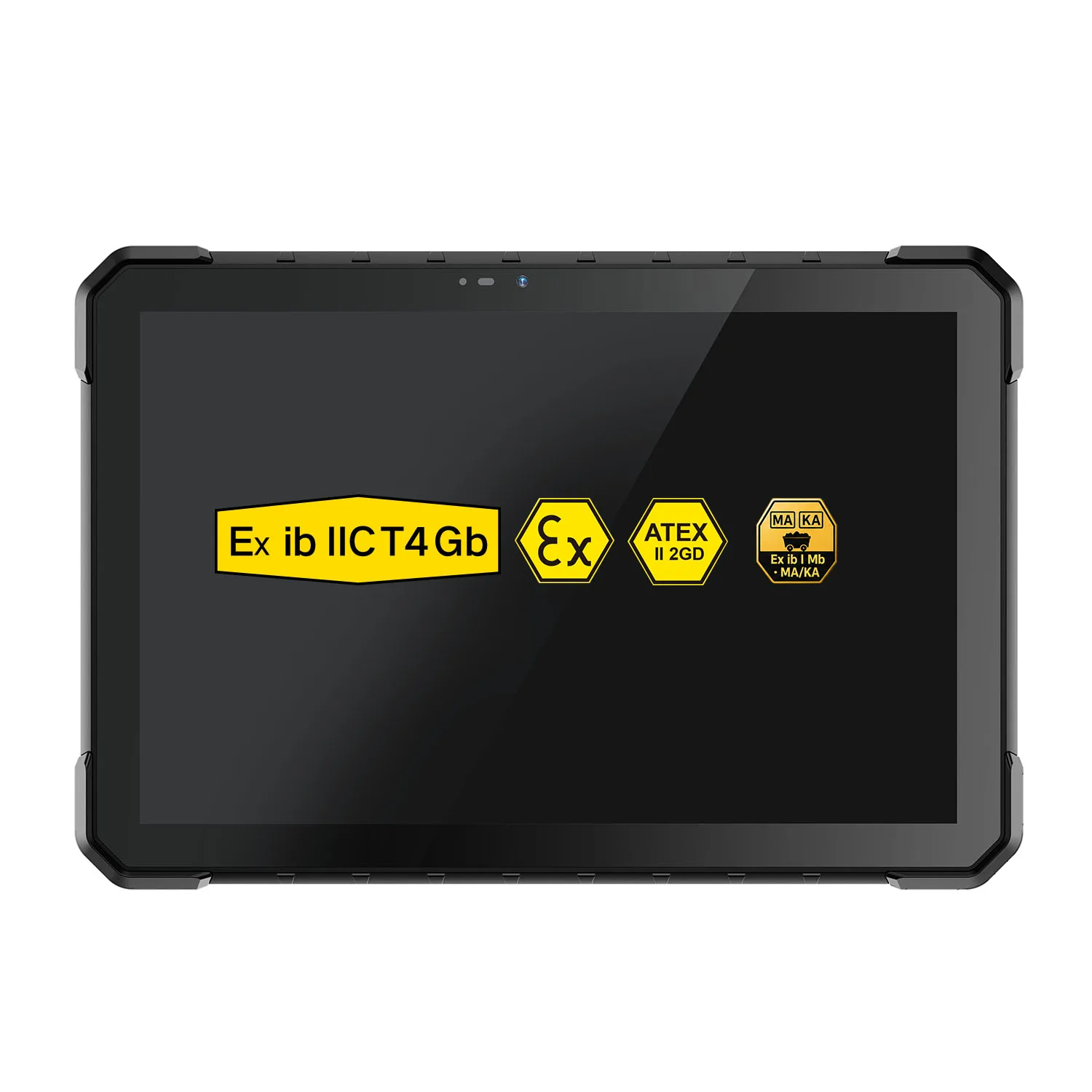
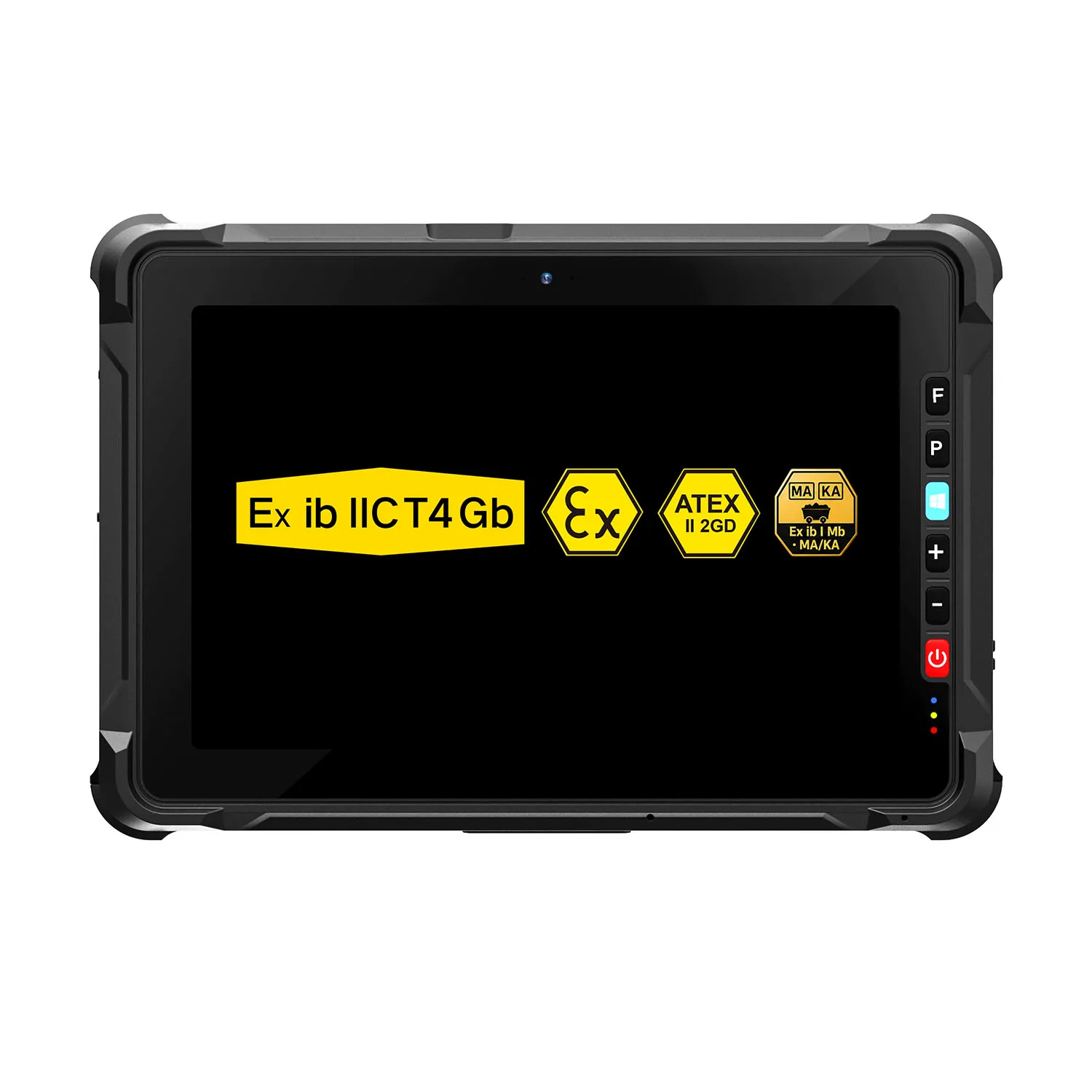
| W10N N5100 | 10.1-inch | Windows | USB, RJ45, DB9 RS232 and 12-pin POGO | Optional vehicle dock and backplate mount |
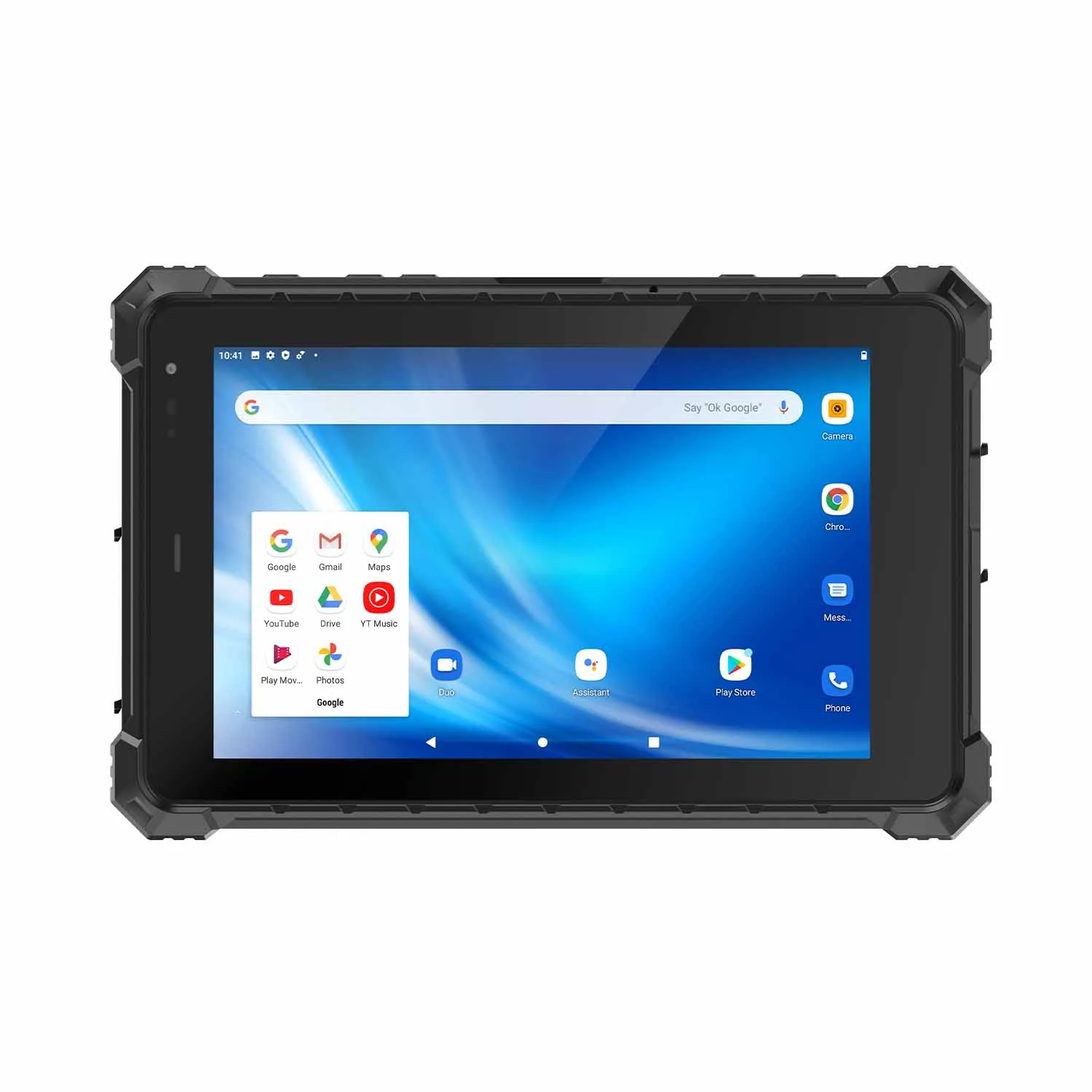
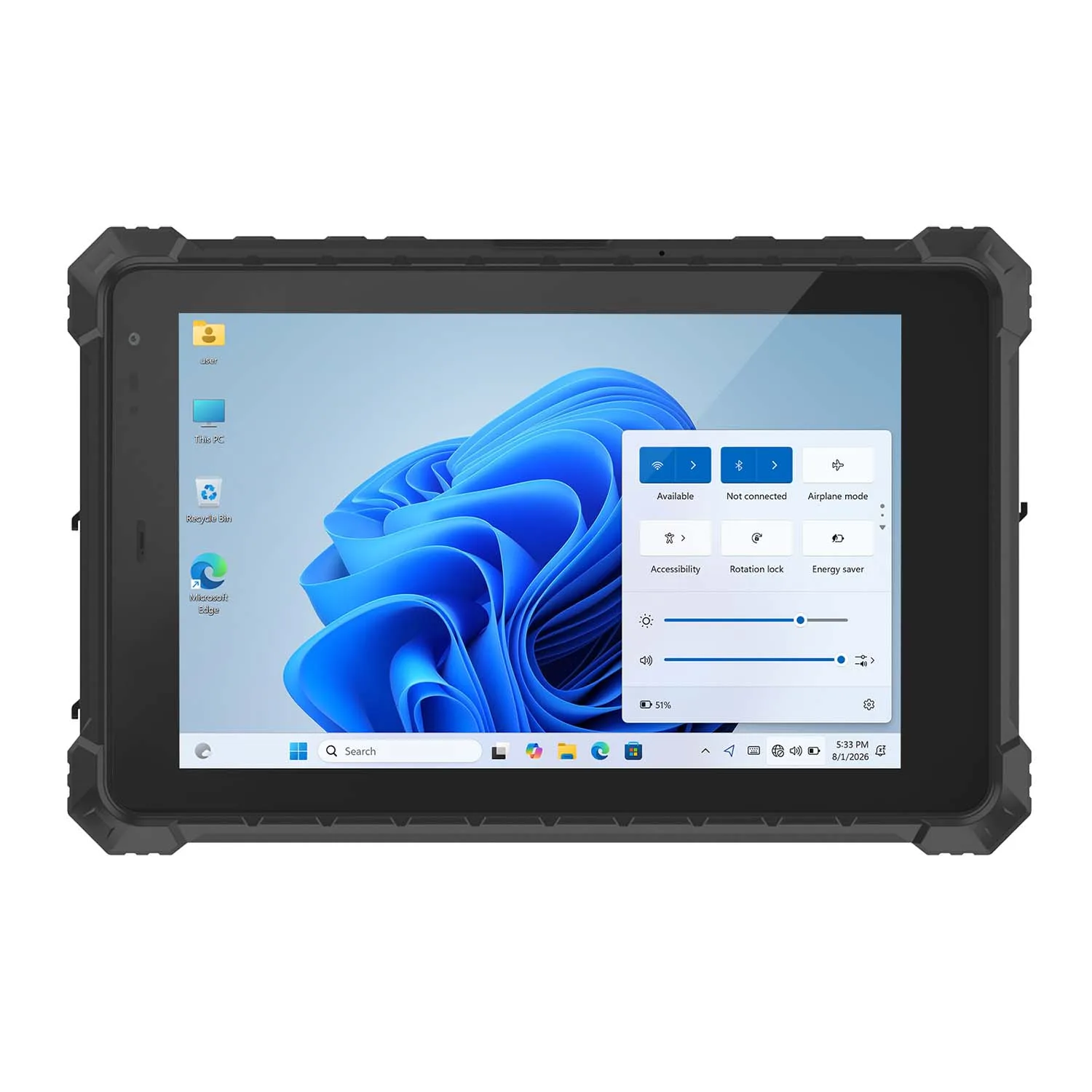
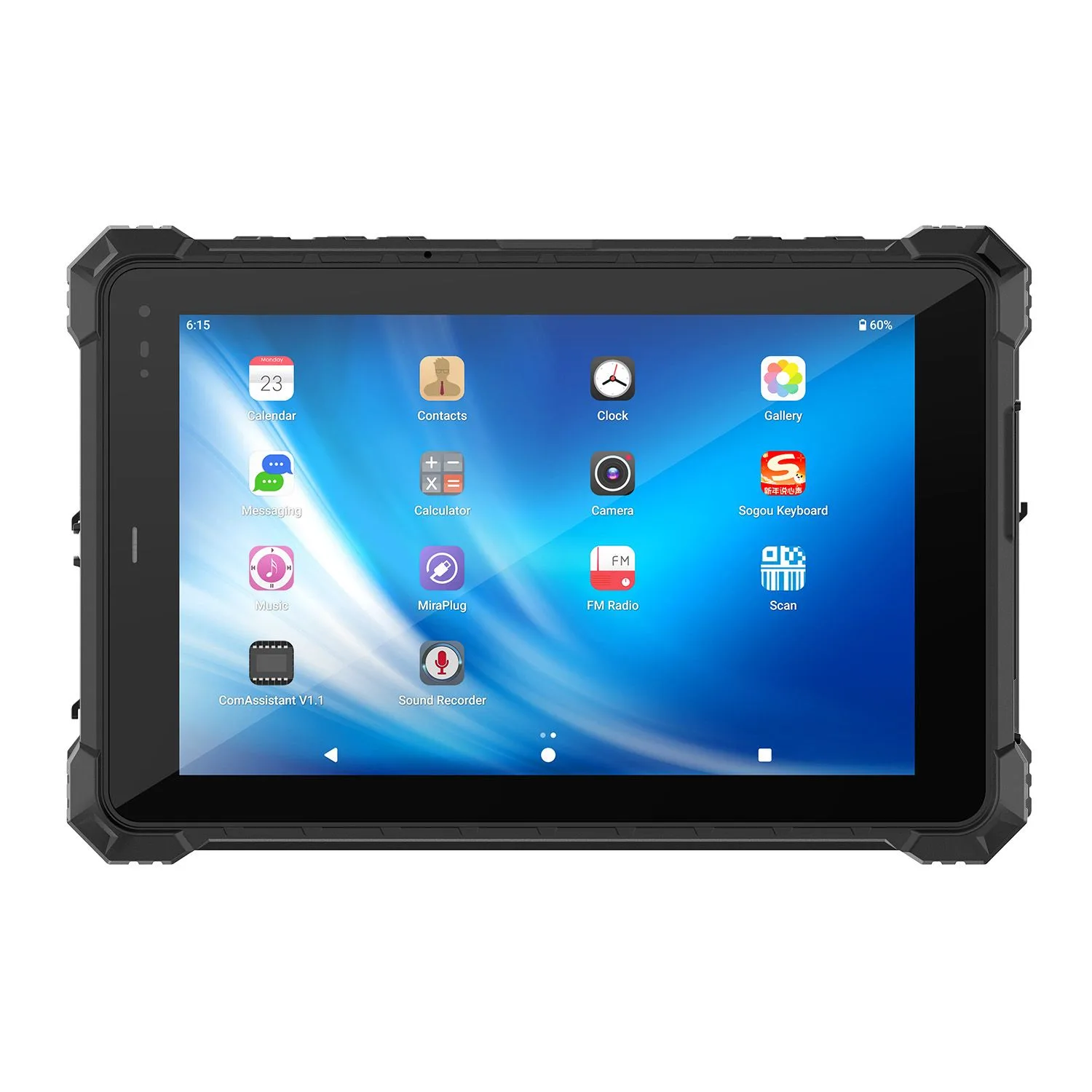
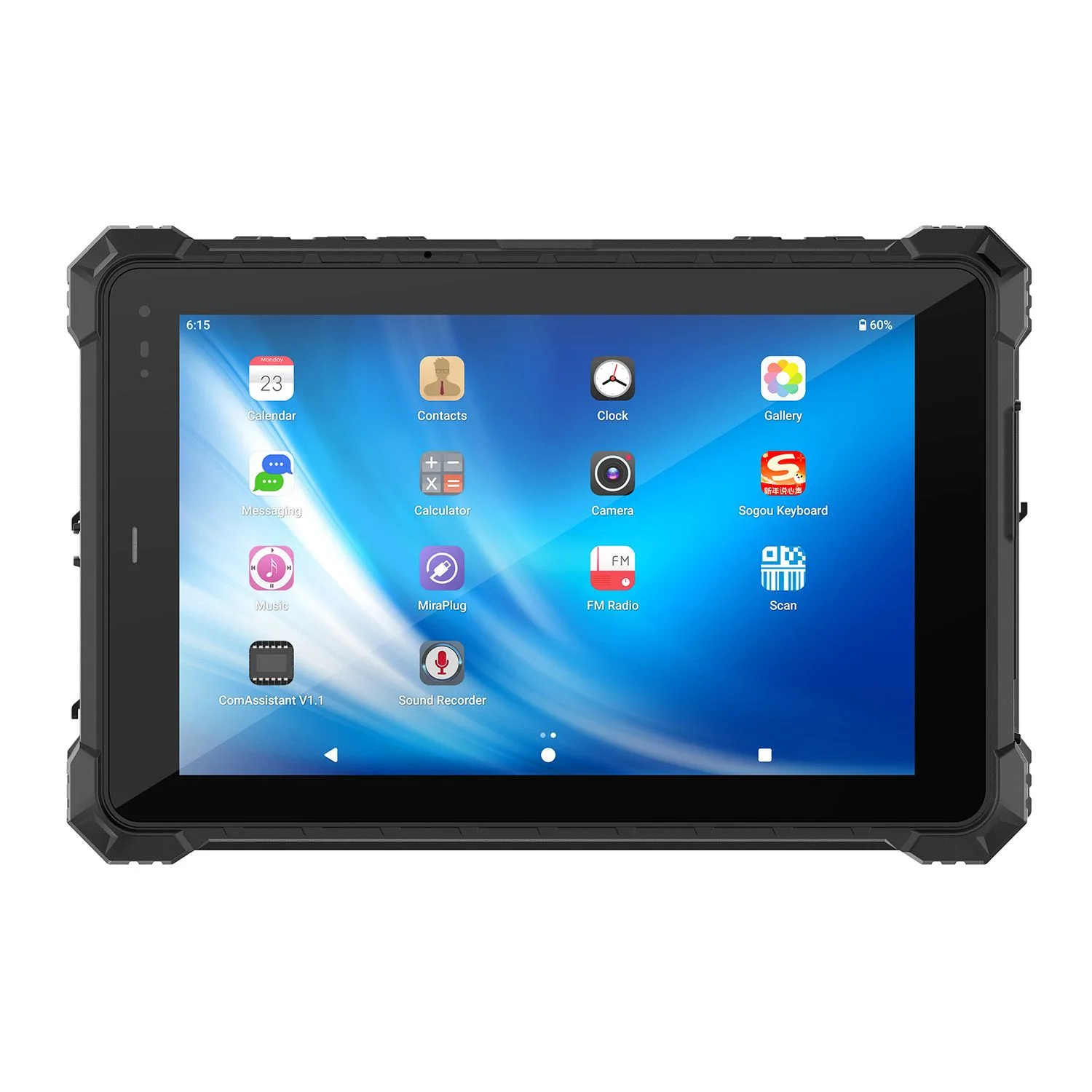
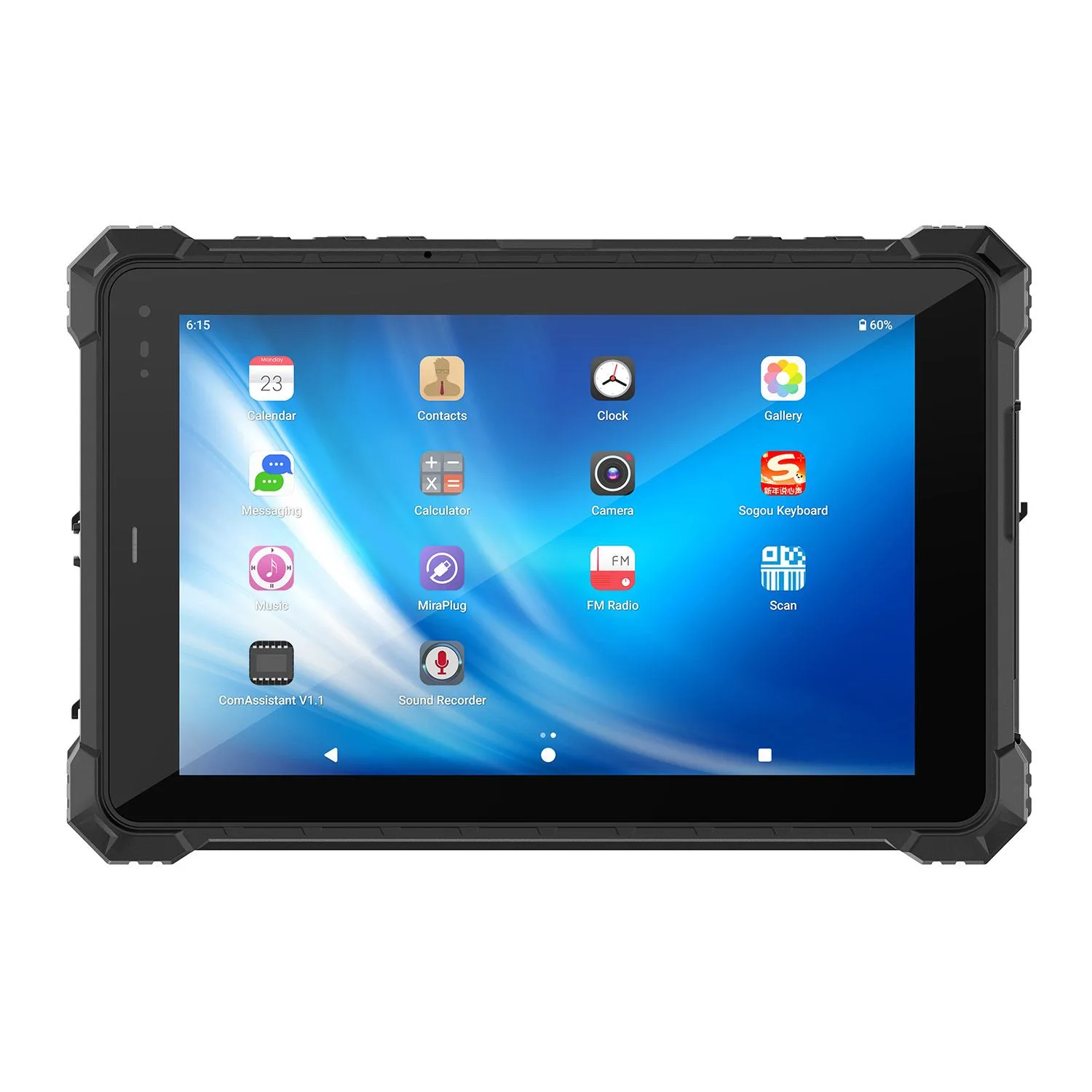
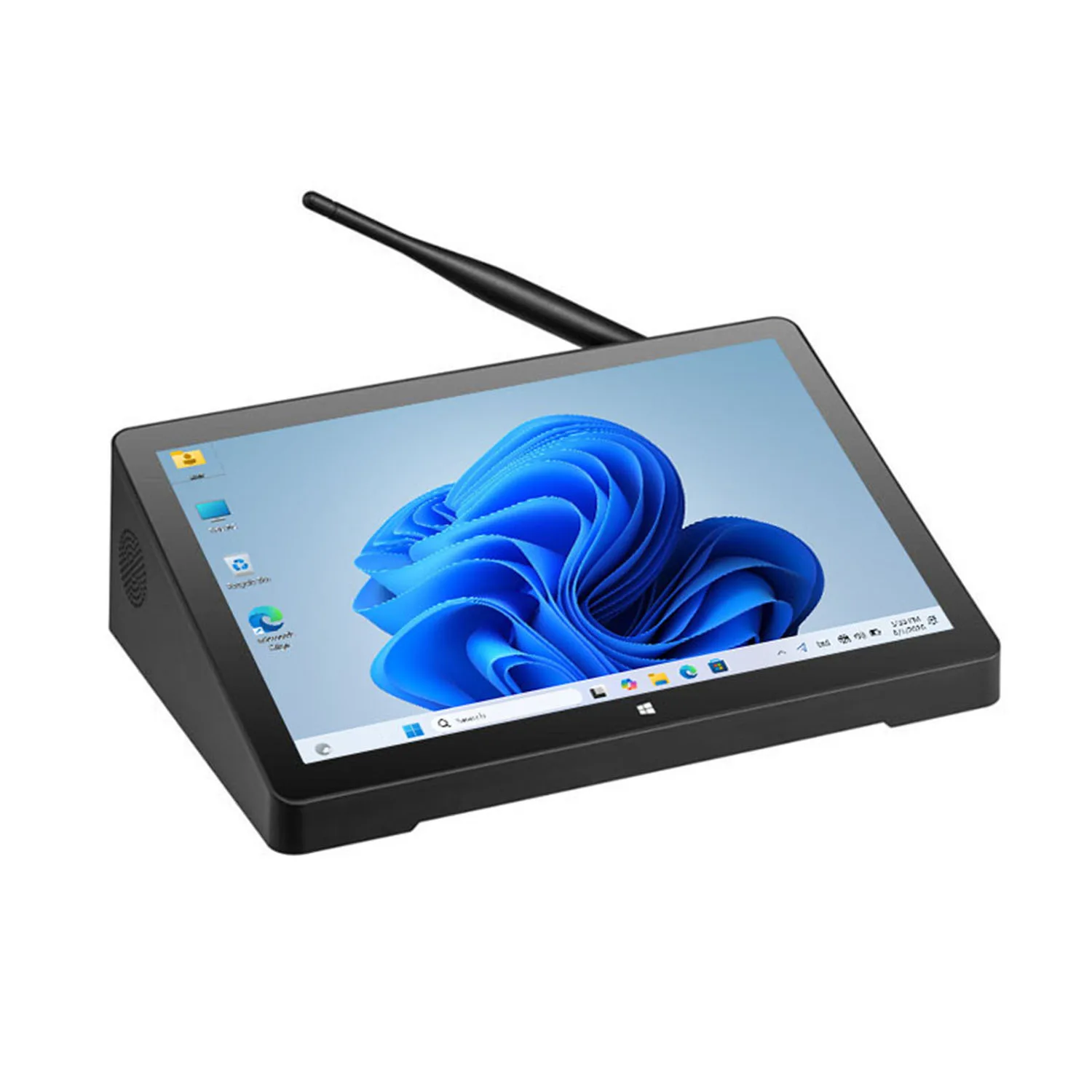
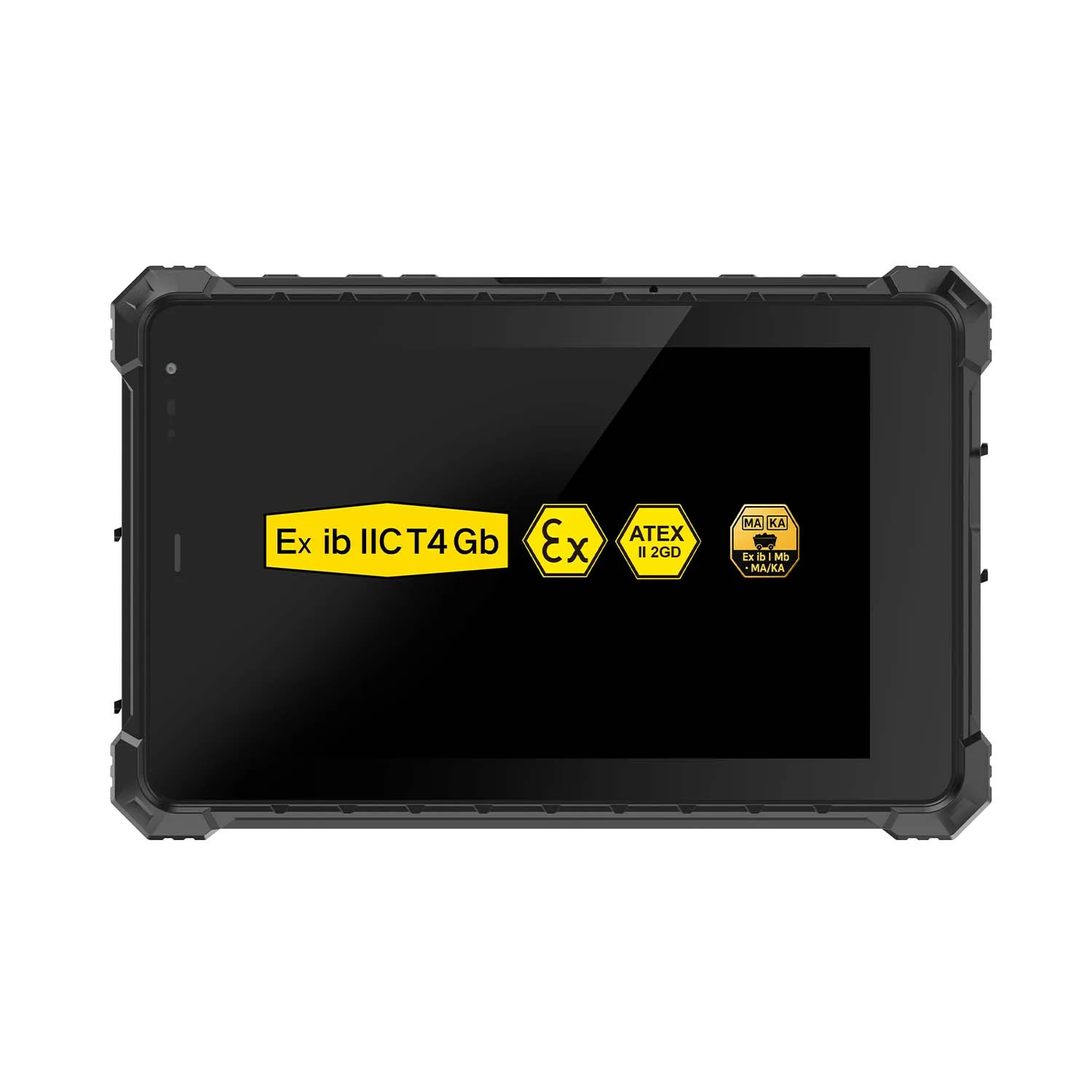
| W80N N5100 | 8-inch | Windows | USB, RJ45 and 12-pin POGO | Optional vehicle dock and backplate mount |
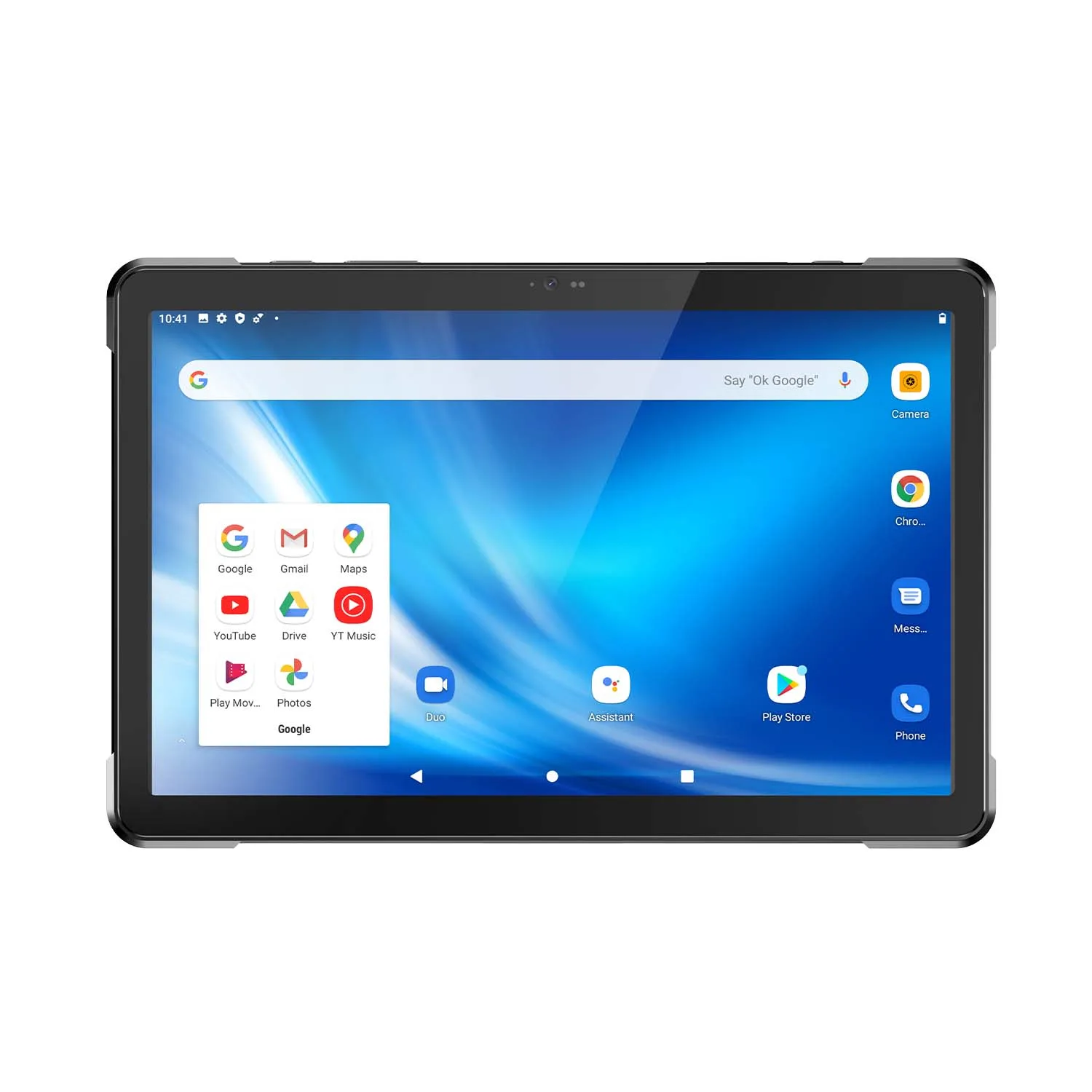
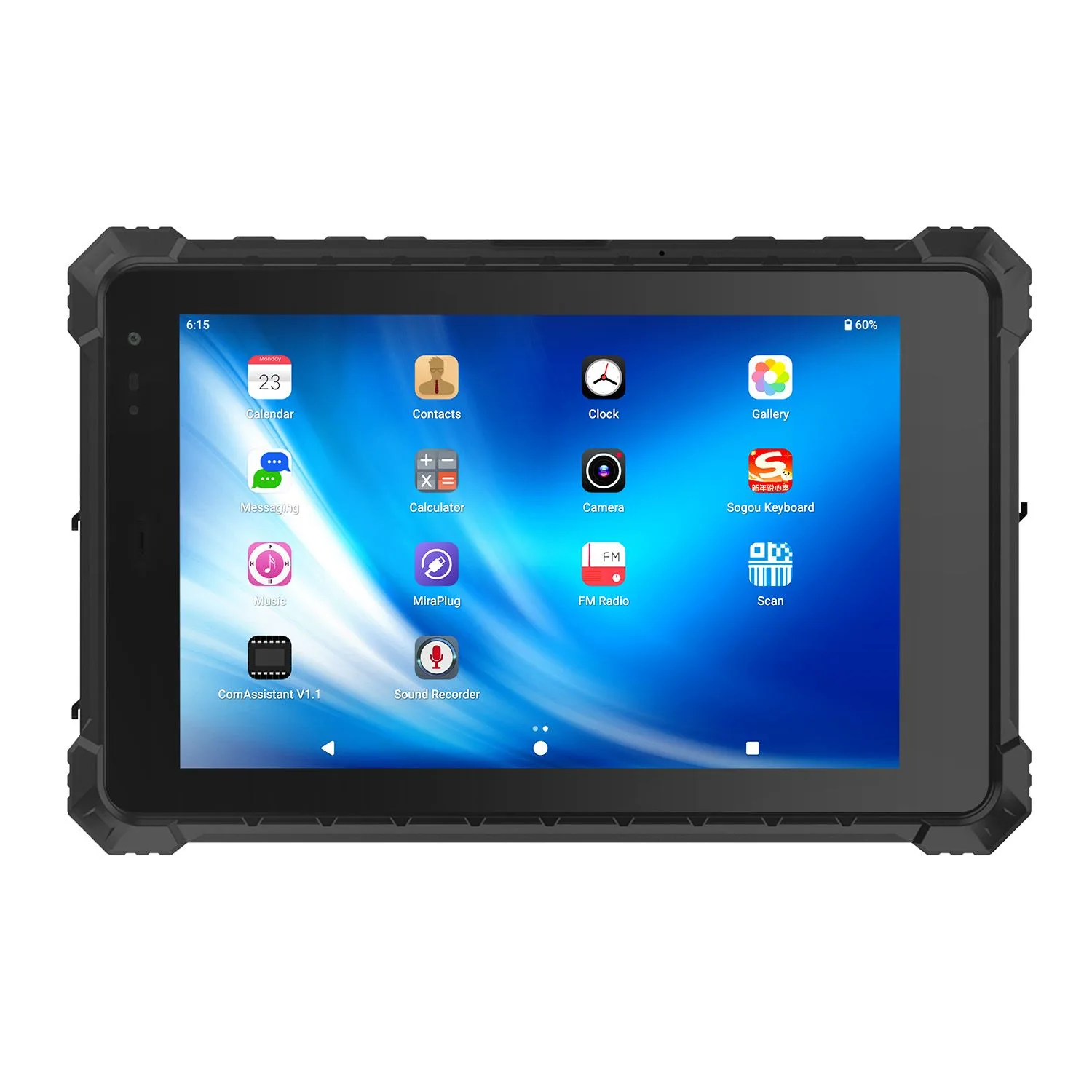
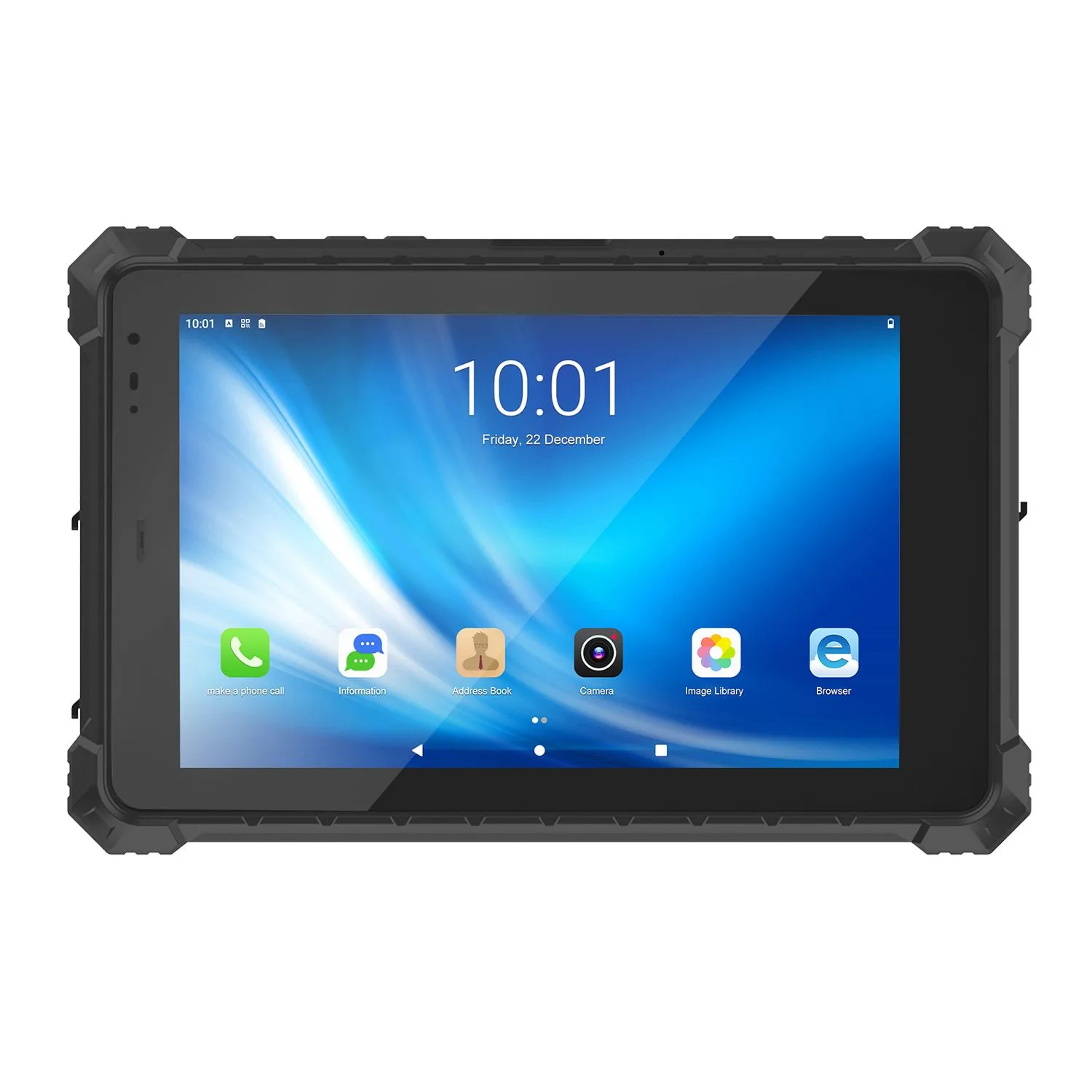
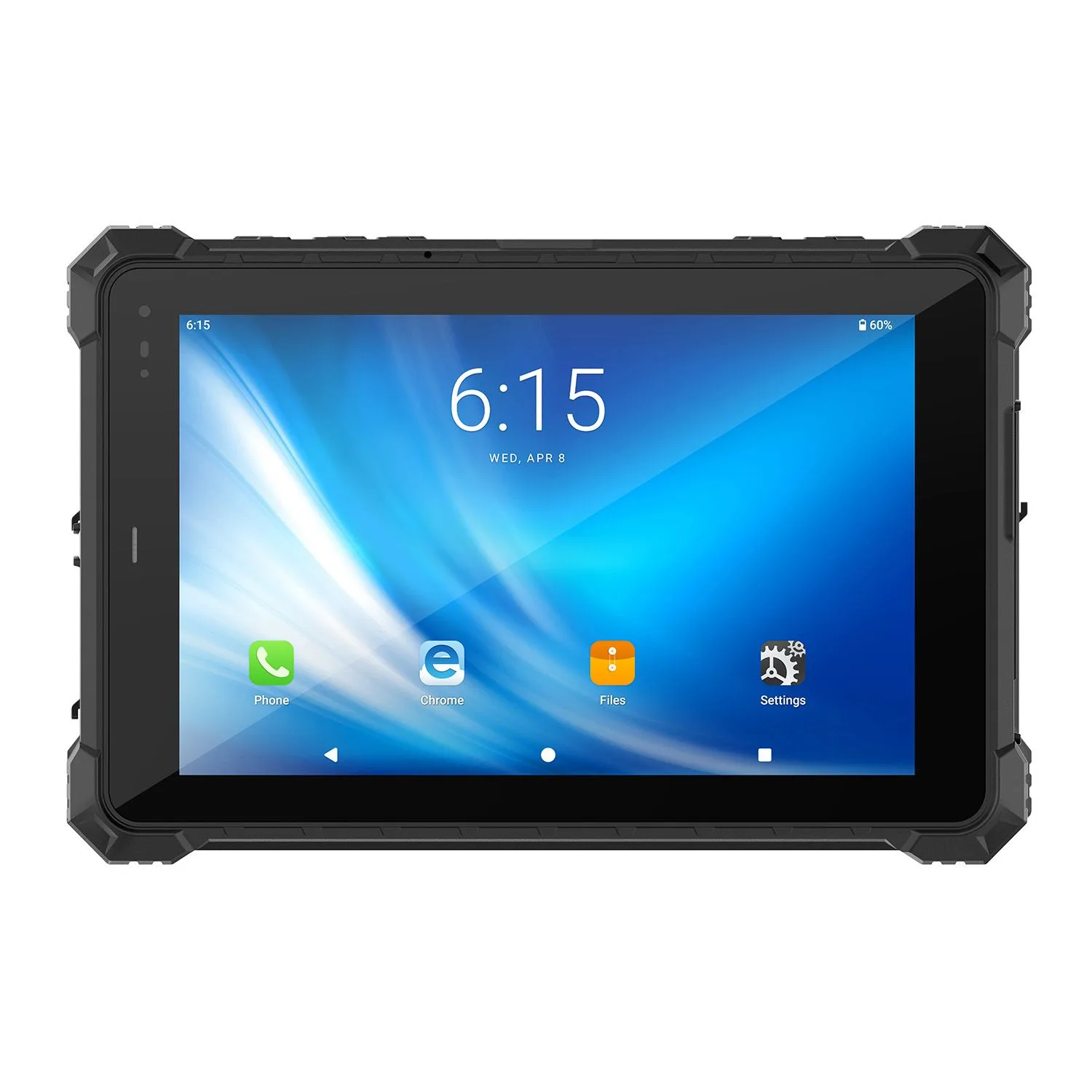
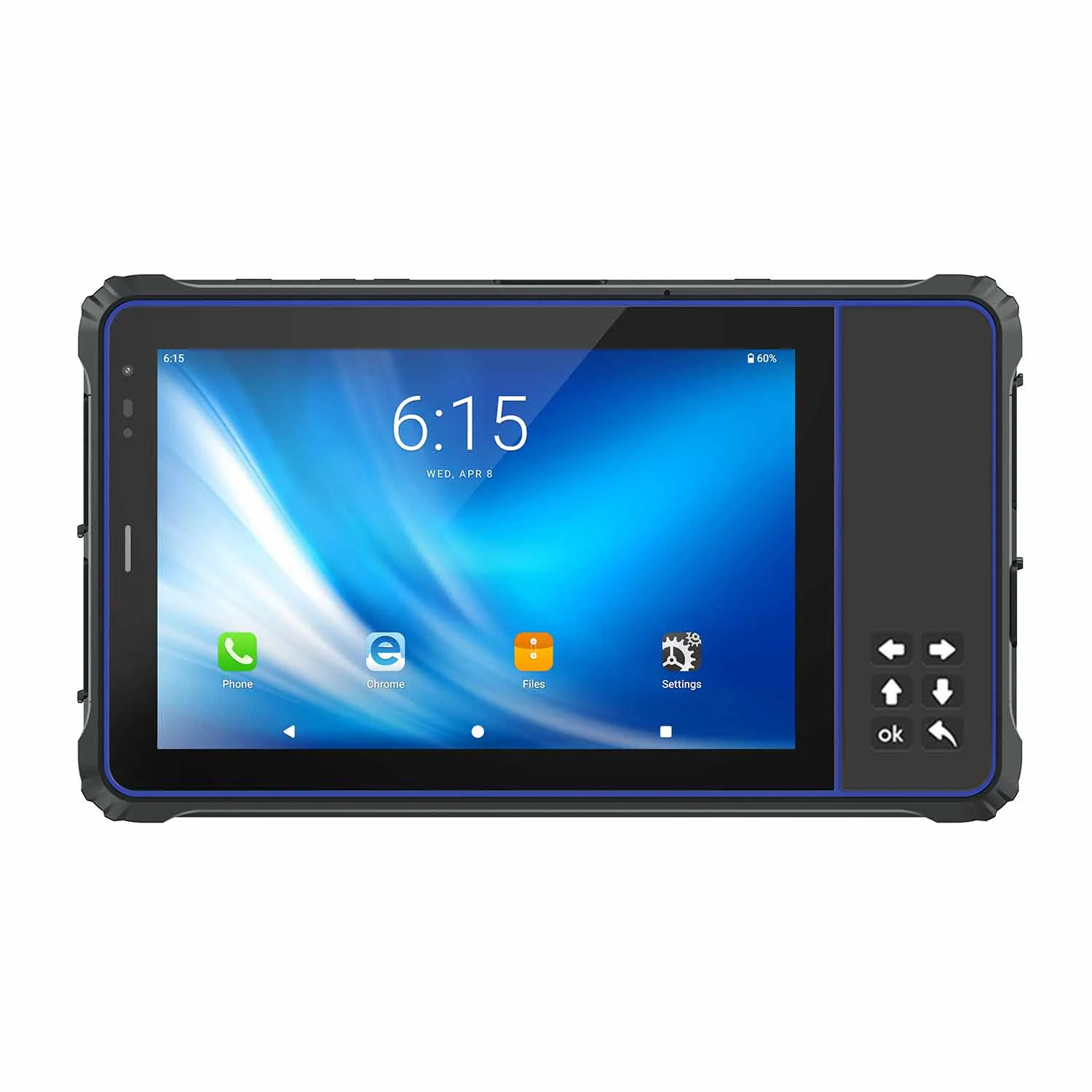
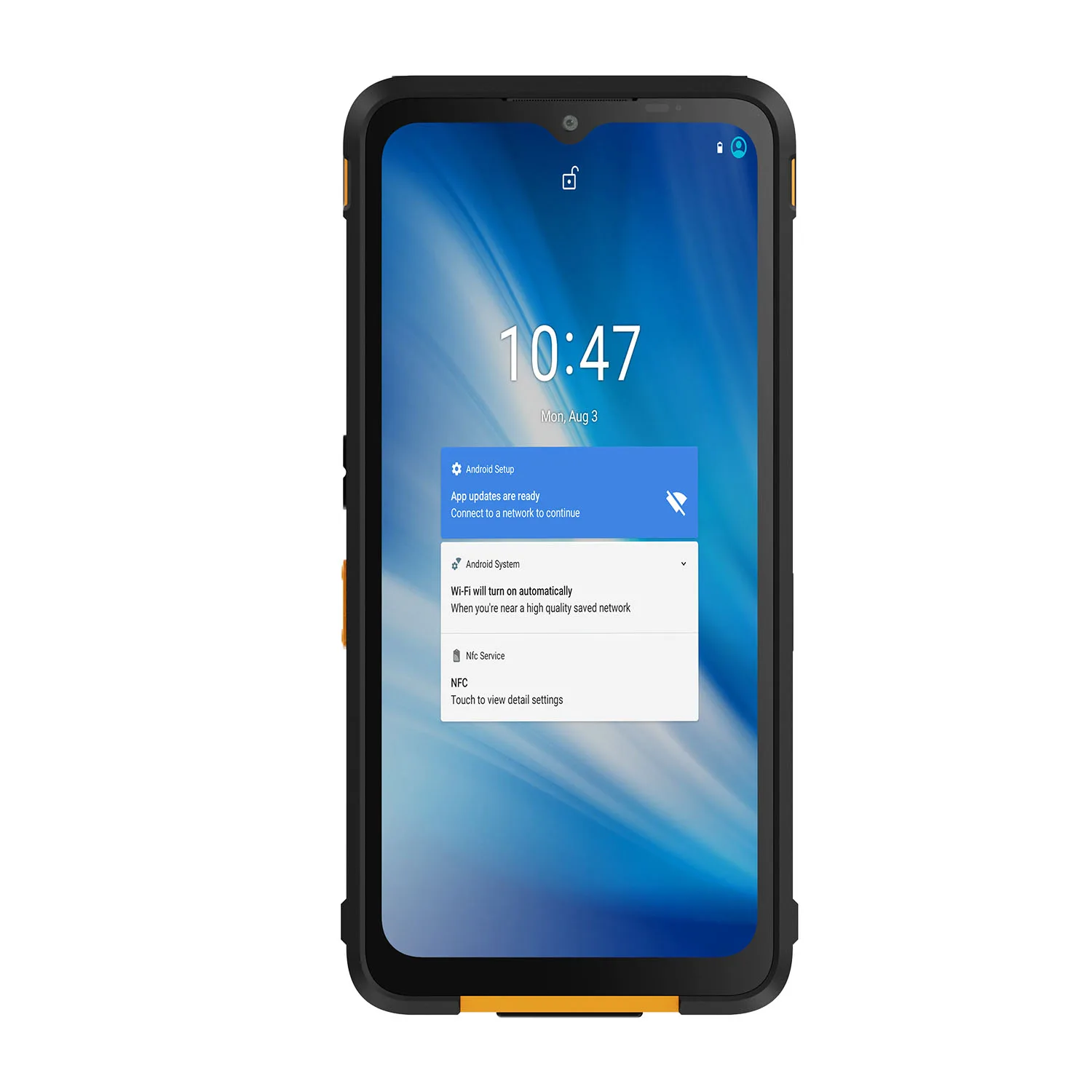
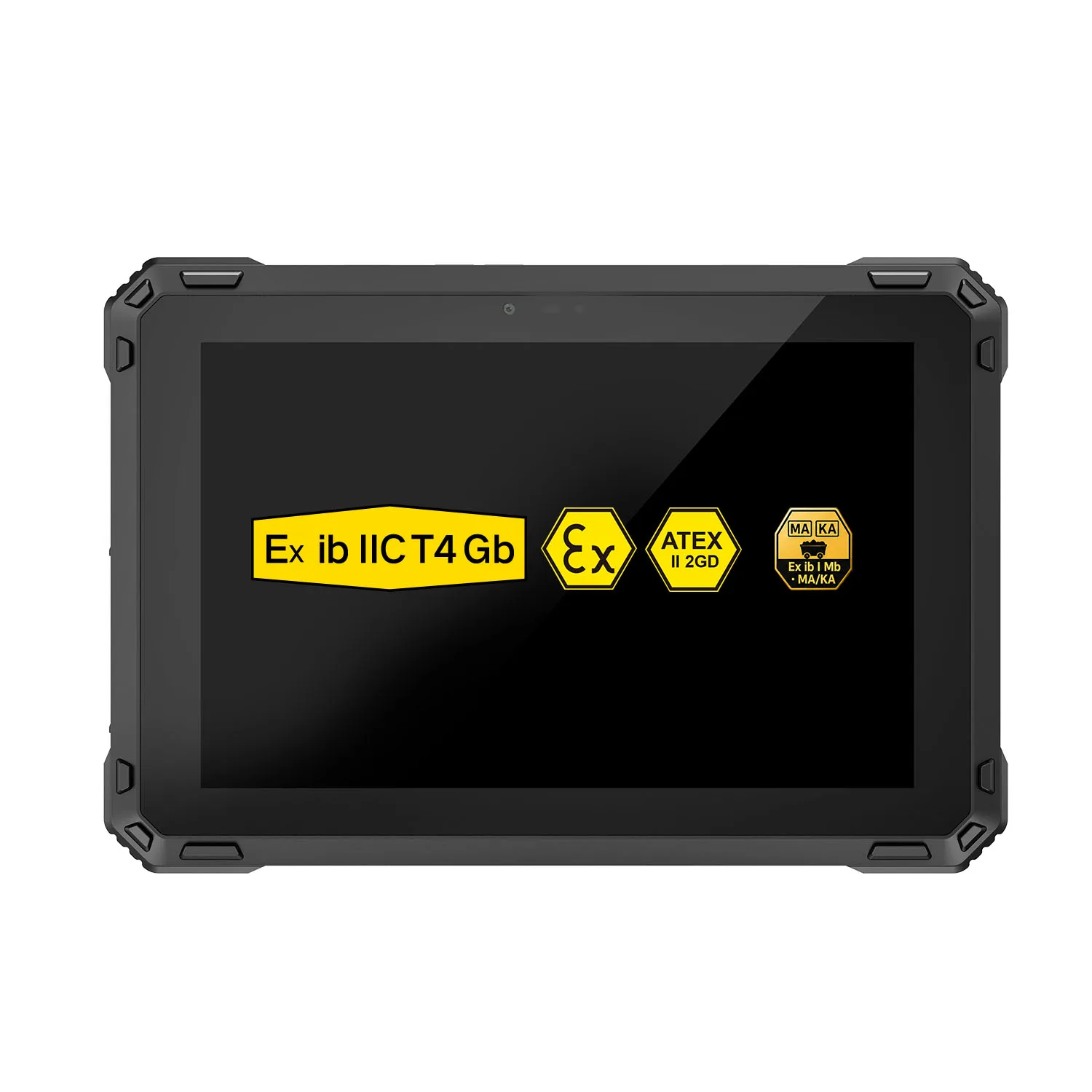
| A10ST MT8781 | 10.1-inch | Android 13 | USB, RJ45, RS232 and 12-pin POGO | Optional backplate mount and charging dock; vehicle installation requires project review |
Start with the W10N when your Windows workflow needs a built-in DB9 serial port. Pick the W80N where a smaller screen fits the cab better. Go with the A10ST MT8781 for Android applications — its vehicle installation goes through our project review. Whichever you choose, we check the OS version, accessories and the full installation spec with you before anything ships.
OEM Configuration for Fleet Projects
CENAVA offers OEM/ODM options for branding, hardware configuration, software customization and accessories. Share the requirements common to your vehicles, then identify any differences in mounting, power and peripherals.
Pilot one installation before the fleet rollout. Watch how the tablet docks and charges on representative jobs; test wireless reconnection on the actual route, plus the move between mounted and handheld use. Once the pilot passes, we lock the approved hardware and software configuration so repeat orders come back identical.
Frequently Asked Questions About Vehicle Mounted Tablets
1. What is a vehicle mounted tablet?
A vehicle mounted tablet is a tablet installed in a cab or operator area using a compatible mount or dock. It provides access to applications such as warehouse management, dispatch and field service, while a removable setup allows work to continue outside the vehicle.
2. Can a rugged tablet be used on a forklift?
Yes, with a suitable installation. Select the tablet, mount, power supply and peripherals together. Evaluate the complete setup on your forklift, including visibility, access to controls, vibration and wireless coverage.
3. Should I choose Windows or Android?
Choose the platform supported by your application and connected equipment. Windows may be required for desktop service tools or specific drivers. Android suits compatible mobile WMS, delivery and inspection applications. Confirm the supported operating system version with your software provider.
4. Can these tablets connect directly to 12V or 24V vehicle power?
Do not assume it. The W10N specification shows a 12V DC input; the A10ST MT8781 shows 5V/3A. The installation needs a power solution matched to the tablet or dock on one side and the vehicle supply on the other — we size that converter for you.
5. Do vehicle mounted tablets support CAN bus, J1939 or OBD-II?
These functions require a supported vehicle interface and software. Specify the protocol, connector and data your application needs. Some projects take an external adapter, gateway or a customized interface — a USB or RS232 port on its own does not make the tablet speak J1939.
6. Can operators remove the tablet for scanning or inspections?
A compatible removable mount or dock supports exactly that workflow this workflow. Check how the tablet is released, which cables must be disconnected and whether the required scanner or other peripheral remains available after removal.
7. Can the tablet work when wireless coverage is lost?
Yes, if the application supports offline work. Define which records and documents must remain available locally, then test how new entries synchronize after reconnection. Cellular hardware alone does not provide offline application functionality.
8. What information should I send for a quotation?
Provide the vehicle type, application name, preferred screen size, operating system, vehicle supply voltage and estimated quantity. Include installation photographs, required peripherals, operating conditions, destination country and rollout schedule.